📊Interactive Question Slides 5 min read
Open Ended
Collect free-text answers, photos or drawings and show them as a live wall of cards.
What is Open Ended?
An Open Ended slide lets participants answer in their own words — a sentence, a paragraph, an idea or a question. Every answer appears on the big screen as a colourful card in a growing wall, so the whole room can read them together. You can also let people add a photo or draw a sketch with their answer, and ask for their name, email or avatar. Use it for feedback (“What should we change next time?”), reflections and exit tickets, idea collection, or any question where a word cloud would be too short.

Presenter creates the slide Click Present Share code / QR Audience enters code Respond & submit Real-time results
Create a Open Ended slide
- 1On Home, click + Create new presentation (or add a slide to an existing one).
- 2In Choose Slide Type, pick Open Ended. You can also type it into Search slide types….
- 3The slide is created and the right panel opens on the Content tab.
Set up the content
- 1Type your question in the title field (Enter your question or title), for example What is one thing we should start doing as a team?. The buttons above it set the alignment, bold, italic, font size (in px) and colour.
- 2Optional: click Add description for extra instructions, such as Be specific — one idea per answer. Phones show it under the question; on the big screen it appears when you hover over the title.
- 3Optional: click Add Question Image to attach a picture that participants should react to. Phones show it above the answer box, and on the big screen you can switch between the image and the answers.
- 4Under Settings, decide whether to collect names, emails or avatars, whether people may answer more than once and whether there is a time limit.
- 5Below the settings, switch on Enable Audience upload image and/or Enable Audience draw if answers should include a photo or a drawing.
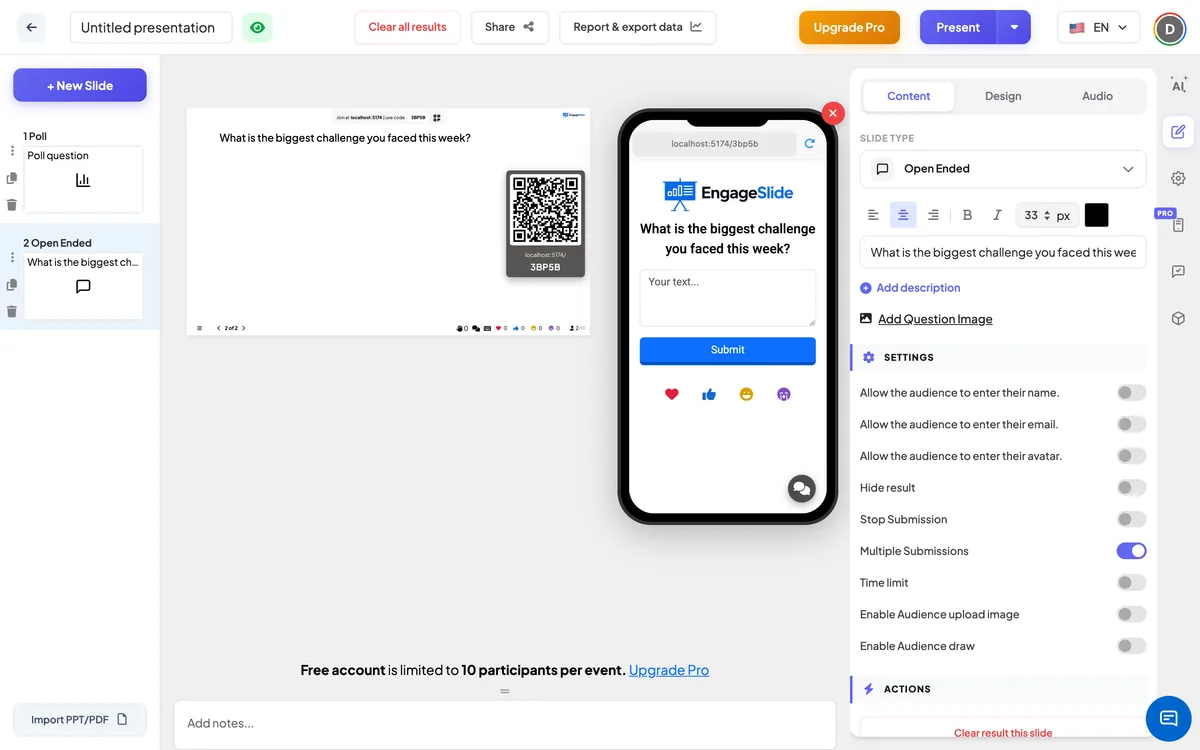
Open Ended settings
Allow the audience to enter their name.
Adds a name field to the phone form. When it is on, the name is shown on each card on the big screen. Off by default, so answers are anonymous on screen.
Allow the audience to enter their email.
Adds an email field to the phone form. The email is saved with the answer but never shown on the big screen.
Allow the audience to enter their avatar.
Lets participants pick an avatar, which is shown on their cards.
Hide result
Keeps the wall empty while people answer. A Show result button appears under the slide so you can reveal everything at once.
Stop Submission
Closes the slide: phones show Submission stopped. Click Enable Submission under the slide to open it again.
Multiple Submissions
On by default: participants can send as many answers as they like. Turn it off to allow one answer per person — the button then shows Submitted.
Time limit
Turn on and set Seconds to answer. A countdown runs on the big screen and on every phone; at zero the screen shows Time’s up! and submissions stop automatically.
Enable Audience upload image
Adds an Add Image button so participants can attach a photo from their phone.
Enable Audience draw
Adds a drawing pad above the text box. The drawing is sent as an image with the answer, and the text becomes optional.
Enable Profanity Filter
A presentation-wide switch under Settings → General Settings. Offensive words are replaced with **** on the big screen; the original answers are kept unchanged.
Present & share the join code
- 1Click Present in the top bar to put the slide on the big screen.
- 2A join code and a QR code appear (e.g.
36Y56). - 3Participants open the Audience app at join.engageslide.com, type the code and press Enter — or simply scan the QR.
- 4When everyone has joined, the responses start flowing in live.
How the audience responds
Participants see the question (plus any description and image) and a text box with the placeholder Your text…. Depending on your settings they can also draw on the pad, tap Add Image to attach a photo, and fill in their name, email or avatar. They tap Submit and see Submitted successfully; the form clears so they can send another answer if Multiple Submissions is on. View my submission lists everything they have sent on this slide. With a time limit, a countdown bar runs at the top.
View results
Each answer flies onto the big screen as a card with a coloured border, arranged in a tidy wall that grows as answers arrive. Cards show the text, any photo or drawing, and the author’s avatar and name if you collect them. Click a card to open it large for discussion — click outside it to close. Each card’s ⋮ menu lets you Edit the text (for example to fix a typo) or Delete it after a confirmation. If video calls are switched on, a Call button on a card lets you invite that participant to speak. While someone is typing, the footer shows Participant is typing. Use Clear result this slide under Actions to start again, and Report & export data to read and export every answer afterwards — see View, reset and export results.
Question ideas
- Classroom: Explain photosynthesis in your own words. · Draw the water cycle (with Enable Audience draw).
- Training: Describe a situation where you used today’s technique. · What is still unclear?
- Meetings and retros: What should we start, stop or continue? · Which risk worries you most?
- Events: Snap a photo of your workspace (with Enable Audience upload image). · What was your key takeaway?
Frequently asked
Are answers anonymous?
Yes, by default. Names appear on the cards only if you switch on Allow the audience to enter their name.. Emails are never shown on the big screen.
Can a participant send more than one answer?
Yes — Multiple Submissions is on by default. Turn it off to limit each person to one answer.
Can I remove or correct an answer?
Yes. Click ⋮ on the card and choose Edit or Delete. The profanity filter in Settings → General Settings can also mask offensive words automatically.
Can people answer with a picture only?
With Enable Audience draw on, the text is optional, so a drawing alone is enough. A photo can be added with Enable Audience upload image.
What happens if someone both draws and uploads a photo?
The uploaded photo is used as the answer’s image, so the drawing is not shown. Ask people to use one or the other.
How is this different from a Word Cloud?
A Word Cloud groups short, repeated words to show the most common ones. Open Ended keeps every answer whole, so it suits longer thoughts, ideas and feedback.