📊Interactive Question Slides 4 min read
Pin on Image
Ask the audience to click a spot or area on an image.
What is Pin on Image?
A Pin on Image slide shows a picture and asks everyone to tap the spot that answers your question — a city on a map, a part of a diagram, a room on a floor plan, the bug in a screenshot. Each participant drops one pin on their phone and submits it. On the big screen the pins drop onto the same image one by one, so you instantly see where the room agrees and where opinions are spread out. There is no right or wrong answer and no scoring: it is a visual way to check understanding, collect opinions about a place or layout, or start a discussion (“Why did so many of you pick this corner?”).

Presenter creates the slide Click Present Share code / QR Audience enters code Respond & submit Real-time results
Create a Pin on Image slide
- 1On Home, click + Create new presentation (or add a slide to an existing one).
- 2In Choose Slide Type, pick Pin on image. You can also type it into Search slide types….
- 3The slide is created and the right panel opens on the Content tab.
Set up the content
- 1Type your question in Enter your question or title, for example Where is Lisbon?. The small toolbar above the field sets the alignment, bold, italic, font size and colour of the title.
- 2Optionally click Add description to give extra instructions, such as Tap the spot, then press Submit.
- 3Click Add Question Image and upload the picture people will pin on — a map, diagram, photo or screenshot. This image is the pin board: until you add one, the editor shows a sample picture and the message Please upload a question image to try the slide pin-on-image feature. Use Remove to swap it for another image.
- 4Open Settings below to choose whether results are hidden at first, whether submissions are open and whether there is a time limit (see the settings below).
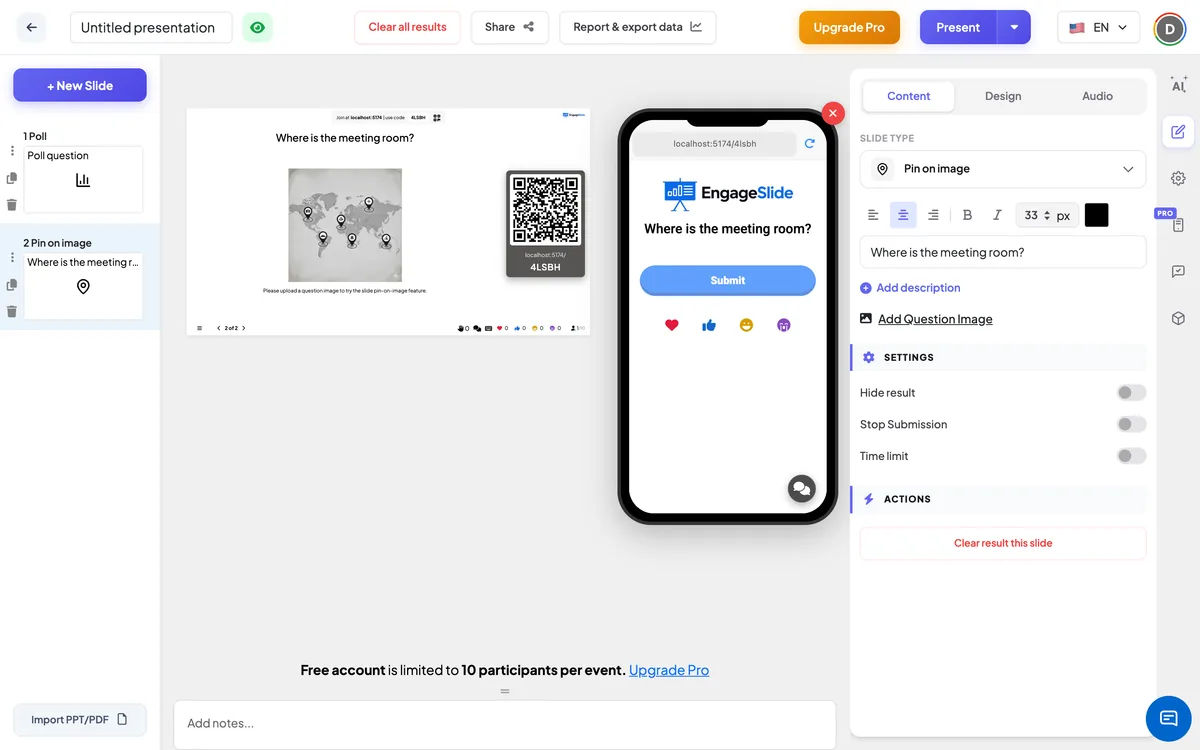
Pin on Image settings
Hide result
Off by default. When on, the pins are not shown on the big screen while people answer. A Show result button appears under the image so you can reveal them all at once.
Stop Submission
Off by default. Turn it on to close the slide: phones show Submission stopped and no new pins can be sent. On the big screen an Enable Submission button lets you reopen it.
Time limit
Off by default. Turn it on and set Seconds to answer (60 by default). While presenting, a clock button counts down (click it to pick 30s, 60s, 1'30, 2', 3', 4' or 5'), the last three seconds are shown in large numbers, and at Time’s up! submissions stop automatically. Phones show a progress bar.
Clear result this slide
Under Actions: removes every pin from this slide so you can run it again with a new group.
Present & share the join code
- 1Click Present in the top bar to put the slide on the big screen.
- 2A join code and a QR code appear (e.g.
36Y56). - 3Participants open the Audience app at join.engageslide.com, type the code and press Enter — or simply scan the QR.
- 4When everyone has joined, the responses start flowing in live.
How the audience responds
Participants see your question and the image. They tap anywhere on the image to drop their pin — a coloured location marker — and can tap again somewhere else to move it. When they are happy they press Submit; the button changes to Submitted and the pin is locked. Each person places one pin. If they come back to the slide later, their phone still shows the pin they submitted. When submissions are closed the button says Submission stopped.
View results
The big screen shows the title and the image, scaled to fit the slide. Every submitted pin drops onto the image with a small bounce, in the participant’s own colour, as soon as it arrives. Hover over a pin to see the participant’s name (when they joined with one). The number of responses is counted for you. Use Show result when Hide result is on, and Enable Submission to reopen a closed slide. After the session, the presentation report shows the image with every pin on it, and each participant’s pin position — see Results & export.
Ideas for Pin on Image
- Geography & history: Where is the capital of Canada? · Where did the Battle of Hastings take place?
- Science & anatomy: Point to the mitochondria · Where is the heart’s left ventricle?
- Training: Where is the nearest fire exit on this floor plan? · Which button on this screen resets a password?
- Meetings & product: Where on our homepage would you click first? · Which part of this process causes the most delays?
- Icebreakers: Where in the world are you joining from? · Where would you go on your dream holiday?
Frequently asked
Can I mark a correct area and score answers?
No. Pin on Image collects pins and shows them together — there is no correct area and no points. If you want a scored question, use a quiz instead.
Can a participant drop more than one pin?
No. Each participant places one pin. They can move it as often as they like before pressing Submit; after that it is locked.
Why can’t I see any pins on the big screen?
Check that Hide result is off, or click Show result under the image. Also make sure you uploaded an image with Add Question Image — without one there is nothing to pin on.
Can I see who placed each pin?
Yes, when participants joined with a name: hover over a pin on the big screen to see it. Pins from people without a name show no label.
How do I run the same slide again with a new group?
In the Content tab, click Clear result this slide under Actions. All pins are removed and the slide is ready for new answers.