📊Interactive Question Slides 5 min read
Q&A
Let the audience ask questions, upvote the ones they care about and see the most popular rise to the top.
What is Q&A?
A Q&A slide gives your audience a place to ask questions from their phones. Everyone can see the questions and give a thumbs-up to the ones they want answered, and the list on the big screen sorts itself by votes — so you always answer what matters most to the room. Questions can be anonymous, and with moderation switched on nothing appears until you or a moderator approve it. Use it for town halls and all-hands meetings, “ask me anything” sessions, the end of a lesson or training, panels and webinars. Questions belong to the whole presentation, so you can also let people ask from any slide.

Presenter creates the slide Click Present Share code / QR Audience enters code Respond & submit Real-time results
Create a Q&A slide
- 1On Home, click + Create new presentation (or add a slide to an existing one).
- 2In Choose Slide Type, pick Q&A. You can also type it into Search slide types….
- 3The slide is created and the right panel opens on the Content tab.
Set up the content
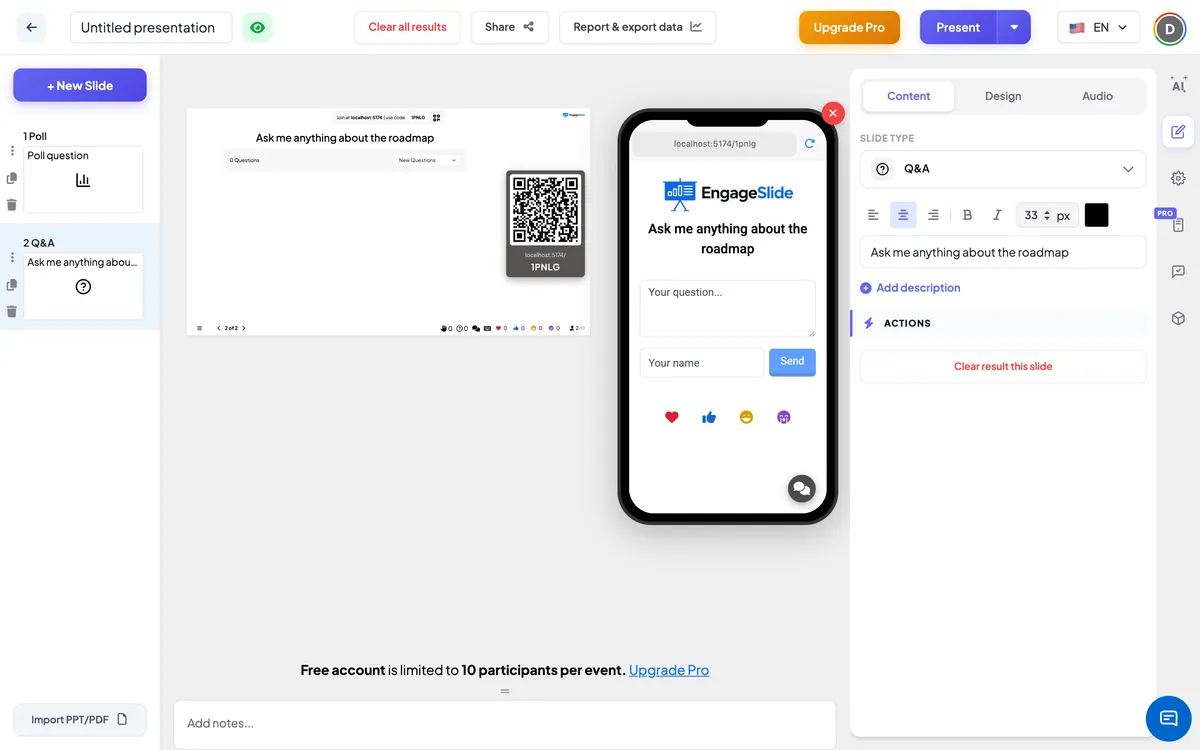
- 1Type a title in the title field (Enter your question or title), for example Ask me anything about the roadmap. The buttons above it set the alignment, bold, italic, font size (in px) and colour. If you leave it empty, phones show Q&A.
- 2Optional: click Add description for a short note, such as Questions are anonymous unless you add your name. Phones show it under the title; on the big screen it appears when you hover over the title.
- 3Open Settings (the gear in the right toolbar) → General Settings to choose how Q&A works for the whole presentation: moderation, asking from every slide and live chat (see below).
Q&A settings
Moderation Q&A
Off by default. When on, new questions stay hidden until they are approved. A link appears underneath (Share this link with your moderators.) — copy it and send it to a colleague, who can approve questions without an EngageSlide account. You can also approve from the remote control.
Questions are visible to everyone
Off by default. When on, participants get an Ask button on every other slide (except quiz slides), so they can send a question at any moment, not only while the Q&A slide is up.
Enable Live Chat
On by default. A separate chat for participants; it is not part of the Q&A list.
Enable Profanity Filter
Off by default. When on, offensive words in questions are replaced with **** on the big screen. The original text is kept.
Enable Video Call
When video calls are enabled, each question on the big screen has a Call button so you can invite the person who asked to speak.
Present & share the join code
- 1Click Present in the top bar to put the slide on the big screen.
- 2A join code and a QR code appear (e.g.
36Y56). - 3Participants open the Audience app at join.engageslide.com, type the code and press Enter — or simply scan the QR.
- 4When everyone has joined, the responses start flowing in live.
How the audience responds
Participants see the title and a box with the placeholder Your question…, a Your name field and a Send button. The name is optional — leave it empty to ask as Anonymous. After sending they see Sent question. Below the form is the list of open questions, most votes first, each with its author, how long ago it was asked and a 👍 button with the vote count. Tapping 👍 adds a vote; tapping it again takes the vote back. Their own questions are marked (you), and with moderation on they see a Pending approval badge until the question is approved.
View results
The big screen shows {count} Questions and a list sorted by votes (oldest first when votes are tied). Each question shows the author (or Anonymous), the time and its 👍 count, and new questions and votes appear live. Click a question to show it large on the screen while you answer it. Click ✓ to mark it answered: it leaves the list and disappears from phones. Use the drop-down to switch between New Questions and Answered Questions. With moderation on, only approved questions are shown. In the remote control, and on the moderator page, the Q&A panel has All and Answered tabs (Pending, Showing and Answered with moderation on) and buttons to Approve and show on Canvas, Mark as Answered and Delete Question. After the session, the Excel export has a Q&A sheet with every question, its votes and whether it was answered.
Ways to use Q&A
- Town halls and all-hands: collect anonymous questions for leadership and answer the most upvoted first.
- Classroom: let students ask what they did not understand without raising their hand.
- Training: gather questions during the session and answer them in a block at the end.
- Events and webinars: run a panel Q&A with a moderator approving questions in the background.
Frequently asked
Can people ask anonymously?
Yes. The name field is optional, and questions without a name are shown as Anonymous.
Can someone upvote the same question many times?
No. Each phone gives one vote per question; tapping 👍 again removes the vote.
How do I hide an inappropriate question?
Turn on Moderation Q&A so questions only appear after approval, or delete a question from the Q&A panel in the remote control. Enable Profanity Filter masks offensive words on the big screen.
Do moderators need an account?
No. Anyone with the moderation link (shown under Moderation Q&A once it is on) can approve questions.
Does “Clear result this slide” delete the questions?
No. Questions belong to the whole presentation, not to one slide. Use Clear all results in the top bar to remove them, together with all other results.
Can I have more than one Q&A slide?
Yes, but they share the same list of questions, because questions belong to the presentation.