📊Interactive Question Slides 4 min read
Quick Form
Collect names, emails and any other details from your audience with a short form on their phones.
What is Quick Form?
A Quick Form slide puts a short form on every participant’s phone. It always starts with Audience Name and Audience Email, and you can add your own fields such as Company, Job title or Phone. Use it to collect leads at an event, take attendance in a class or training, build a sign-up list for a follow-up, or gather details before a giveaway. The big screen shows a preview of the form and a live count of responses — the answers themselves stay private and are read in the report afterwards.
Presenter creates the slide Click Present Share code / QR Audience enters code Respond & submit Real-time results
Create a Quick Form slide
- 1On Home, click + Create new presentation (or add a slide to an existing one).
- 2In Choose Slide Type, pick Quick Form. You can also type it into Search slide types….
- 3The slide is created and the right panel opens on the Content tab.
Set up the content
- 1Type a title in the title field (Enter your question or title), for example Leave your details to get the slides. The buttons above it set the alignment, bold, italic, font size (in px) and colour.
- 2Optional: click Add description to explain why you are asking, for example We will only use your email to send today’s materials. Phones show it under the title.
- 3Under Form Fields, the two default fields Audience Name and Audience Email are already there. They are locked (🔒): you cannot rename or delete them.
- 4Click + Add Field for each extra piece of information and type its title in the box (Field title (e.g., phone, company)), for example Company. Remove a field you no longer need with ×.
- 5Click the ✱ next to a field to make it Required (highlighted) or optional. Both default fields start as required — click the ✱ to make the email optional, for example.
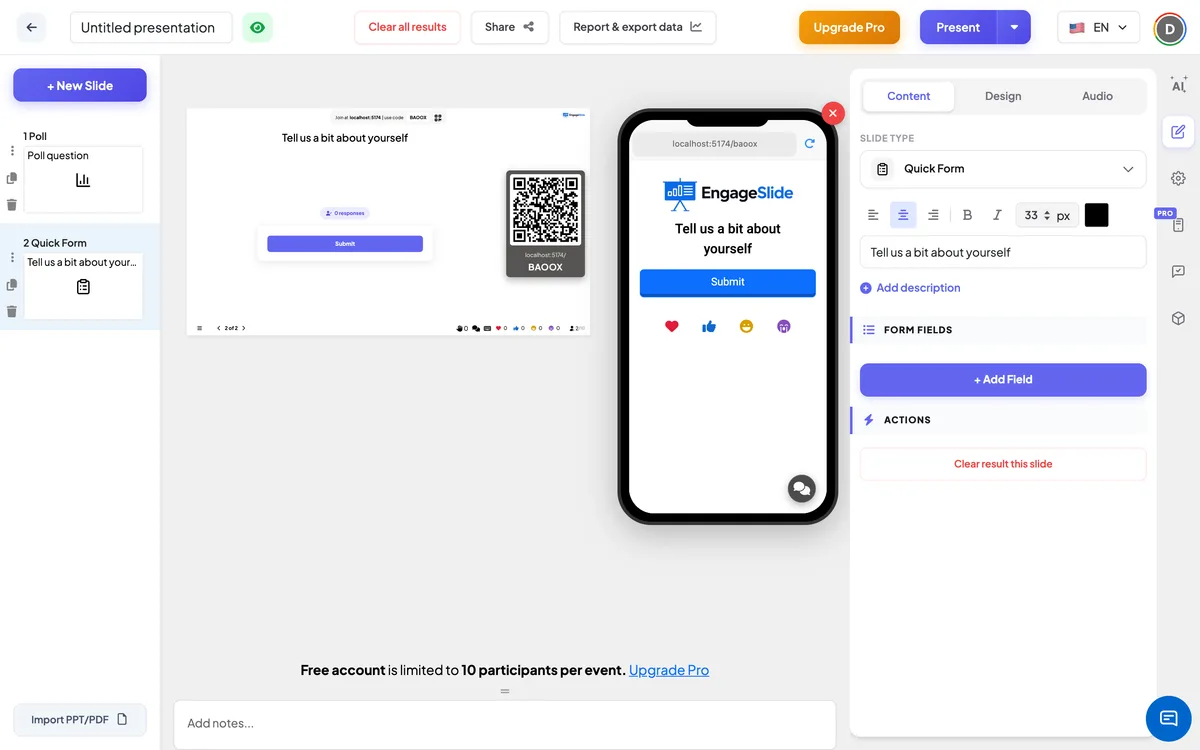
Quick Form settings
Form Fields
Audience Name and Audience Email are always included. Every field you add with + Add Field is a short text box with your title as its label.
Required
Click the asterisk on a field to make it compulsory. Required fields show a red * on the phone, and the Submit button stays disabled until they are filled in.
Clear result this slide
Under Actions: deletes the responses collected on this slide so you can reuse it with a new group.
Present & share the join code
- 1Click Present in the top bar to put the slide on the big screen.
- 2A join code and a QR code appear (e.g.
36Y56). - 3Participants open the Audience app at join.engageslide.com, type the code and press Enter — or simply scan the QR.
- 4When everyone has joined, the responses start flowing in live.
How the audience responds
Participants see the title, the description and the form: one box per field, with placeholders such as Enter your name, Enter your email or Enter your Company, and a red * on required fields. If they already gave a name when joining, it is filled in for them. The email box checks that the address looks valid. Once the required fields are filled in they tap Submit, see Submitted successfully, and the form is replaced by Thanks! Your response has been submitted.
View results
The big screen shows a preview of your form — every field with its label, a * on required ones and a Submit button — so people know what to fill in, plus a live chip such as 12 responses. Individual answers are never shown on the big screen. To read them, open Report & export data from the top bar: the Quick Form slide shows a table with one column per field and the time of each submission. See View, reset and export results.
Ways to use a Quick Form
- Events and webinars: collect name, email and company from people who want the slides or a follow-up call.
- Classroom: take attendance at the start of the lesson with name and class or student number.
- Training: gather name, team and manager for completion records.
- Meetings: collect volunteers for a project, with name, email and preferred time slot.
Frequently asked
Can a participant submit the form twice?
Each participant has one response per Quick Form slide. If the same participant submits again, their earlier response is updated rather than added as a new one.
Can I remove the name or email field?
No. Audience Name and Audience Email are always part of the form. You can make either of them optional by clicking its ✱.
What kinds of fields can I add?
Each field you add is a short text box. The email field is the only one that checks the format of what is typed.
Can the audience see each other’s answers?
No. The big screen only shows the form and the number of responses. Answers are visible to you in Report & export data.
How is this different from collecting audience information when people join?
Collect Audience Information (in Settings → General Settings) asks for details before someone enters the presentation. A Quick Form is a slide you show at the moment you choose, with your own fields.