📊Interactive Question Slides 5 min read
Ranking
Participants drag options into their order of preference, and the big screen shows the group’s combined ranking.
What is Ranking?
A Ranking slide asks participants to put a list of options in order — most important first, favourite first, most urgent first. Each person drags the options into their own order on their phone, and EngageSlide combines everyone’s rankings into one list on the big screen, with the group’s top choice at number 1. Use it to prioritise features or projects in a meeting, to choose the next topic or activity, to let a class rank events by importance, or to agree on the biggest risks in a training workshop. Ranking forces people to make trade-offs, which often tells you more than a normal poll where everyone can pick everything.

Presenter creates the slide Click Present Share code / QR Audience enters code Respond & submit Real-time results
Create a Ranking slide
- 1On Home, click + Create new presentation (or add a slide to an existing one).
- 2In Choose Slide Type, pick Ranking. You can also type it into Search slide types….
- 3The slide is created and the right panel opens on the Content tab.
Set up the content
- 1Type your question in the title field (Enter your question or title), for example Rank these features by importance. The buttons above it set the alignment, bold, italic, font size (in px) and colour.
- 2Optional: click Add description to explain the criteria, for example Put the feature you need most at the top. Phones show it under the question. Click Add Question Image to attach a picture — phones show it above the list, and on the big screen you can switch between the image and the results.
- 3Under Options, type each item to rank, for example Dark mode, Offline access, Faster search and More integrations. Click + Add option (or press Enter in the last option) for another one, up to 9 options.
- 4For each option you can click the colour square to change its colour and the 🖼️ icon to add an image. Remove an option with ×.
- 5Drag options by the handle on the left to set the order. This is also the starting order on every phone, so mix it up rather than listing your own favourite first.
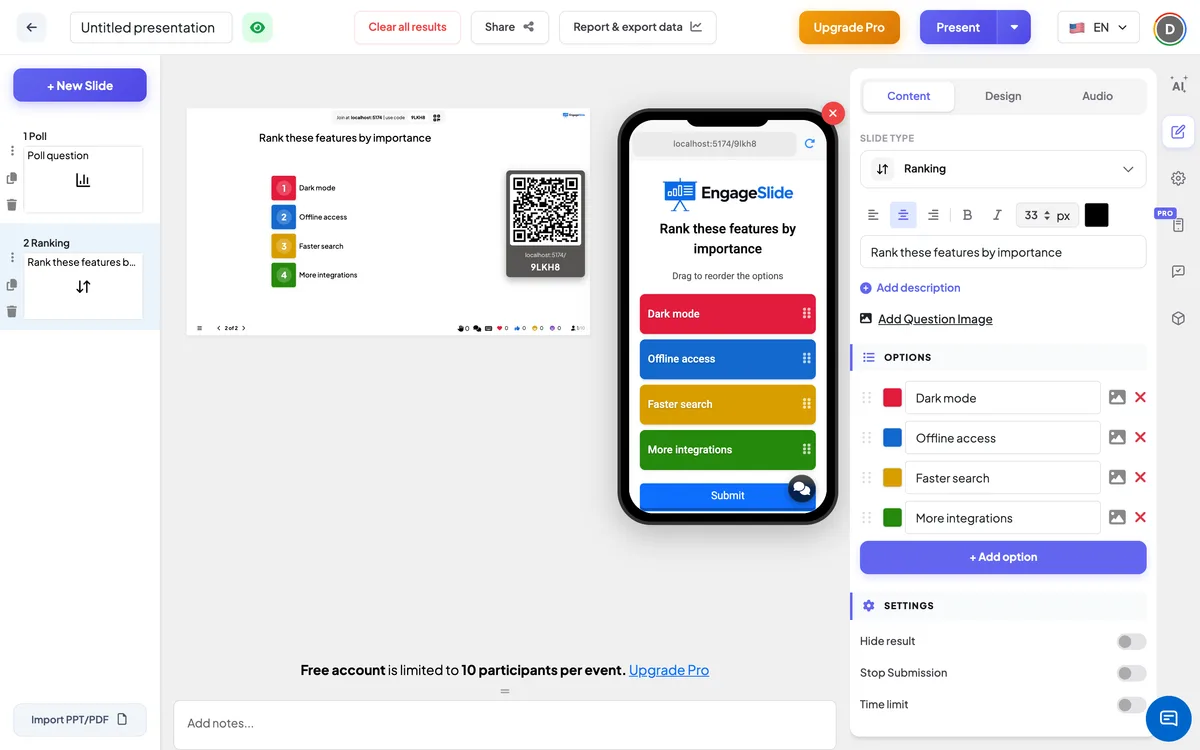
Ranking settings
Options
The items participants put in order: up to 9, each with a colour and an optional image.
Hide result
Keeps the bars empty while people rank, so nobody is influenced by the current leader. A Show result button appears under the slide so you can reveal the order.
Stop Submission
Closes the slide: phones show Submission stopped. Click Enable Submission under the slide to open it again.
Time limit
Turn on and set Seconds to answer. A countdown runs on the big screen and on every phone; at zero the screen shows Time’s up! and submissions stop automatically.
Present & share the join code
- 1Click Present in the top bar to put the slide on the big screen.
- 2A join code and a QR code appear (e.g.
36Y56). - 3Participants open the Audience app at join.engageslide.com, type the code and press Enter — or simply scan the QR.
- 4When everyone has joined, the responses start flowing in live.
How the audience responds
Participants see the question, the hint Drag to reorder the options and a list of coloured cards, each with its image if you added one. They drag the cards into their own order, top = first choice, then tap Submit. A ranking can be sent once; the button then shows Submitted and the cards are shown in their submitted order. With a time limit, a countdown bar runs at the top.
View results
The big screen lists the options as coloured bars, sorted from the group’s first choice down, with rank numbers once the first ranking arrives. Each ranking gives points by position: with four options, first place gets 4 points, second 3, third 2 and last 1. The option with the most points is ranked number 1 and gets the longest bar; the other bars are drawn relative to it, so you can see how close the race is. Bars and positions move live as rankings come in. Use Clear result this slide under Actions to start again. In Report & export data you see the combined chart and each participant’s order — see View, reset and export results.
Question ideas
- Meetings: Which projects should we fund next quarter? · Which problems should the team tackle first?
- Training: Rank these safety risks from most to least serious, then discuss the differences.
- Classroom: Put these historical events in order of importance · Rank the planets by size.
- Events: Which topic should the next session cover? · Rank the workshop activities you enjoyed most.
Frequently asked
How is the final ranking calculated?
Each participant’s order gives points by position: the top option gets as many points as there are options, and the last gets 1. The points from all participants are added up, and the option with the most points is ranked first.
Can participants change their ranking after submitting?
No. Each participant can submit one ranking per slide.
How many options can I add?
Up to 9. For a clear result, 4–6 options usually work best.
Are rankings anonymous?
The big screen only shows the combined result. The report lists each participant’s order, with their name if they gave one when joining.
What is the difference between Ranking and Poll?
In a Poll people pick one or more options. In a Ranking they order all the options, so you learn not just the favourite but the group’s full order of priorities.