📊Interactive Question Slides 6 min read
Remote Retro
Run a sprint retrospective with notes, voting and discussion.
What is Remote Retro?
A Remote Retro slide runs a complete team retrospective on one slide, guided step by step. It starts with the Prime Directive to set a safe tone, then moves through Idea Generation (everyone writes notes into columns such as Went Well and To Improve), Grouping (you move and group similar notes), Vote (everyone spends a few votes on what matters most) and Action Items (you discuss the top notes and write down who does what). You control the pace from the big screen, and every phone follows along. It works for sprint retrospectives, project post-mortems, end-of-term class reviews and any “what worked, what didn’t” conversation — in the room or fully remote.

Presenter creates the slide Click Present Share code / QR Audience enters code Respond & submit Real-time results
Create a Remote Retro slide
- 1On Home, click + Create new presentation (or add a slide to an existing one).
- 2In Choose Slide Type, pick Remote Retro. You can also type it into Search slide types….
- 3The slide is created and the right panel opens on the Content tab.
Set up the content
- 1Type the title in Enter your question or title, for example Sprint 14 Retro. The toolbar above the field sets alignment, bold, italic, font size and colour.
- 2Optionally click Add description to add context, such as the sprint dates or the goal of the session.
- 3Under Settings, pick a Template: Default (Went Well / To Improve / Action Items), 4Ls (Liked / Learned / Lacked / Longed For), Starfish (Keep Doing / Less Of / More Of / Stop Doing / Start Doing) or Custom. A new slide starts with the Default columns. Choosing a template replaces the current columns.
- 4Fine-tune the Columns: click the colour box to change a column’s colour, type a new name, click × to remove a column, or + Add Column to add one. You can have 2 to 6 columns; editing them switches the template to Custom.
- 5Switch on Anonymous Mode if you want notes without names, and set Max Votes Per Person (3 by default).
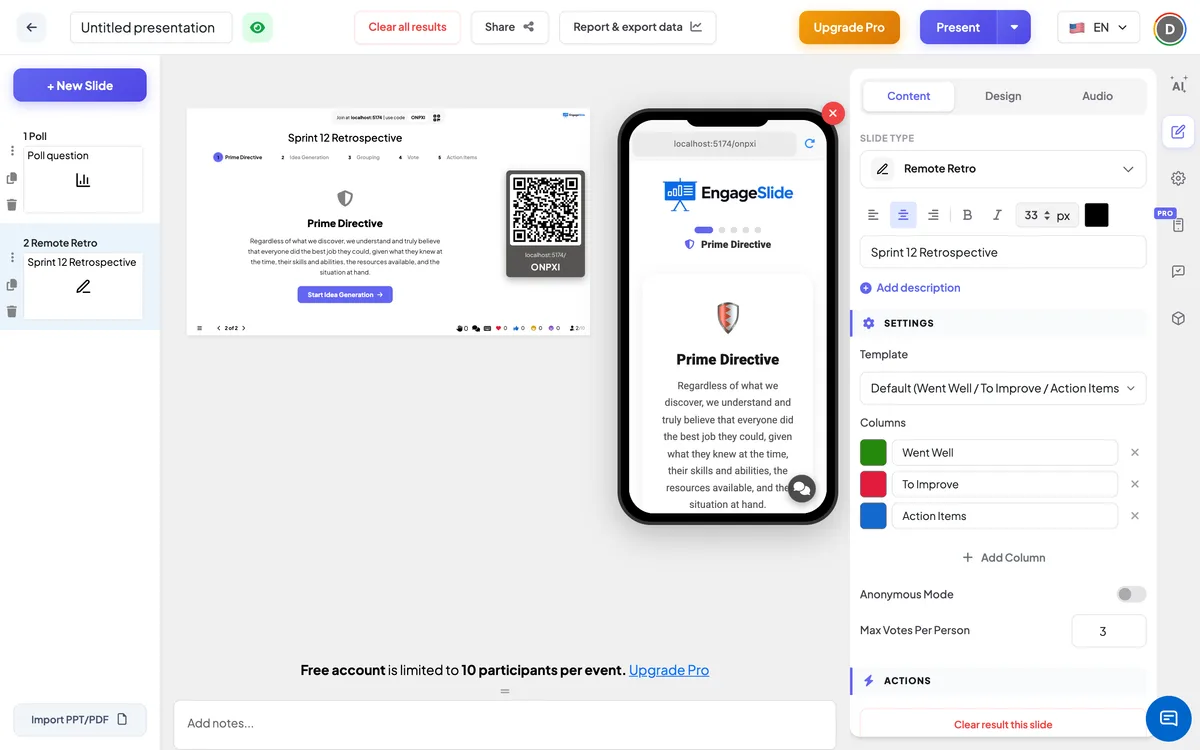
Remote Retro settings
Template
Default (3 columns), 4Ls (4 columns), Starfish (5 columns) or Custom. New slides use Default: Went Well, To Improve, Action Items.
Columns
The categories participants write notes into. Each has a name and a colour. Minimum 2, maximum 6.
Anonymous Mode
Off by default. When on, the author’s name is hidden on every note, on the big screen and on the phones. Turn it on when the team needs a safer space for honest feedback.
Max Votes Per Person
How many votes each participant can spend in the Vote phase (1–10, default 3). A participant can give each note at most one vote.
Clear result this slide
Under Actions: deletes all notes and votes on this slide so you can reuse it for the next sprint.
Present & share the join code
- 1Click Present in the top bar to put the slide on the big screen.
- 2A join code and a QR code appear (e.g.
36Y56). - 3Participants open the Audience app at join.engageslide.com, type the code and press Enter — or simply scan the QR.
- 4When everyone has joined, the responses start flowing in live.
How the audience responds
The phone shows a row of dots for the five phases and the name of the current one, and it switches automatically when you move on. Prime Directive: participants read the directive. Idea Generation: they pick a column tab, type a note in Type your note here... and press Enter or the send button; they can add as many notes as they like, and the tabs count how many they have written. Under Your ideas they see only their own notes. Grouping: the phone says The facilitator is grouping similar ideas. Please wait... and shows every note, read-only. Vote: a bar shows 3 / 3 votes remaining; participants switch between column tabs and tap a note to vote (tap again to take the vote back). Action Items: they see the agreed action items with owners, and the notes sorted by votes with a Discussed tag on the ones already covered.
View results
At the top of the big screen a stepper shows the five phases — click any step to jump to it, or use the buttons at the bottom to go back and forward. Prime Directive shows the directive with a Start Idea Generation button. In Idea Generation notes pop into their columns live, each column shows its count, and the bottom bar says how many ideas have been submitted. In Grouping you drag a note to another column to move it, or click two or more notes to select them and press Group Selected; grouped notes are stacked under one card with a count, and the unlink button splits them up again. In Vote each column is sorted by votes, every note shows its 👍 count and the bottom bar shows the total votes cast. In Action Items you click the circle on a note to mark it discussed (the bar shows e.g. 4/12 Discussed), and in the Action Items panel you type an item in Add action item..., add an Owner and press +. Tick an action item when it is done, or remove it with ×. Names appear on notes unless Anonymous Mode is on.
Retro formats you can run
- Default: Went Well / To Improve / Action Items — the quick classic for any sprint.
- 4Ls: Liked / Learned / Lacked / Longed For — good after a project, a training course or a school term.
- Starfish: Keep Doing / Less Of / More Of / Stop Doing / Start Doing — for teams that want finer-grained change.
- Custom — Mad / Sad / Glad: three columns for a feelings-first retro.
- Custom — Start / Stop / Continue: a simple format that also works well in class.
- Custom — Sailboat: Wind (what pushes us) / Anchors (what holds us back) / Rocks (risks ahead) / Island (our goal).
Frequently asked
Who controls the phases?
The presenter. Participants’ phones follow the phase you choose on the big screen, so everyone is always on the same step. You can go back to an earlier phase at any time.
Can participants add notes in any phase?
The note box is shown in Idea Generation only. If someone remembers an idea later, step back to Idea Generation for a moment.
How does voting work?
Each participant has Max Votes Per Person votes (3 by default) and can give each note one vote. Tapping a voted note removes the vote, so votes can be moved until you leave the Vote phase.
Can I hide who wrote each note?
Yes. Turn on Anonymous Mode in the settings — names disappear from every note on the big screen and on the phones.
Can I reuse the slide for the next sprint?
Yes. Click Clear result this slide under Actions to delete the notes and votes, then click the Prime Directive step to start again. The previous action items stay in the Action Items panel until you remove them with × — handy for checking last sprint’s actions first.
Where do the column names come from if I pick Custom?
Custom keeps whatever columns you have and lets you rename, recolour, add or remove them (2 to 6 columns).