📊Interactive Question Slides 5 min read
Scale
Ask people to rate one or more statements on a scale and see the spread and the average of every answer.
What is Scale?
A Scale slide asks participants to rate one or more statements on the same scale — by default from 1 Strongly disagree to 5 Strongly agree. Each person moves a slider for every statement, and the big screen shows how the answers are spread out, the average for each statement and the overall average. Use it for quick satisfaction and confidence checks (“How confident are you with the new process?”), self-assessments in training, comparing priorities in a meeting, or a Likert-style survey in class. Because several statements share one chart, it is easy to see where the room agrees and where opinions differ.

Presenter creates the slide Click Present Share code / QR Audience enters code Respond & submit Real-time results
Create a Scale slide
- 1On Home, click + Create new presentation (or add a slide to an existing one).
- 2In Choose Slide Type, pick Scale. You can also type it into Search slide types….
- 3The slide is created and the right panel opens on the Content tab.
Set up the content
- 1Type your question in the title field (Enter your question or title), for example How do you feel about the new process?. The buttons above it set the alignment, bold, italic, font size (in px) and colour.
- 2Optional: click Add description for extra instructions; phones show it under the question. Click Add Question Image to attach a picture — phones show it above the sliders, and on the big screen you can switch between the image and the chart.
- 3Under Statements, click + Add statement for each thing to rate, for example I understand the new process, I have the tools I need and I would recommend it to a colleague. A new Scale slide starts with no statements, so add at least one. You can add up to 9.
- 4Click the colour square next to a statement to choose its colour on the chart. Drag the handle on the left to reorder statements, and remove one with ×.
- 5Under Settings → Dimensions, set the Bottom of the scale and Top of the scale: a label (for example Not at all and Completely) and a whole number for each end (for example 1 and 10).
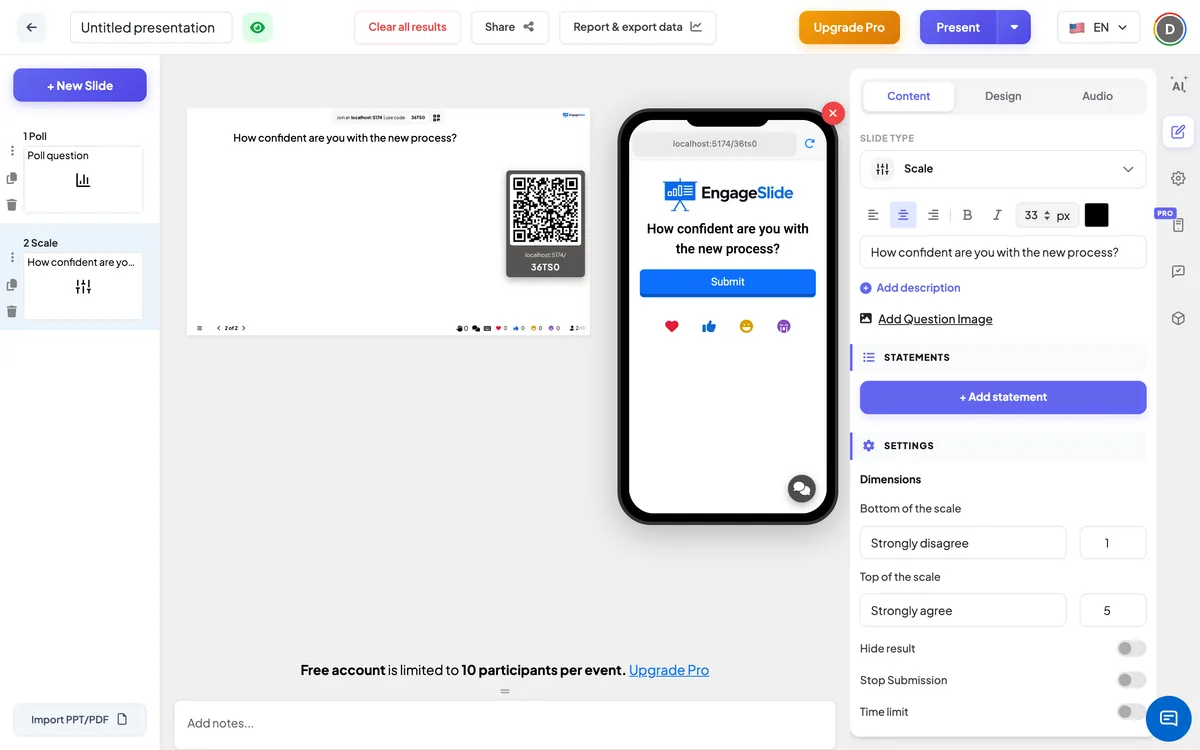
Scale settings
Dimensions
Bottom of the scale and Top of the scale, each with a label and a whole number. The default is Strongly disagree = 1 to Strongly agree = 5. Make sure the top number is higher than the bottom one.
Hide result
Keeps the chart empty while people answer. A Show result button appears under the slide so you can reveal it.
Stop Submission
Closes the slide: phones show Submission stopped. Click Enable Submission under the slide to open it again.
Time limit
Turn on and set Seconds to answer. A countdown runs on the big screen and on every phone; at zero the screen shows Time’s up! and submissions stop automatically.
Present & share the join code
- 1Click Present in the top bar to put the slide on the big screen.
- 2A join code and a QR code appear (e.g.
36Y56). - 3Participants open the Audience app at join.engageslide.com, type the code and press Enter — or simply scan the QR.
- 4When everyone has joined, the responses start flowing in live.
How the audience responds
Participants see the question and, for each statement, a slider in the statement’s colour with the two end labels above it and the chosen number next to it. Every slider starts in the middle of the scale, so people move only the ones they disagree with. They tap Submit once to send all their ratings together; after that the sliders are locked and the button shows Submitted. With a time limit, a countdown bar runs at the top.
View results
The big screen draws one coloured curve per statement across the scale, showing how many people chose each value. A marker on each curve shows the statement’s average (to two decimals), and a line marks the overall average across all statements. The numbers and labels of both ends are shown on the chart, with a legend of the statements; hover over a statement or its marker to highlight it and dim the others. The chart updates live as ratings come in. Use Clear result this slide under Actions to start again. In Report & export data you see the average per statement and each participant’s ratings, and the Excel export has a Scale Responses sheet — see View, reset and export results.
Question ideas
- Training: Rate your confidence before and after the session — use the same statements on two Scale slides and compare.
- Classroom: How well do you understand fractions, decimals and percentages? (1 = not yet, 5 = I could teach it).
- Meetings: How important is each project for next quarter? · How sustainable is our current workload?
- Events: Rate the content, the speakers and the venue from 1 to 10.
Frequently asked
Can I use a scale other than 1 to 5?
Yes. Under Dimensions, set any whole numbers for the bottom and the top of the scale, for example 0 to 10, and your own labels for each end.
How many statements can one slide have?
Up to 9. Every statement uses the same scale and appears as its own curve on the chart.
Can participants change their rating?
No. Each participant submits all their ratings once; after that the sliders are locked.
Are ratings anonymous?
The big screen only shows the curves and averages, never who chose what. The report shows each participant’s ratings, with their name if they gave one when joining.
Why do all my answers start in the middle?
Every slider starts at the middle of the scale. If a participant does not move a slider, the middle value is submitted for that statement, so ask people to adjust every slider before they press Submit.