📊Interactive Question Slides 5 min read
Surveys
Build a Google Forms-style survey, share a link or QR code, and analyze responses in real time.
What is a Survey?
A Survey is a standalone, Google Forms-style questionnaire you build and share on its own link — perfect for feedback that happens before or after a live session, or any time you need structured answers people can give at their own pace. Unlike a live slide, a survey does not need you to be presenting: participants open a link or scan a QR code, answer on any device, and their responses stream back into a real-time results dashboard.
Create a survey Add questions Click Send Share link / QR People respond Analyze results
Create a survey
- 1Open Survey from the left menu and click Create survey.
- 2Choose a linked presentation (optional) or leave it standalone, then confirm.
- 3Give the survey a title and description.
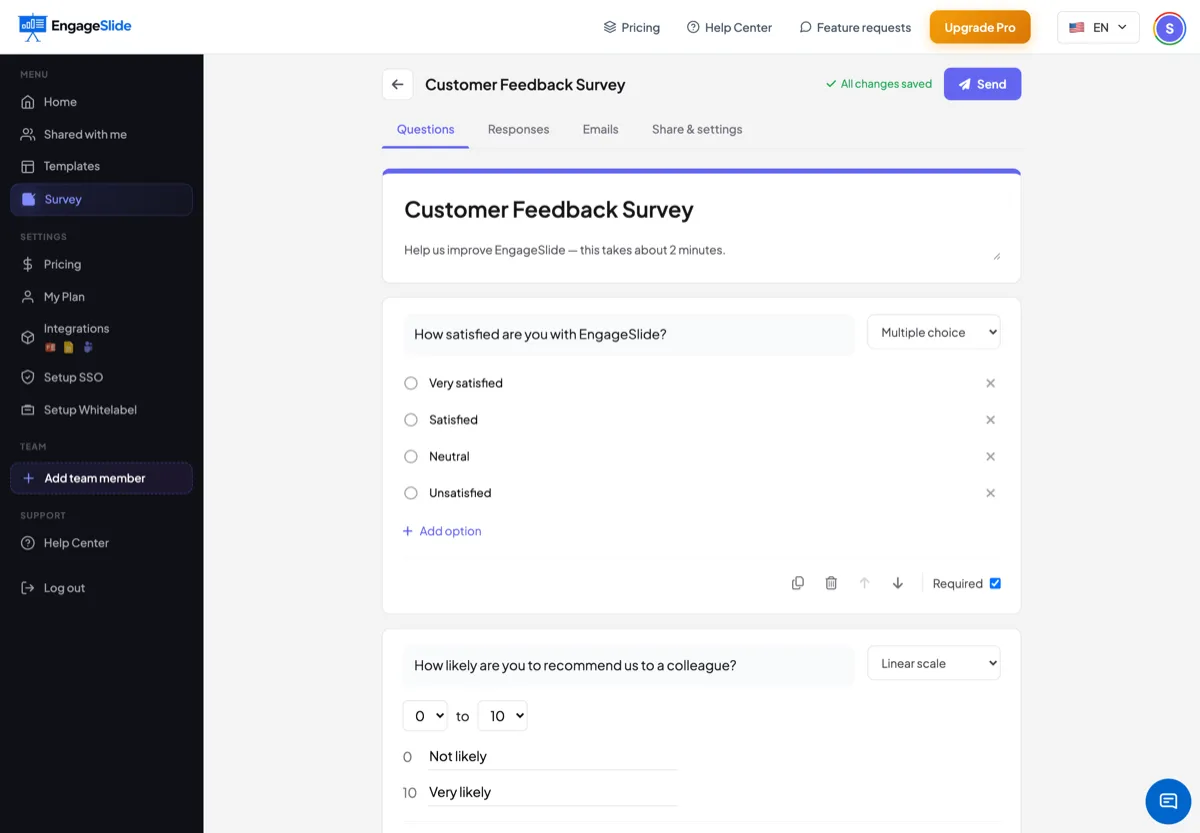
- 4Click Add question, type the question, and pick a field type from the dropdown.
- 5Toggle Required for must-answer questions. Everything autosaves as you type.
Nine question types
Short answer
A single line of text — names, roles or short responses.
Paragraph
A larger box for open-ended comments and suggestions.
Multiple choice
Pick one option. Results render as a donut chart.
Checkboxes
Select all that apply. Results render as ranked bars.
Dropdown
A compact single-select, ideal for long option lists.
Linear scale
0–10 or 1–5 rating with custom end labels — great for NPS and satisfaction.
File upload
Let respondents attach images or videos, with type, count and size limits.
Date & Time
Native pickers for scheduling and availability questions.
Share your survey
- 1Click Send in the top-right of the builder.
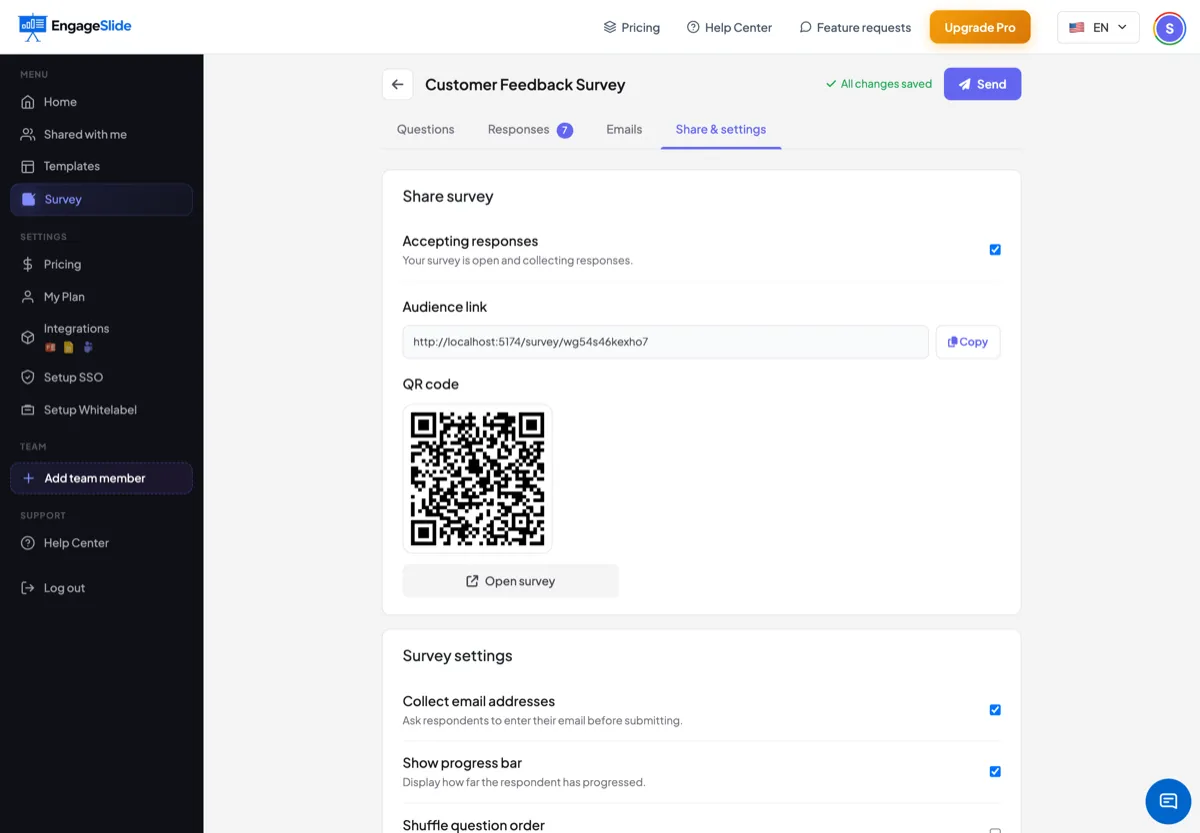
- 2Copy the survey link, or show the QR code on screen at the end of a session.
- 3Participants open it on any device — no app download or account needed.
- 4Watch responses arrive live in the Responses tab.
How respondents answer
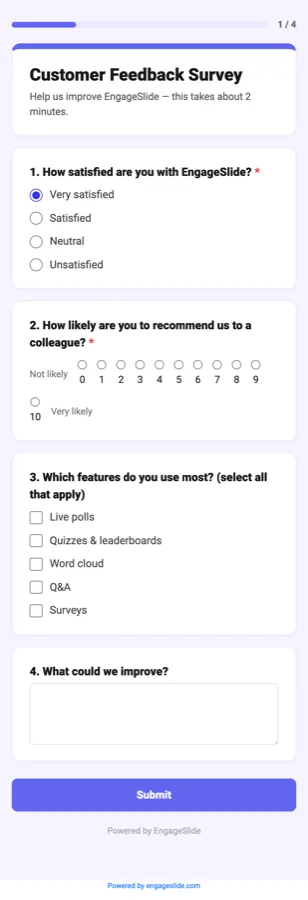
The audience view is mobile-first and deliberately simple: one clean card per question, an optional progress bar, and large tap targets. If you collect emails or reuse presentation details, people are only asked for information they have not already given. After submitting they see your confirmation message, and returning to the link shows a read-only review instead of a duplicate form.
Analyze responses
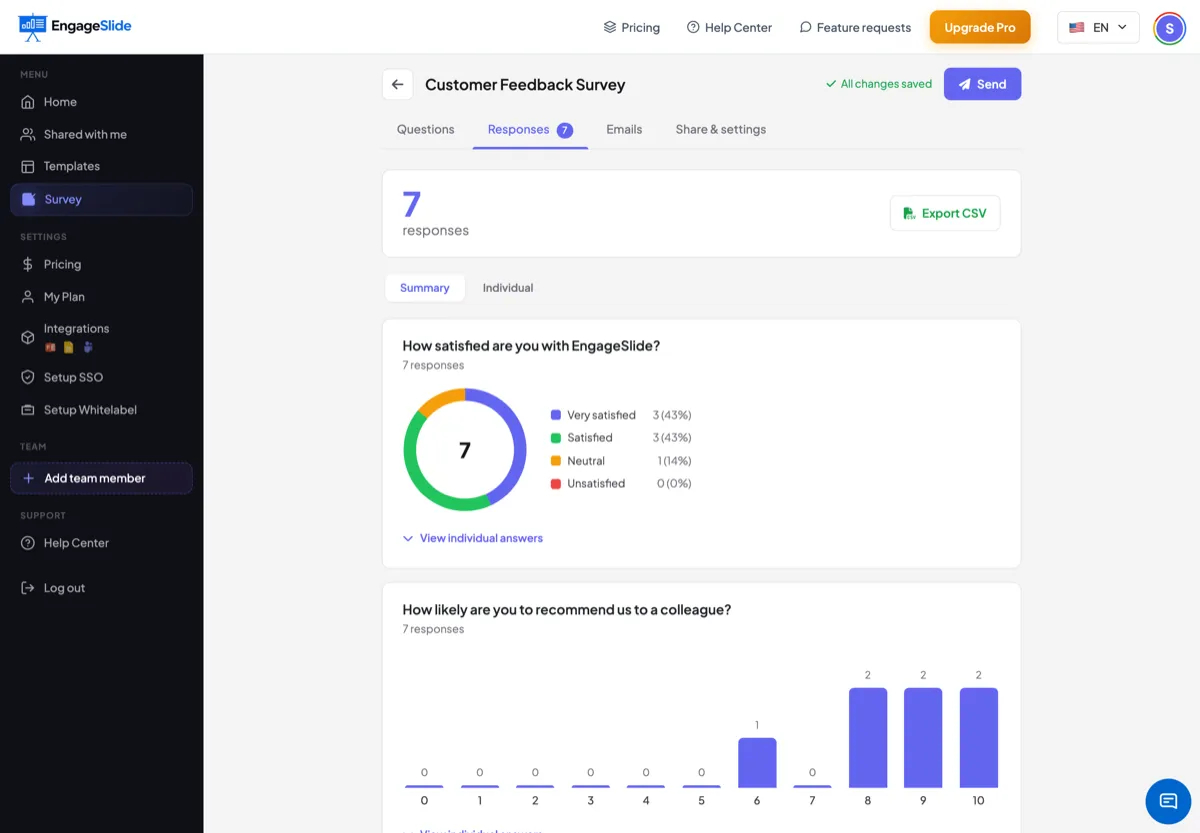
Open the Responses tab for an automatic summary: multiple-choice and dropdown answers become donut charts, checkboxes become ranked bars, and linear scales become a distribution chart. Switch to Individual to read each full submission, or click Export CSV to download every answer, name, email and timestamp for Excel or Google Sheets. A linked survey also gets an Emails tab listing every contact from that presentation.
Survey settings
Accepting responses
Flip one switch to open or close the survey to new responses at any time.
Collect email addresses
Require an email before submitting to build a contact list.
Show progress bar
Show respondents how far they have to go, reducing drop-off.
Shuffle question order
Randomize question order to reduce ordering bias.
Confirmation message
Thank people in your own words after they submit.
Frequently asked
Do I need to be presenting for a survey to work?
No. Surveys are asynchronous — people can respond any time from the shared link, whether or not you are live.
Can someone respond more than once?
Each participant submits once. If they return to the link, they see a read-only review of their answers rather than a fresh form.
What is the difference between a standalone and a linked survey?
A standalone survey is independent. A linked survey is attached to a presentation, so it reuses that audience’s details and adds an Emails tab of contacts from that presentation.
How do I get the raw data?
Click Export CSV in the Responses tab to download every answer, name, email and timestamp, ready for Excel, Google Sheets or your CRM.