📊Interactive Question Slides 5 min read
Whiteboard
A shared canvas for visual brainstorming.
What is Whiteboard?
A Whiteboard slide puts a full drawing board on the big screen. As the presenter you can sketch, write and build diagrams live while you talk — shapes, arrows, lines, a free-hand pen, text and more — just like a whiteboard in a meeting room. Turn on Enable Audience draw and every participant gets a whiteboard of their own on their phone: they draw their answer, press Submit, and their drawing appears in a list next to your board, where you can open it full size. Use it to explain a concept step by step, to ask people to sketch a process, a mind map or a layout, or to collect visual answers in class.

Presenter creates the slide Click Present Share code / QR Audience enters code Respond & submit Real-time results
Create a Whiteboard slide
- 1On Home, click + Create new presentation (or add a slide to an existing one).
- 2In Choose Slide Type, pick Whiteboard. You can also type it into Search slide types….
- 3The slide is created and the right panel opens on the Content tab.
Set up the content
- 1Type the prompt in Enter your question or title, for example Sketch how a customer finds us. The toolbar above the field sets alignment, bold, italic, font size and colour.
- 2Optionally click Add description to add instructions, e.g. Use boxes and arrows — no need to be an artist!
- 3Under Settings, decide whether to collect names, emails or avatars, whether submissions are open and whether there is a time limit.
- 4Turn on Enable Audience draw if you want participants to draw and send their own whiteboards. Leave it off to use the board only on the big screen.
- 5The whiteboard itself is on the slide in the middle of the editor: click into it and use its toolbar to draw.
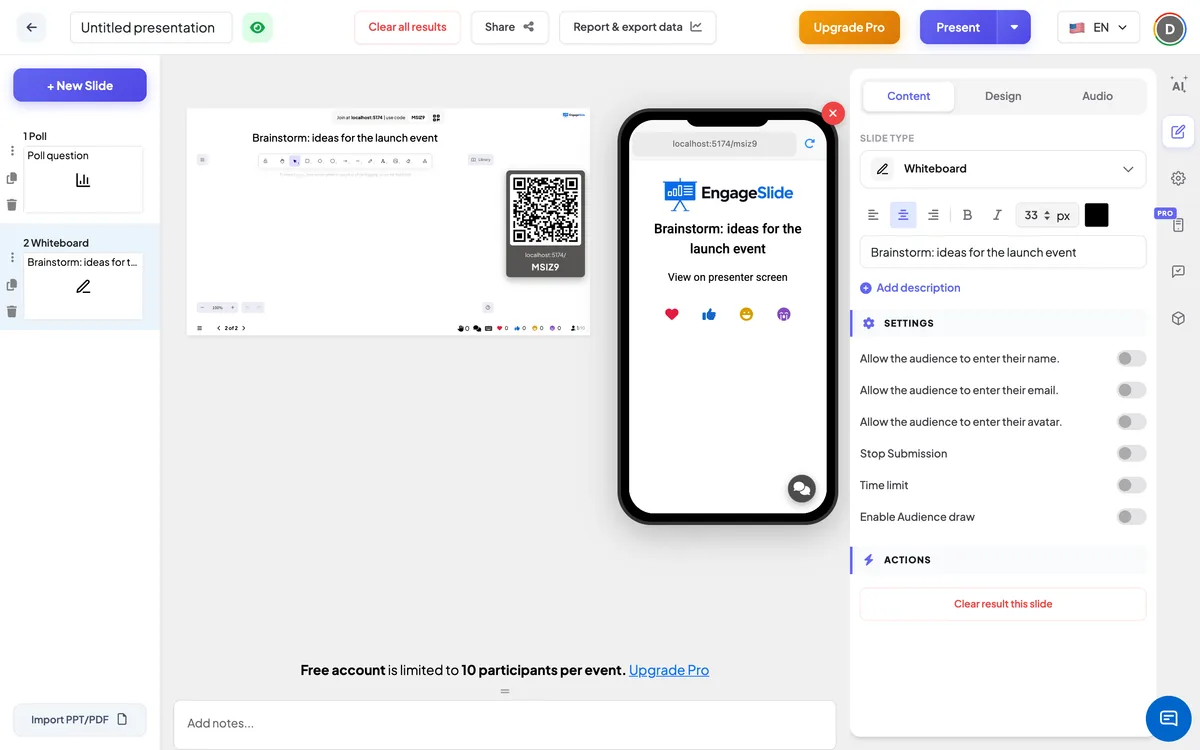
Whiteboard settings
Enable Audience draw
Off by default. When on, every participant gets their own whiteboard on their phone with a Submit button, and submitted drawings appear in a list beside the big-screen board. When off, phones simply show View on presenter screen.
Allow the audience to enter their name / email / avatar
Three separate switches, off by default. With audience drawing on, participants see a name field, an email field or an avatar picker under their board. The name is shown on their drawing in the list; without it the drawing is labelled Anonymous.
Stop Submission
Off by default. When on, the phone’s button says Submission stopped and no new drawings can be sent. Click Enable Submission on the big screen to reopen.
Time limit
Off by default. Turn it on and set Seconds to answer (60 by default). While presenting, a clock button counts down (click it to pick 30s to 5'), the last three seconds appear in large numbers, and at Time’s up! submissions stop. Phones show a progress bar.
Clear result this slide
Under Actions: removes all submitted drawings from this slide.
Present & share the join code
- 1Click Present in the top bar to put the slide on the big screen.
- 2A join code and a QR code appear (e.g.
36Y56). - 3Participants open the Audience app at join.engageslide.com, type the code and press Enter — or simply scan the QR.
- 4When everyone has joined, the responses start flowing in live.
How the audience responds
With Enable Audience draw off, participants see the title and the message View on presenter screen — they simply watch your board. With it on, each participant gets their own blank whiteboard on the phone, with the same kind of toolbar: shapes, arrows, lines, a free-hand pen, text and an eraser. Their board is private — they do not see each other’s drawings while working. When they are ready they press Submit and see Submitted successfully. They can keep editing and press Submit again: the new version replaces their earlier drawing. If they come back to the slide later, their last submitted drawing is loaded so they can carry on.
View results
The big screen shows the slide title and your whiteboard, which you can draw on live while presenting. When audience drawing is on, a list of submissions appears on the right as drawings arrive, each with a thumbnail and the participant’s name (or Anonymous). When someone re-submits, their thumbnail is updated rather than added twice, and the response counter shows how many people have sent a drawing. Click any thumbnail to open it full size in a window titled Submission by …, with the participant’s email underneath if you collected it; click outside or the × to close it. Use Enable Submission to reopen a slide that has been stopped.
Ideas for Whiteboard
- Classroom: Draw the water cycle · Sketch a food chain · Show how you would solve this geometry problem.
- Training: Draw the escalation path for a customer complaint · Map the steps of a safety check.
- Workshops & meetings: Sketch your ideal team workspace · Draw a quick mind map of this quarter’s goals.
- Product & design: Wireframe the screen you wish our app had · Draw the user journey as you see it.
- Presenter-only: leave audience drawing off and use the board to explain a diagram live while you talk.
Frequently asked
Do participants draw on the same board as me?
No. The big-screen board is yours. With Enable Audience draw on, every participant gets a separate board on their phone and sends you a picture of it with Submit.
Can a participant send more than one drawing?
Each participant has one submission. They can edit and press Submit again, and the new drawing replaces the old one in your list.
How is this different from the Draw slide?
Whiteboard gives you a board on the big screen plus a full diagram toolbar (shapes, arrows, text) for participants. The Draw slide is made for quick finger drawings and shows them in a live gallery with replay.
Why does the phone only say “View on presenter screen”?
Audience drawing is turned off. Switch on Enable Audience draw in the Content tab and the phones show a whiteboard straight away.
Can I see who drew what?
Yes, if you turn on Allow the audience to enter their name. — the name appears under each thumbnail and in the full-size view. Turn on the email switch to also see their email there.