📊Interactive Question Slides 5 min read
Word Cloud
Collect one-word answers and watch them grow into a live word cloud — the more people say it, the bigger it gets.
What is Word Cloud?
A Word Cloud slide asks a short question — Describe this week in one word, What comes to mind when you hear “AI”? — and every participant types a word or a short phrase on their phone. The answers appear on the big screen as a cloud: the more people send the same word, the bigger and more central it becomes, so the room’s main ideas jump out at a glance. Use it as an icebreaker or check-in, to brainstorm, to see what people already know before a lesson, or to get quick feedback at the end of a session. Each participant can send up to seven words at once, and you can let them send more than once.

Presenter creates the slide Click Present Share code / QR Audience enters code Respond & submit Real-time results
Create a Word Cloud slide
- 1On Home, click + Create new presentation (or add a slide to an existing one).
- 2In Choose Slide Type, pick Word Cloud. You can also type it into Search slide types….
- 3The slide is created and the right panel opens on the Content tab.
Set up the content
- 1Type your question in the title field (Enter your question or title), for example Describe today’s workshop in one word. The buttons above it set the alignment, bold, italic, font size (in px) and colour.
- 2Optional: click Add description for an extra line of instructions, such as One word, no full sentences. Phones show it under the question; on the big screen it appears when you hover over the title.
- 3Optional: click Add Question Image to attach a picture. Phones show it above the input boxes, and on the big screen you can switch between the image and the cloud.
- 4Under Settings, choose the Number of responses (1 to 7) and the other options below.
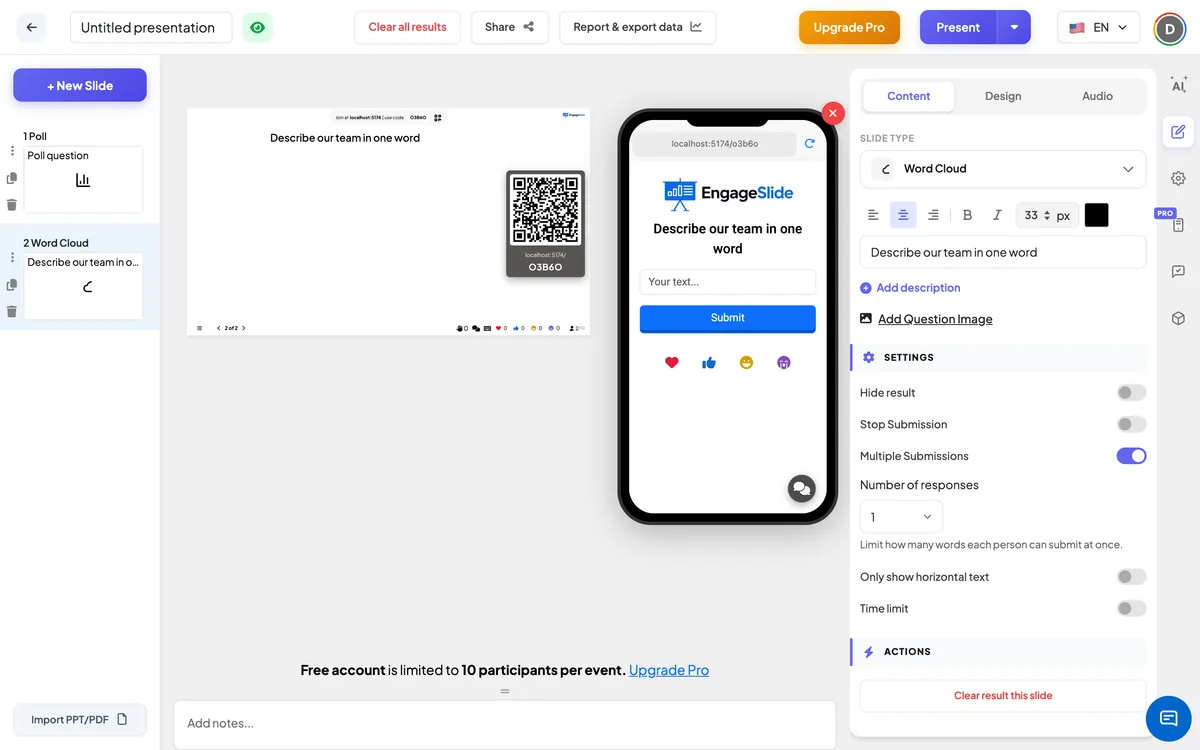
Word Cloud settings
Number of responses
How many words each person can send at once, from 1 to 7 (1 by default). Phones show that many input boxes; empty boxes are simply skipped.
Multiple Submissions
On by default: participants can submit again after their first answer. Turn it off to allow a single submission per person — the button then changes to Submitted.
Only show horizontal text
Off by default, so some words are turned on their side to fill the cloud. Turn it on to keep every word horizontal and easy to read.
Hide result
Keeps the cloud empty while people answer. A Show result button appears under the slide so you can reveal it when you are ready.
Stop Submission
Closes the slide: phones show Submission stopped. Click Enable Submission under the slide to open it again.
Time limit
Turn on and set Seconds to answer. When you present, a countdown runs on the big screen and on every phone; at zero the screen shows Time’s up! and submissions stop automatically.
Enable Profanity Filter
A presentation-wide switch under Settings → General Settings. When it is on, offensive words are replaced with **** on the big screen. The original answers are kept unchanged.
Present & share the join code
- 1Click Present in the top bar to put the slide on the big screen.
- 2A join code and a QR code appear (e.g.
36Y56). - 3Participants open the Audience app at join.engageslide.com, type the code and press Enter — or simply scan the QR.
- 4When everyone has joined, the responses start flowing in live.
How the audience responds
Participants see the question, any description and image, and one input box per allowed response (placeholder Your text…, up to 50 characters each). They type their words and tap Submit; the boxes clear so they can send more if Multiple Submissions is on. A View my submission link shows everything they have sent on this slide. If you set a time limit, a countdown bar runs at the top. While someone is typing, the big screen shows Participant is typing in its footer.
View results
Words fly into the cloud in real time. Word size depends on how often a word was sent, the most common words sit near the middle, and each word gets its own colour. Identical answers are grouped, so encourage people to spell the same idea the same way. Click any word on the big screen to Edit it (for example to fix a typo — if the new spelling already exists, the two are merged and their counts added up) or Delete it after a confirmation. Use Clear result this slide under Actions to empty the cloud and run the slide again. After the session, open Report & export data to see each word with its count; see View, reset and export results.
Question ideas
- Classroom: What do you already know about volcanoes? · One word that describes the main character.
- Training: What is the biggest challenge in your role right now? · One thing you will try tomorrow.
- Meetings: How are you feeling today? · Describe last quarter in one word.
- Events: Where are you joining from? · What topic should we cover next time?
Frequently asked
Can people submit more than one word?
Yes. Set Number of responses (up to 7) to give each person several boxes at once, and leave Multiple Submissions on so they can come back and send more.
Are answers anonymous?
The cloud never shows who sent a word. Names are stored with the answer only if the participant entered one when joining, and they can appear in the report, never on the big screen.
Are “Teamwork” and “teamwork” counted as the same word?
No. Answers are grouped only when they are exactly the same, including capital letters. You can merge variants during the session by clicking a word, choosing Edit and typing the other spelling.
How do I remove an inappropriate word?
Click the word on the big screen and choose Delete. To mask offensive words automatically, turn on Enable Profanity Filter in Settings → General Settings.
How long can an answer be?
Up to 50 characters per box. Long answers are kept horizontal so they stay readable.