⚙️Presentation Settings 4 min read
Collect audience information
Ask for a name, company, email or anything else before people take part.

What it does
With Collect Audience Information turned on, everyone who joins fills in a short form on their phone before they see your slides. You choose the fields. Every answer they give is then linked to their details, so after the session you know exactly who said what — handy for workshops, trainings, events and anything you need an attendance list for.
Step by step
- 1In the editor, open the ⚙️ Presentation settings tab in the right column and expand General Settings.
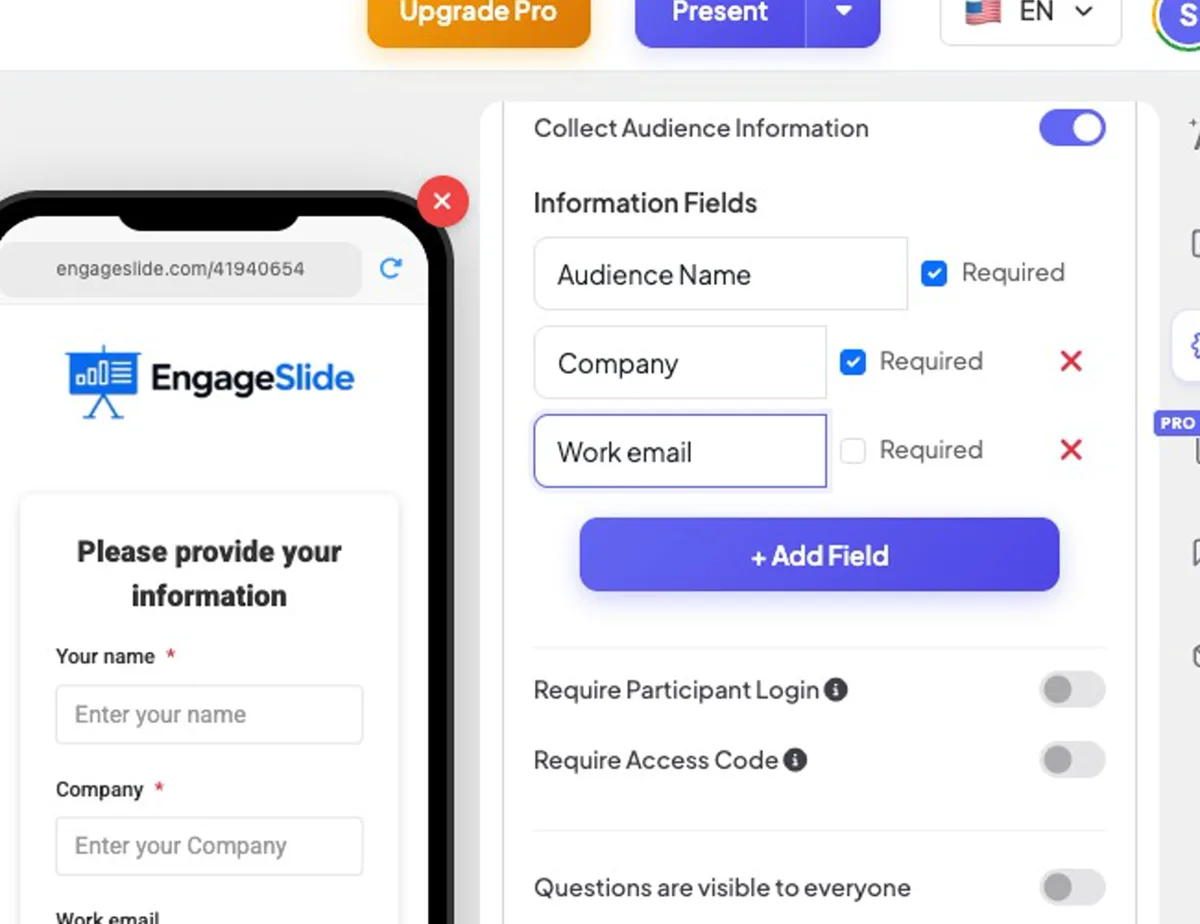
- 2Turn on Collect Audience Information. An Audience Name field is added first and is always required.
- 3Press + Add Field and type the field title — for example Company, Work email, Department or Student ID.
- 4Tick Required on the fields people must fill in. Remove a field with the red ✕.
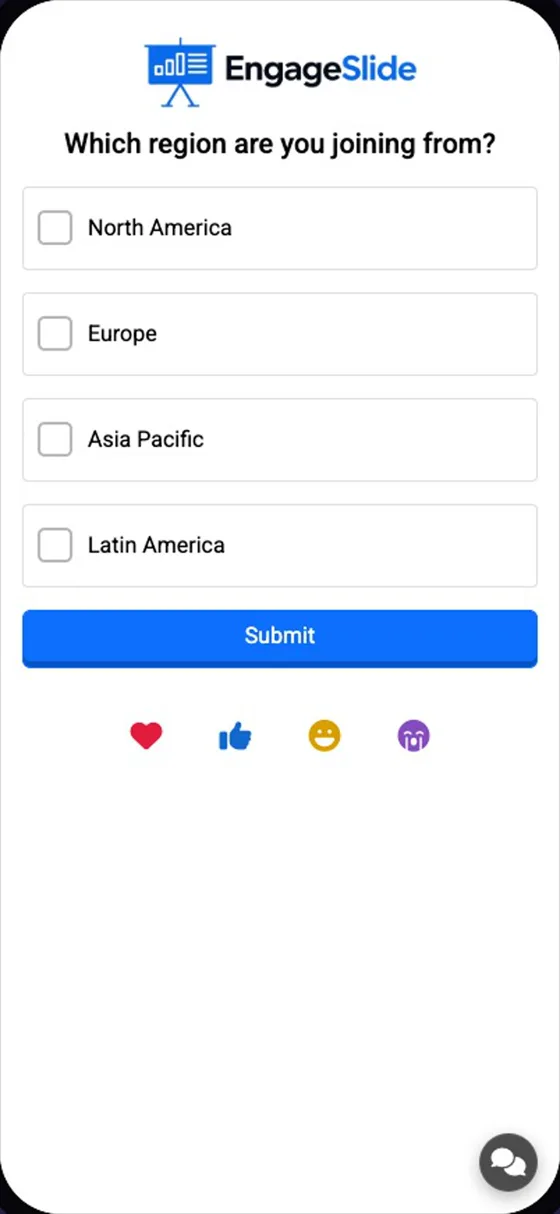
- 5Present as usual. The phone preview next to the slide shows the form your audience will see.
real screenshots
What participants see
- A Please provide your information card with one box per field. Required fields carry a red *.
- Submit stays disabled until every required field is filled.
- After submitting they go straight to the current slide. They are not asked again for this presentation.
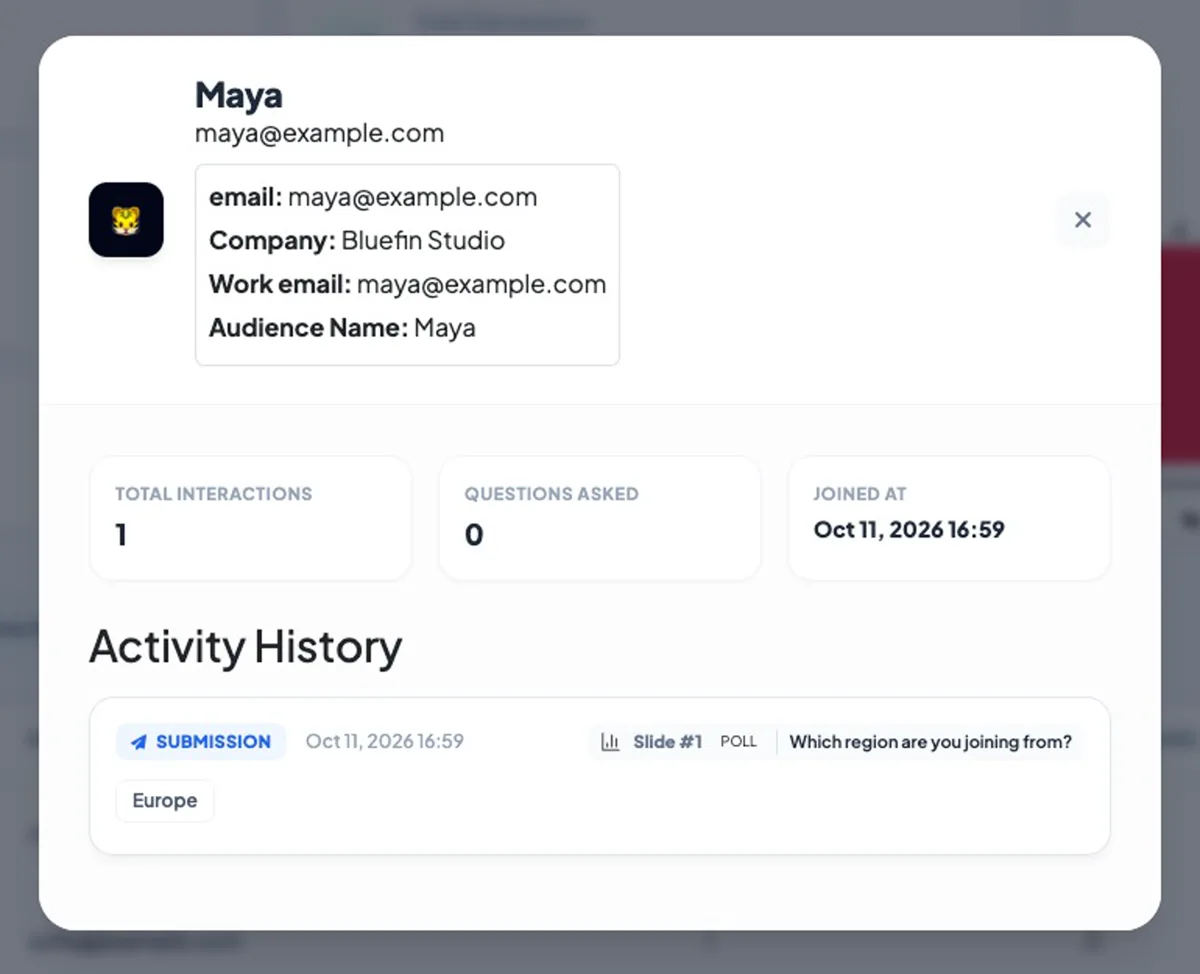
- A field whose title contains email is also saved as the participant’s email, so it shows in the Email column of your report.
See the details after the session
Open the presentation’s Report (the chart icon in the editor top bar, or from your Home list) and go to the Participants tab. Every participant is listed with their email and number of answers; click a row to see all the details they entered and their full activity history. Answers in Slide Results also show the author’s details. Export Excel adds one column per field. See View, reset and export results.
Frequently asked
Can I change the fields during a session?
Yes, but only people who join afterwards see the new form. People who already submitted are not asked again.
Is the Audience Name field optional?
No. When collection is on, the name is always the first field and always required. Add your own fields below it.
Does it work with access codes or login?
Yes. If you also use access codes or participant login, people pass that check first, then fill in the form.
Can I export the information?
Yes — Export Excel in the report adds a column for every field. Exporting is available on paid plans; on the free plan you can view everything in the report.