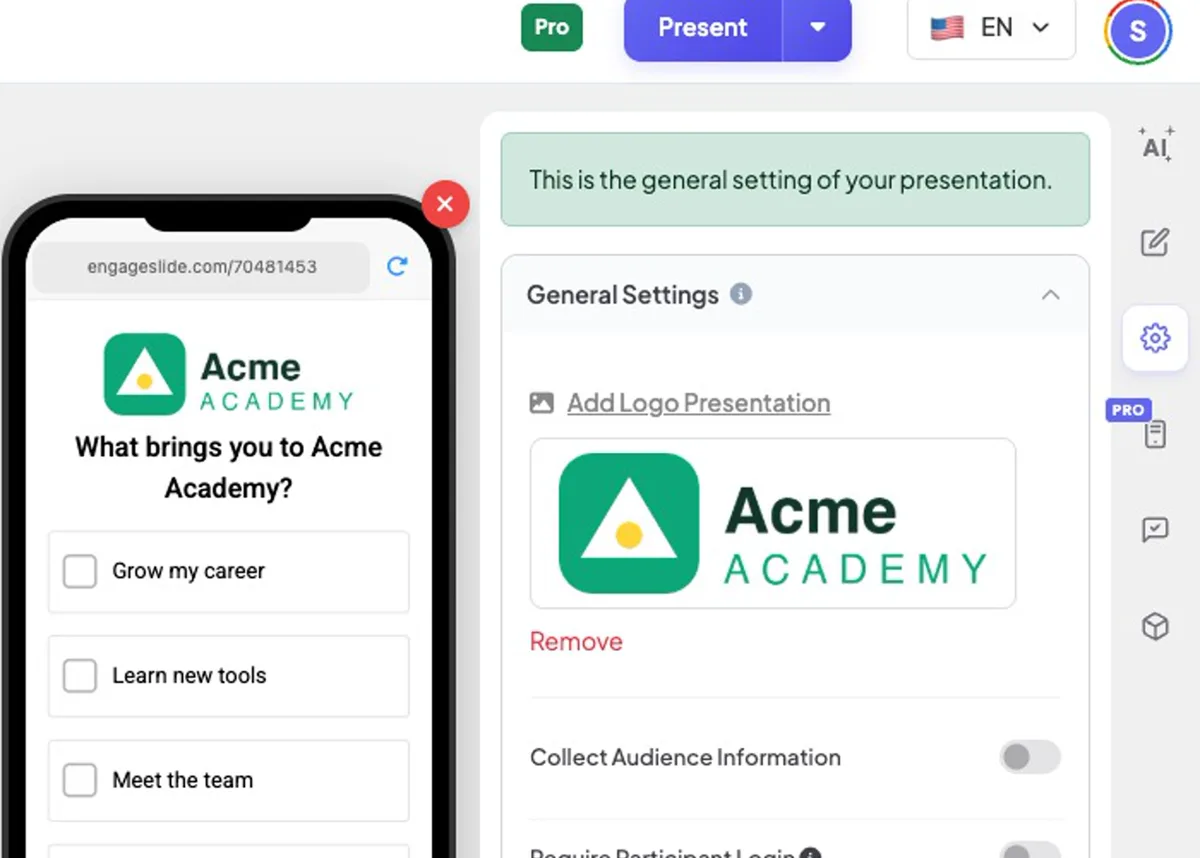
Open ⚙️ Presentation settings → General Settings and click Add Logo Presentation.
2
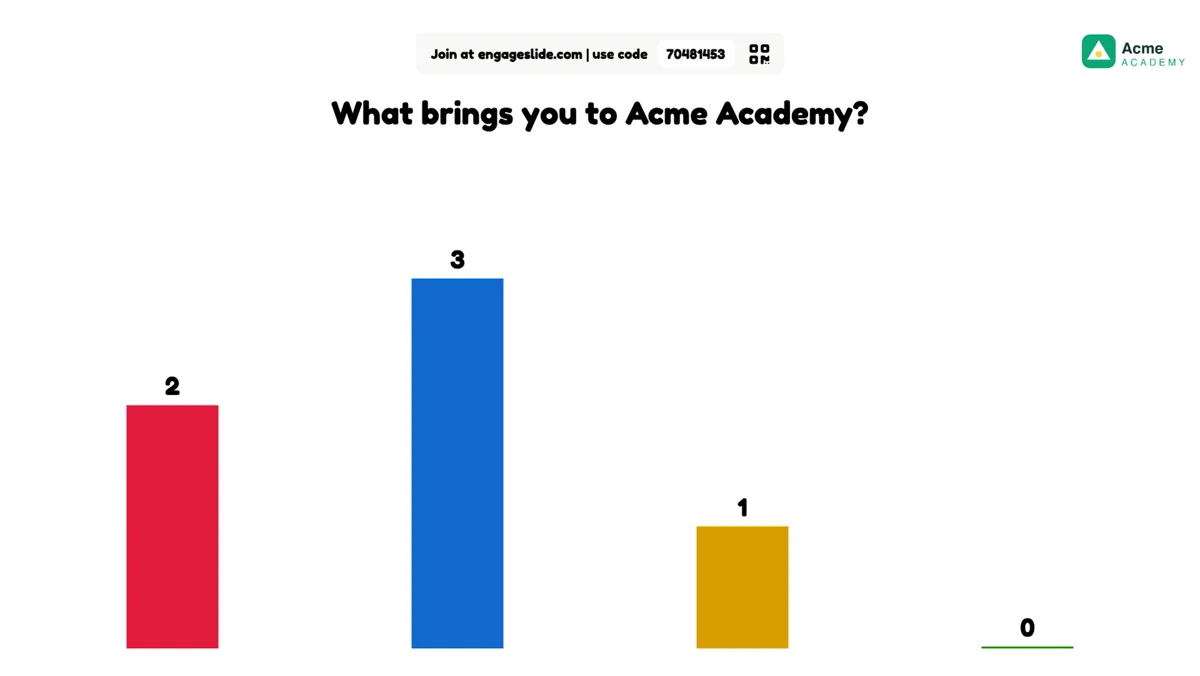
Choose your logo file (a PNG with a transparent background looks best). It replaces the EngageSlide logo in the top-right of every slide and at the top of every phone.
3
To change it, click the logo again; to go back to the default, click Remove.
A logo for a made-up school, Acme Academy — on the slide, the phone preview and in the settings.real screenshot
Change the font
1
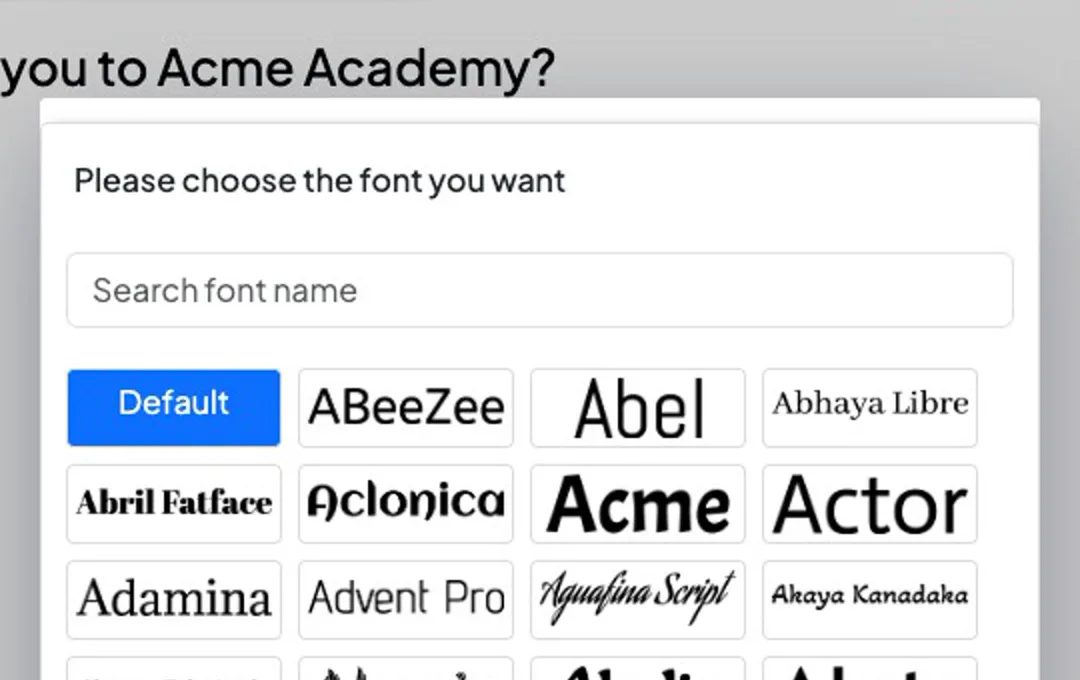
Expand Fonts and click Change Font Presentation.
2
Search the list of 1,000+ Google Fonts by name and click one. Default goes back to the standard font.
3
The whole presentation — big screen and phones — uses the new font. A single slide can still have its own font in its slide settings.
Change Font Presentation — search and pick any Google Font.real screenshotPresenting with the custom logo and font.real screenshot