⚙️Presentation Settings 4 min read
Moderate Q&A and filter bad words
Approve questions before they reach the big screen, and hide swear words.

Why moderate
At a town hall, a conference or a big class you may not want every question on the big screen straight away. With Moderation Q&A on, new questions wait for approval; with the Profanity Filter on, swear words are hidden on screen. Both are in ⚙️ Presentation settings → General Settings.
Settings
Questions are visible to everyone
Lets the audience ask questions from any slide, not only from a Q&A slide.
Moderation Q&A
Audience questions are hidden until approved. A moderator link appears — share it with anyone who should help you approve.
Enable Live Chat
Adds a chat between the audience and the presenter (see Music, reactions & live chat).
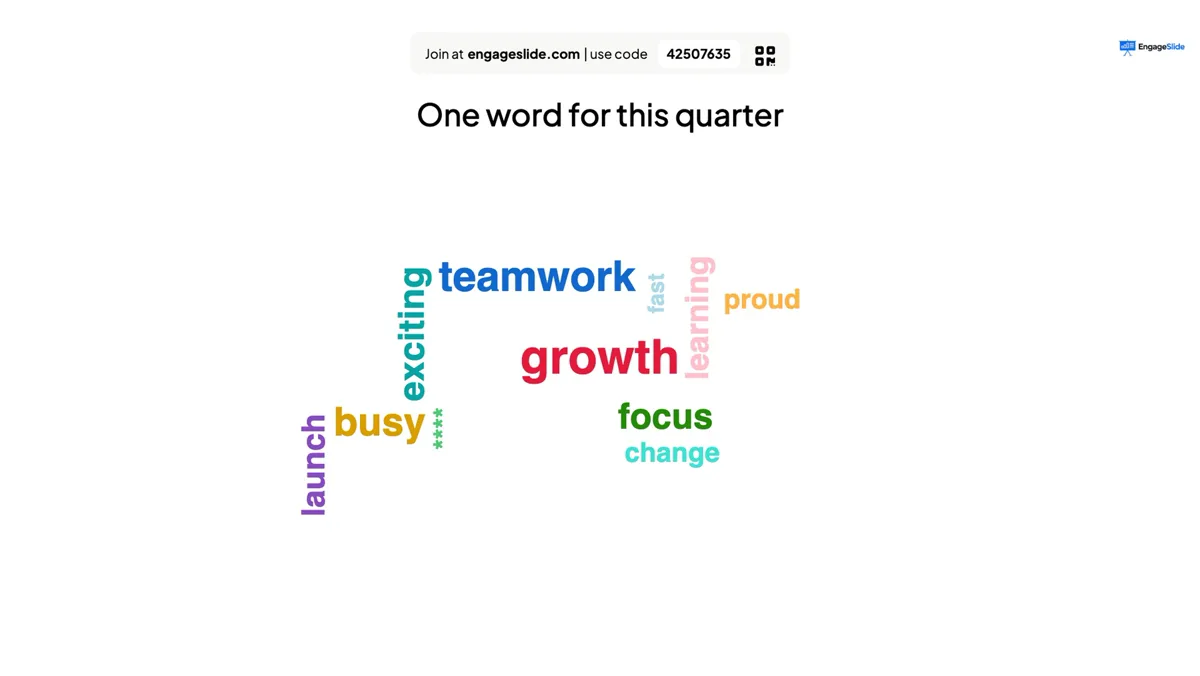
Enable Profanity Filter
Offensive words are shown as
**** on the presentation display in Open Ended, Word Cloud, Type Answer and Q&A. The original submissions stay unchanged in your results.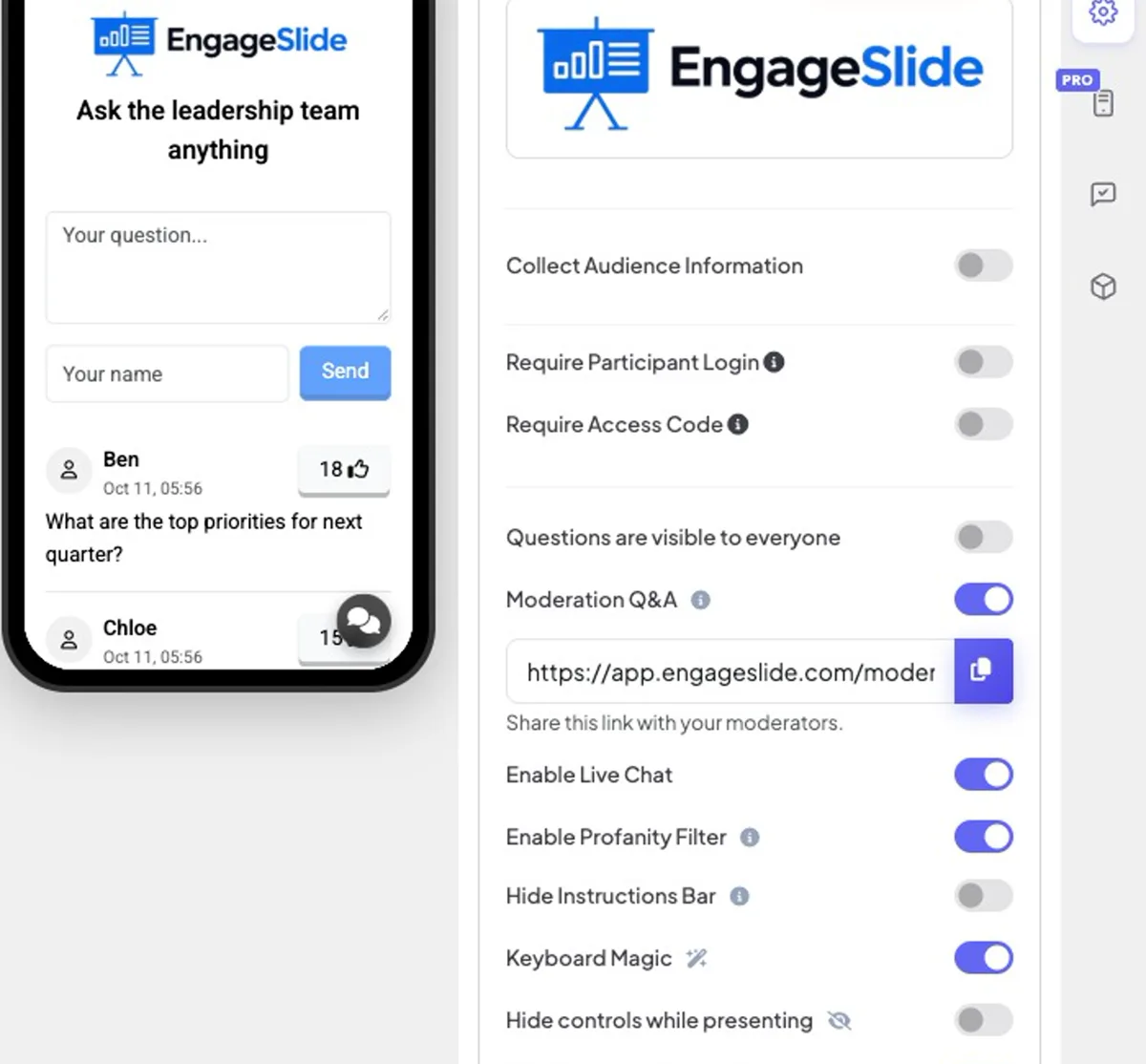
Moderate questions
- 1Turn on Moderation Q&A and press the copy button next to the link that appears. Share it with your moderators (they don’t need an account).
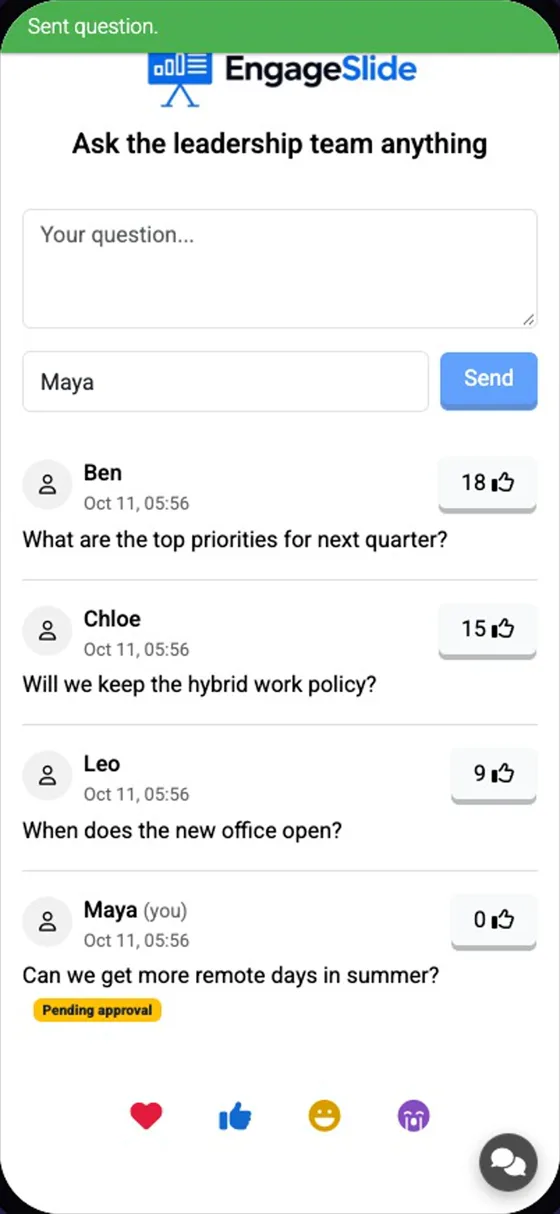
- 2When someone asks a question, their phone shows it with a Pending approval label. It is not on the big screen yet.
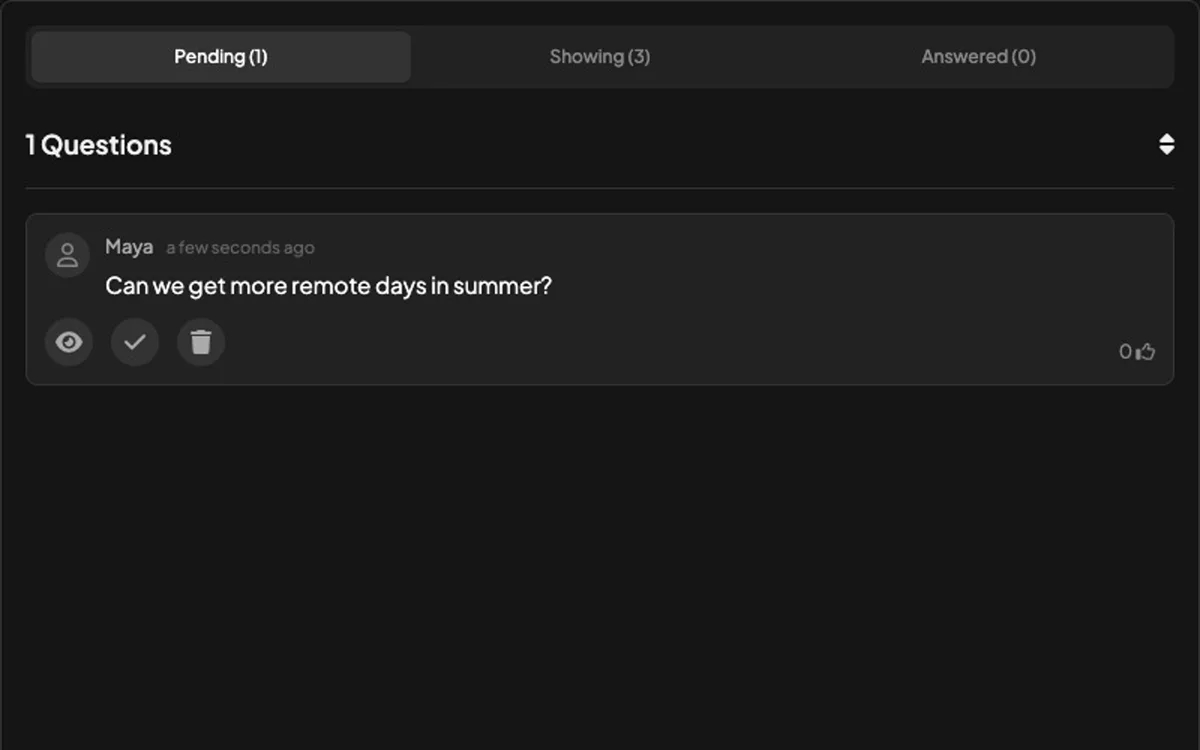
- 3On the moderator page, open Pending. Press 👁 to approve and show it, ✓ to mark it answered, or 🗑 to delete it.
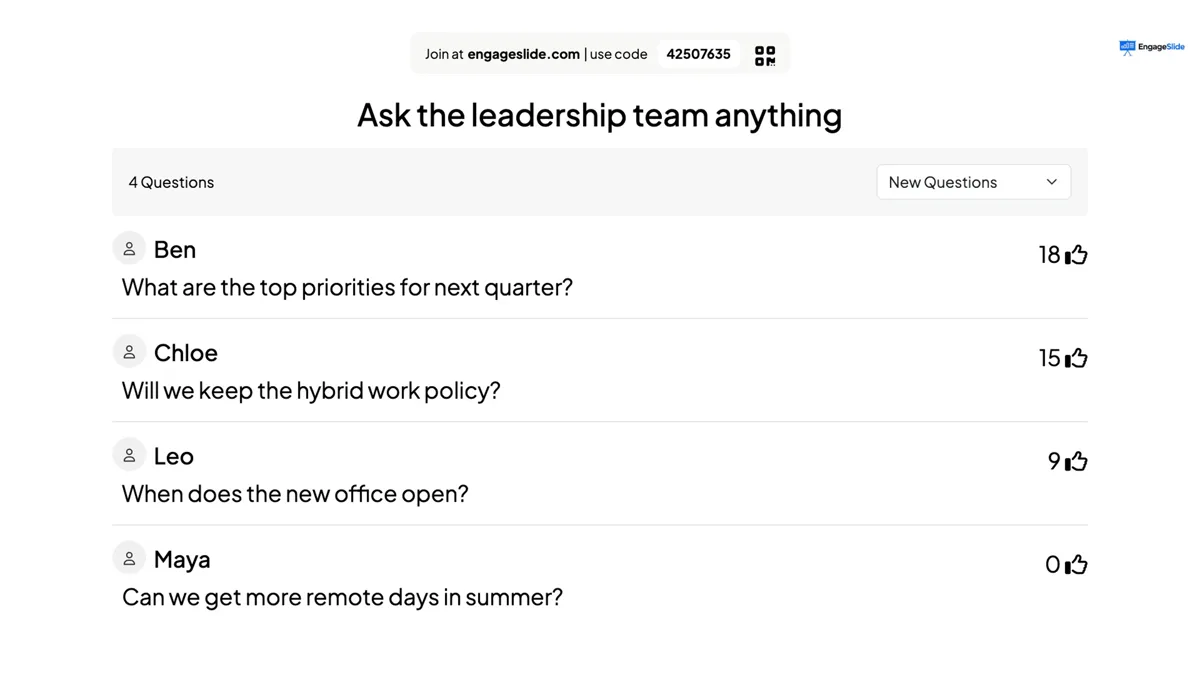
- 4Approved questions move to Showing and appear on the big screen right away; answered ones move to Answered.
real screenshots
Frequently asked
Who can open the moderator link?
Anyone you share it with. Share it only with people you trust to approve questions.
Does the filter delete answers?
No. It only changes what is shown on the presentation. Your report and exports keep the original text.
Can I still answer questions from my phone?
Yes — the Remote Control shows the same Pending, Showing and Answered lists.