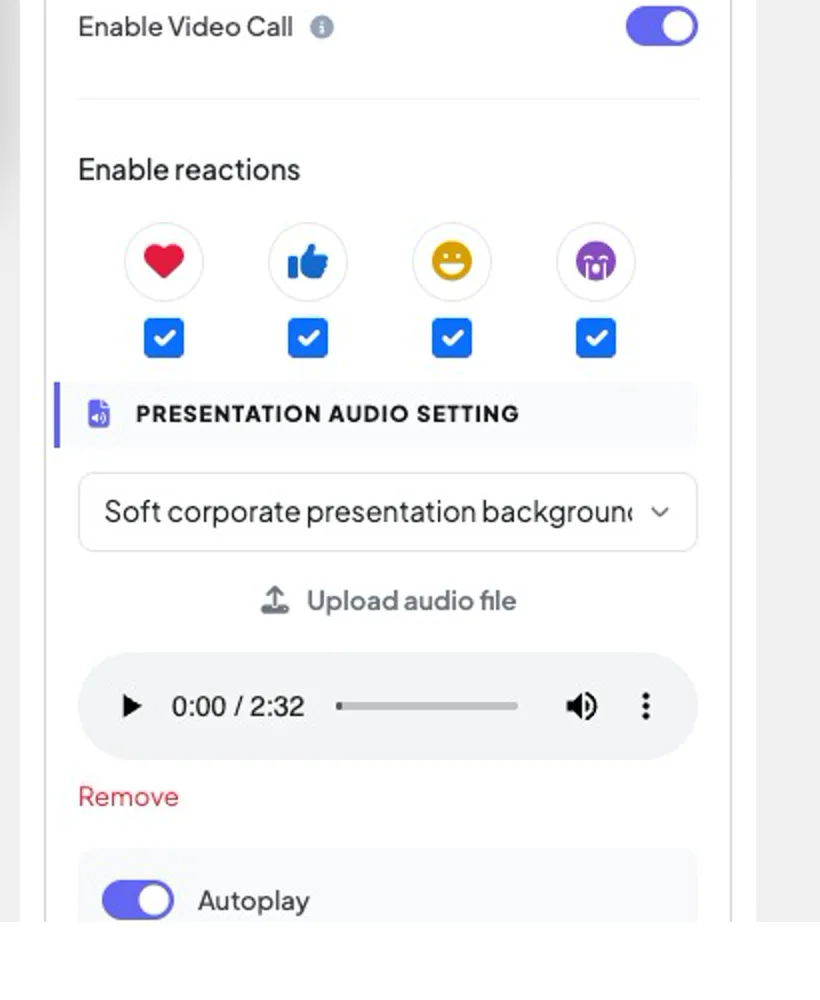
Open ⚙️ Presentation settings → General Settings and scroll to Presentation Audio Setting.
2
Pick a track from Select audio, or press Upload audio file to use your own. A player lets you preview it; Remove takes it away.
3
Choose Autoplay and On Repeat.
4
Turn on Enable on audience device to play it on phones too, with Autoplay for audience and Show media control options.
Enable reactions, then Presentation Audio Setting with a track, Autoplay and On Repeat.real screenshot
Emoji reactions
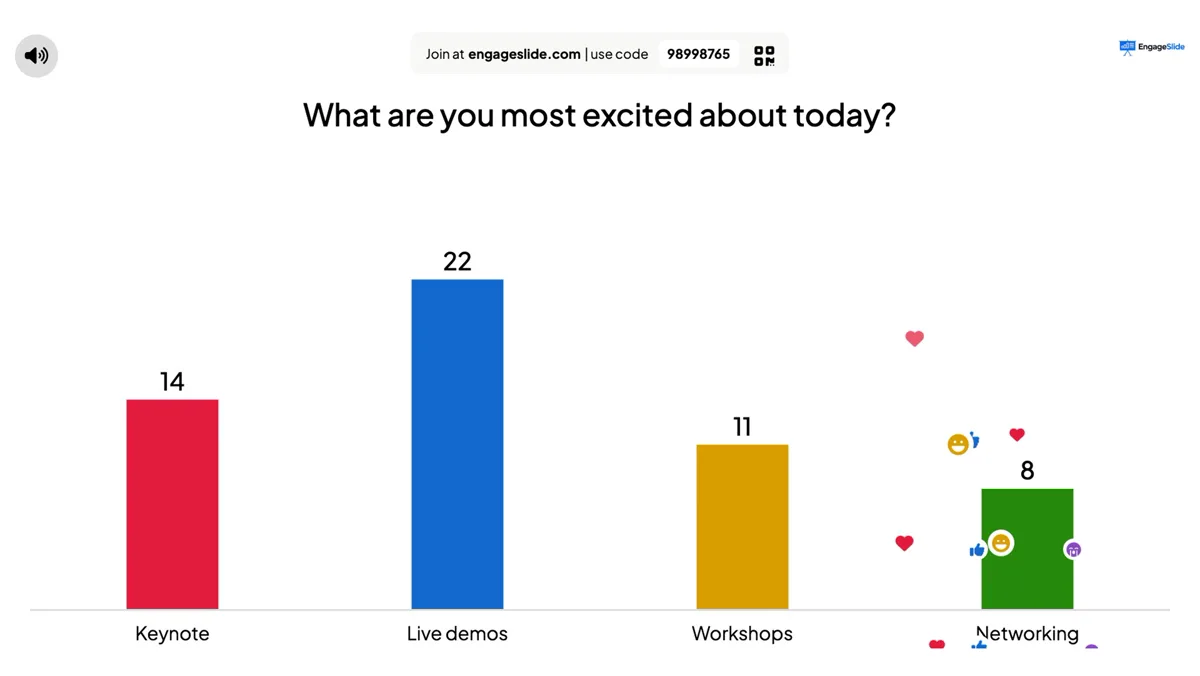
Under Enable reactions, tick the emojis people may send (❤️ 👍 😄 😮). Participants tap them on their phone at any moment; each tap floats up on the big screen, and the counters in the bottom bar add up. Untick all of them to hide reactions.
Reactions float up on the big screen and are counted in the bottom bar.real screenshot
Live chat
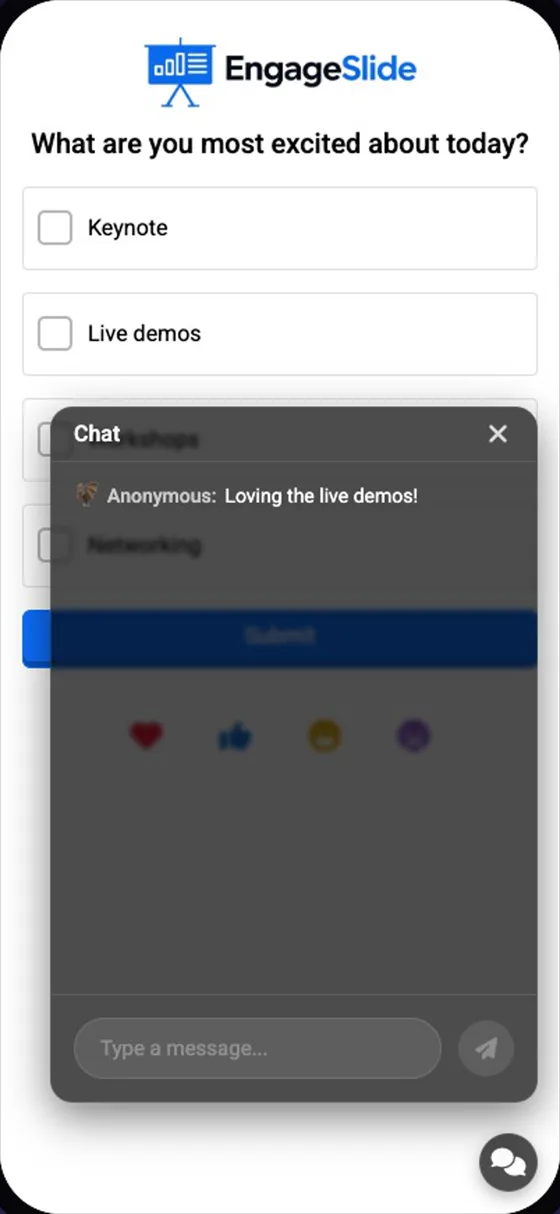
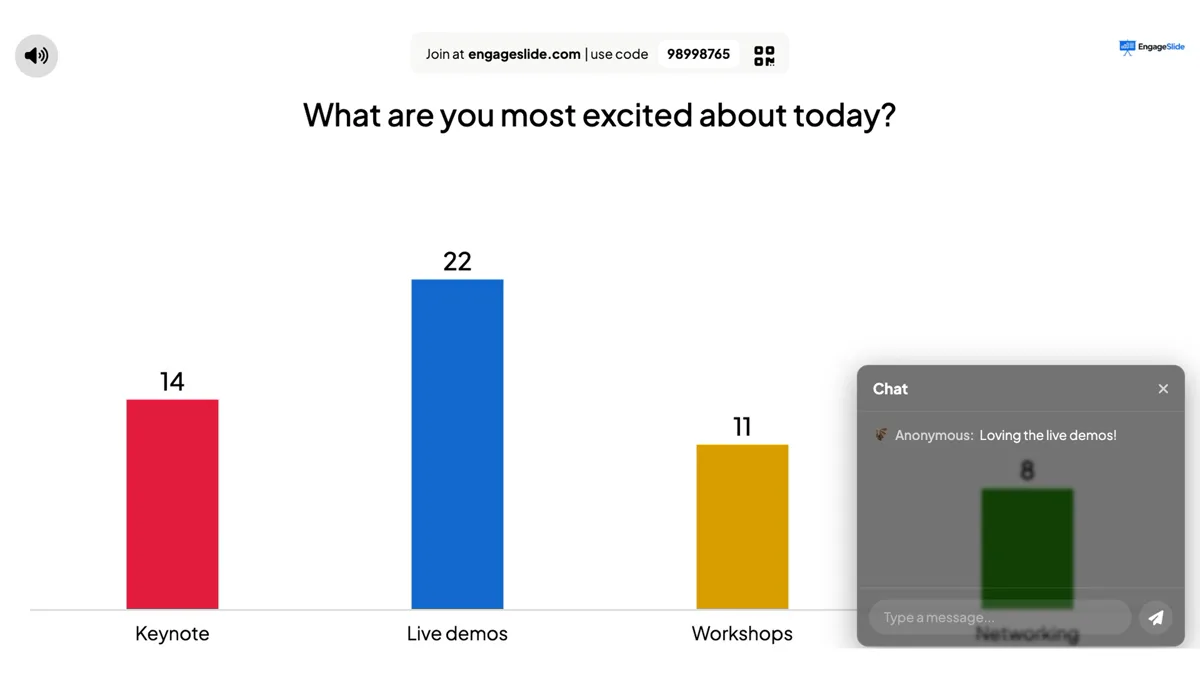
Turn on Enable Live Chat and a chat button appears on every phone. Messages arrive in the chat on the big screen: click the chat icon in the bottom controls to read them and reply as the host. With the Profanity Filter on, swear words in chat are hidden too.
Chat from the phone
real screenshots
The host reads and answers in the chat on the big screen.real screenshot
Also in this section
📹
Enable Video Call
Shows a Call button on response cards (Open Ended, Q&A and others) so you can invite that participant to speak on a video call.