⚙️Presentation Settings 4 min read
Run a private session with access codes or login
Make sure only the people you invite can join and answer.

Two ways to keep a session private
Anyone with your join code can normally take part. For a class, an exam or a closed meeting, add a second check in ⚙️ Presentation settings → General Settings: give every person their own access code, or ask everyone to log in with an account.
The two options
Require Access Code
Each participant must enter a unique 5-character code after joining. Codes are generated by you, one per person. A code works for one person at a time and stays valid for 3 hours.
Require Participant Login
Participants must log in to (or register) an EngageSlide account before they can take part — useful when you need verified identities.
Set up access codes
- 1Turn on Require Access Code.
- 2Type how many codes you need (1–500) — for example 30 for a class of thirty — and press Generate. You can generate more later.
- 3Press Download CSV. The file lists every code with its status (Available or In Use).
- 4Hand one code to each person — print them, email them, or put them on your LMS.
- 5Share your join code as usual. After joining, each person types their own code and presses Verify.
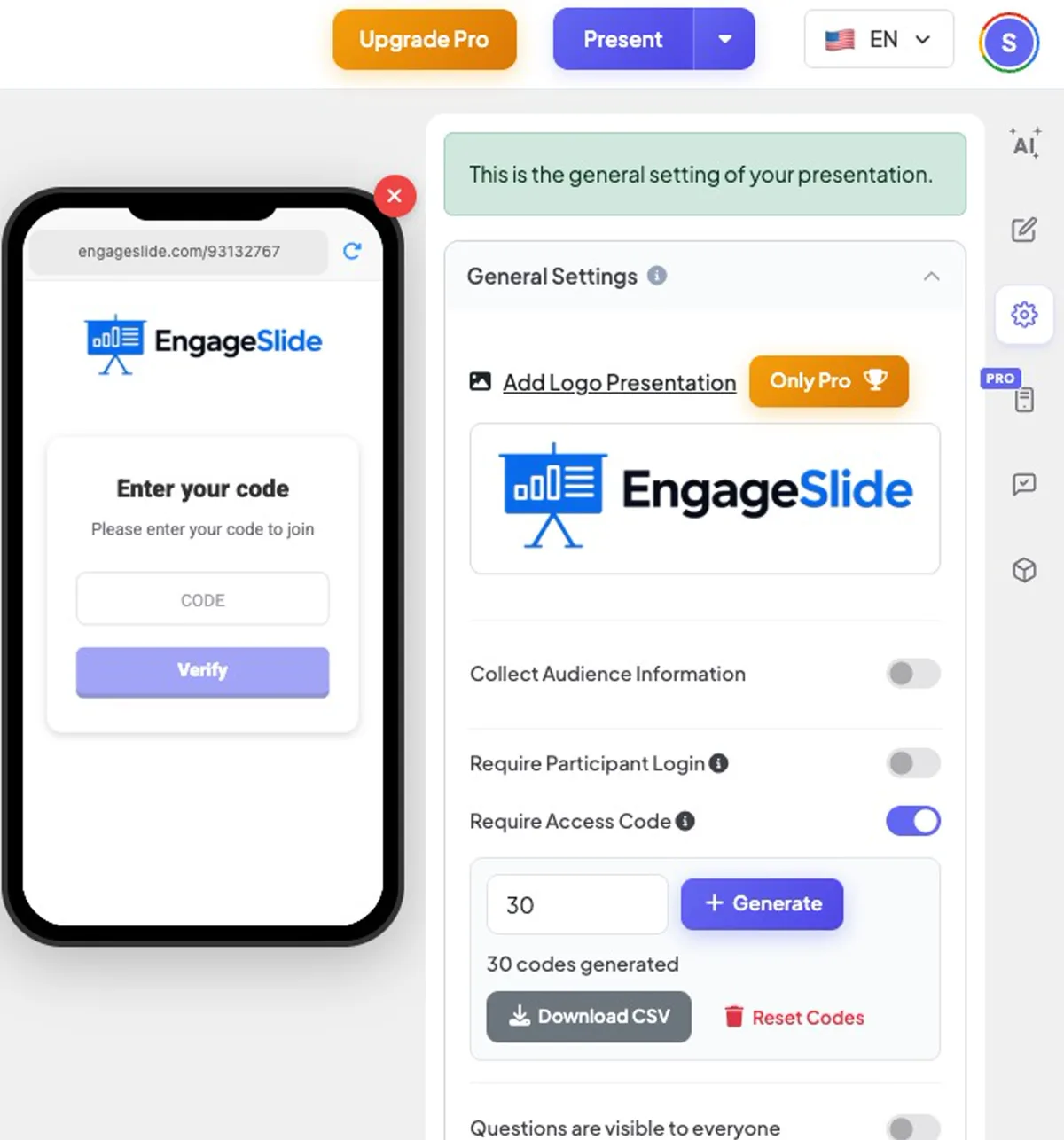
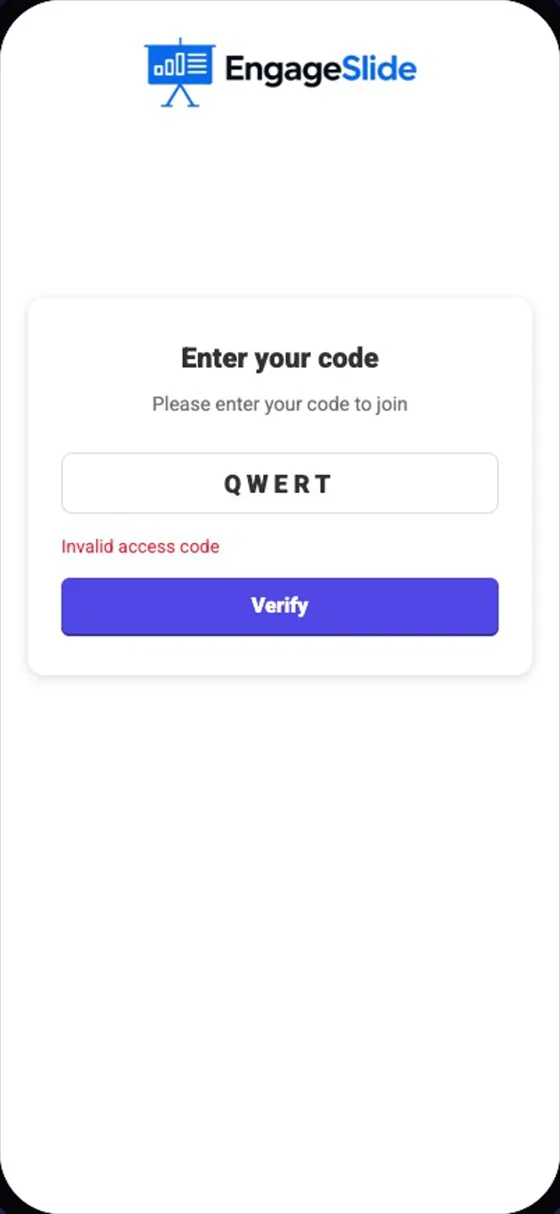
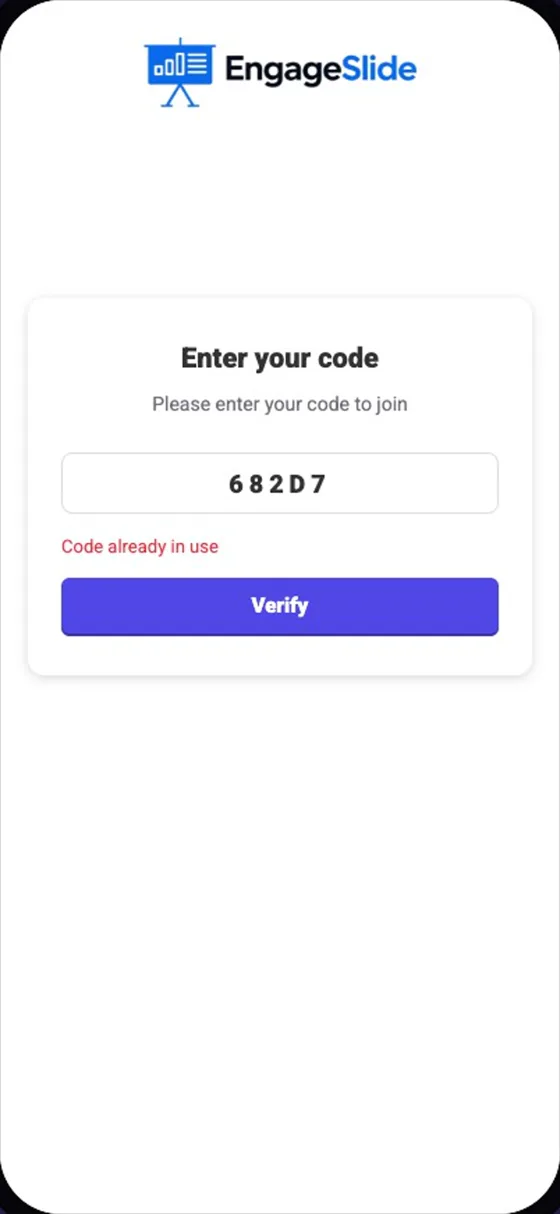
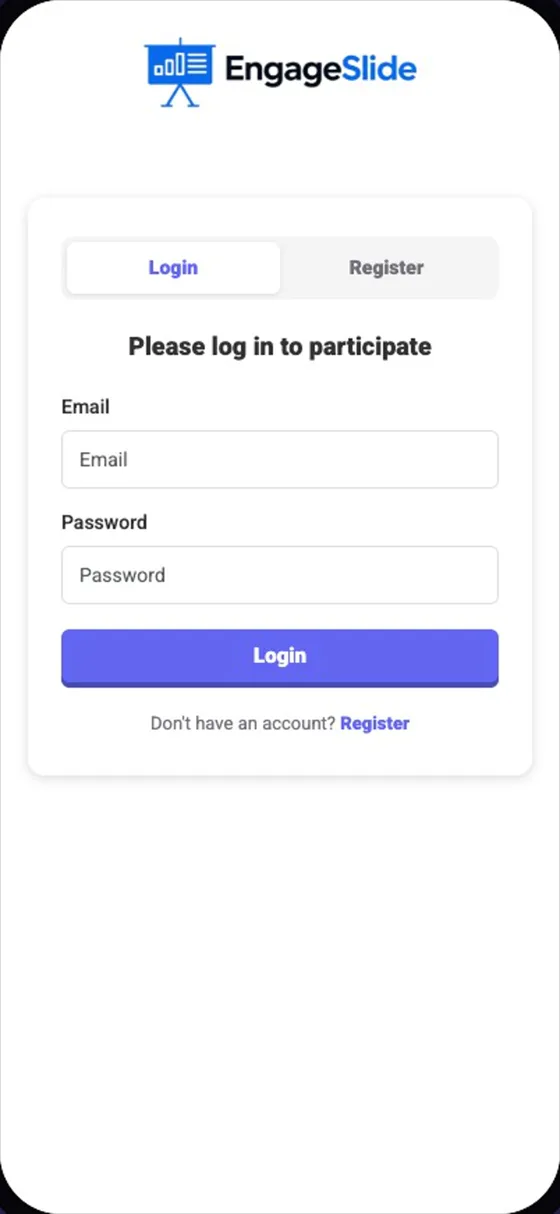
real screenshots
Good to know
- Reset Codes deletes every code (after a confirmation) — use it before reusing the deck with a new group.
- A participant who refreshes their phone stays verified; they don’t need to type the code again.
- Combine with Collect Audience Information to also ask for a name or student ID.
Frequently asked
Can two people share one code?
No. While a code is in use, anyone else who types it sees Code already in use. That stops one student from passing their code around.
How long is a code valid?
Each code can be used by one person at a time and stays valid for 3 hours from when it was first used.
Do participants need an account for access codes?
No. Access codes work without any account. Only Require Participant Login asks people to sign in.