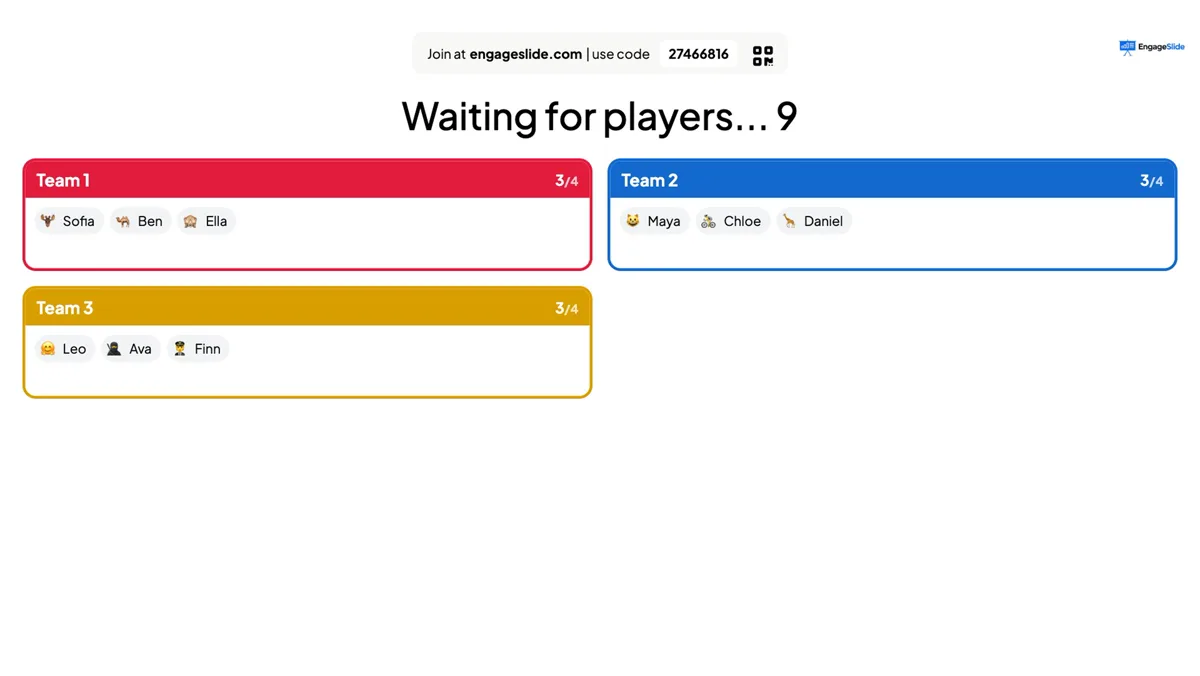
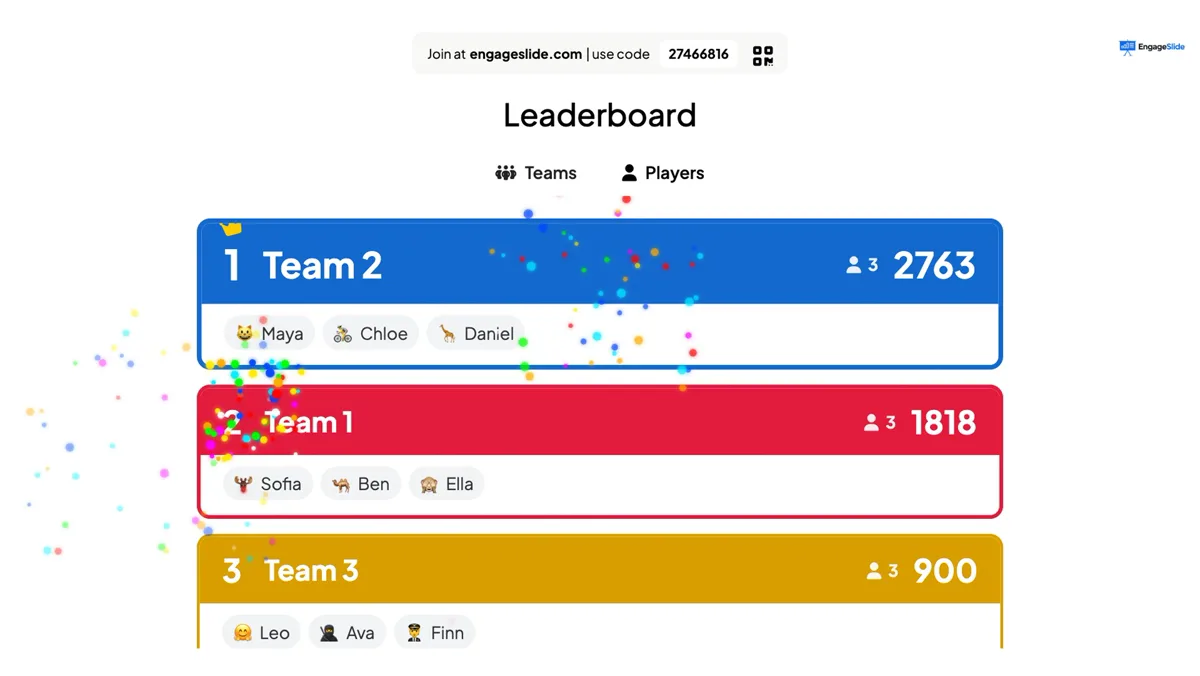
Team quiz mode turns every quiz in your presentation into a team game. When players join a quiz they choose a team, the lobby on the big screen shows who is on which team, every point a player scores also counts for their team, and the leaderboard gets a Teams view. Great for classrooms, team building and trivia nights.
Step by step
1
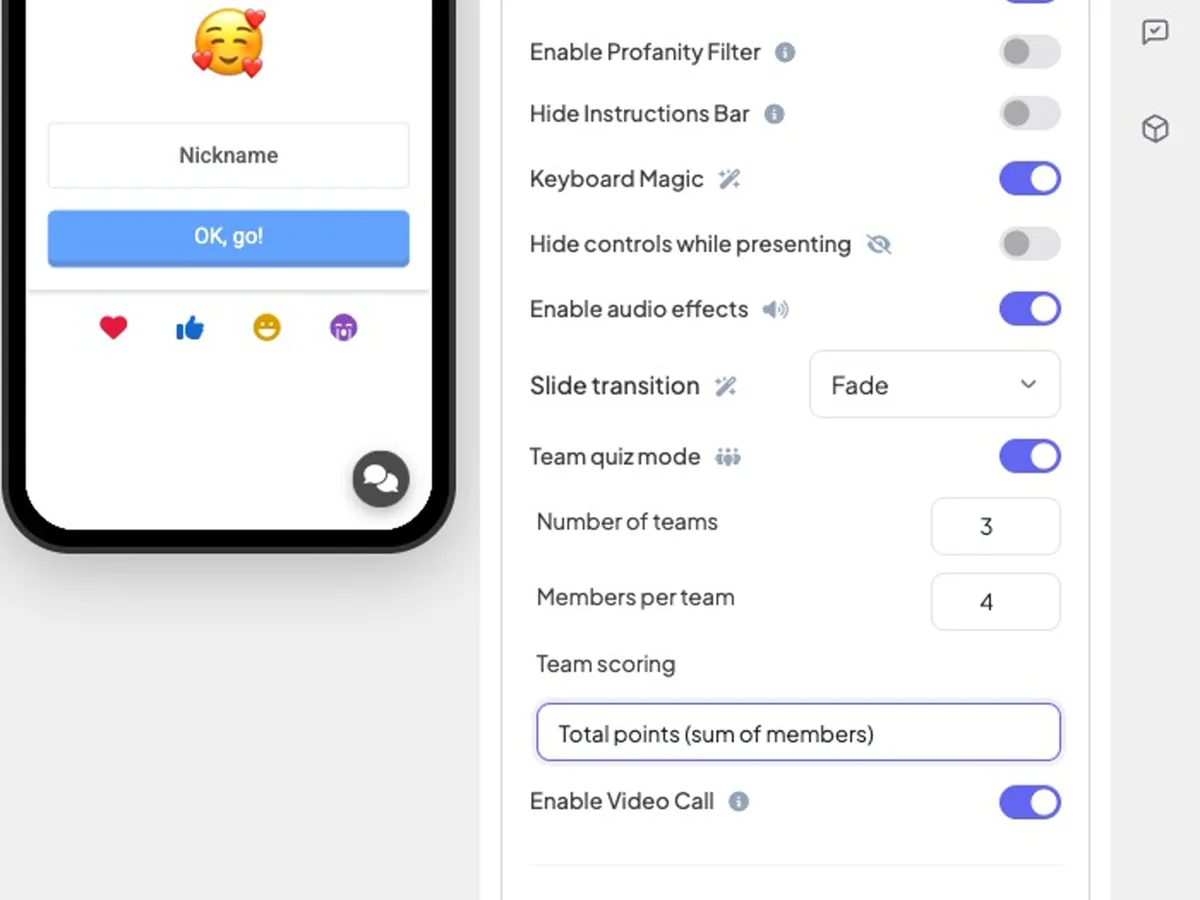
Open ⚙️ Presentation settings → General Settings and turn on Team quiz mode.
2
Set the Number of teams (2–50) and Members per team (1–200). The defaults are 10 teams of 20.
3
Choose the Team scoring (see below).
4
Add your quiz slides and a Leaderboard slide at the end, then present.
Team quiz mode with 3 teams of 4 members and Total points scoring.real screenshot
Team scoring
➕
Total points (sum of members)
A team’s score is everyone’s points added up. Bigger teams have an advantage, so keep teams the same size.
➗
Average points (shared equally)
The team score is the average per member — fair when teams have different sizes.
⚡
Fastest answer per question
For each question only the team’s best (fastest correct) answer counts — the quickest player carries the team.
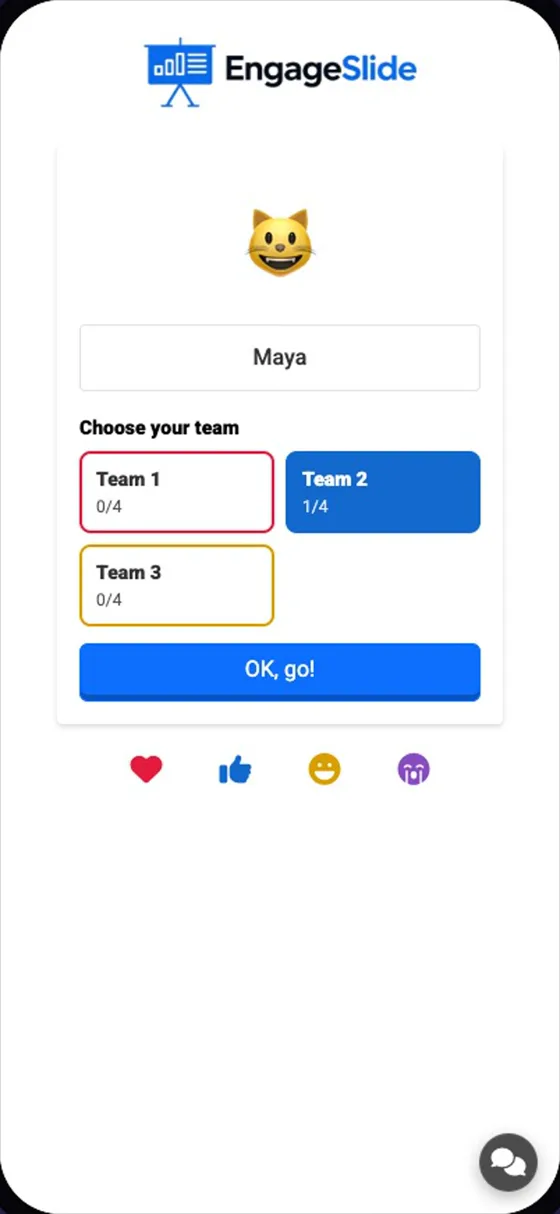
Players type a nickname and choose a team. Each button shows how full it is; full teams are locked.
real screenshots
The lobby shows a card per team with its members and how full it is.real screenshotOn the Leaderboard, switch to Teams for the team ranking with every member.real screenshot
Frequently asked
Can I name the teams?
Teams are named Team 1, Team 2… and each has its own colour, matching the answer colours on the phones.
Does it work with every slide type?
It works with the quiz slides and the leaderboard. Tug of War has its own two sides and skips the team picker.