🎮Quiz & Game Slides 5 min read
Bet / Wager
Players bet points on their answer before the options appear — right multiplies the bet, wrong loses it.
What is Bet / Wager?
A Bet / Wager slide is a multiple-choice quiz question with a betting round in front of it. Before the options appear, every player bets one chip (for example 10, 20 or 50 points). A right answer wins the bet times the multiplier on top of the usual question points. A wrong answer, or no answer, loses the bet. Players have to decide how sure they really are, and one bold bet can change the leaderboard.

Presenter creates the slide Click Present Share code / QR Audience enters code Respond & submit Real-time results
Create a Bet / Wager slide
- 1On Home, click + Create new presentation (or add a slide to an existing one).
- 2In Choose Slide Type, pick Bet / Wager. You can also type it into Search slide types….
- 3The slide is created and the right panel opens on the Content tab.
Set up the content
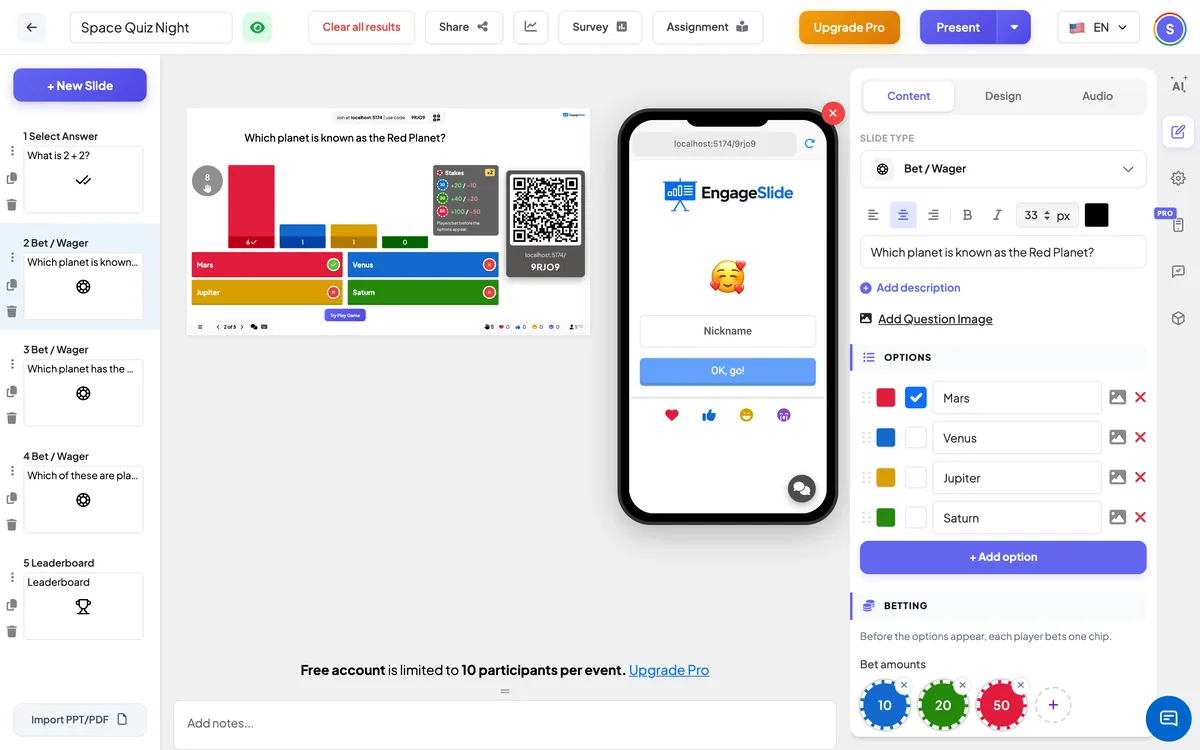
- 1Type your question and add the options. Tick the correct one; tick two or more to make players pick every right answer.
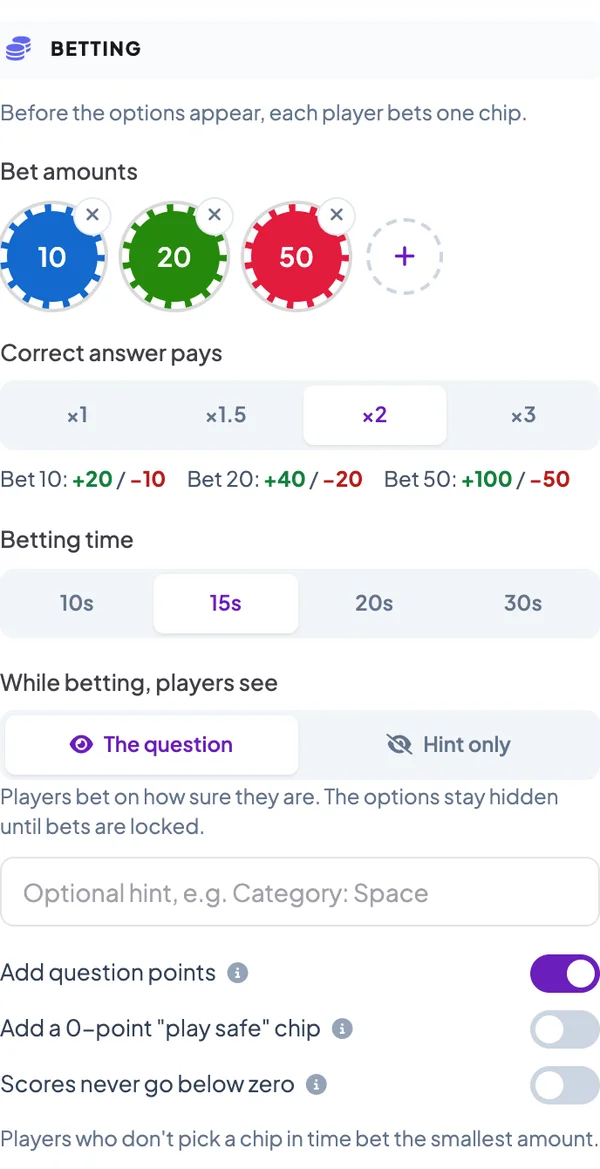
- 2Under Betting, set the Bet amounts: up to 4 chips. Click a chip to change its value, or + to add one.
- 3Choose what a correct answer pays: ×1, ×1.5, ×2 or ×3 the bet. The line under the buttons shows the win/lose for every chip.
- 4Pick the Betting time and what players see while betting: the question itself, or only an optional hint such as Category: Space (a blind bet).
- 5Set the time and points under Settings, as for any quiz. Question points are added to the bet winnings unless you switch off Add question points.
Bet / Wager settings
Bet amounts
Up to 4 chips (default 10 / 20 / 50). Every player bets exactly one of them.
Correct answer pays
×1, ×1.5, ×2 (default) or ×3 the bet. A wrong answer or no answer always loses the bet.
Betting time
10, 15 (default), 20 or 30 seconds. The host can also start the question early.
While betting, players see
The question (players bet on how sure they are) or Hint only (a blind bet: the question appears after bets are locked).
Add question points
On by default: a right answer also earns the normal question points (Point, speed bonus). Switch off to score the bet only.
Play-safe chip
Adds a 0-point chip for players who aren’t sure: they risk nothing and win no bet.
Scores never go below zero
A lost bet can only take the points a player already has.
Present & share the join code
- 1Click Present in the top bar to put the slide on the big screen.
- 2A join code and a QR code appear (e.g.
36Y56). - 3Participants open the Audience app at join.engageslide.com, type the code and press Enter — or simply scan the QR.
- 4When everyone has joined, the responses start flowing in live.
How the audience responds
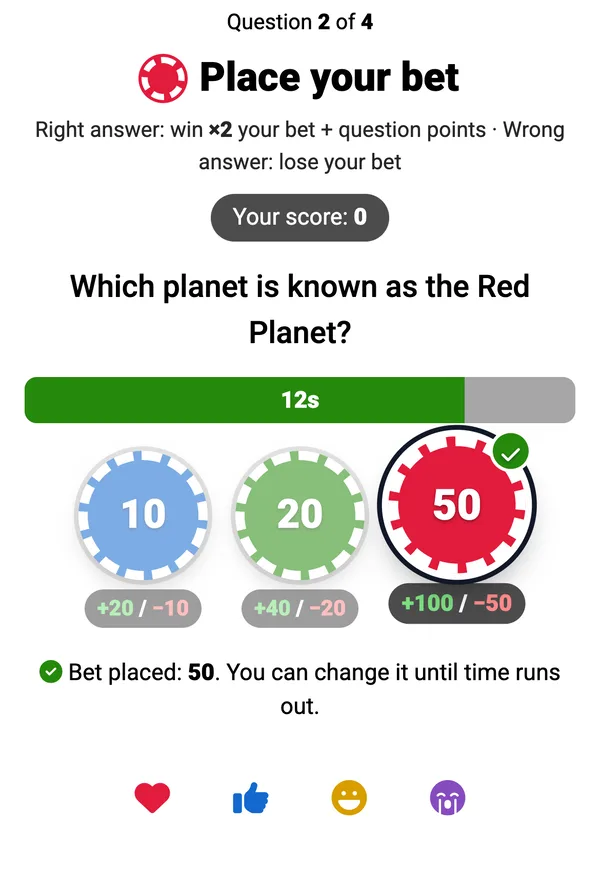
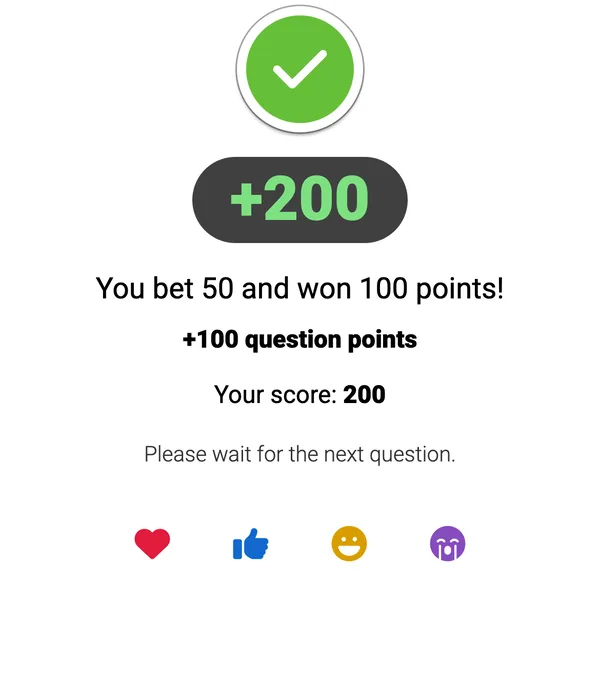
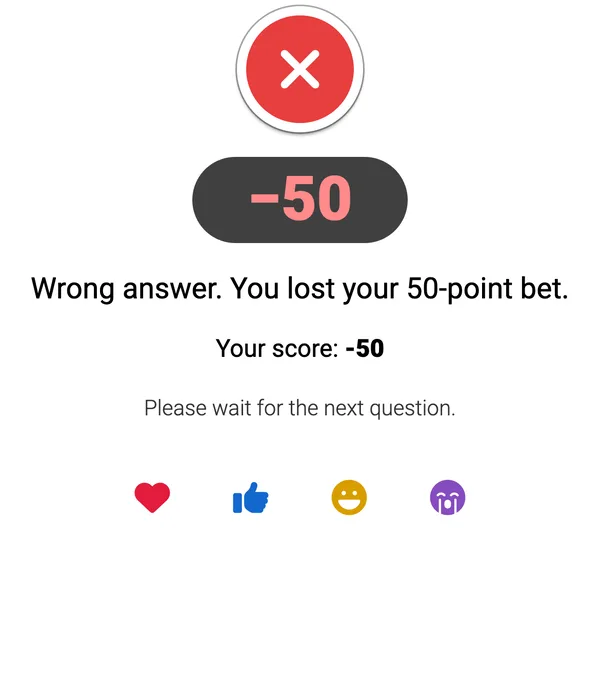
First, players see the betting screen: their current score, the chips with what each one can win or lose, and a countdown. They tap a chip and can change it until time runs out. Anyone who doesn’t pick plays the smallest chip. Then the options appear with a reminder of their bet (“Your bet 50 · win +100”). After the reveal their phone shows how many points they won or lost, the breakdown between bet and question points, and their new score.
View results
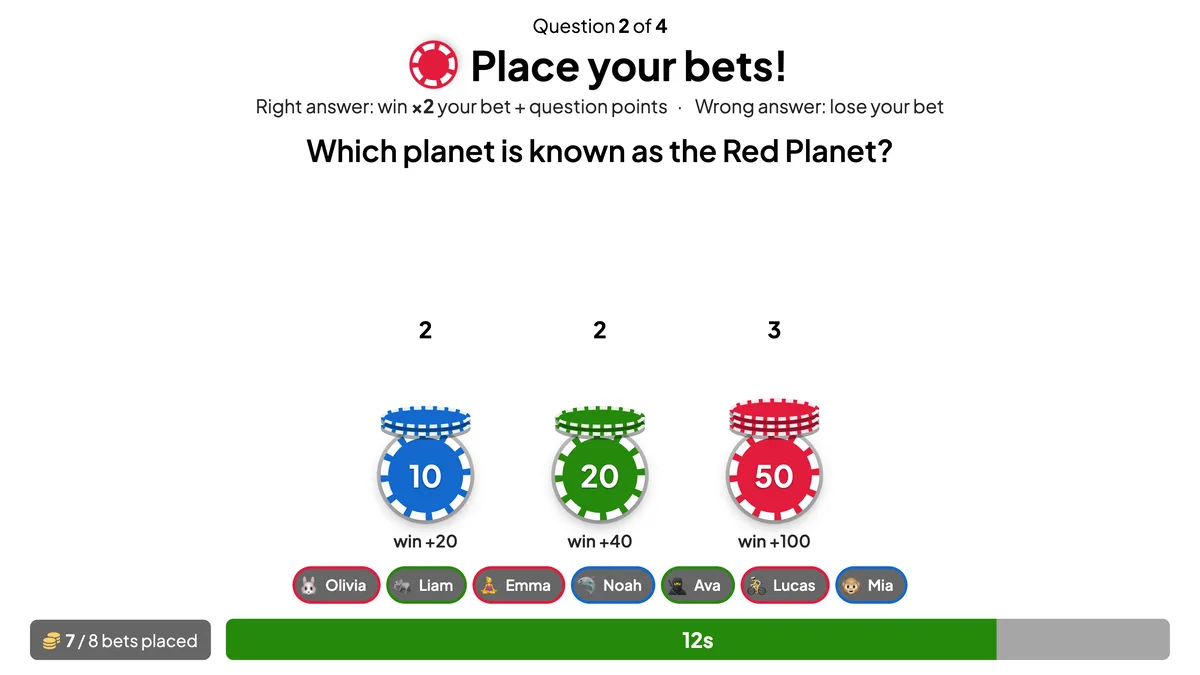
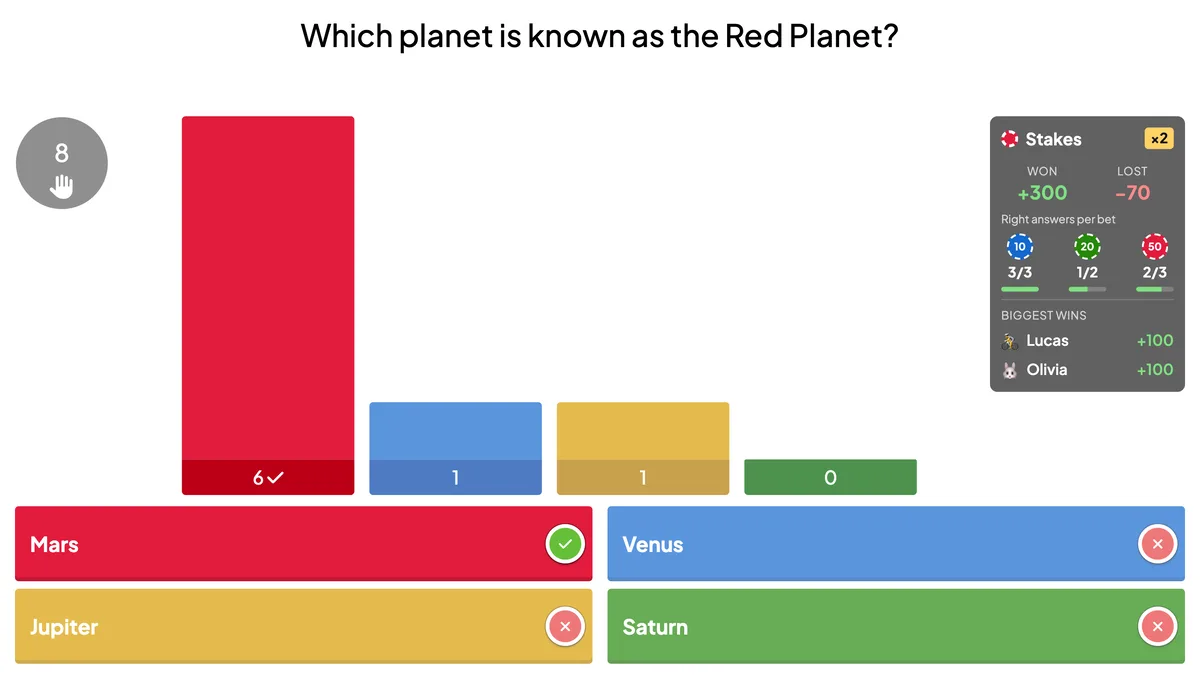
While players bet, the big screen shows chip stacks growing for each amount and who has bet (“7 / 8 bets placed”). During the question, a Stakes panel shows how many points are on the table. After the reveal it shows the total won and lost, how many players got it right at each bet size, and the biggest wins. The next Leaderboard shows every player’s gain or loss (+100, −50) next to their score.
real screenshots
Frequently asked
Can scores go negative?
Yes, by default a wrong answer takes the whole bet, even below zero. Switch on Scores never go below zero to cap the loss at the player’s current score.
What if a player doesn’t bet or doesn’t answer?
No bet in time means they play the smallest chip. No answer counts as wrong, so that bet is lost. Their phone tells them either way.
Can players change their bet after seeing the options?
No. Bets lock when the betting time ends (or when you start the question), before the options appear.
Is there partial credit when a question has several right answers?
No. Wager questions are all-or-nothing: players must pick every right answer to win the bet.
Where is the best place for a wager question?
Near the end of a quiz as a comeback round, or after a few normal questions so players have points to bet. Add a Leaderboard right after it to show the swings.