🎮Quiz & Game Slides 5 min read
Draw & Guess
A live draw-and-guess game — players take turns drawing on their phones while everyone else races to guess the word.
What is Draw & Guess?
Draw & Guess turns your audience into a live Pictionary-style game. Players join on their phones and take turns as the drawer: the drawer secretly picks one of three words and sketches it on their phone, and the drawing appears stroke by stroke on the big screen and on every other phone. Everyone else types guesses; the faster you guess right, the more points you get, and the drawer scores for every player who guesses their word. After every turn the word is revealed, and after the last turn the Final Scores crown the winner. It is a great icebreaker or energiser, and with your own word list it becomes a fun vocabulary or topic review.
Presenter creates the slide Click Present Share code / QR Audience enters code Respond & submit Real-time results
Create a Draw & Guess slide
- 1On Home, click + Create new presentation (or add a slide to an existing one).
- 2In Choose Slide Type, pick Draw & Guess. You can also type it into Search slide types….
- 3The slide is created and the right panel opens on the Content tab.
Set up the content
- 1There is no question to type: everything is under Settings on the Content tab.
- 2Choose the number of Rounds (1 to 5, 1 on a new slide). In every round, each player draws once.
- 3Choose the Drawing time for each turn: 20, 30, 40, 60, 80, 100 or 120 seconds (20 seconds on a new slide).
- 4Pick a Word source. Theme uses a ready-made, family-friendly word list: General, Animals, Food & Drink, Everyday Objects, Nature, Sports & Hobbies, Places & Travel or Actions. My own words opens a box where you type one word or phrase per line, for example volcano, photosynthesis, food chain. Add at least 3 words; up to 200 are used.
- 5Leave Reveal letter hints on to uncover letters of the word as time runs down, or turn it off for a harder game.
- 6Present the slide, let everyone join, and press Start game on the big screen.
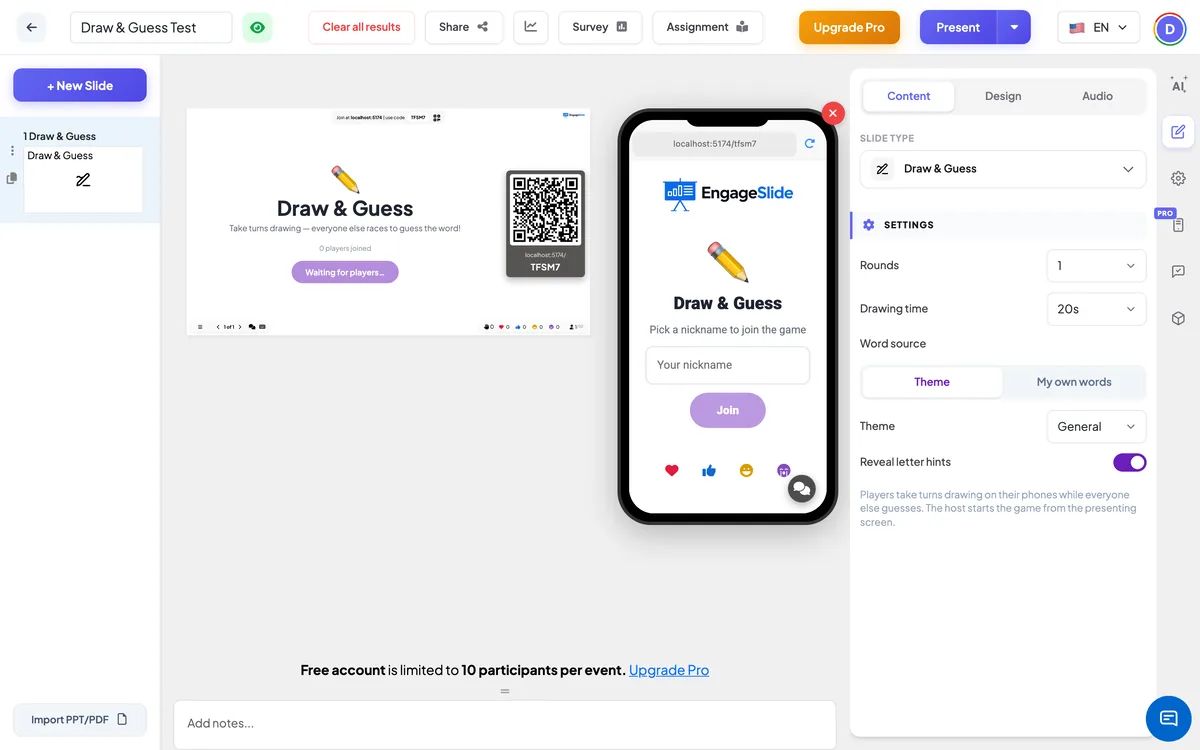
Draw & Guess settings
Rounds
1–5 rounds. Every player draws once per round, in a new random order each round.
Drawing time
20 / 30 / 40 / 60 / 80 / 100 / 120 seconds per turn (default 20). The turn ends early once every guesser has the word.
Word source
Theme (default General) or My own words — your list of words or phrases, one per line. Words already drawn are avoided until the list runs out.
Reveal letter hints
On by default. After 40% of the drawing time, letters are uncovered one by one, up to half of the word. It also turns on the private You’re close! nudge for guesses that are one letter off.
Present & share the join code
- 1Click Present in the top bar to put the slide on the big screen.
- 2A join code and a QR code appear (e.g.
36Y56). - 3Participants open the Audience app at join.engageslide.com, type the code and press Enter — or simply scan the QR.
- 4When everyone has joined, the responses start flowing in live.
How the audience responds
Players join with your code, see Pick a nickname to join the game, type a Your nickname (up to 20 characters) and tap Join; the phone then says You’re in! Waiting for the host to start… When it is your turn to draw, you get Choose a word to draw with three word buttons and a 15-second timer — if you don’t choose, the first word is picked for you. Your phone becomes a drawing pad showing Draw: and your word, with 12 colours, three brush sizes, an eraser, undo and clear. When someone else is drawing, you see the drawing appear live, the word as blanks (_ _ _ _ _) with any hint letters, the timer and the guess feed. Type in Type your guess… and tap Guess (or press Enter) as often as you like. Wrong guesses appear in everyone’s feed; a right guess shows ✓ You guessed it! +87 on your phone, while the others only see that you guessed the word. After each turn the phone shows The word was, the word and your points for that turn (or No points this round), and at the end the Final Scores — the top eight, with your own row highlighted.
View results
In the lobby the big screen shows every player who has joined and the count, and the Start game button becomes active once one player has joined. During a turn it shows Anna is choosing a word… with a countdown, then the play screen: the Players list with scores (✏️ for the drawer, ✓ for those who guessed), the live drawing with the word as blanks, a timer and progress bar, and the Guesses feed with system lines like Round 2 of 3! After each turn the screen shows The word was, the word and everyone’s points for that turn, then moves on after a few seconds. After the last turn, Final Scores shows the top five players. Press Play again to go back to the lobby with all scores reset, then Start game for a new game. The game is run by the presenting screen, so keep that screen open while you play.
Ideas for Draw & Guess
- Classroom: review vocabulary with your own list — science terms, animals in a new language, story characters.
- Training: draw your product features or company jargon, then discuss what each one means.
- Team building: a 10-minute warm-up for a remote or hybrid meeting.
- Events and parties: use the Actions or Sports & Hobbies theme for quick, funny drawings.
Frequently asked
How are points worked out?
A guesser earns between 100 points (right at the start of the turn) and 50 points (at the last second), depending on the time left. The drawer earns up to 60 points: the share of the other players who guessed the word, so 3 out of 4 guessers gives 45 points.
How exact does a guess have to be?
Guesses ignore capital letters, accents, spaces and punctuation, so Ice Cream, icecream and ice-cream all count. Otherwise the word must be right; with hints on, a guess that is one letter off gets a private You’re close!
Can players join after the game has started?
Yes. A late player joins the current game with 0 points and gets a drawing turn at the end of the current round.
What if the drawer leaves?
Their turn is skipped and the game moves on to the next drawer. Players who leave stop taking turns.
Do Draw & Guess points go to the Leaderboard slide?
No. The game keeps its own scores and shows them on Final Scores; the Leaderboard slide only counts quiz questions.
Can I use words in other languages?
Yes. Custom words can be in any language or script — Spanish, Vietnamese, Russian, Chinese, Japanese, Korean and so on. Accents on Latin letters are ignored, so cafe matches café.