🎮Quiz & Game Slides 7 min read
Escape Room
A team escape room on the big screen: every room has a lock, every answer is the code that opens the next door. First team out of the dungeon wins.
What is Escape Room?
An Escape Room slide locks your class in a dungeon of 2–8 rooms. Every room has one lock: a question whose answer is the code that opens the door to the next room — a symbol lock (pick one of 2–4 answers), a number padlock (dial the digits) or a word lock (type the word). Players join in teams (or alone) and work on their phones: the whole team shares one lock, anyone can try a code and everyone sees every try, so the team has to talk before it guesses. A wrong code jams the lock for a few seconds; after two wrong codes the team can take the room’s hint for a 30-second penalty. The big screen shows the dungeon in 2.5D: every team is a character that picks up the key and runs through the door it just opened, until it reaches the exit gate. The first team out wins; when the time is up, the team that got furthest wins. At the end you see which lock gave the class the most trouble.

Presenter creates the slide Click Present Share code / QR Audience enters code Respond & submit Real-time results
Create a Escape Room slide
- 1On Home, click + Create new presentation (or add a slide to an existing one).
- 2In Choose Slide Type, pick Escape Room. You can also type it into Search slide types….
- 3The slide is created and the right panel opens on the Content tab.
Set up the content
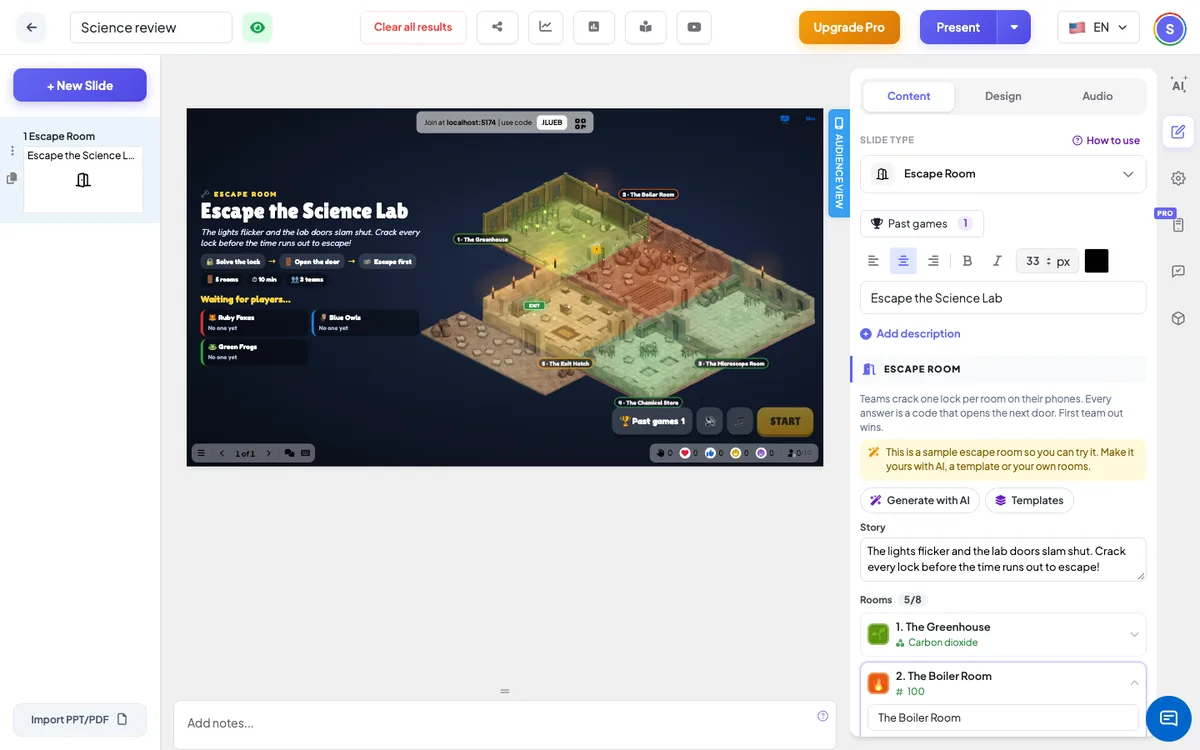
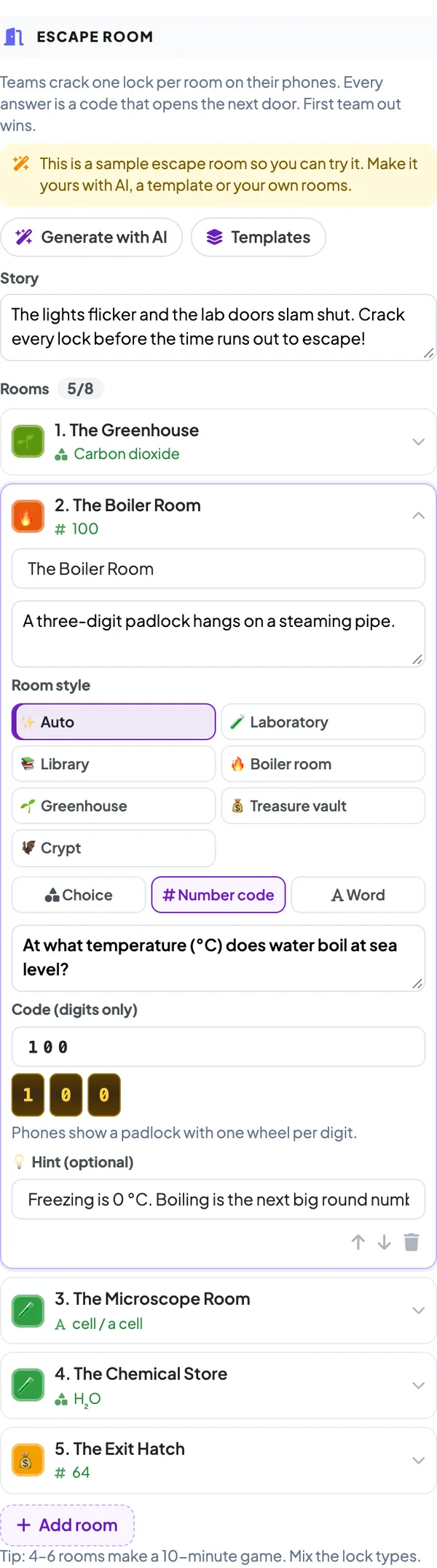
- 1A new Escape Room slide starts with the sample Escape the Science Lab (5 rooms, every lock type), so you can try it straight away. A yellow note reminds you to make it your own.
- 2Click Generate with AI, type a topic (for example The water cycle), pick the level (Primary school, Middle school, High school, University, Adults / training) and how many rooms (3–8), and click Generate. The AI writes a title, a story and one lock per room in your interface language, checks every code, and replaces the rooms. Always read the codes before you play.
- 3Or click Templates and pick Escape the Science Lab, The Math Vault or Lost in the Library.
- 4Write the Story — one or two sentences that set the scene (The lab doors slam shut…). It is shown on the start screen and on every phone.
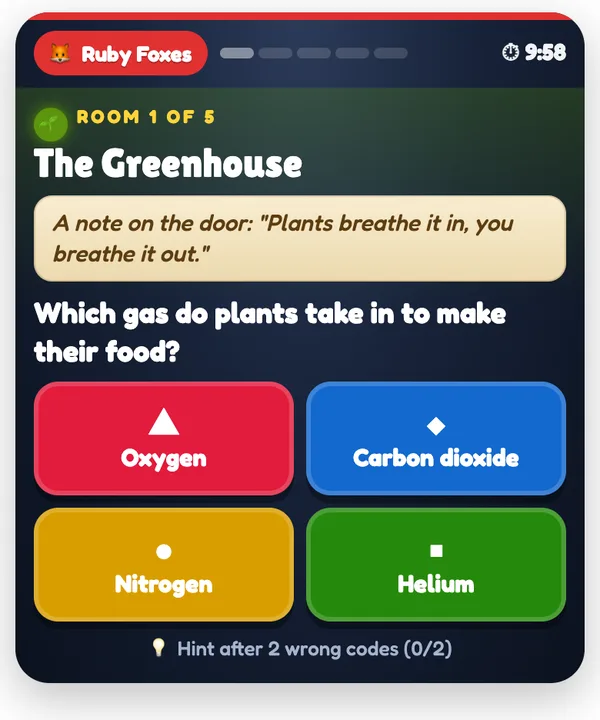
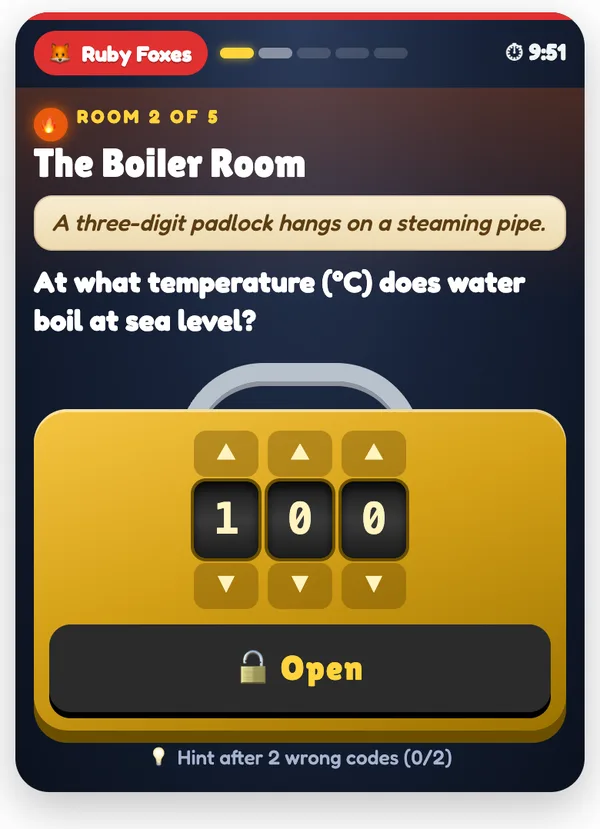
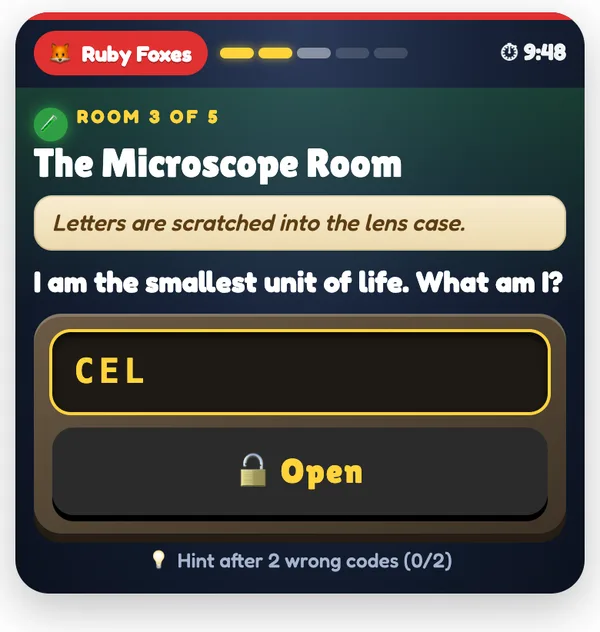
- 5Click a room to open it: give it a name (The Boiler Room), an optional clue or story line, choose the lock — Choice, Number code or Word — and type the question. For Choice, type 2–4 answers and click the shape next to the right one. For Number code, type the digits (up to 8; phones show one wheel per digit). For Word, type the accepted answers separated by commas — capitals, accents and punctuation don’t matter.
- 6Optional: pick a Room style — Auto (from the room name), Laboratory, Library, Boiler room, Greenhouse, Treasure vault or Crypt. Each style has its own walls, floor, furniture, light colour and floating particles on the big screen; the icon next to the room shows the style it will get.
- 7Optional: add a Hint per room. It unlocks after 2 wrong codes and costs the team 30 seconds.
- 8Move rooms up or down, delete them or click Add room (up to 8). A room shows a warning until it has a question and a code; you need at least 2 complete rooms to start.
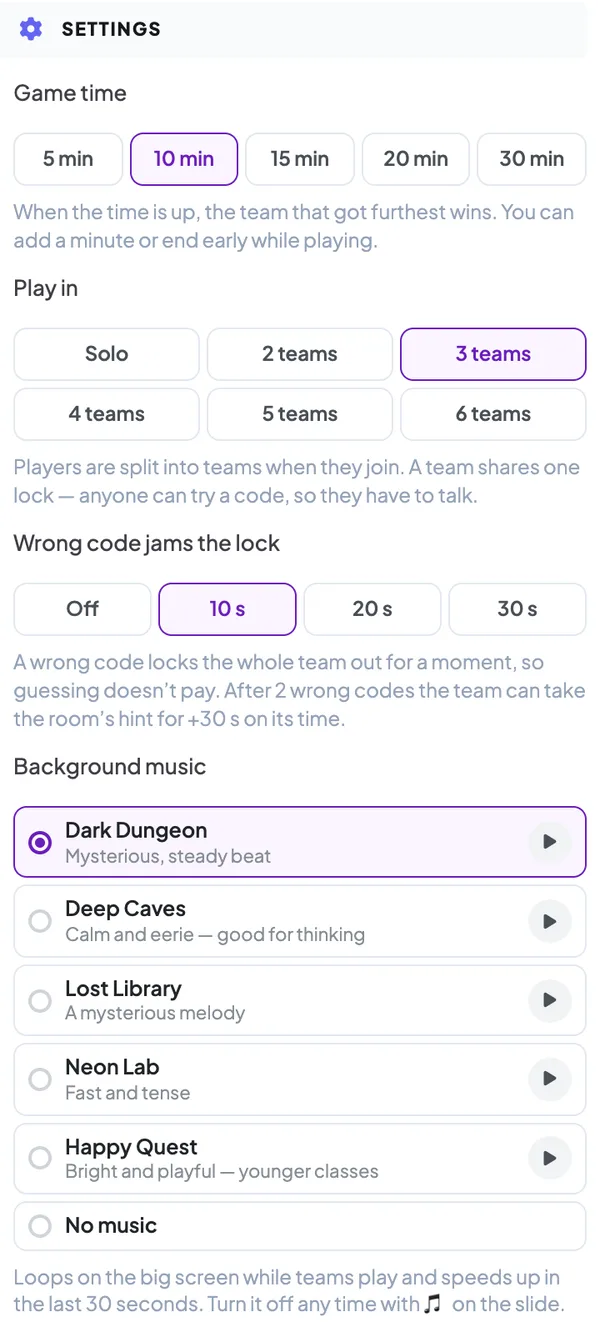
Escape Room settings
Game time
5, 10 (default), 15, 20 or 30 minutes. While playing you can add a minute (+1 min) or end early (End game). The game also ends by itself a few seconds after the last team escapes.
Play in
Solo or 2–6 teams (4 by default). Players are put in the smallest team when they join — Ruby Foxes, Blue Owls, Green Frogs, Golden Lions, Purple Bats and Teal Turtles. Before you start you can press Shuffle teams for new random teams. Teams nobody joined sit the game out.
Wrong code jams the lock
Off, 10 s (default), 20 s or 30 s. A wrong code locks the whole team out for that long, so guessing doesn’t pay.
Hints
A room’s hint can be taken after 2 wrong codes on that lock. Taking it adds 30 seconds to the team’s escape time.
Background music
Dark Dungeon (default, mysterious with a steady beat), Deep Caves (calm and eerie), Lost Library (a mysterious melody), Neon Lab (fast and tense), Happy Quest (bright, for younger classes) or No music. Click ▶ to listen first. The music loops on the big screen only while teams play — not in the lobby — speeds up a little in the last 30 seconds and fades out at the results. Press 🎵 on the slide to switch it off for this game; 🔊 mutes all sounds. If the slide or the presentation already plays its own music automatically (Audio tab), the game music stays off — press 🎵 if you want it anyway.
Present & share the join code
- 1Click Present in the top bar to put the slide on the big screen.
- 2A join code and a QR code appear (e.g.
36Y56). - 3Participants open the Audience app at join.engageslide.com, type the code and press Enter — or simply scan the QR.
- 4When everyone has joined, the responses start flowing in live.
How the audience responds
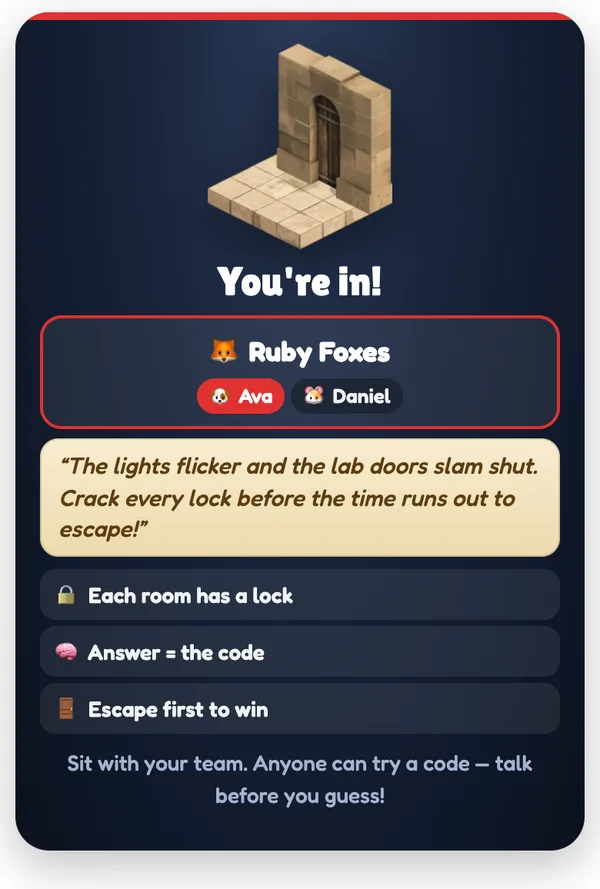
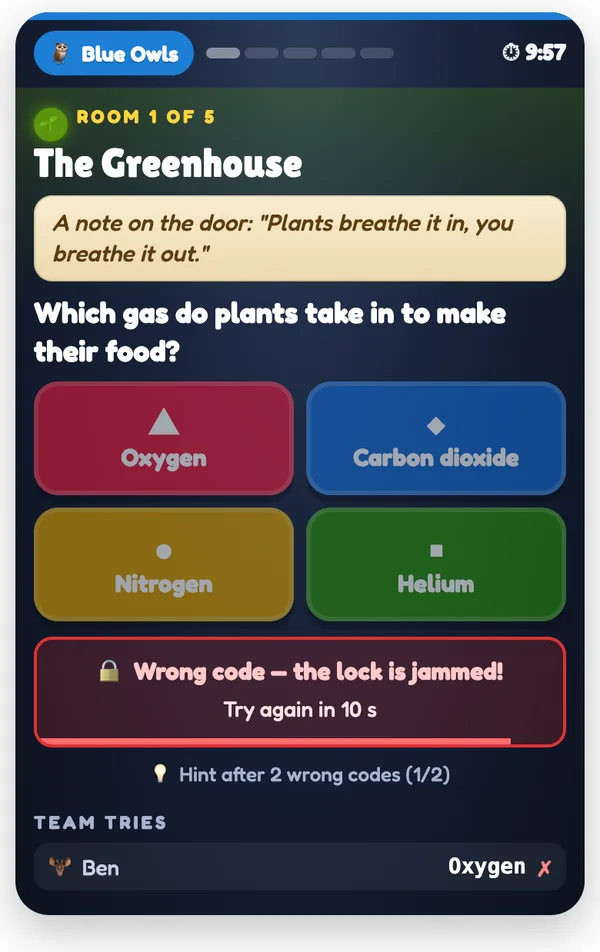
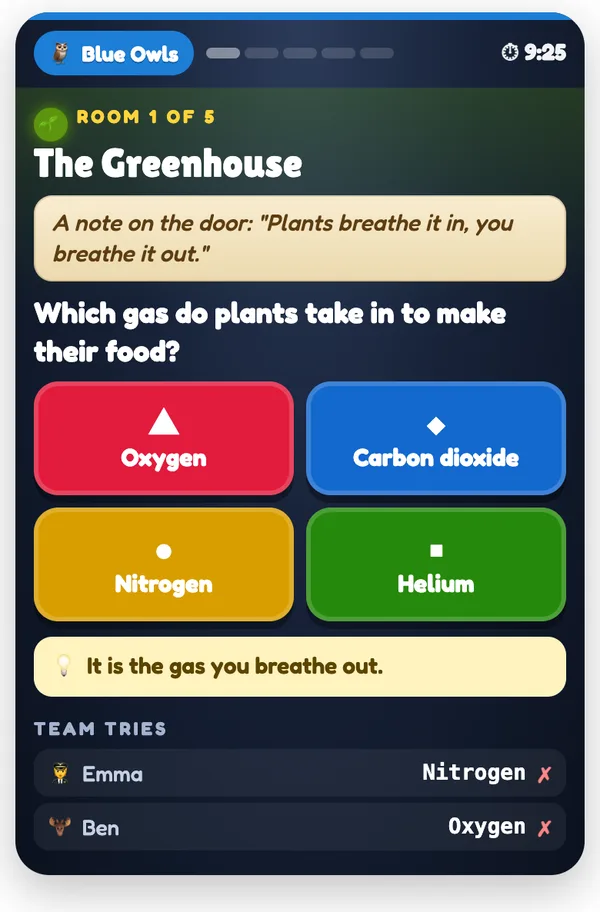
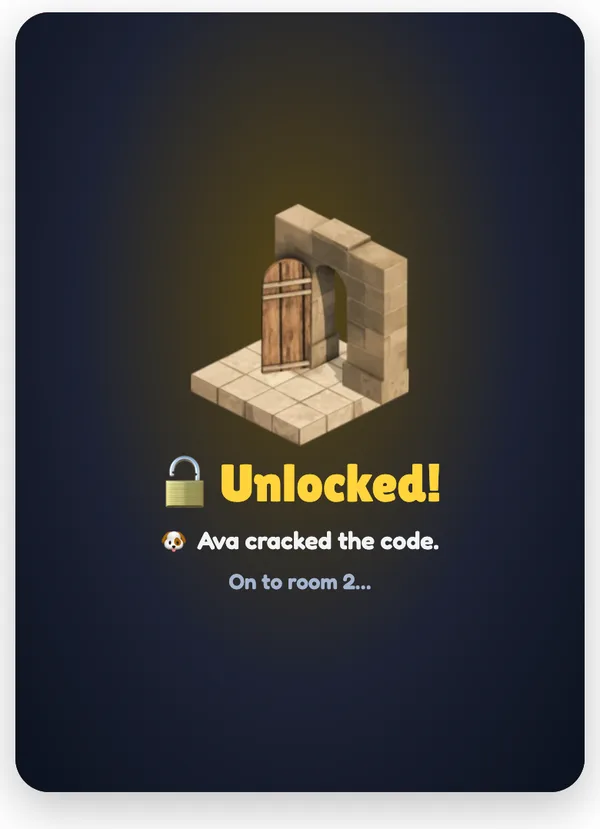
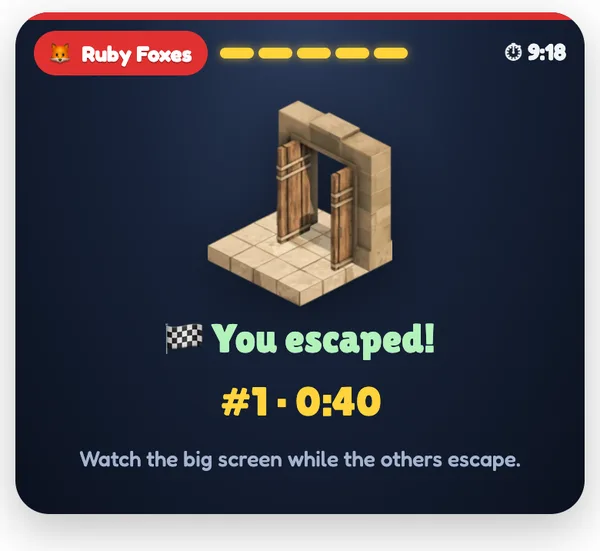
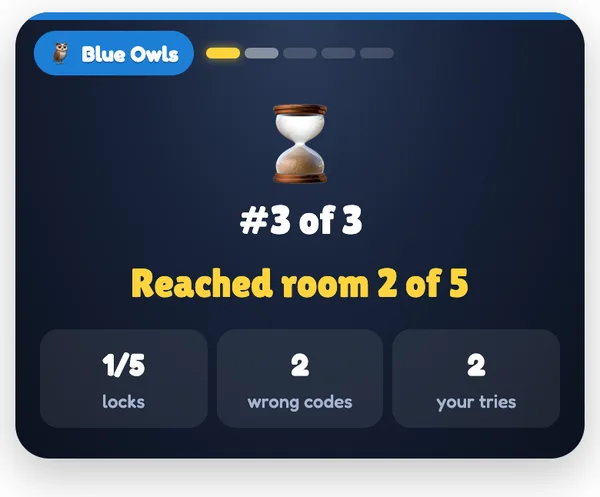
Players join with your code and see You’re in!, their team and teammates, the story and how the game works. When you press START, every phone shows the team’s current room: its name, the clue, the question and the lock — big coloured symbol buttons, a brass padlock with a wheel per digit (tap ▲ ▼ or swipe), or a word plate to type into, with an Open button. Every try appears under Team tries on all teammates’ phones (Ben · Oxygen ✗). A wrong code shakes the card and shows Wrong code — the lock is jammed! with a countdown. After two wrong codes a Take the hint (+30 s) button appears; the hint then shows on every teammate’s phone. When someone cracks the code, all teammates see Unlocked! with who did it, and the next room. The top of the phone always shows the team, a key for every room and the time left. A team that escapes sees its place and time; at the end each phone shows the team’s place, how far it got, the wrong codes and the player’s own tries.
View results
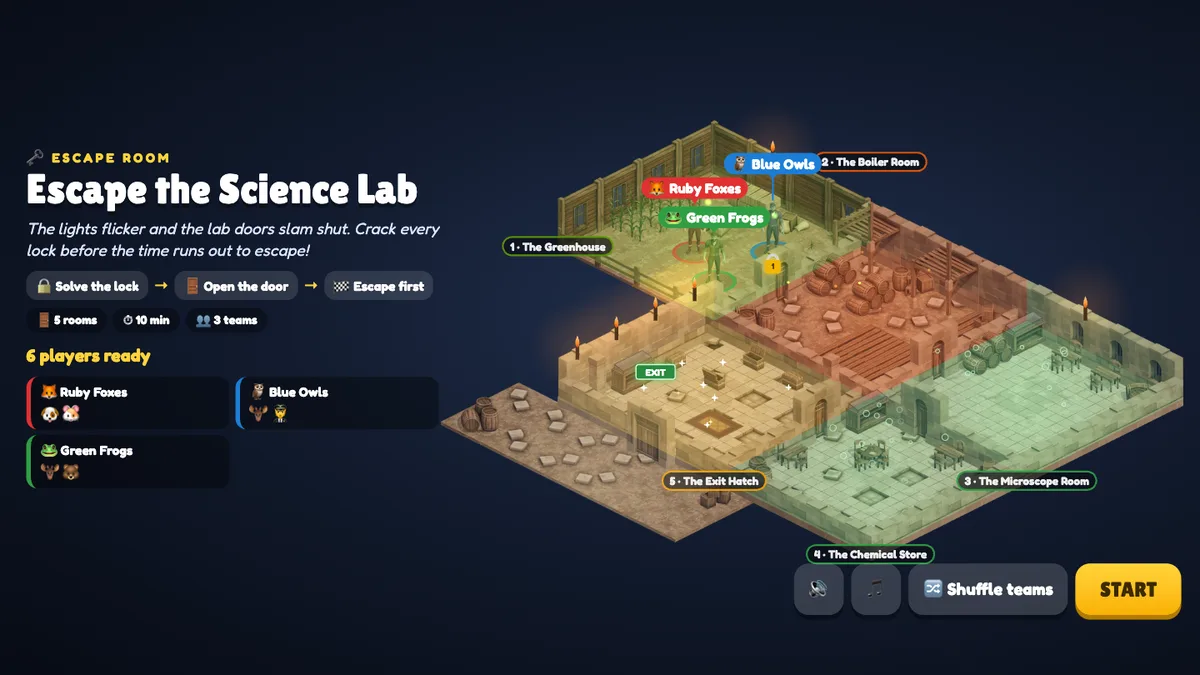
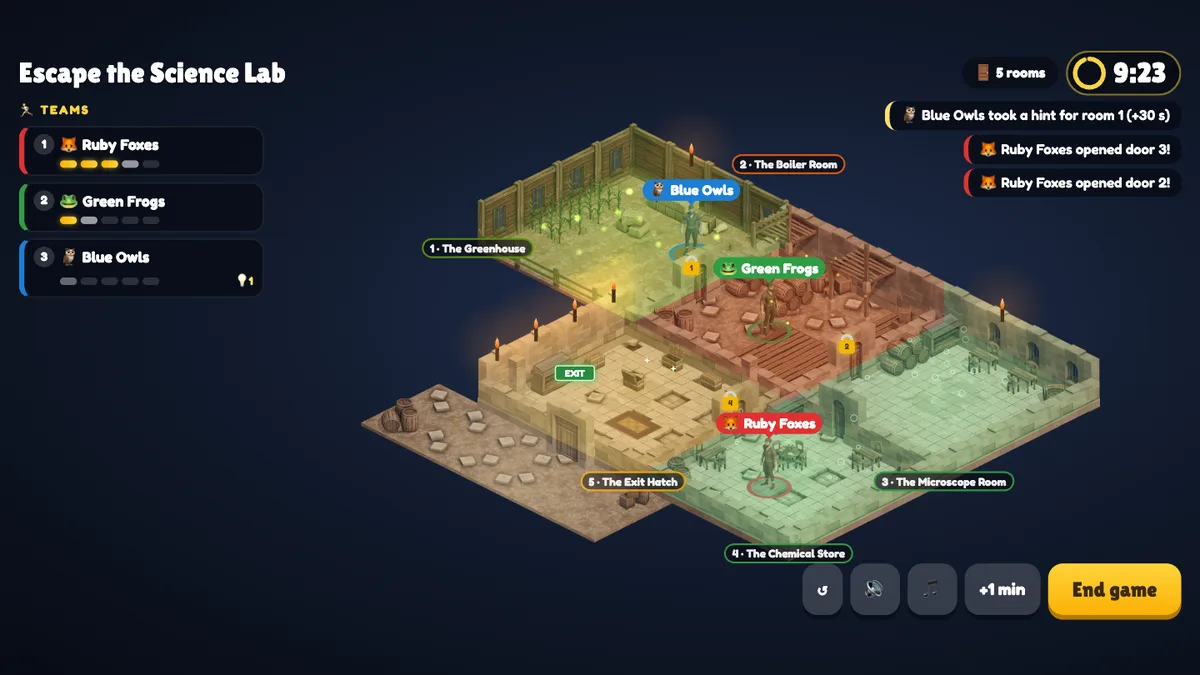
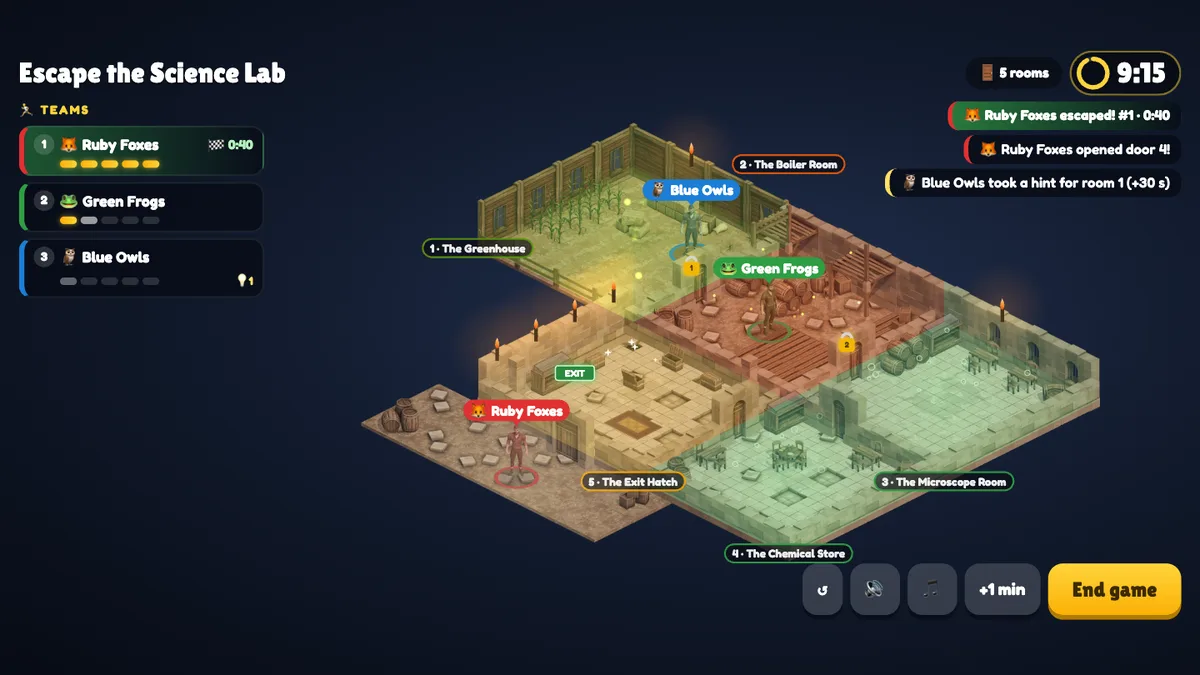
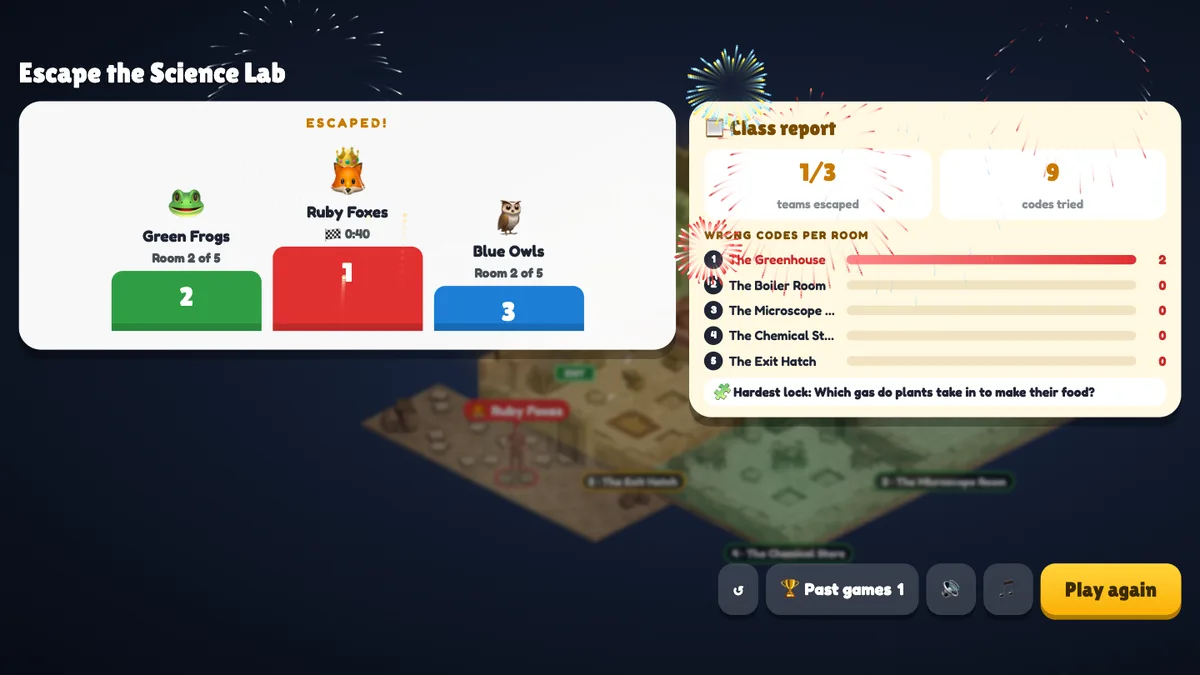
The big screen shows the dungeon in 2.5D: one room per lock, each dressed after its name — a greenhouse with corn and fireflies, a boiler room with beams and embers, a library with bookcases and floating motes, a lab with bubbles, a vault with chests and sparkles or a cold crypt with falling dust — each with its own light colour and a name plate. Every closed door carries a padlock with the room number, torches burn on the walls and the last gate leads out to the yard. Before the game it shows the title, the story, the number of rooms, the time, the teams and who is in each team; every team appears as a character in the first room. During the game the left side lists the teams by progress — a gold key per opened lock, a 🔒 countdown while a lock is jammed and a 💡 for hints — with the clock at the top and news on the right (Ruby Foxes opened door 2!, Blue Owls took a hint for room 1 (+30 s), Green Frogs escaped! #1 · 6:42). When a team cracks a lock, its character picks up the key, the door swings open and the character runs into the next room; the last door leads out to the yard with confetti. With many solo players the characters carry small avatar badges and the names are in the list. The results open with fireworks in the winners’ colour and a victory fanfare (the winners’ phones rain confetti), then show a podium (escape time, or the room reached) and a Class report: how many teams escaped, how many codes were tried, the wrong codes per room and the hardest lock.
real screenshots
real screenshots
real screenshots
Ways to use Escape Room
- End of a unit: generate a 6-room escape room on the topic and let teams race through it.
- Maths: number padlocks are perfect for calculations — the answer is the code.
- Language classes: word locks for vocabulary, spelling and grammar.
- Team building and training: a themed escape room about your product, safety rules or company history.
- Events and open days: solo mode with a short timer as a quick challenge for visitors.
Frequently asked
Can players see the codes?
No. Phones only receive the question and, for a symbol lock, the answers to pick from. The codes stay with the presenter screen, which checks every try.
How do teams work?
Choose 2–6 teams in the settings. Players are put in the smallest team as they join (you can press Shuffle teams before you start). A team shares one lock: anyone can try a code, everyone sees every try, and a wrong code jams the lock for the whole team.
Who wins?
The first team to get out. If the time runs out first, the team that reached the furthest room wins; between teams in the same room, the one that got there first is ahead. Hint penalties are added to the escape time.
Are capitals and accents important in word locks?
No. “Cell”, “cell” and “ cell! ” all open a lock whose answer is cell. You can add several accepted answers separated by commas, for example Khufu, Cheops.
Can players join after the game has started?
Yes. In team mode they join the smallest team and continue from that team’s room; in solo mode they start in the first room.
Does it count for the quiz leaderboard?
No. Escape Room is a game with its own results (escape time and rooms reached); it doesn’t change your quiz leaderboard. Every game is saved and shows up under Past games and in the report.
How is each room decorated?
Choose a Room style for each room, or leave it on Auto: words in the name like greenhouse/garden, boiler/fire, library/book, lab/science, vault/treasure or cave/crypt pick that look, and other names get a look by their position. Changing one room never changes another, and two rooms with the same style still get different furniture. The phones tint the room card in the same colour.
Does the music play on the phones?
No. Background music and sound effects play on the big screen only (the window that runs the game), so a room full of phones stays quiet. Turn off Audio effects in the presentation settings to silence every game sound.
What if I refresh the presenting window?
Keep the editor open while you present: the teams, the rooms they reached, the penalties and the clock carry on in the new window. If the presenting window was the only one, the game goes back to the start screen.