🎮Quiz & Game Slides 6 min read
Estimate
Players drag a slider to guess a number — the closer the guess, the more points.
What is Estimate?
An Estimate slide is a quiz question with a number for an answer — How tall is the Eiffel Tower?, How many people live in Tokyo?, What did the project cost? Instead of picking an option, each player drags a slider (or types a number) to make their guess. Nobody needs to know the exact answer: the closer the guess, the more points. At the reveal, every guess appears as a dot on a number line, the crowd median is marked, the right answer slides into place and the three closest guesses win medals. It works for trivia, for training (“how many complaints did we get last month?”) and for maths and science classes where estimating is the skill.

Presenter creates the slide Click Present Share code / QR Audience enters code Respond & submit Real-time results
Create a Estimate slide
- 1On Home, click + Create new presentation (or add a slide to an existing one).
- 2In Choose Slide Type, pick Estimate. You can also type it into Search slide types….
- 3The slide is created and the right panel opens on the Content tab.
Set up the content
- 1Type the question, for example How tall is the Eiffel Tower?. You can add a description and a question image, which is shown large on the big screen and on every phone.
- 2In the Estimate block, enter the Correct answer (for example 330) and an optional Unit such as m, people or $. The switch under it puts the unit after the number (1,200 m) or before it ($1,200).
- 3Set the Slider range: Min, Max and Step. Make the range wide enough that the answer is not simply in the middle — for the Eiffel Tower, 0 to 1,000 m works well. If the answer is outside the range it is moved inside, and you see a warning.
- 4Choose Linear or Logarithmic. Use Logarithmic for huge ranges (1 to 1,000,000): small numbers then get as much room on the slider as big ones.
- 5Choose Who scores points: Exact, ±2%, ±5%, ±10% or Everyone. The bar and the line below it show exactly which guesses score, for example Full points at 330 m, falling to 0 at 280 m – 380 m.
- 6Optionally paste a Video link (YouTube or a direct .mp4 / .webm / .mov file). It plays on the big screen while players guess.
- 7Under Settings, set Seconds to answer and the points, as for any quiz.
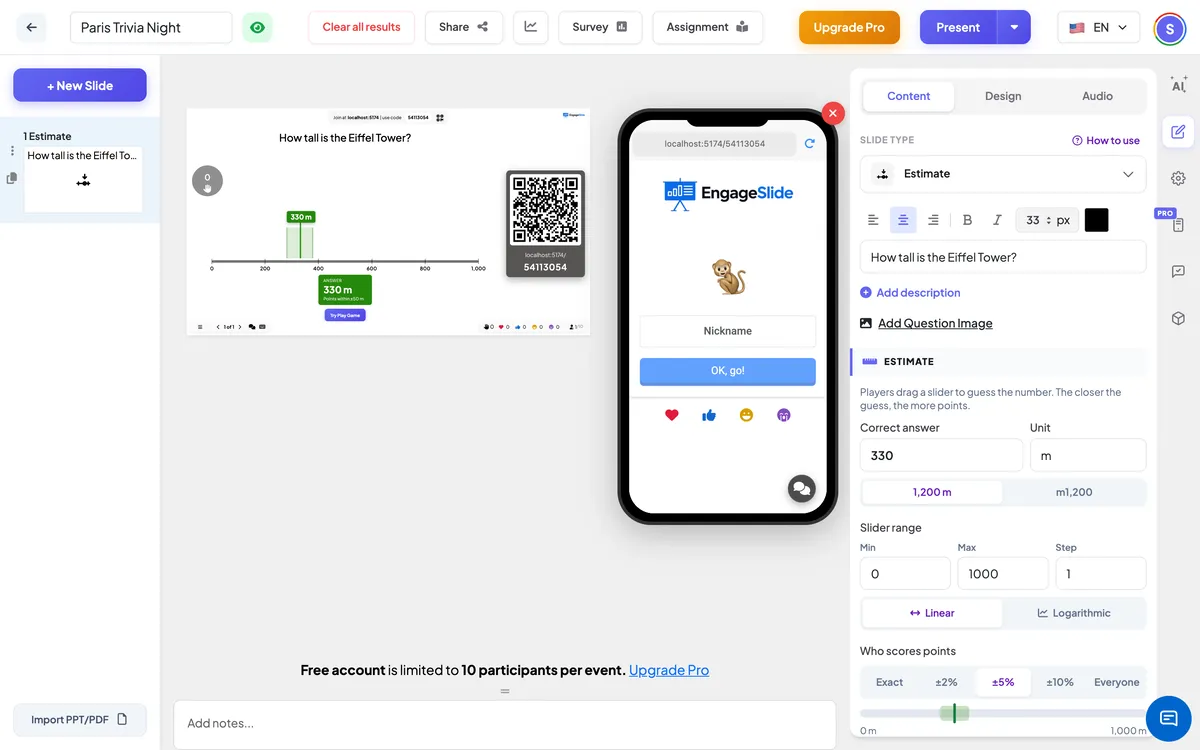
Estimate settings
Correct answer & unit
The number players are trying to guess, and the unit shown with it (before or after the number).
Slider range
Min, Max and Step of the slider. The answer is rounded to the step. A Step of 1 suits whole numbers; use 0.1 for decimals.
Linear / Logarithmic
Logarithmic spreads very large ranges evenly so players can still guess small values precisely.
Who scores points
How close a guess must be to score. ±5% (default) means 5% of the slider range: with 0–1,000 m, guesses between 280 and 380 m score, and an exact guess scores full points. Exact scores only the right number; Everyone gives points to every guess, more the closer it is.
More points for fast correct answers
On: faster guesses score closer to Max Point; off: every scoring guess is worth the same, scaled only by how close it is.
Seconds to answer
How long players have to lock in a guess (60 seconds by default).
Min Point / Max Point
The points for a perfect guess. Closer guesses get a bigger share of them.
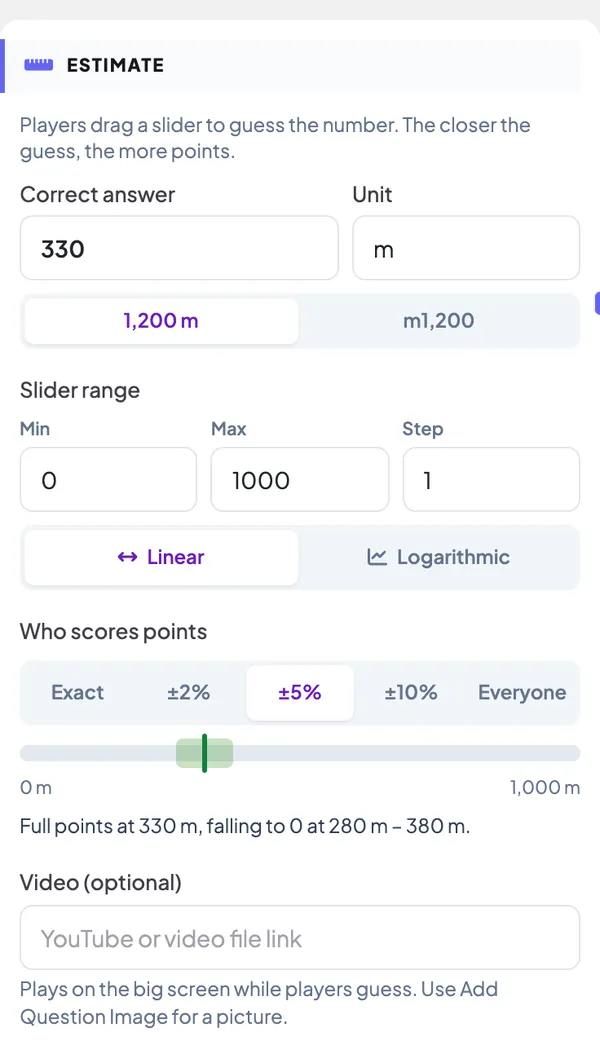
Present & share the join code
- 1Click Present in the top bar to put the slide on the big screen.
- 2A join code and a QR code appear (e.g.
36Y56). - 3Participants open the Audience app at join.engageslide.com, type the code and press Enter — or simply scan the QR.
- 4When everyone has joined, the responses start flowing in live.
How the audience responds
Players see the question and a big number button that says ? — the slider has no starting value, so nobody is nudged towards a guess. They drag the slider, nudge it with − / +, or tap the number to type an exact value, then press Lock in my guess. After the reveal the phone shows the answer, their guess, how far off they were (Off by 20 m (6.1%), or Spot on!), the points they won and their place, for example #3 closest out of 7.
View results
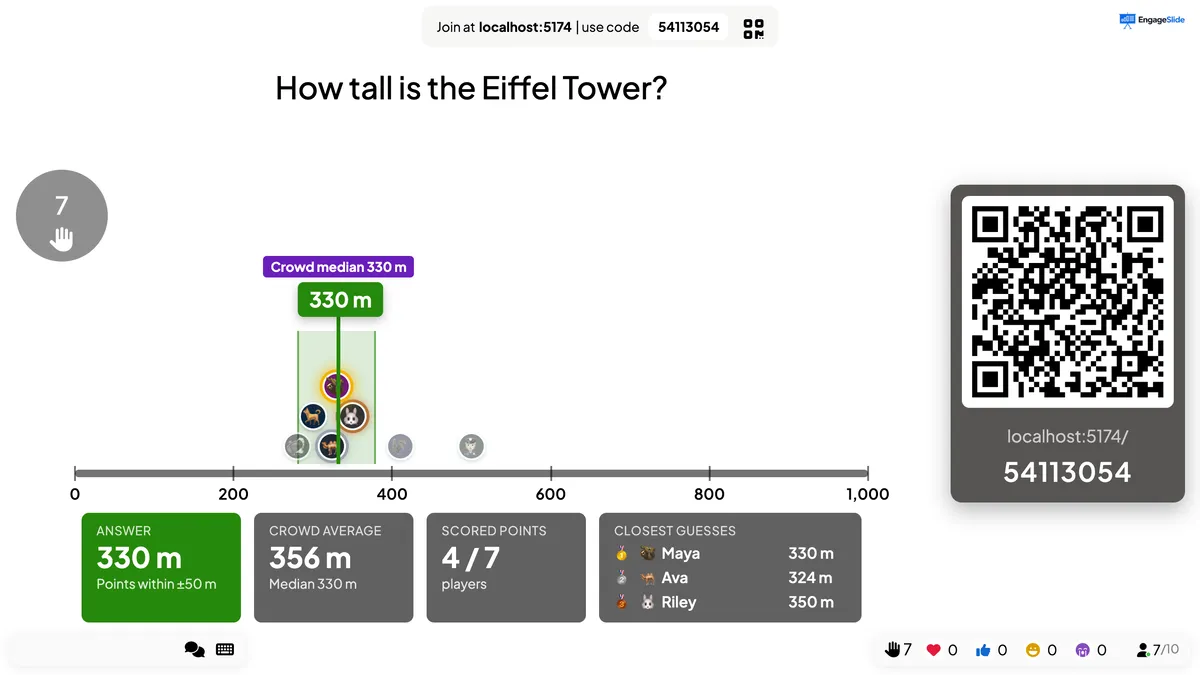
While players guess, the big screen shows the question (or the image or video), the range and a number line. At the reveal, every guess drops onto the line as an avatar, the Crowd median is marked, the scoring band lights up and the answer counts into place. Guesses outside the band fade, and the three closest guesses get 🥇🥈🥉. Four cards sum it up: the Answer, the Crowd average (with the median), how many players scored points and the Closest guesses. Points go straight to the leaderboard.
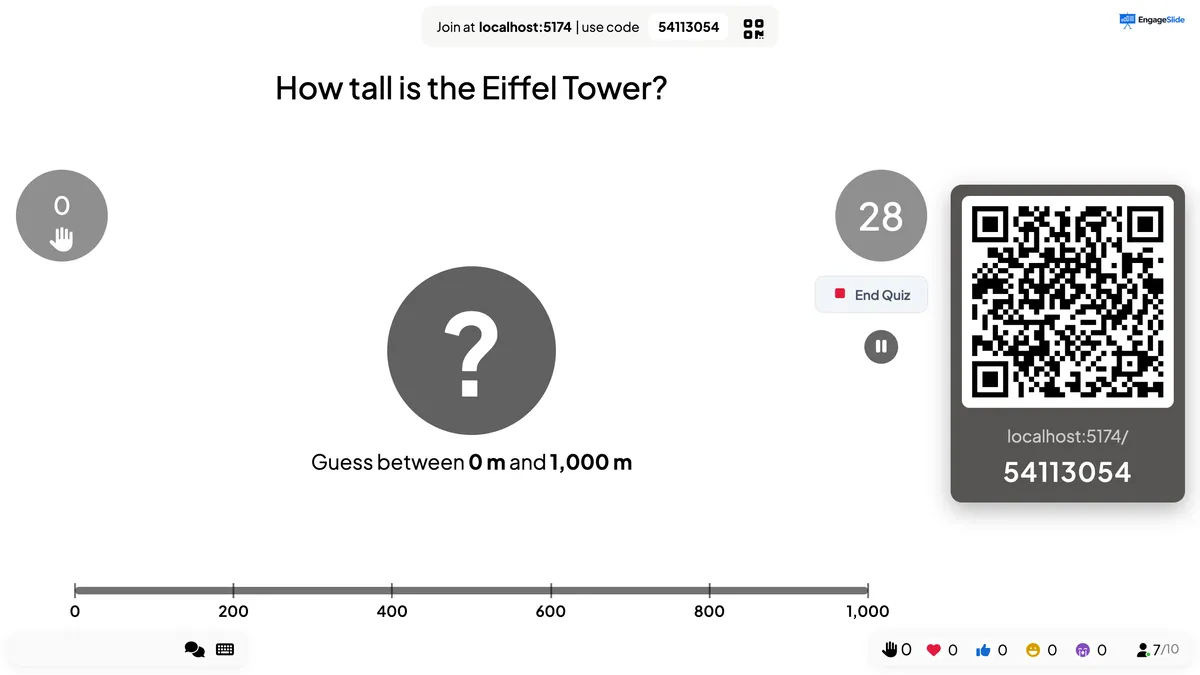
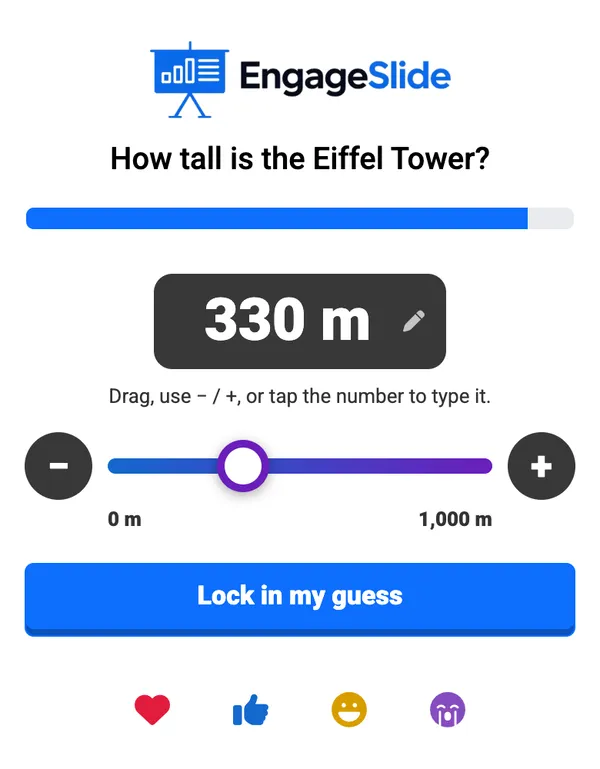
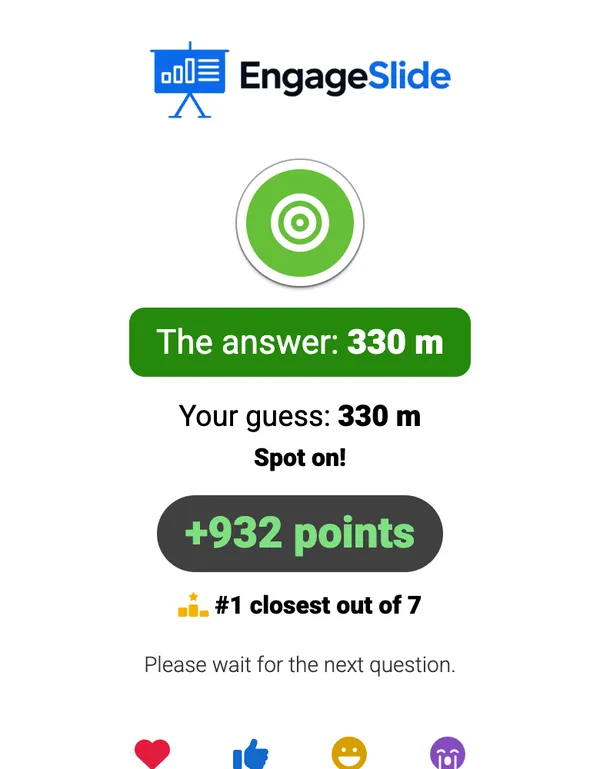
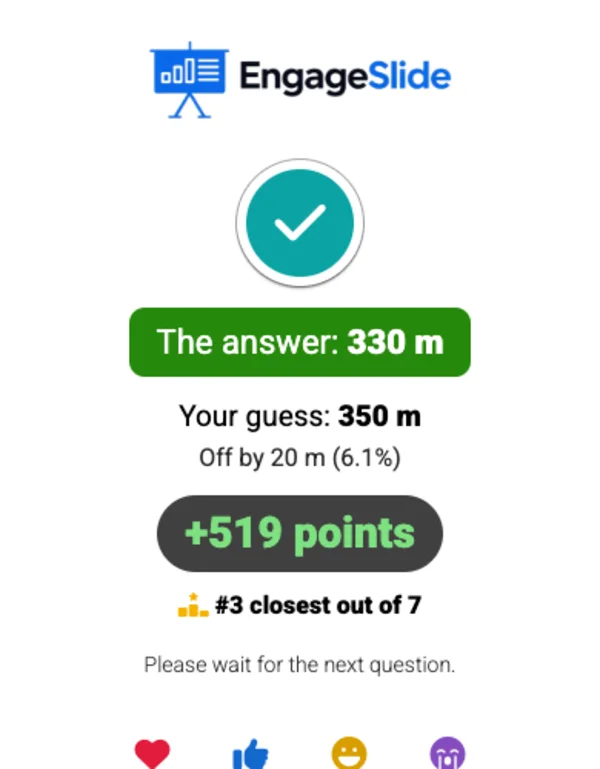
real screenshots
Question ideas
- Trivia: How many bones are in the human body? (206) · In what year did the first iPhone come out? (2007)
- Training: What share of customer calls are about passwords? · How many minutes does an average onboarding call take?
- Classroom: How far is the Moon in km? · What is 17 × 23? (estimate before calculating)
- Meetings: How many tickets did we close this quarter? · What was our customer satisfaction score?
Frequently asked
How are points worked out?
An exact guess (within half a step) gets full points. Other guesses get a share that falls in a straight line to zero at the edge of the scoring band. With ±5% on a 0–1,000 range, a guess 25 off gets about half the points and a guess 50 or more off gets none.
Is ±5% a percentage of the answer?
No — it is a percentage of the slider range (Max − Min). That keeps the scoring fair whatever the answer is. The line under Who scores points always shows the exact band.
Does a guess with 0 points count as wrong?
Yes. A guess outside the band counts as incorrect; a guess inside it counts as partly correct, and an exact guess as correct.
Can players type a number instead of dragging?
Yes. Tapping the big number opens a number field, so players can enter an exact value — handy on small phones or for large ranges.
What happens if a player does not lock in a guess?
They score no points, and their phone says that no guess was locked in.