🎮Quiz & Game Slides 4 min read
Fill in the Blank
Players complete a sentence by filling in the missing words — typed or picked from a word bank.
What is Fill in the Blank?
A Fill in the Blank slide shows a sentence with words missing. Players fill in each blank on their phone against the clock — by typing, or by tapping words from a word bank — and score points for speed and accuracy. It is ideal for vocabulary, grammar, key facts and definitions.

Presenter creates the slide Click Present Share code / QR Audience enters code Respond & submit Real-time results
Create a Fill in the Blank slide
- 1On Home, click + Create new presentation (or add a slide to an existing one).
- 2In Choose Slide Type, pick Fill in the Blank. You can also type it into Search slide types….
- 3The slide is created and the right panel opens on the Content tab.
Set up the content
- 1Type your sentence and put [brackets] around each word to hide, e.g. The [Nile] flows into the [Mediterranean] Sea.
- 2Accept other answers with a slash: [color/colour]. Or select a word and click Make blank.
- 3Choose How participants answer: Type the answer or Word bank (add a few extra wrong words to make it harder).
- 4Set the time and points under Settings — the preview shows the correct answers in each blank.
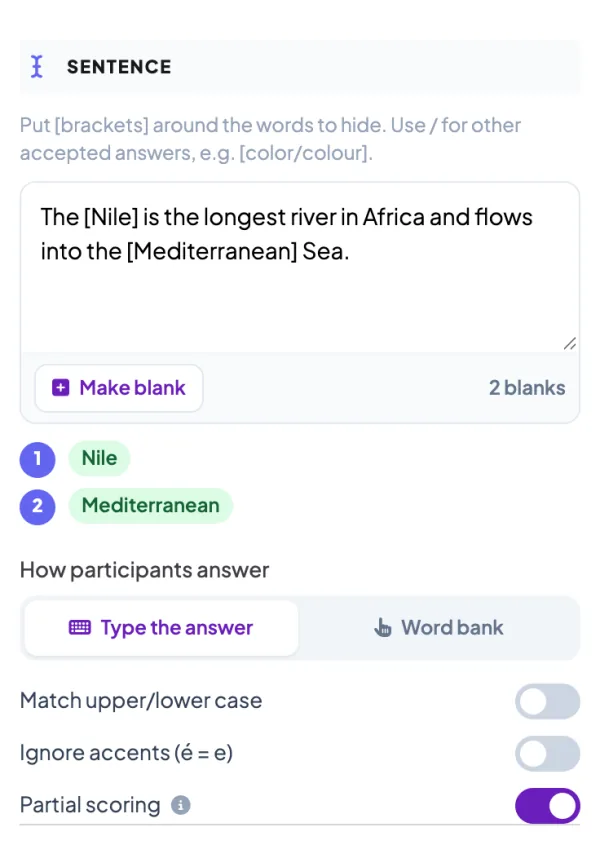
Fill in the Blank settings
Type the answer / Word bank
Players either type each missing word, or tap words from a shuffled word bank into the blanks.
Extra wrong words
Word bank only — distractors mixed in with the correct words.
Match upper/lower case
Off by default, so “paris” counts for “Paris”. Extra spaces and trailing punctuation are always ignored.
Ignore accents
Treat accented letters as plain ones (é = e, “Ha Noi” = “Hà Nội”).
Partial scoring
With several blanks, earn points for each correct blank instead of all-or-nothing.
Seconds, points & speed bonus
Time to answer and the points range — faster correct answers score more.
Present & share the join code
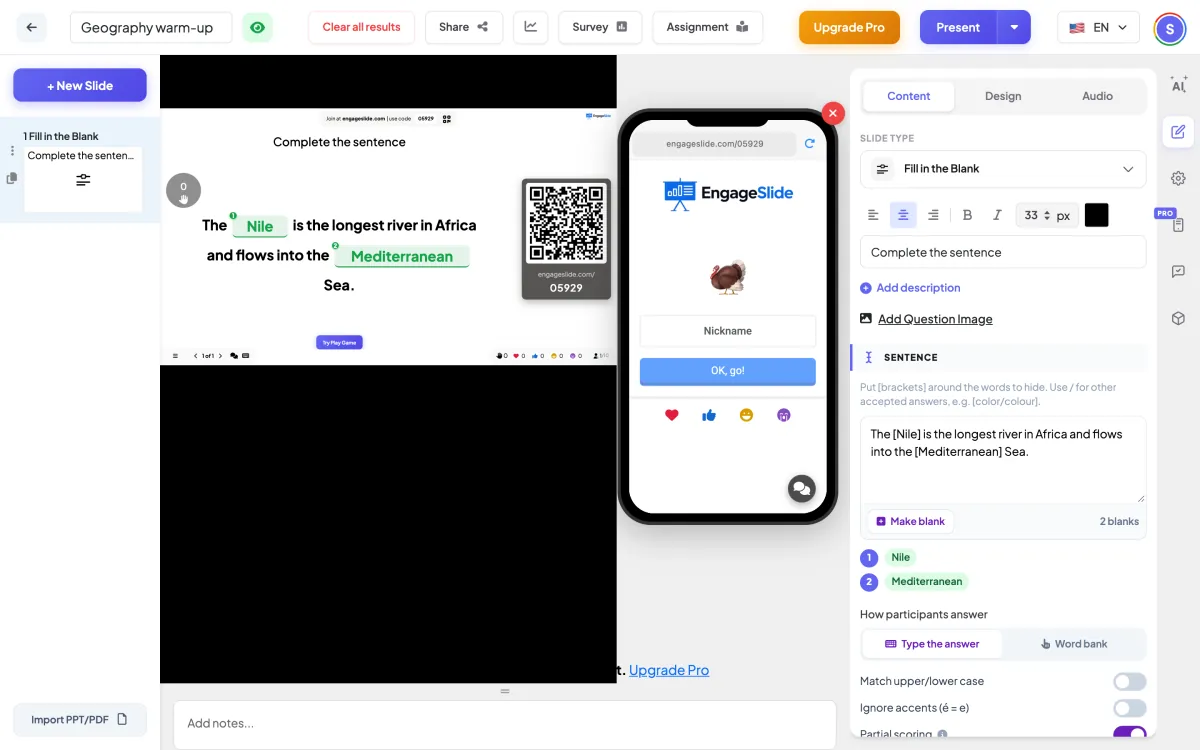
- 1Click Present in the top bar to put the slide on the big screen.
- 2A join code and a QR code appear (e.g.
36Y56). - 3Participants open the Audience app at join.engageslide.com, type the code and press Enter — or simply scan the QR.
- 4When everyone has joined, the responses start flowing in live.
How the audience responds
Players see the sentence with numbered blanks. In type mode each blank is a text box right inside the sentence — pressing Enter jumps to the next one. In word bank mode they tap a word to drop it into the highlighted blank, and tap a filled blank to give the word back. After the reveal, their phone shows each blank in green or red with the correct answer under any mistakes.
View results
When time is up the correct words flip into the blanks on the big screen, with the percentage of players who got each blank right, the most common wrong answers, and a count of correct, partially correct and wrong answers. Points go straight to the leaderboard.
Frequently asked
How many blanks can a sentence have?
Up to 10. Anything in brackets becomes a blank; empty brackets are ignored.
What about spelling mistakes?
Add common spellings as alternatives with a slash — [Mediterranean/Mediteranean] — or switch to Word bank mode so spelling doesn’t matter.
Does the blank size give the answer away?
No. While players are answering every blank on the big screen is the same width; it only resizes when the answers are revealed.