🎮Quiz & Game Slides 5 min read
Pin Answer
Players tap the right spot on a picture — pick a ready-made map or diagram and the answer, or use your own image.
What is Pin Answer?
A Pin Answer slide is a quiz question where the answer is a place on a picture. Pick a ready-made picture — a world map, a continent, the USA, the solar system or the human body — and choose the answer from a list; the right area and the question (Where is Kenya?) are filled in for you. Or upload your own image — a diagram, a photo or a screenshot of your software — and click the right spot on it. Each player taps the picture on their phone to drop one pin, adjusts it if they like, and locks it in. A pin inside the right area is a correct answer and scores points like any quiz question (faster pins score more). At the reveal, every pin drops onto the big screen, the right area lights up, and you see at a glance where the room thought the answer was — and what most people mixed it up with. It is the quiz version of a hotspot question: Where is Kenya?, Tap the left ventricle, Which button exports the report?

Presenter creates the slide Click Present Share code / QR Audience enters code Respond & submit Real-time results
Create a Pin Answer slide
- 1On Home, click + Create new presentation (or add a slide to an existing one).
- 2In Choose Slide Type, pick Pin Answer. You can also type it into Search slide types….
- 3The slide is created and the right panel opens on the Content tab.
Set up the content
- 1A new Pin Answer slide starts with a playable sample: the Solar system picture and the question Tap the largest planet in our solar system, with Jupiter as the answer.
- 2In the Pin Answer block, under Picture, click Change and pick a ready-made picture: World map (countries), Continents, Europe, Asia, Africa, The Americas, USA (50 states + DC), Solar system or Human body (organs). One click sets the picture, a random answer and its question — the slide is ready to play.
- 3Under Right answer, type to search (for example Kenya) and press Enter, or simply click the country, state, planet or organ on the slide. The question changes with it — Where is Kenya?, Tap the heart — as long as you have not typed your own question. Click Random for a surprise answer.
- 4Need more than one right answer (for example “Tap a country that borders Brazil”)? Click + Add another right answer, or Shift-click more regions on the slide — up to 5. Remove one with the × on its chip.
- 5To use your own image instead, click Change → Your own image and upload it. Then click the right spot on the picture: a click marks a circle there; drag to draw a circle or rectangle of the size you want (pick the shape in the small toolbar above the picture). Drag an area to move it, its white dot to resize it, or the red × to delete it.
- 6Under Settings, set the time to answer and the points, as for any quiz question.
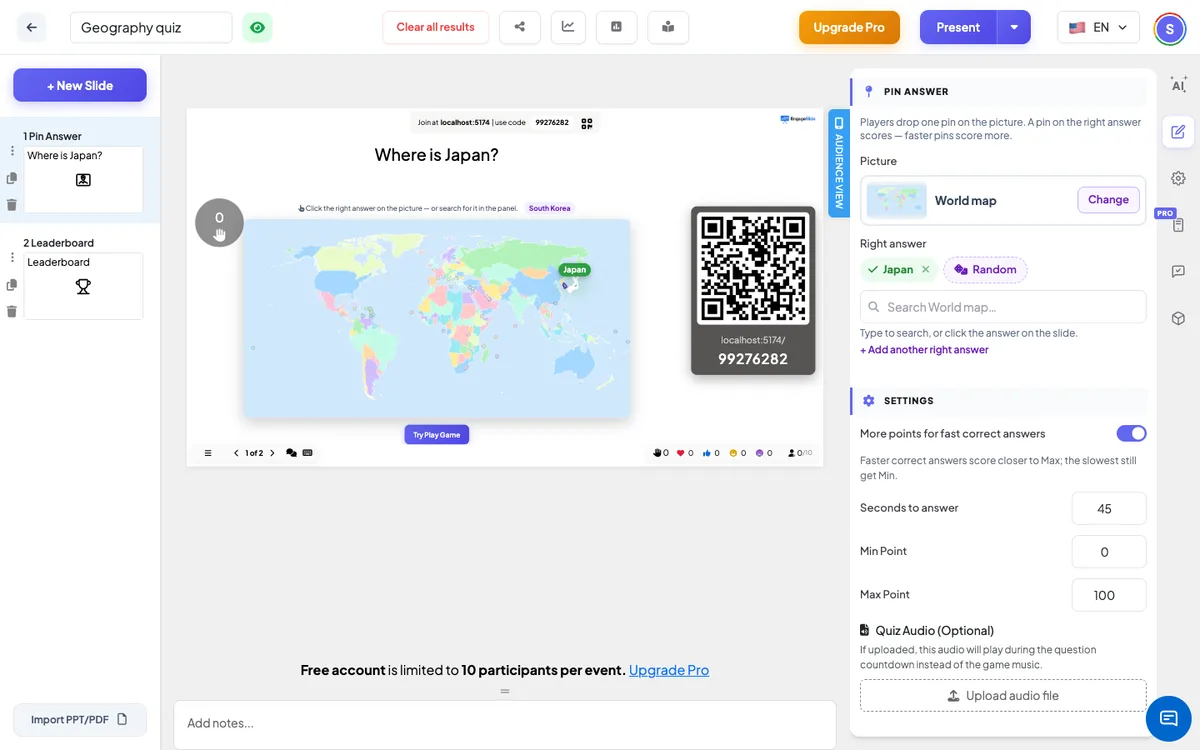
Pin Answer settings
Picture
A ready-made picture (World map, Continents, Europe, Asia, Africa, The Americas, USA, Solar system, Human body) or your own image. Its shape is kept on every screen, so the answer always matches the picture.
Right answer
On a ready-made picture: one to five regions (countries, states, planets, organs) picked from the list or clicked on the slide — the whole shape of the region counts, and very small places (Singapore, Malta…) get a finger-sized circle around them. On your own image: one to five circles or rectangles you mark on it.
More points for fast correct answers
On (default): a right pin placed quickly scores close to Max Point and one placed at the last second scores close to Min Point. Off: every right pin gets Max Point.
Seconds to answer
How long players have to place and lock in their pin.
Min Point / Max Point
The points for a right pin. A wrong pin, or no pin, scores 0.
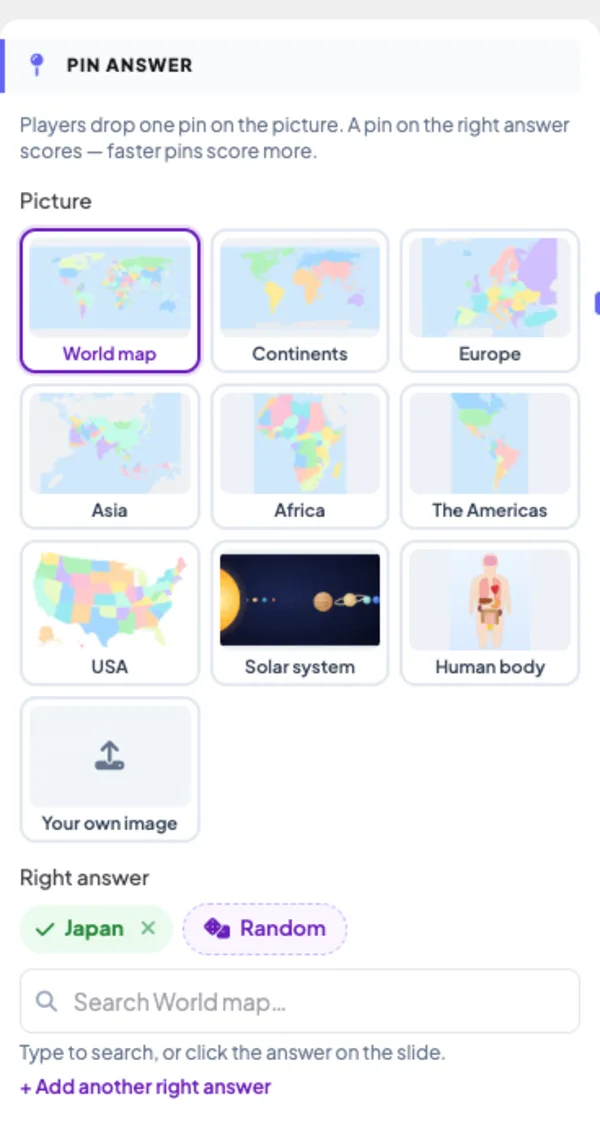
Present & share the join code
- 1Click Present in the top bar to put the slide on the big screen.
- 2A join code and a QR code appear (e.g.
36Y56). - 3Participants open the Audience app at join.engageslide.com, type the code and press Enter — or simply scan the QR.
- 4When everyone has joined, the responses start flowing in live.
How the audience responds
Players see the question and the picture across the width of their phone, with the hint Tap the picture to drop your pin. A tap drops a pin with their emoji; they can drag it to fine-tune the spot (the tip of the pin is what counts), then press Lock in my pin. On maps with small countries they can zoom in up to 3× with the magnifier buttons, scroll the map, and tap to place the pin. The right area is never shown while they answer. After the reveal, the phone says whether they were right and how many points they earned, and shows the picture again with the right area in green, the name of the right answer, and their own pin — green if it was inside, red if it missed.
View results
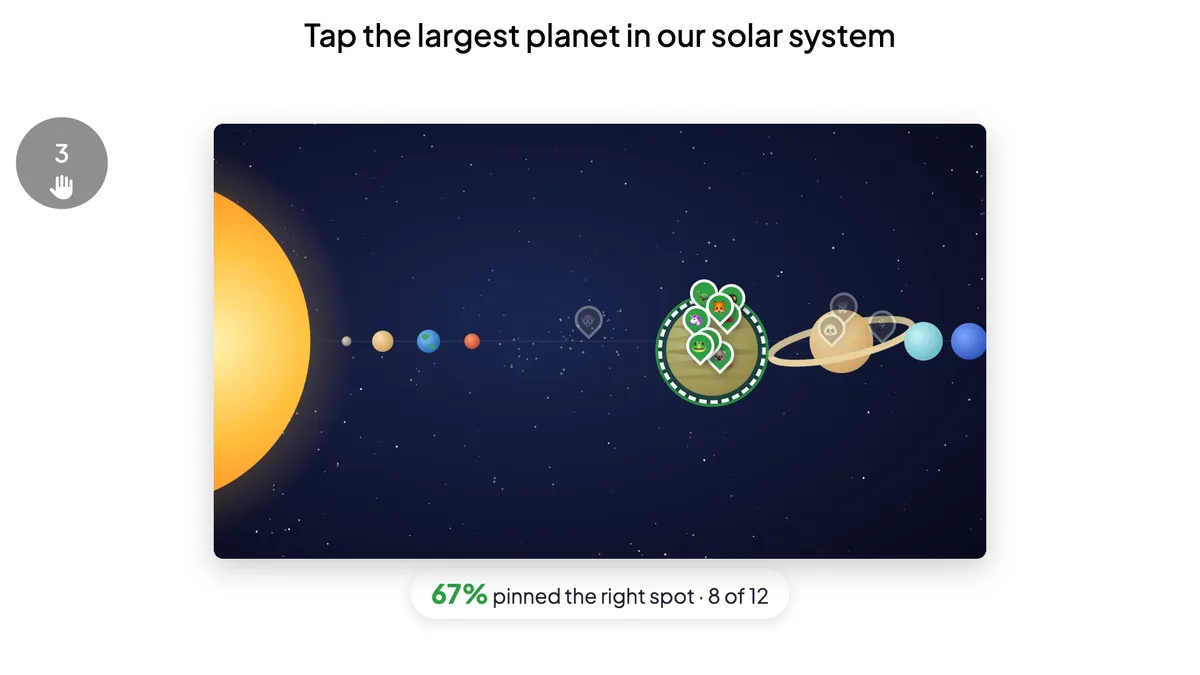
While players answer, the big screen shows the question and the picture (without the right area), the countdown and how many players have answered. When the time is up — or when you click End Quiz — every pin drops onto the picture with the player’s emoji, the right areas light up in green (with the name of the country, state or organ on ready-made pictures), right pins turn green and wrong ones red and fade, and a summary shows the share of players who got it, for example 67% pinned the right spot · 8 of 12. Points go straight to the leaderboard. Wrong pins are a great talking point: if half the room pinned Saturn, you know what to explain next.
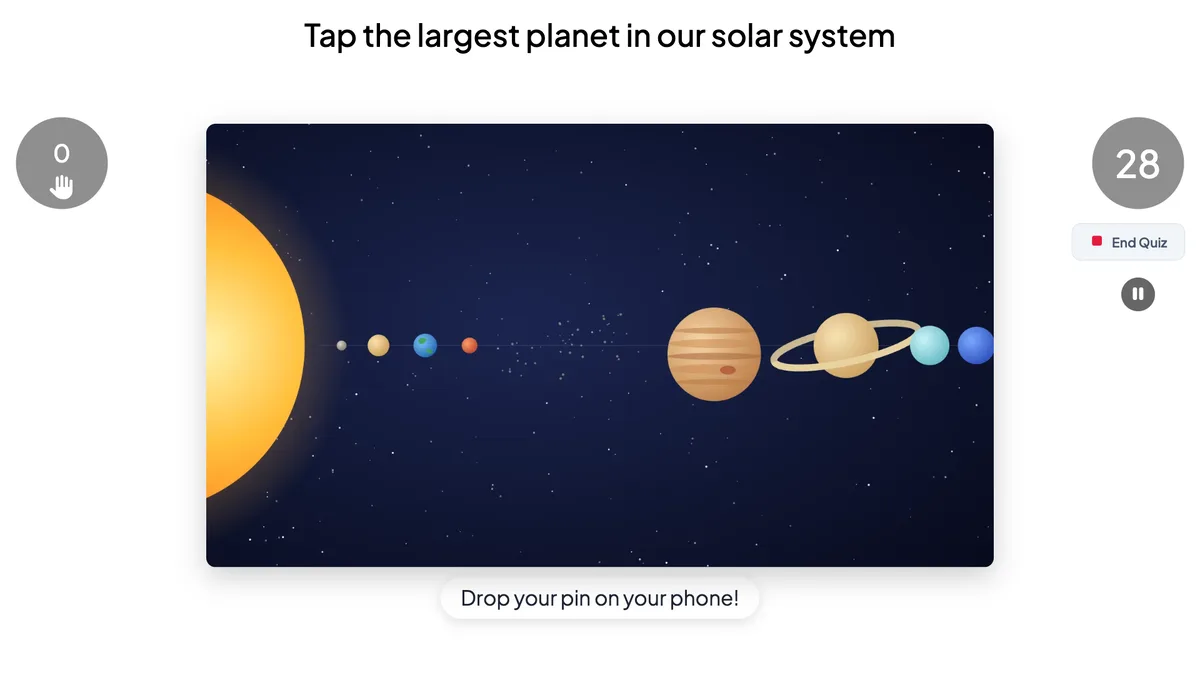
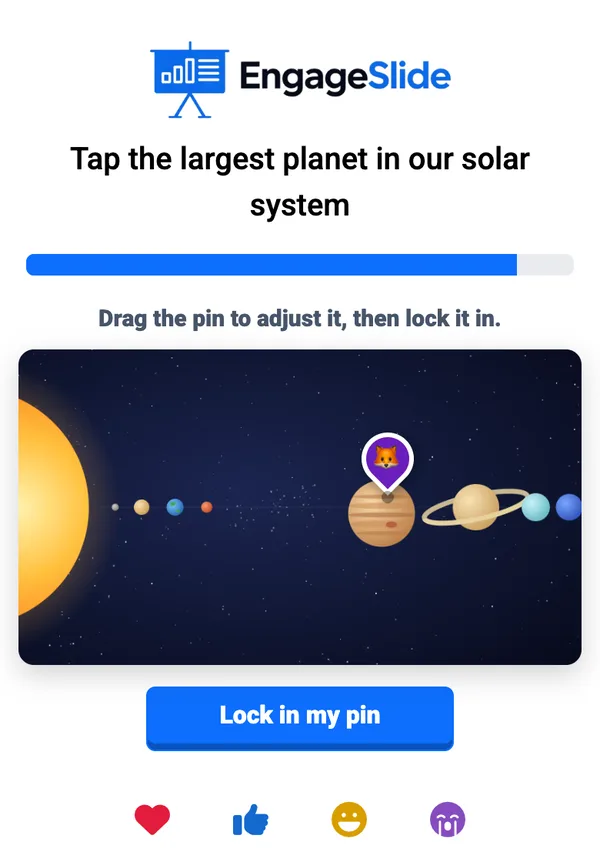
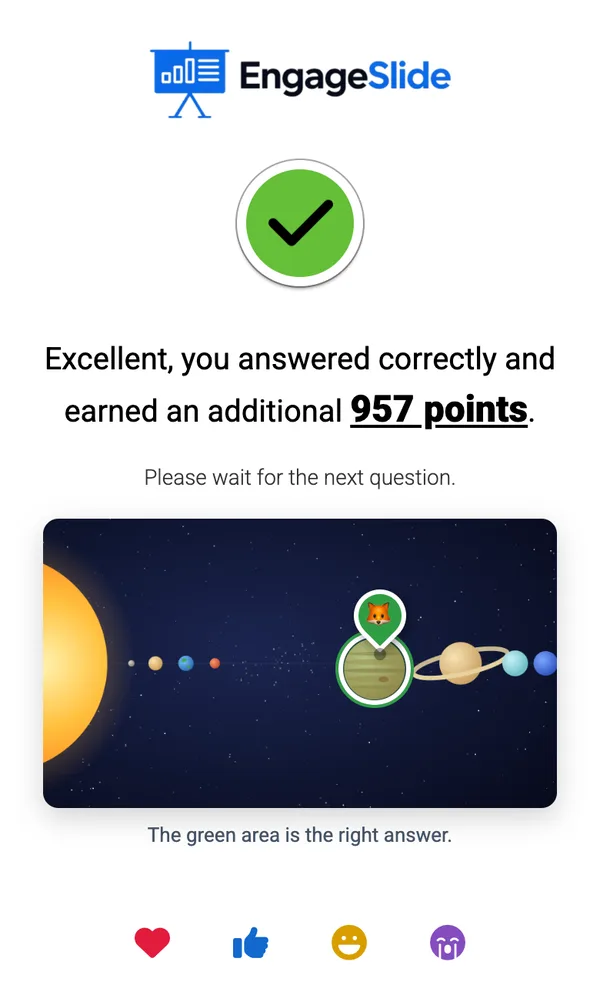
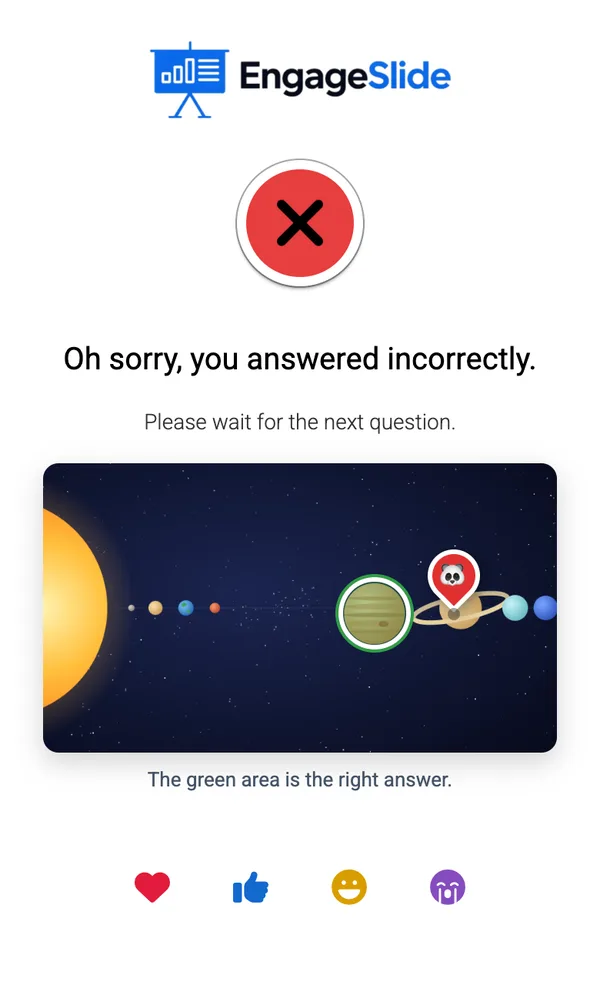
real screenshots
Question ideas
- Geography: Where is Kenya? · Tap the longest river in South America · Find the capital of Australia.
- Science & anatomy: Tap the left ventricle · Where is the mitochondrion? · Which layer of the Earth is the mantle?
- Software training: Which button exports the report? · Where do you change your password? (use a screenshot of your app)
- Safety & onboarding: Tap the fire exit on the floor plan · Spot the hazard in this photo · Where is the first-aid kit?
Frequently asked
Do I have to upload a picture or draw anything?
No. Pick a ready-made picture (world map, continents, Europe, Asia, Africa, the Americas, USA, solar system or human body) and choose the answer from the list — the right area and the question are set for you. Uploading and drawing are only needed for your own pictures.
How exact does a pin need to be?
On a ready-made picture, anywhere inside the right country, state, planet or organ counts, and tiny places have a finger-sized circle around them. On your own image, the pin must land inside an area you marked — draw it as big as you want the margin to be.
Can there be more than one right answer?
Yes. Draw up to five right areas; a pin in any of them is correct. Each player still drops one pin.
Can players see the right area while they answer?
No. The areas are hidden on the big screen and on the phones until the reveal.
What if a player does not lock in a pin?
No pin counts like no answer: 0 points, and the phone says the time ran out.
Does it work with my own picture?
Yes — choose Your own image and upload any JPG, PNG or WebP, in landscape or portrait. The picture keeps its shape on every screen, so pins and areas always line up.
Can players zoom in on a small country?
Yes. The phone has zoom buttons (up to 3×); zoomed in, players scroll the map and tap to place their pin.
How is this different from Pin on Image?
Pin on Image is a poll: there is no right answer, and you see where people pinned. Pin Answer is a quiz question with a right area, points and the leaderboard.