🎮Quiz & Game Slides 4 min read
Puzzle
Players drag shuffled items into the correct order — timelines, steps and rankings — and score points for a perfect order.
What is Puzzle?
A Puzzle slide is a quiz question where the answer is an order. You list the items in the right order; each player gets them shuffled on their phone and drags them into the order they think is correct. Only a perfect order scores, and with the speed bonus on, faster perfect answers score more. At the reveal the items slide into the right order on the big screen next to a count of correct and incorrect answers. Use it for timelines (Put these inventions in order), process steps (What are the steps of first aid?), sizes and rankings, or any sequence your audience should remember.

Presenter creates the slide Click Present Share code / QR Audience enters code Respond & submit Real-time results
Create a Puzzle slide
- 1On Home, click + Create new presentation (or add a slide to an existing one).
- 2In Choose Slide Type, pick Puzzle. You can also type it into Search slide types….
- 3The slide is created and the right panel opens on the Content tab.
Set up the content
- 1Type your question in Enter your question or title, for example Put these planets in order from the Sun. Say clearly what the order is — oldest first, smallest first, first step first.
- 2Optionally click Add description for extra context, and Add Question Image for a picture. With an image, you can choose an Image reveal (Original, 3×3, 5×5 or 8×8) and Reveal in order.
- 3Under Options, add the items in the correct order, top to bottom: for example Mercury, Venus, Earth, Mars. Press Enter to add the next item, or click + Add option. You can add up to 6 items.
- 4To change the correct order, drag an item by its handle on the left. There is no correct-answer tick on a Puzzle — the order of the list is the answer.
- 5Each item gets its own colour automatically; click the colour square to change it, or the picture icon to add an image to the item.
- 6Under Settings, set the time and points (see below). The game shuffles the items for every player.
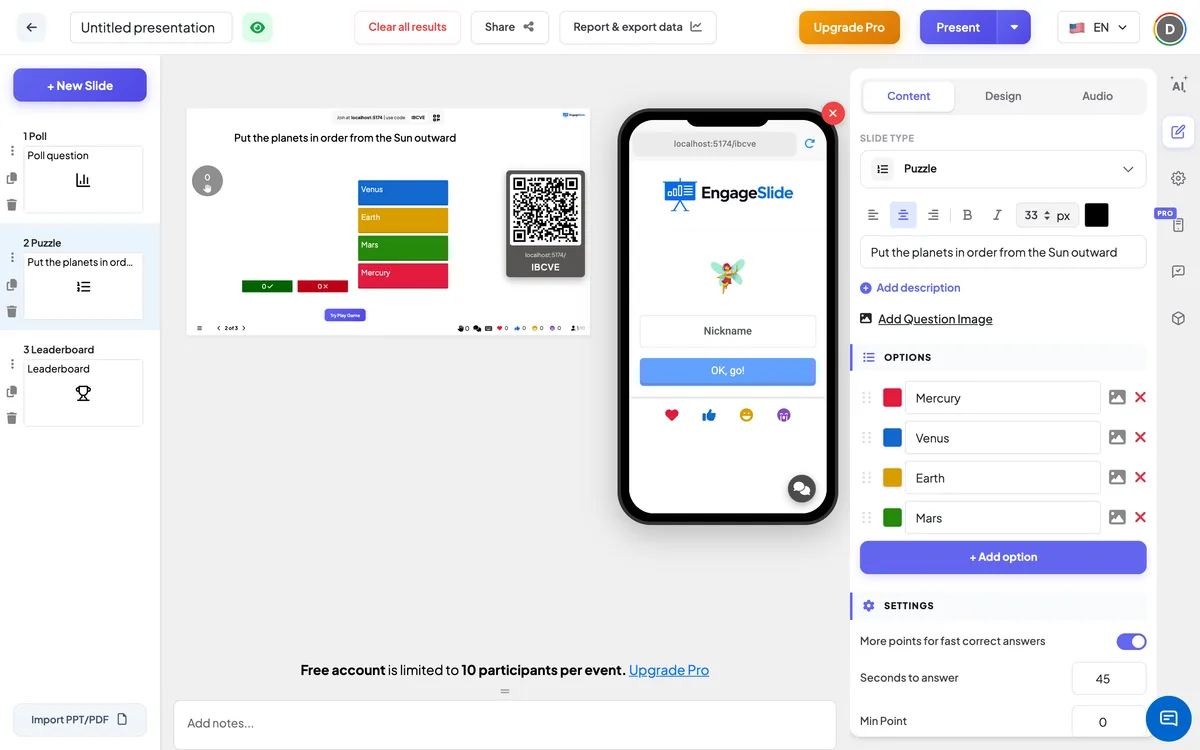
Puzzle settings
More points for fast correct answers
On by default. A perfect order submitted quickly scores close to Max Point; one submitted at the last second gets Min Point. Off: every perfect order gets the same points.
Seconds to answer
How long players have to arrange and submit (45 seconds on a new slide). Dragging takes longer than tapping, so allow more time for 5–6 items.
Min Point / Max Point
The points range for a perfect order — 0 and 100 on a new slide. With the speed bonus off there is a single Point field.
Quiz Audio (Optional)
Upload an audio file to play during the countdown instead of the game music.
Clear result this slide
Under Actions: deletes the answers to this question so you can play it again.
Present & share the join code
- 1Click Present in the top bar to put the slide on the big screen.
- 2A join code and a QR code appear (e.g.
36Y56). - 3Participants open the Audience app at join.engageslide.com, type the code and press Enter — or simply scan the QR.
- 4When everyone has joined, the responses start flowing in live.
How the audience responds
Players join with your code, pick an emoji and a Nickname, and wait in the lobby. When the question starts, the phone shows Question X of Y with the question for a 5-second countdown, then the items in a shuffled order with the hint Drag to reorder the options. Players drag each coloured item by its grip into place and press Submit; the button then reads Submitted and the phone says You have answered, please wait for the result. At the reveal they see a ✓ with the points they earned, or Oh sorry, you answered incorrectly.
View results
Press Start Game in the lobby. After the 5-second intro, the big screen shows the question and the items in a shuffled order, the countdown and a ✋ counter of how many players have answered. End Quiz stops the countdown early, and Show Image / Hide Image switches to the question image. When time is up, the items move into the correct order and two bars show how many players got the order right (✓) and wrong (✗). Points go straight to the leaderboard; a Leaderboard slide is added after the puzzle automatically when you create it.
Ideas for Puzzle questions
- History: put these events in order — the printing press, the steam engine, the telephone, the internet.
- Science: order the stages of the water cycle, or the planets by size.
- Training: the steps of a safety procedure, a sales process or an escalation path.
- Team meetings: rank last quarter’s projects by number of customers reached, then discuss the surprises.
Frequently asked
Do players get points for a partly correct order?
No. Puzzle is all-or-nothing: only the exact correct order scores. Everything else counts as incorrect.
How are points calculated?
A perfect order earns between Max Point and Min Point depending on how much time was left when it was submitted (with the speed bonus on), or Max Point every time (with it off).
How many items can a Puzzle have?
Up to 6 items. Each item can have a text, a colour and an image.
Does every player get the same shuffle?
No. Each phone shuffles the items on its own, so players can’t copy their neighbour’s screen.
Can players change their order after submitting?
No. After Submit the answer is locked in, so players should check the order first.