🎮Quiz & Game Slides 6 min read
Scenario
A branching training story: the room votes on what to do at each step, and every choice changes the meters and what happens next.
What is Scenario?
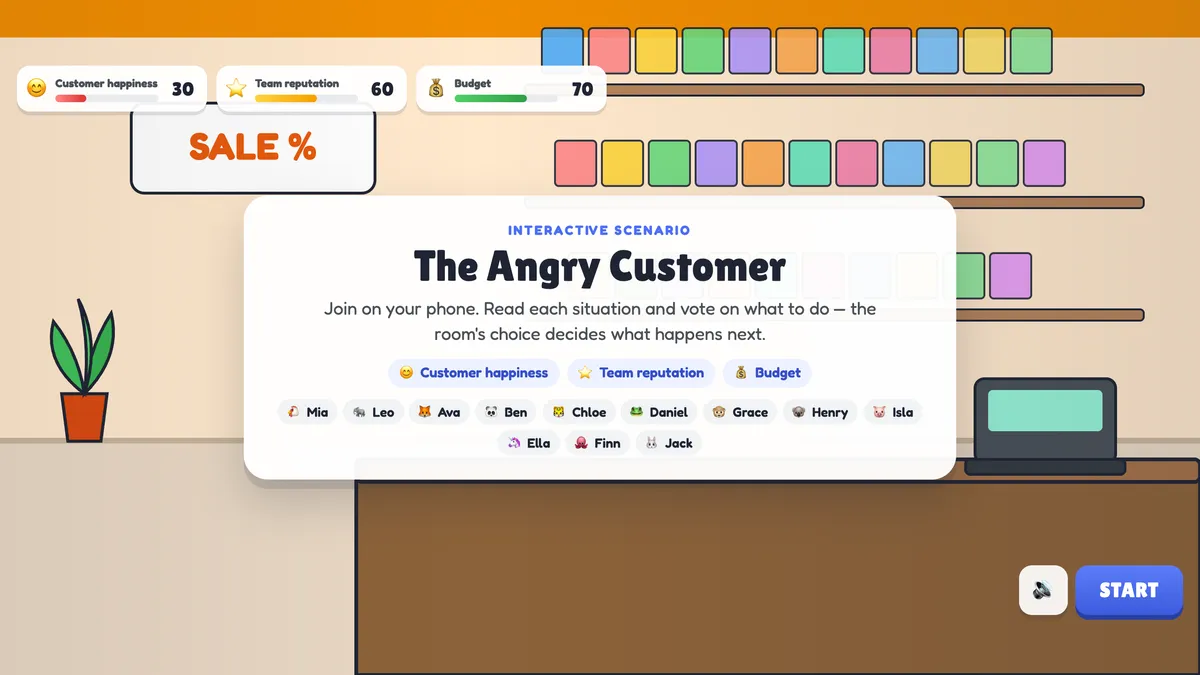
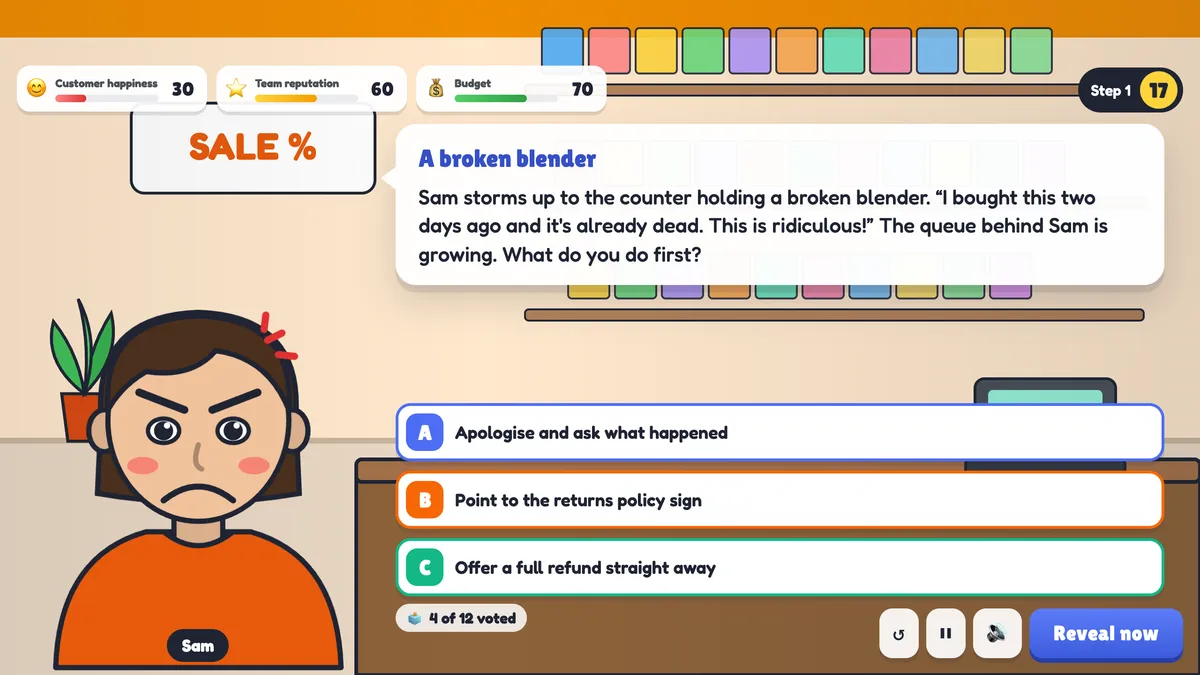
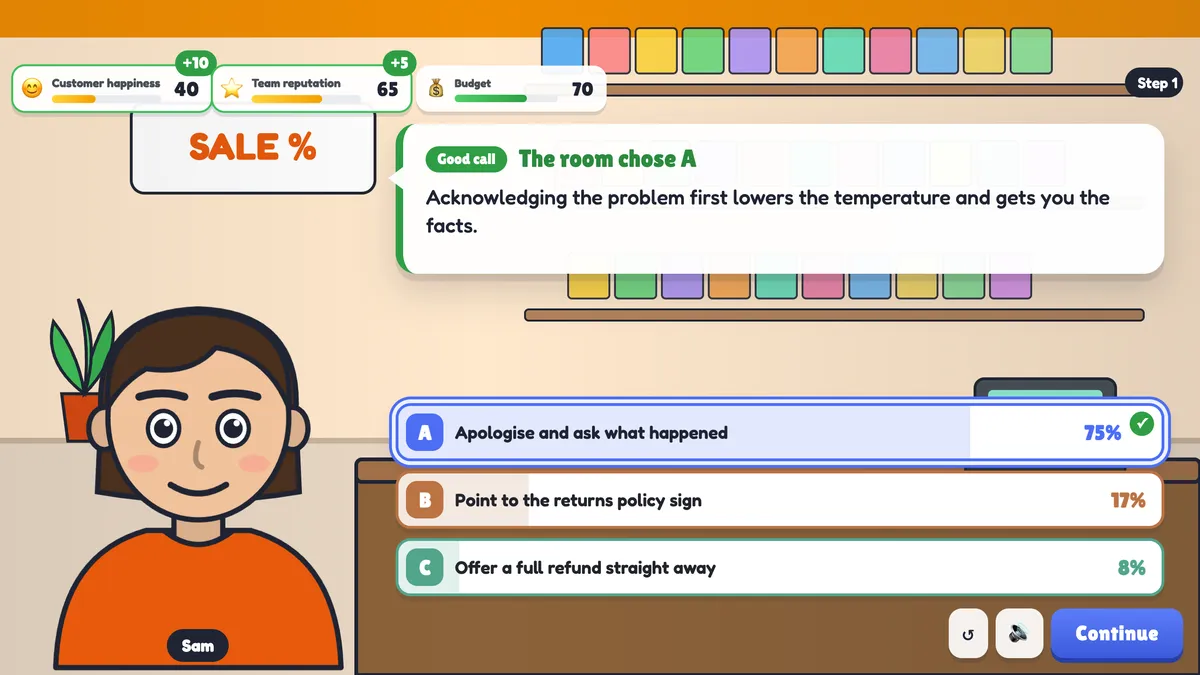
Scenario turns a training case into a story the whole room plays together. The big screen shows a scene, a character and a situation — for example an angry customer at the counter. Everyone votes on their phone for what to do next. When the vote closes, the room’s choice is revealed: the character reacts, a short explanation says why the choice works (or not), and the meters such as Customer happiness or Budget go up or down. The choice also decides which situation comes next, so a poor decision early on makes the rest of the story harder. At the end the room reaches a good, okay or bad ending and sees a map of the path it took next to the best path. The story pauses after every vote, so you can ask the room why they chose what they did — that discussion is where the learning happens.

Presenter creates the slide Click Present Share code / QR Audience enters code Respond & submit Real-time results
Create a Scenario slide
- 1On Home, click + Create new presentation (or add a slide to an existing one).
- 2In Choose Slide Type, pick Scenario. You can also type it into Search slide types….
- 3The slide is created and the right panel opens on the Content tab.
Set up the content
- 1Pick a template under Start from a template — The Angry Customer (customer service), Suspicious Email (security awareness) or Spill on the Floor (workplace safety) — or choose Blank story to write your own. Choosing a template replaces the current story, so you are asked to confirm.
- 2Give the story a Story name. It is shown on the start screen and on every phone.
- 3Set up to three Meters: an icon, a name and a starting value from 0 to 100 — for example 😊 Customer happiness 30, ⭐ Team reputation 60, 💰 Budget 70.
- 4Add up to four Characters with + Add character: type a name and pick a look (the looks include glasses and a safety helmet).
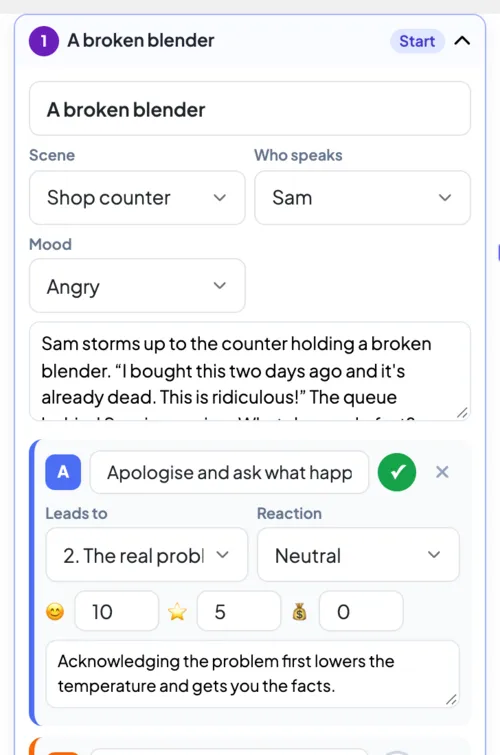
- 5Build the story under Steps. Click a step to open it, then fill in its Title, Scene (shop counter, office, warehouse, meeting room, support desk or outside), Who speaks, the character’s Mood and the situation text.
- 6Add two to four choices to each step. For every choice set Leads to (the next step or an ending), the character’s Reaction, how much each meter changes (for example +10 or -15) and the feedback shown after the vote. Tick the check mark on the best choice — one per step.
- 7Use + Add step and + Add ending to grow the story. An ending has an Outcome — good, okay or bad — and a short text describing what happened in the end. Make this the start sets the first step.
- 8Check the warnings above the steps. The editor tells you when the story has no ending, when a step cannot be reached from the start, or when a step has fewer than two choices that lead somewhere.
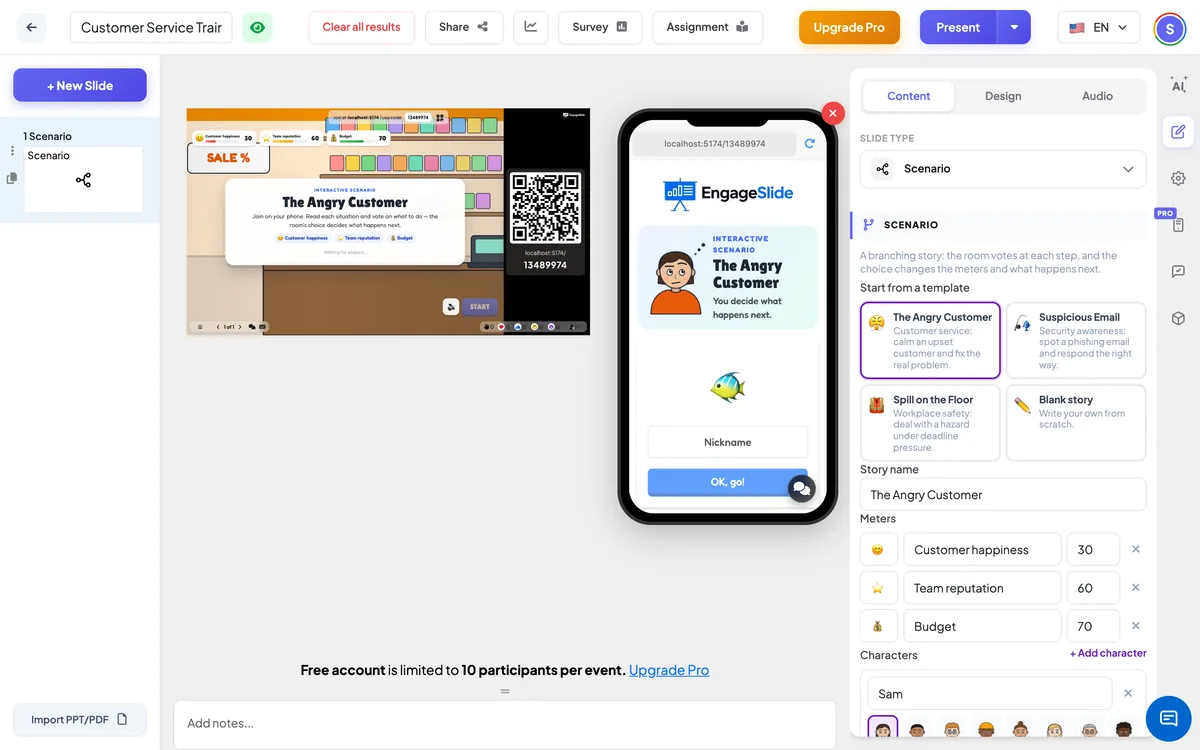
Scenario settings
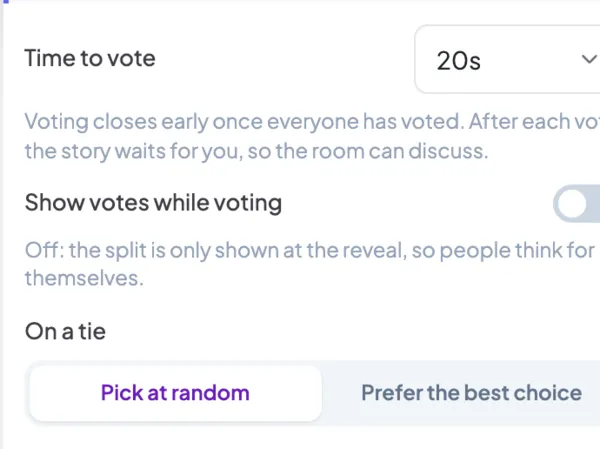
Time to vote
How long each vote lasts, from 10 to 90 seconds (20 seconds by default). Voting closes early once everyone has voted.
Show votes while voting
Off by default: the split is only shown at the reveal, so people think for themselves. Turn it on to show live percentages on every choice while the vote is open.
On a tie
Pick at random chooses one of the tied choices by chance. Prefer the best choice picks the best choice when it is among the tied ones.
Present & share the join code
- 1Click Present in the top bar to put the slide on the big screen.
- 2A join code and a QR code appear (e.g.
36Y56). - 3Participants open the Audience app at join.engageslide.com, type the code and press Enter — or simply scan the QR.
- 4When everyone has joined, the responses start flowing in live.
How the audience responds
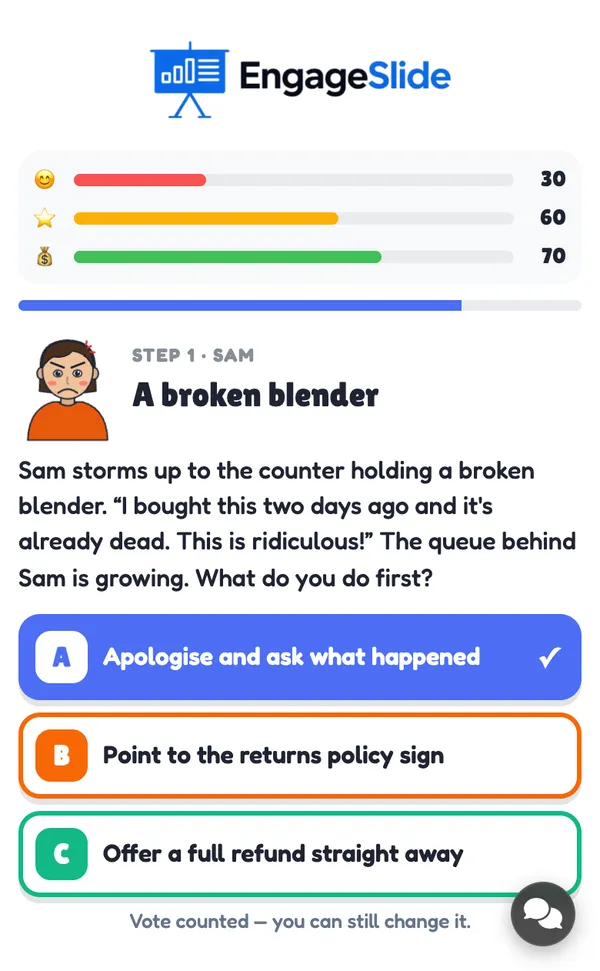
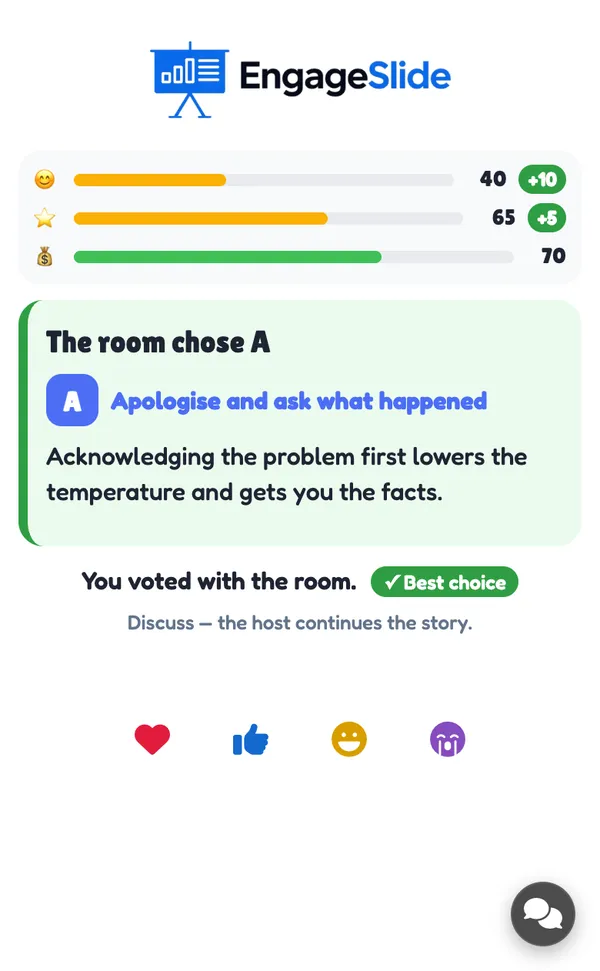
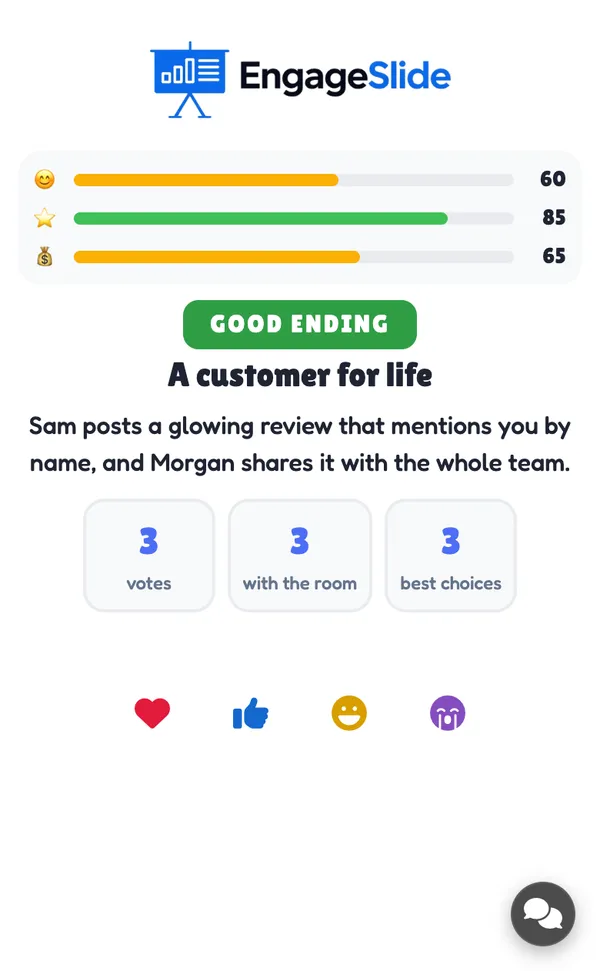
Players join with your code and enter their name; their phone says You’re in! and shows the meters. At each step the phone shows the situation, who is speaking and big A–D choice buttons with a countdown bar. A vote is counted straight away, and players can still change it until the vote closes. At the reveal the phone shows what the room chose, the explanation, the meter changes and whether the player voted with the room — with a Best choice badge when it was the right call. At the end each player sees the ending and three numbers: how many times they voted, how often they agreed with the room and how many best choices they made.
View results
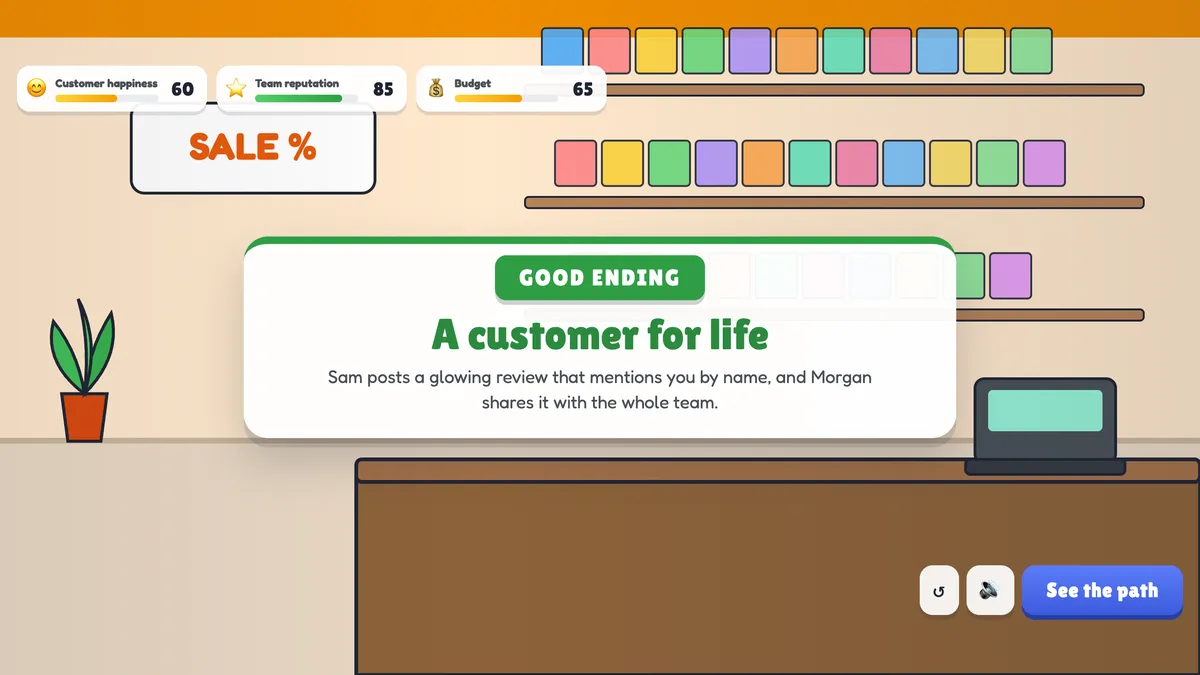
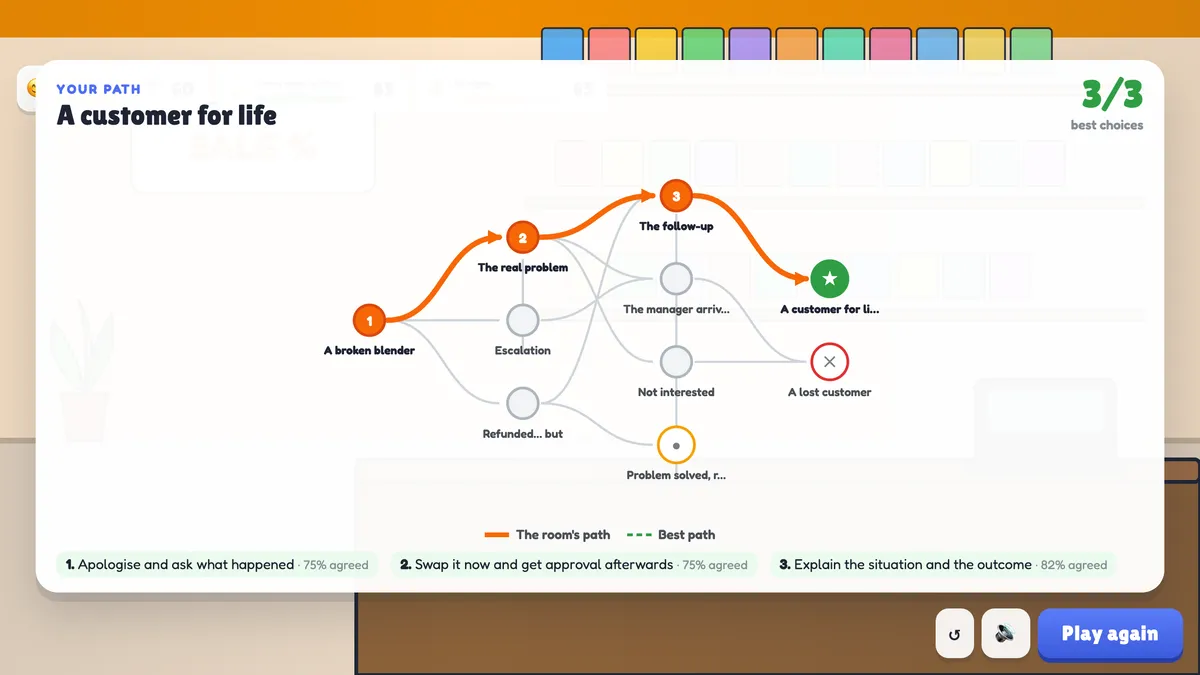
At each step the big screen shows the scene, the character and the situation, with the choices and a 4 of 12 voted counter. When the vote closes (or you press Reveal now) the winning choice is highlighted with its share of the votes, the character reacts, the feedback appears and the meters move with +10 / -5 chips. The story then waits for you: press Continue (or Enter) when the room has discussed it. When an ending is reached, a ribbon announces a GOOD, OKAY or BAD ENDING. Press See the path for the recap: a map of the whole story with the room’s path in orange and the best path in dashed green, a score such as 3/3 best choices and each decision with how many people agreed. Play again restarts the story so you can explore another branch; ↺ restarts at any time and ⏸ pauses the vote.
real screenshots
Ideas for your own stories
- Sales: a prospect pushes back on price — discount, defend the value or ask more questions?
- Compliance: a supplier offers a generous gift during a tender.
- Leadership: a team member misses a deadline for the second time.
- Onboarding: a new starter’s first day — where to find help, who to ask, what not to share.
- Classroom: a history decision (“You are the mayor in 1665 and the plague arrives…”) or a science experiment that can go wrong.
Frequently asked
How is the room’s choice decided?
The choice with the most votes wins. On a tie the slide picks at random, or picks the best choice if you set On a tie to Prefer the best choice.
Can players change their vote?
Yes, until the vote closes. The vote closes when the time runs out, when everyone has voted, or when you press Reveal now.
Does it give points or use the leaderboard?
No. Scenario is about decisions and discussion, not speed. Each player sees their own result at the end — how often they voted with the room and how many best choices they made.
How big can a story be?
Up to 30 steps, with two to four choices per step, up to three meters and four characters. Most good training stories have 3–5 decisions and 3–4 endings.
Can two choices lead to the same step?
Yes. Branches can join up again, and a choice can even lead back to an earlier step — for example “try again”.
What do the meters do?
They show the consequences of each decision. They do not decide the ending — the path does — so you can design a story where the room keeps the budget but loses the customer.
Can players join late?
Yes. A late player joins straight into the current step and can vote right away.