🎮Quiz & Game Slides 5 min read
Select Answer (Quiz)
Classic multiple-choice quiz questions with a countdown, points for fast correct answers and a live leaderboard.
What is Select Answer (Quiz)?
A Select Answer slide is the classic multiple-choice quiz question. You write a question and up to six answer options and tick the right one (or several). When you start the game, every player sees the question, a countdown runs, and players tap their answer on their phone. Right answers earn points — and with the speed bonus on, faster right answers earn more. Use it for trivia nights, lesson reviews, training checks and quick knowledge tests; put a Leaderboard after it to show the running scores.

Presenter creates the slide Click Present Share code / QR Audience enters code Respond & submit Real-time results
Create a Select Answer (Quiz) slide
- 1On Home, click + Create new presentation (or add a slide to an existing one).
- 2In Choose Slide Type, pick Select Answer. You can also type it into Search slide types….
- 3The slide is created and the right panel opens on the Content tab.
Set up the content
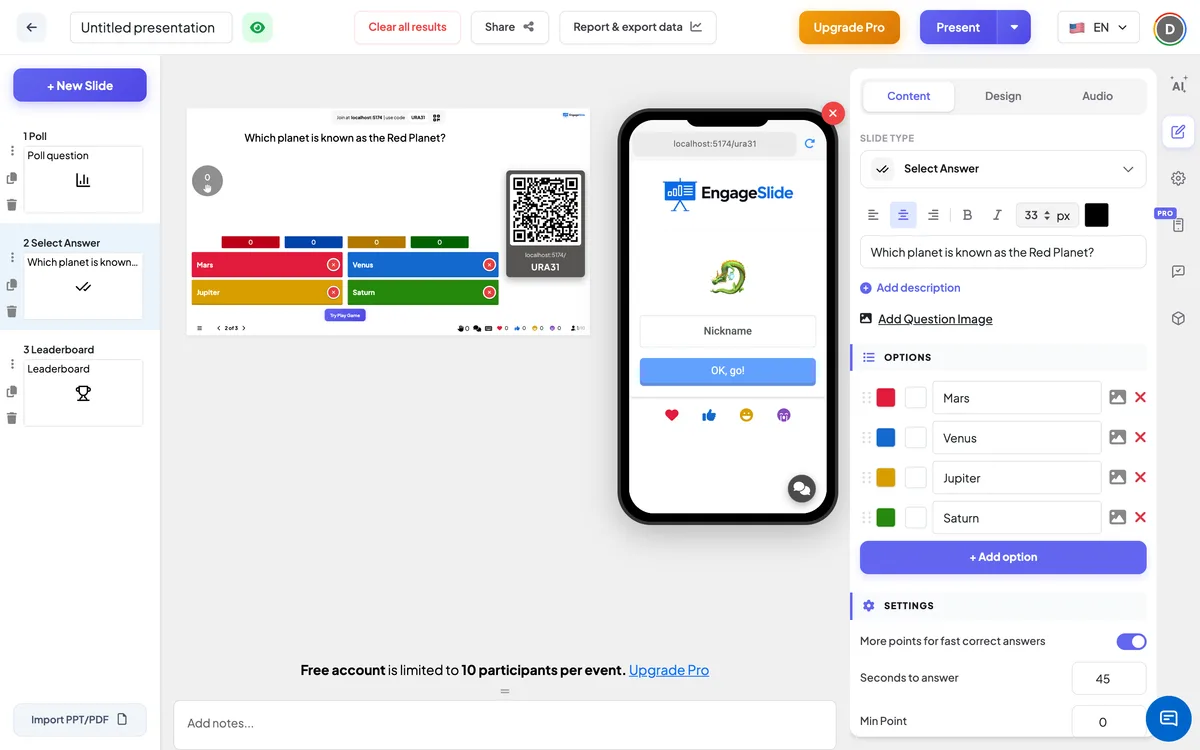
- 1Type your question in Enter your question or title, for example Which planet is known as the Red Planet?. The buttons above the field set the alignment, bold, italic, font size and colour of the question.
- 2Optionally click Add description to add a line of extra context under the question.
- 3Optionally click Add Question Image. Once an image is added, the Image reveal options appear: Original shows the whole picture, while 3×3, 5×5 or 8×8 uncover it tile by tile as the countdown runs. Turn on Reveal in order to uncover the tiles from the top-left instead of at random.
- 4Under Options, type each answer. Press Enter or Tab in the last option to add the next one, or click + Add option. You can add up to 6 options.
- 5Tick the box in front of the correct option. Tick more than one box if several answers are right — players can then select more than one.
- 6Optionally give each option its own colour (click the colour square) or an image (click the picture icon). Drag the handle on the left to reorder options, and click × to delete one.
- 7Under Settings, set the time, the points and the layout (see below). In the editor you can click Try Play Game to preview the game flow.
Select Answer (Quiz) settings
More points for fast correct answers
On by default. Faster correct answers score closer to Max Point; the slowest still get Min Point. Off: every correct answer gets the same points, no matter how fast.
Seconds to answer
How long the countdown runs once the question is shown (45 seconds on a new slide).
Min Point / Max Point
The points range for a correct answer — 0 and 100 on a new slide. With the speed bonus off there is a single Point field.
Partial scoring
Appears when more than one option is ticked as correct, and is on by default. Players earn a share of the points for each correct option they pick — but picking any wrong option scores 0. Off: players must pick exactly all the correct options to score.
Select quiz layout
Classic Mode (default) shows a bar for each option plus coloured answer tiles with ✓ and ✗ at the reveal. Standard Chart shows a column chart with the vote counts — handy when your options have images.
Quiz Audio (Optional)
Upload an audio file to play during the question countdown instead of the game music. The Audio tab also lets you pick the Lobby Music and Playing Music.
Clear result this slide
Under Actions: deletes the answers to this question and sends the slide back to the lobby, so you can play it again.
Present & share the join code
- 1Click Present in the top bar to put the slide on the big screen.
- 2A join code and a QR code appear (e.g.
36Y56). - 3Participants open the Audience app at join.engageslide.com, type the code and press Enter — or simply scan the QR.
- 4When everyone has joined, the responses start flowing in live.
How the audience responds
Players join with your code, choose an emoji, type a Nickname and tap OK, go! Their phone then says You’re in! See your nickname on screen? When you start the game, the phone shows Question 1 of 5 (for example) with the question and image while a 5-second countdown runs. Then the answer options appear in the same colours as on the big screen, with the time left. If there is one correct answer, a single tap answers — there is no Submit button. If there are several correct answers, players tap all the ones they think are right and press Submit. The phone then says You have answered, please wait for the result. At the reveal each player sees a ✓ and Excellent, you answered correctly and earned an additional 87 points, a partial ✓ with the points for a partly correct answer, or Oh sorry, you answered incorrectly.
View results
Before the game, the big screen shows the lobby with Waiting for players…, the player count and every player’s nickname as a bubble. Press Start Game: the screen shows Question X of Y, the question and image, and a 5-second countdown. Then the options appear with the countdown and a ✋ counter of how many have answered. Use Show Image / Hide Image to switch between the options and the question image, and End Quiz to stop the countdown early. When time is up (Time’s up!), the correct options get a ✓, wrong ones fade with a ✗ and each option shows how many players picked it. Points are saved at once and appear on the next Leaderboard. When you add a Select Answer slide, a Leaderboard slide is added right after it automatically (you can delete it).
Ideas for Select Answer questions
- Classroom: a 5-question exit quiz at the end of a lesson — Which of these is a prime number?
- Training: check the key rule after each module — Who should you report a data breach to first?
- Meetings and events: a warm-up trivia round about your company, product or city.
- Image questions: add a photo with a 5×5 image reveal and ask What landmark is this?
Frequently asked
How are points calculated?
With More points for fast correct answers on, a correct answer scores between Max Point (answered at once) and Min Point (answered at the last second), in proportion to the time left. With it off, every correct answer scores Max Point. Wrong answers and no answer score 0.
Can I have more than one correct answer?
Yes. Tick several options as correct. Players can then select several options and press Submit. With Partial scoring on, picking 2 of 3 correct options earns two-thirds of the points, as long as no wrong option is picked.
Can players change their answer?
No. With one correct answer, the first tap is final. With several correct answers, players can change their selection until they press Submit.
What if someone joins in the middle of a question?
They can still answer while the countdown is running. Their points depend on the time left, like everyone else.
Does the countdown stop when everyone has answered?
No, it runs to zero. Press End Quiz to reveal the answer early.