🎮Quiz & Game Slides 6 min read
Sort It
A sorting game: everyone sorts items into the right groups on their phone against the clock, then the big screen reveals what the room got wrong.
What is Sort It?
Sort It is a sorting game for the whole room. You set up 2–4 groups — Recycling, Compost, Landfill or Mammal, Bird, Reptile, Fish — and a list of items that each belong to one group. When you press START, every player gets the items one card at a time on their phone, in their own random order, and taps the group each one belongs to. They can check and change their answers before they submit, and the clock is ticking: every right item scores, and a fast submit scores more. At the reveal the items fly into their right group one by one on the big screen, each with the percentage of the room that got it right, and a Most missed panel shows the items people struggled with — and the group they put them in instead. It is the quickest way to find out what a room really understands about categories, rules or processes, and to talk about the tricky cases.

Presenter creates the slide Click Present Share code / QR Audience enters code Respond & submit Real-time results
Create a Sort It slide
- 1On Home, click + Create new presentation (or add a slide to an existing one).
- 2In Choose Slide Type, pick Sort It. You can also type it into Search slide types….
- 3The slide is created and the right panel opens on the Content tab.
Set up the content
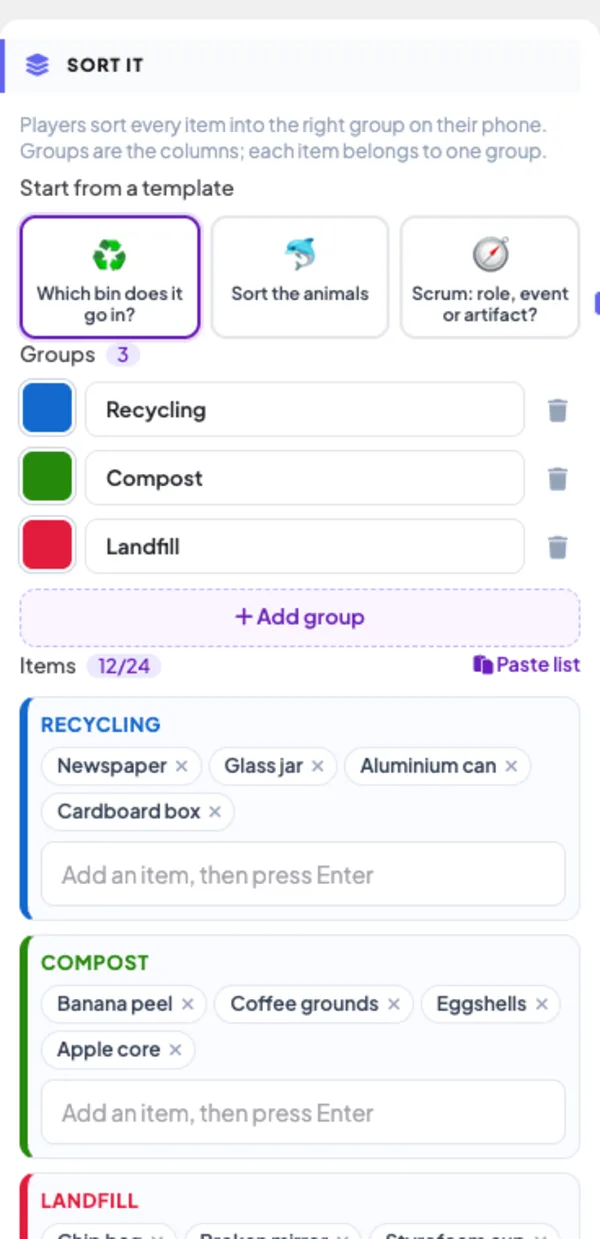
- 1Pick a starting point under Start from a template: Which bin does it go in? (recycling, compost or landfill — the sample on a new slide), Sort the animals (mammal, bird, reptile or fish) or Scrum: role, event or artifact?. A template replaces the current groups and items; you are asked first if the slide already has items.
- 2Under Groups, rename a group by typing over its name and click the colour square to pick its colour. Use + Add group for up to 4 groups and the bin to delete one (at least 2 are needed). Deleting a group also deletes its items.
- 3Under Items, each group has its own box: type an item and press Enter to add it to that group, and click ✕ on an item to remove it. A slide holds up to 24 items; 8–16 make a good round.
- 4To add many items at once, click Paste list and paste one item per line: Item | Group, for example Battery | Landfill. The group is matched by its name (capitals don’t matter); the box tells you how many lines matched and how many have no known group. Click Add.
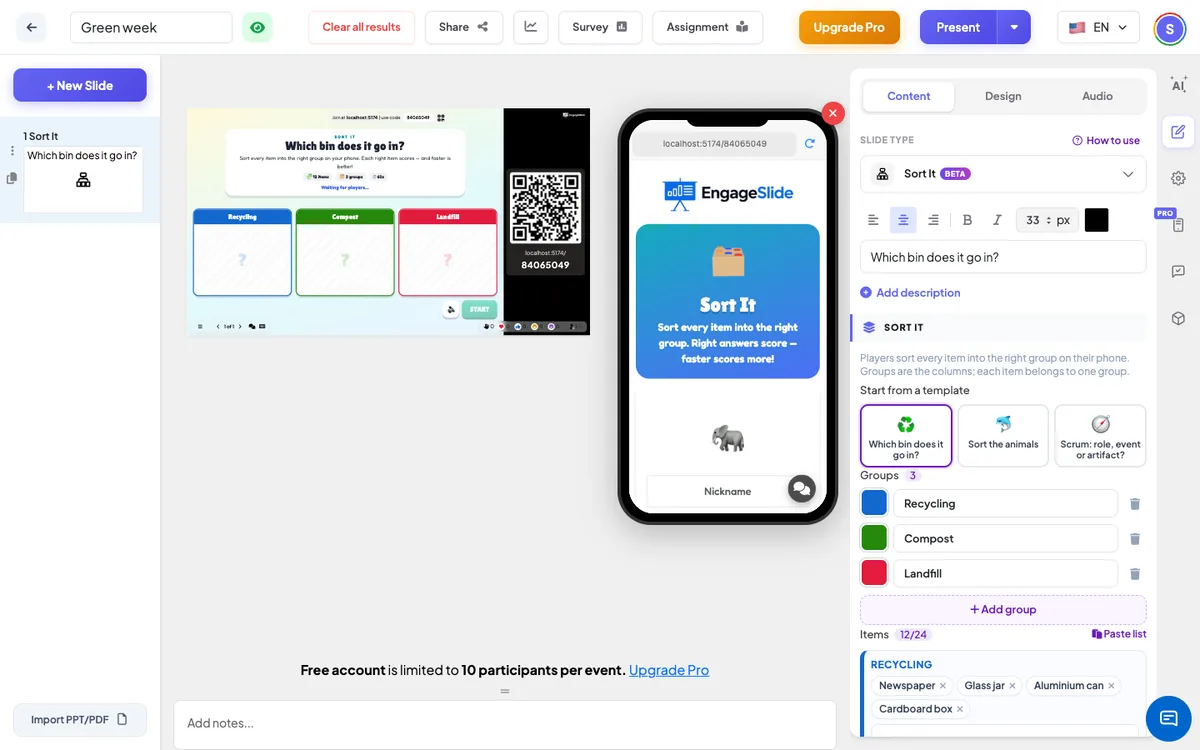
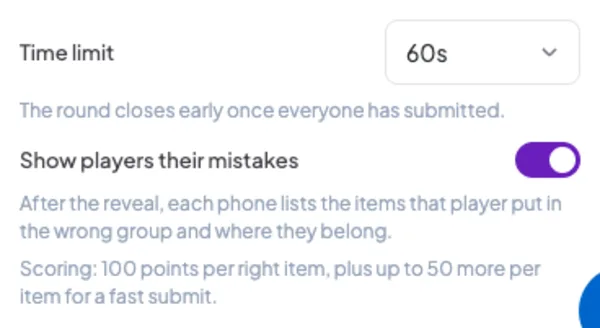
- 5The slide title is the question on the big screen, for example Which bin does it go in?. Then open Settings to choose the time limit and whether players see their mistakes.
Sort It settings
Time limit
30, 45, 60 (default), 90 or 120 seconds for the whole round. The round closes early once every active player has submitted.
Show players their mistakes
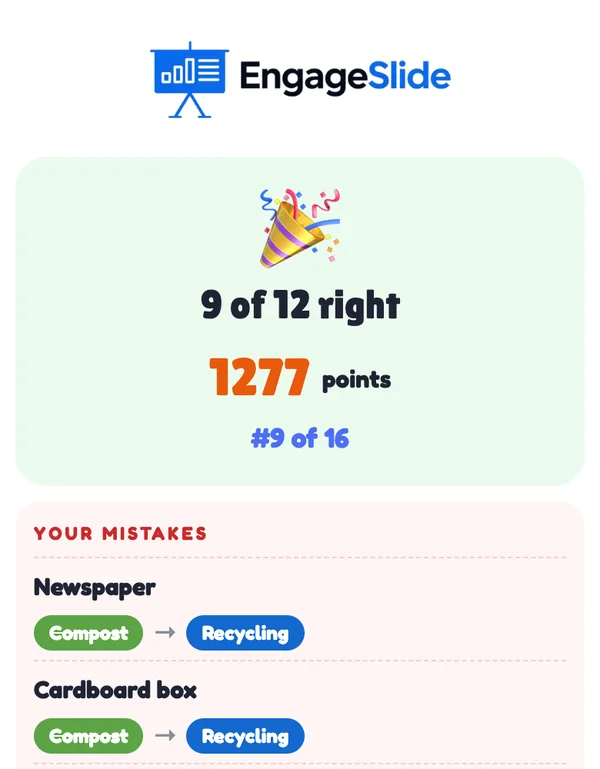
On by default. After the reveal, each phone lists the items that player put in the wrong group, with the group they chose and the right one. Off: phones only show the score.
Scoring
Each right item scores 100 points, plus a speed bonus of up to 50 points per right item that falls to 0 at the buzzer. A perfect, fast sort of 12 items is worth up to 1,800 points. Ties are broken by who submitted first.
Present & share the join code
- 1Click Present in the top bar to put the slide on the big screen.
- 2A join code and a QR code appear (e.g.
36Y56). - 3Participants open the Audience app at join.engageslide.com, type the code and press Enter — or simply scan the QR.
- 4When everyone has joined, the responses start flowing in live.
How the audience responds
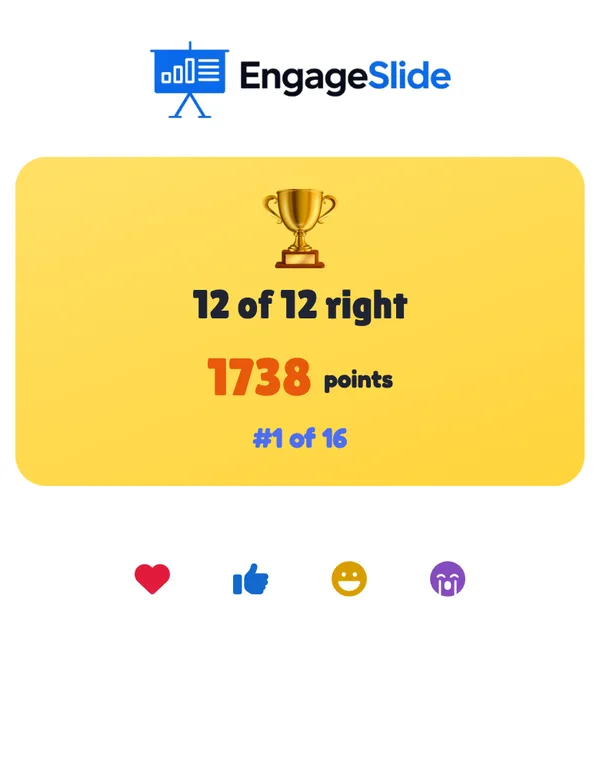
Players join with your code and enter their name; the phone says You’re in! and shows the groups they will sort into. When you start, the phone shows one card at a time — Where does it go? with the item in big letters — and a big coloured button for each group, plus a counter (5 / 12) and a countdown bar. Tapping a group moves on to the next card; Undo takes back the last one. Each phone gets the items in its own random order, so neighbours can’t simply copy. After the last card the phone shows All sorted! Tap an item to move it. with every item under the group it was put in; tapping an item opens it again (Move to…). Submit sends the answers and the phone says Submitted!. If time runs out first, whatever was sorted is sent automatically. After the reveal the phone shows the result — 9 of 12 right, the points and the place such as #2 of 8 — and, if the setting is on, Your mistakes: each wrong item with the group chosen (crossed out) and the right one.
View results
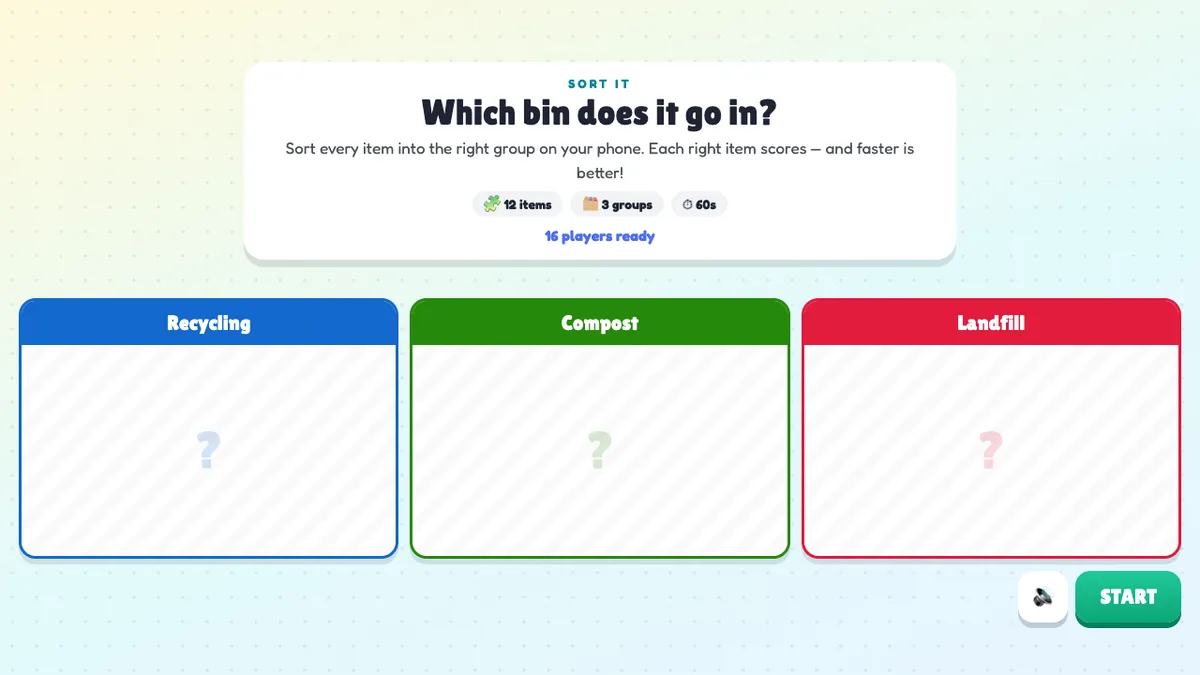
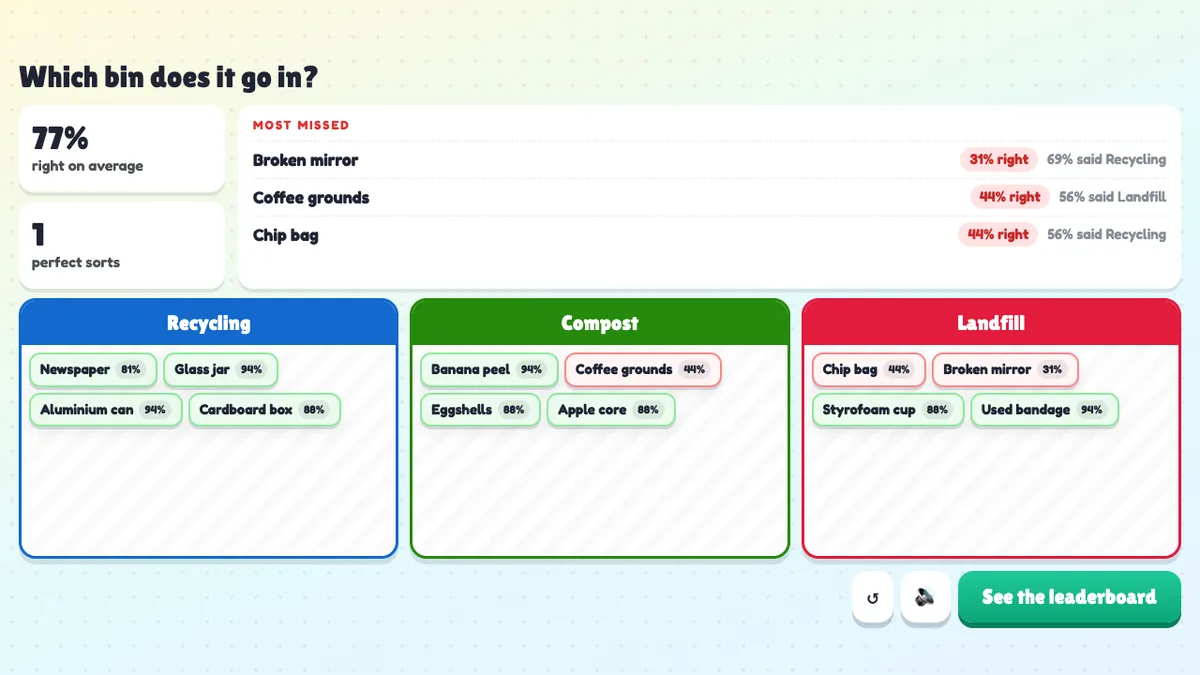
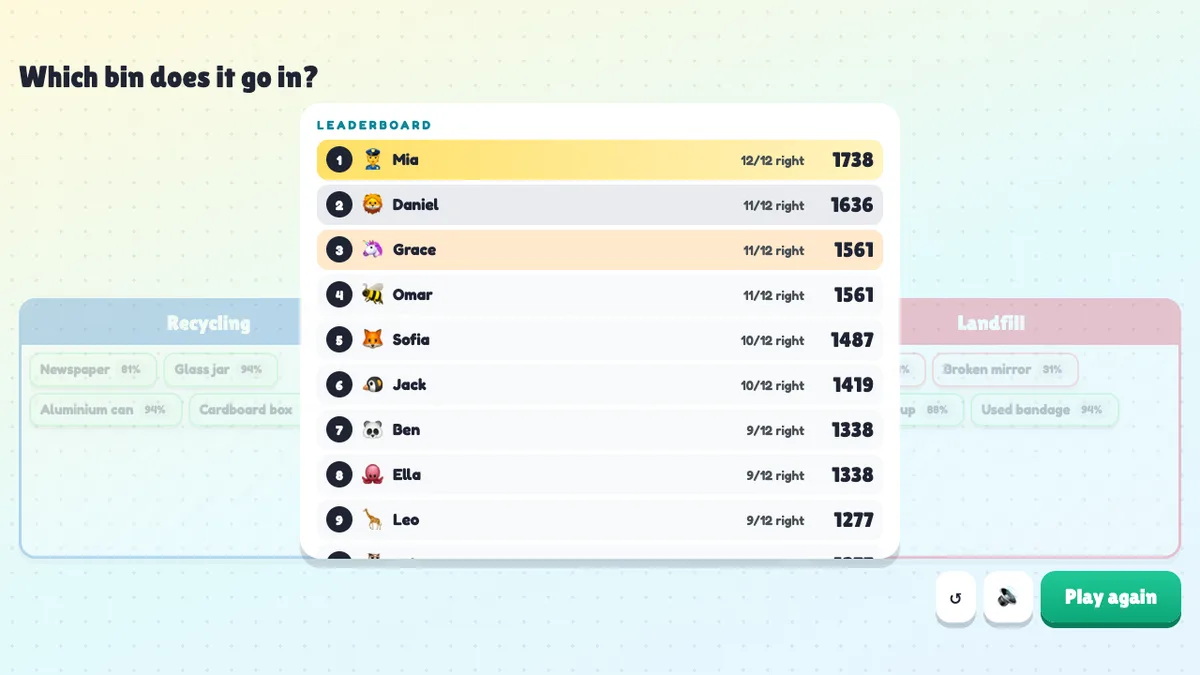
Before the round the big screen shows the title, a short explanation, the number of items, groups and seconds, the groups as empty coloured columns and how many players are ready. Press START (or Enter). While players sort, the items float above the columns, a countdown ring and a chip such as 6 of 16 players done sit in the corner, a bar shows how far the room has got, and the avatars of players who submitted line up next to it. Press Reveal now to close the round early. At the reveal the items fly into their right column one by one, each tagged with the percentage of players who got it right — green when most got it, yellow when it was close, red when most got it wrong. Then the summary appears: the average right, the number of perfect sorts and the Most missed items, such as Broken mirror — 31% right — 69% said Recycling. Press See the leaderboard for the top 10 with each player’s right count and points, then Play again for a new round with the same items in a new order. ↺ goes back to the start screen.
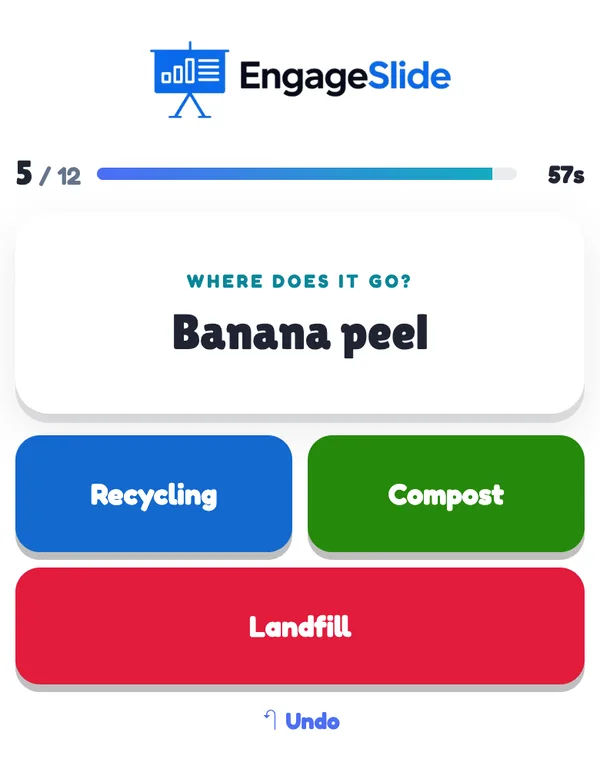
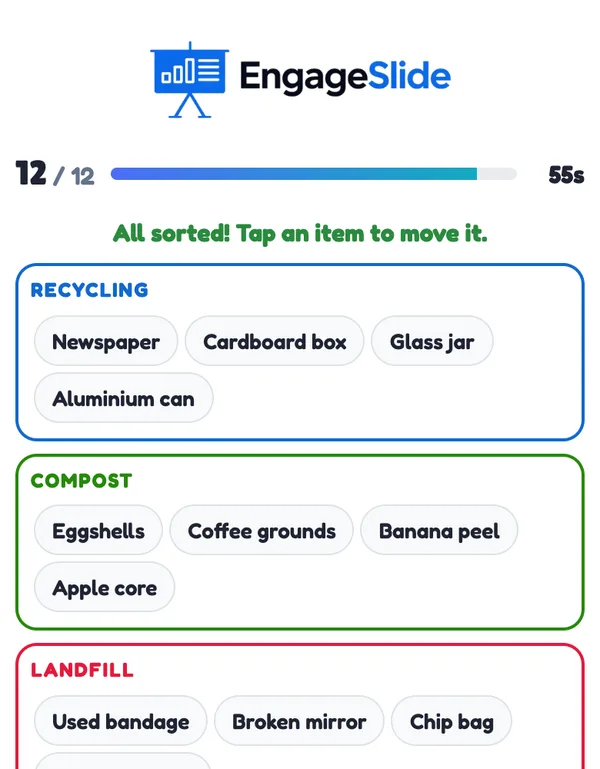
real screenshots
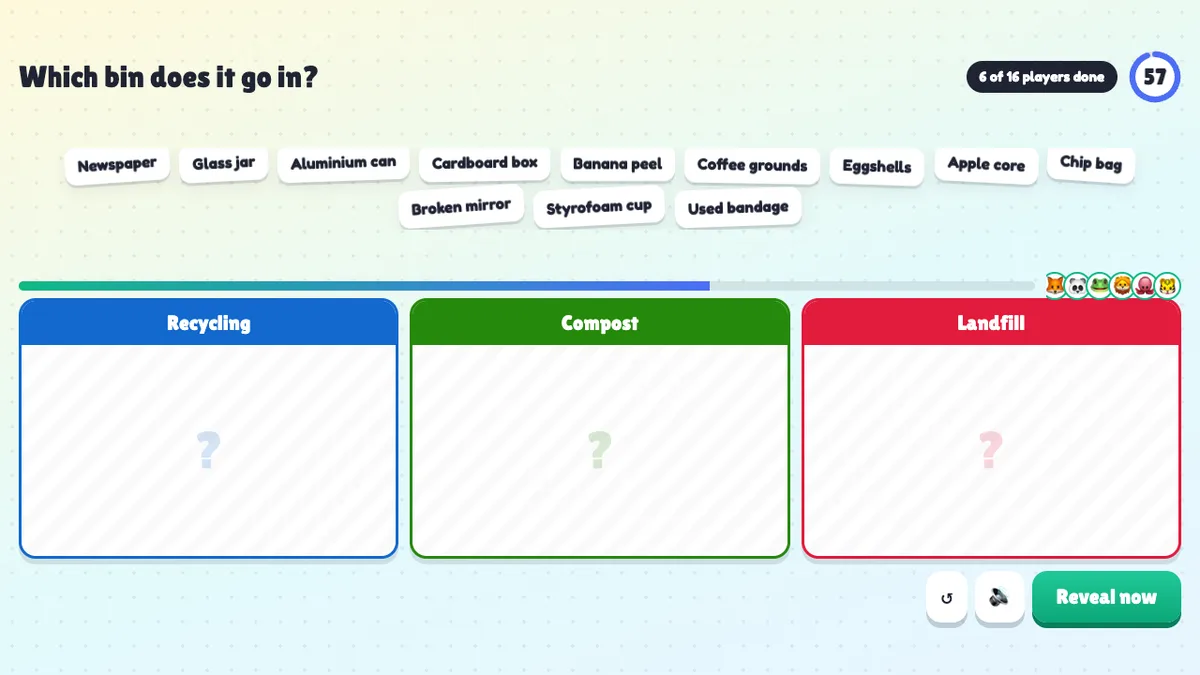
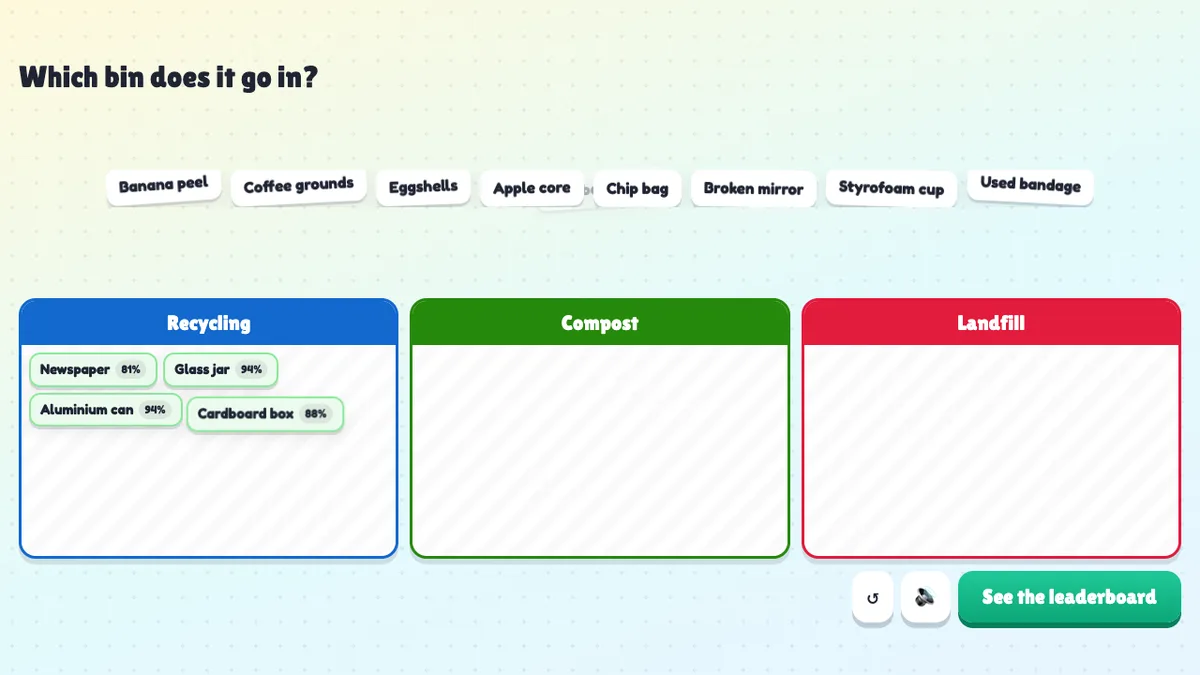
real screenshots
Ways to use Sort It
- Classroom: sort animals, materials, word types, historical events by era or numbers into prime and not prime — and see at a glance which items the class mixes up.
- Training and onboarding: sort policies into allowed / not allowed, tasks into the right team or data into public, internal and confidential.
- Agile and team workshops: sort Scrum roles, events and artifacts, or a backlog into must have, should have and could have.
- Events and green weeks: a recycling sort is a quick, fun way to make a point — everyone remembers the item they got wrong.
Frequently asked
How many groups and items can I use?
Two to four groups and up to 24 items. Items with the same name (ignoring capitals) are only played once, and an item whose group was deleted is not played (the editor lists it so you can remove it).
How is the score worked out?
Each right item is worth 100 points plus a speed bonus of up to 50 points that falls to 0 at the end of the timer. Wrong and unsorted items score nothing. Players with the same score are ranked by who submitted first.
Can players change an answer?
Yes, until they submit: Undo takes back the last card, and on the review screen they can tap any item and move it to another group. After Submit the answers are final.
What if a player doesn’t submit in time?
Just before the time runs out, the phone sends whatever the player has sorted so far. Items they didn’t get to count as wrong.
Can players join late?
Yes. A player who joins while the round is running gets the cards straight away and can still submit before the timer ends.
What if I close or refresh the presenting window?
Everyone who joined shows up again straight away. If the slide is still open in another window (the editor or a second presenting window), the round carries on with the time that was left, and phones that had already submitted send their answers again by themselves. If it was the only window, the game goes back to the start screen.
Does it add points to the leaderboard slide?
No. Sort It has its own leaderboard for each round and does not change quiz scores.