🎮Quiz & Game Slides 5 min read
Stop the Clock
A timing game: a clock starts on every phone and then disappears — stop it as close to 10.00 seconds as you can.
What is Stop the Clock?
Stop the Clock is a one-button timing game. After a 3-2-1, a clock starts counting on every phone and on the big screen — and after a few seconds it disappears. Players have to keep counting in their head and tap STOP when they think it reads exactly the target, 10.00 seconds by default. The time is measured on each player’s own phone from the moment their clock started, so the network can’t help or hurt anyone. At the reveal every stop lands on a number line around the target, the three closest are named, and a stop within one hundredth of a second is a PERFECT!. After a few rounds the player with the smallest average miss wins. There is nothing to prepare — just pick the target and press start — and it works with any group, from a classroom to a conference hall.
Presenter creates the slide Click Present Share code / QR Audience enters code Respond & submit Real-time results
Create a Stop the Clock slide
- 1On Home, click + Create new presentation (or add a slide to an existing one).
- 2In Choose Slide Type, pick Stop the Clock. You can also type it into Search slide types….
- 3The slide is created and the right panel opens on the Content tab.
Set up the content
- 1Add a Stop the Clock slide from the Games tab of the slide picker. There are no questions to write.
- 2Type a title in Enter your question or title, for example Can you feel 10 seconds?.
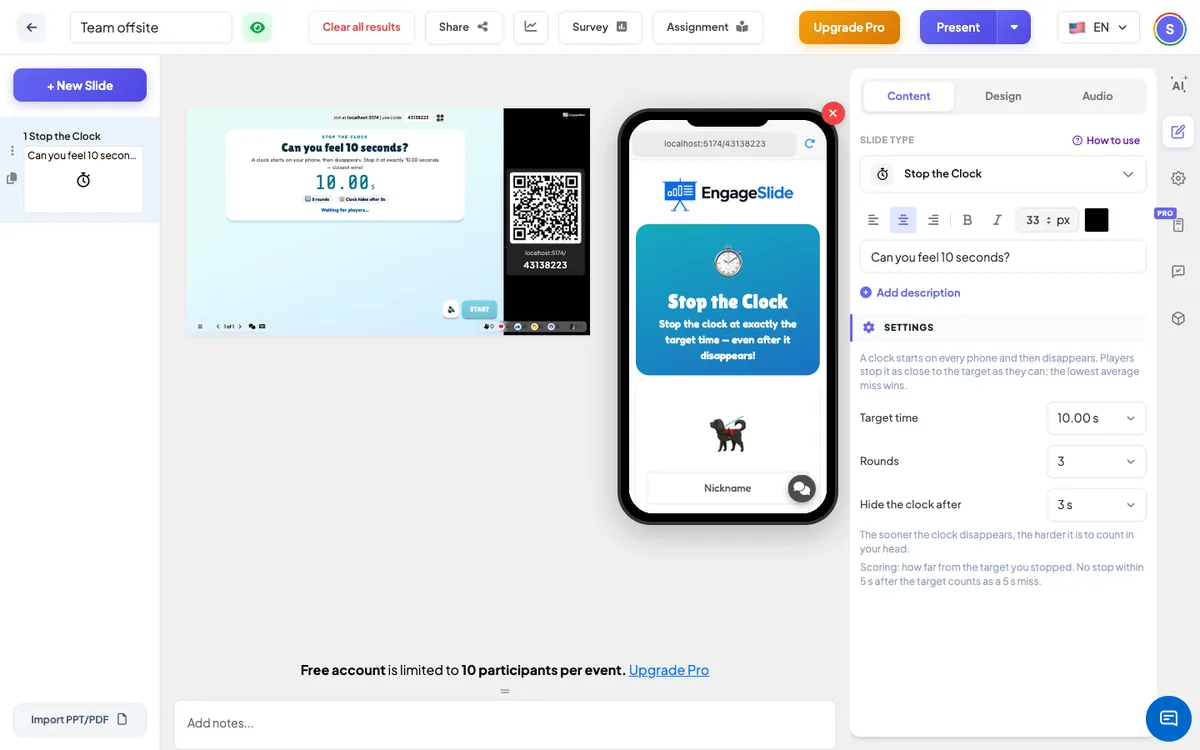
- 3Open Settings to choose the target time, the number of rounds and when the clock disappears.
- 4Present the slide, let everyone join, and press START (or Enter).
Stop the Clock settings
Target time
5, 7, 10 (default), 15 or 20 seconds — the time players try to stop the clock at.
Rounds
1, 3 (default) or 5 rounds. The next round starts by itself 9 seconds after the reveal.
Hide the clock after
2, 3 (default) or 5 seconds, or Never (easy). The sooner the clock disappears, the harder it is. With Never the clock stays visible the whole time — good for young children.
Scoring
How far from the target you stopped, in either direction. Not stopping within 5 seconds after the target counts as a 5-second miss. The winner has the smallest average miss over the rounds they played; ties go to the best single stop.
Present & share the join code
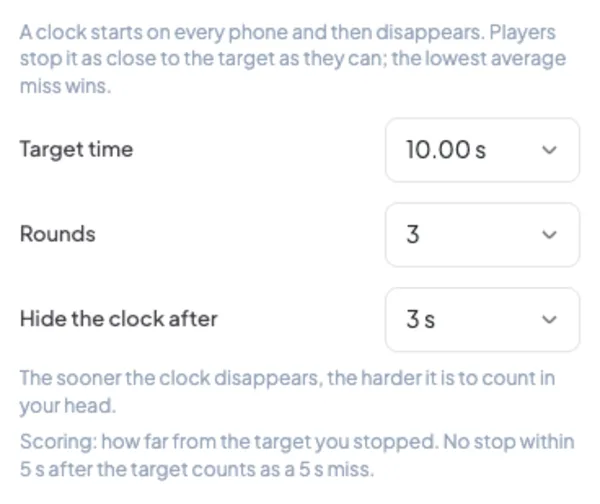
- 1Click Present in the top bar to put the slide on the big screen.
- 2A join code and a QR code appear (e.g.
36Y56). - 3Participants open the Audience app at join.engageslide.com, type the code and press Enter — or simply scan the QR.
- 4When everyone has joined, the responses start flowing in live.
How the audience responds
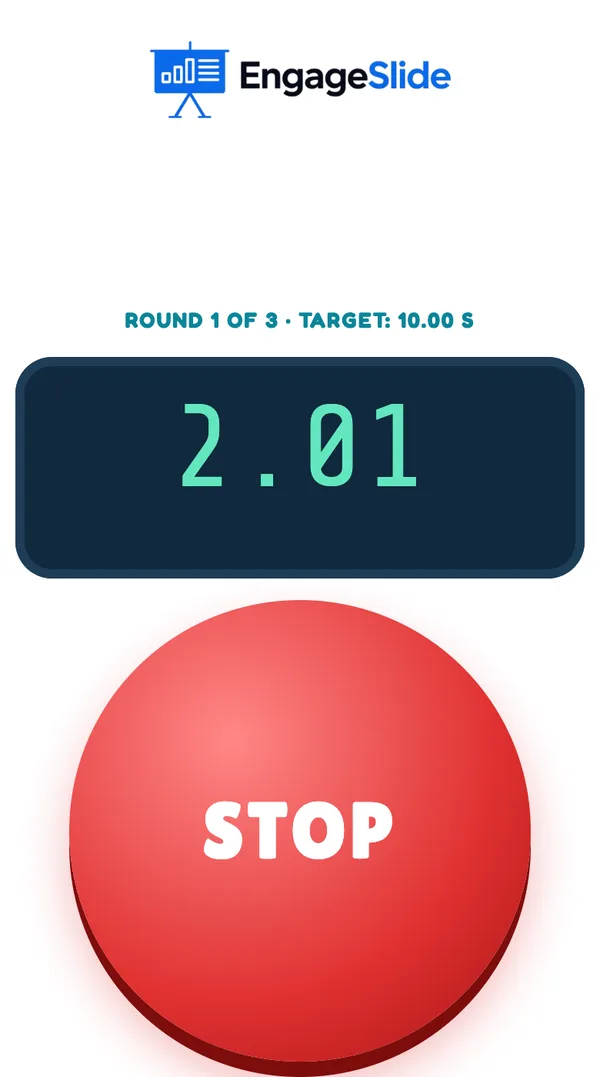
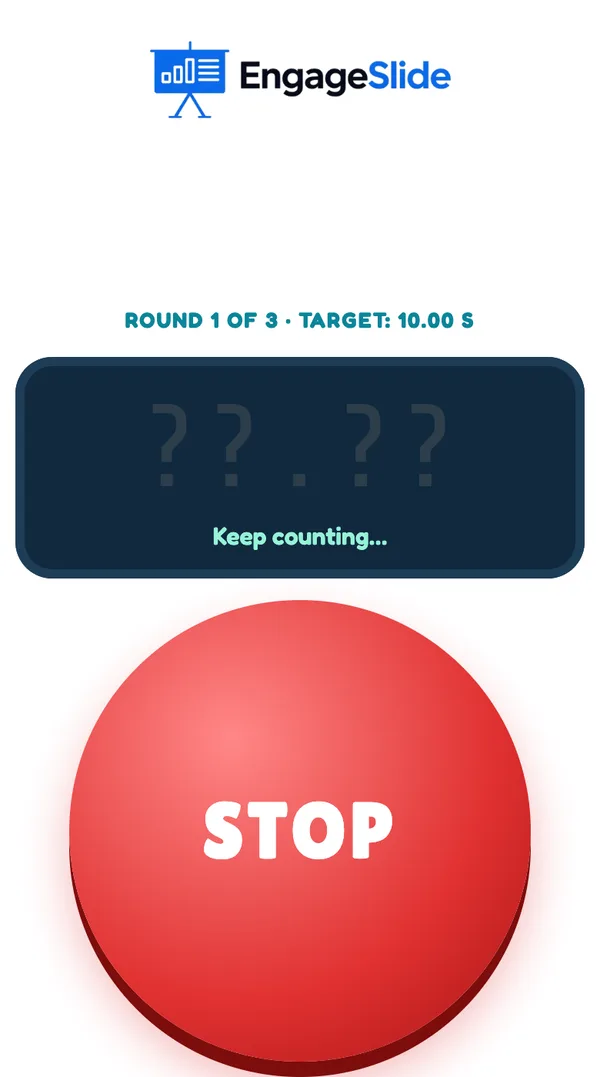
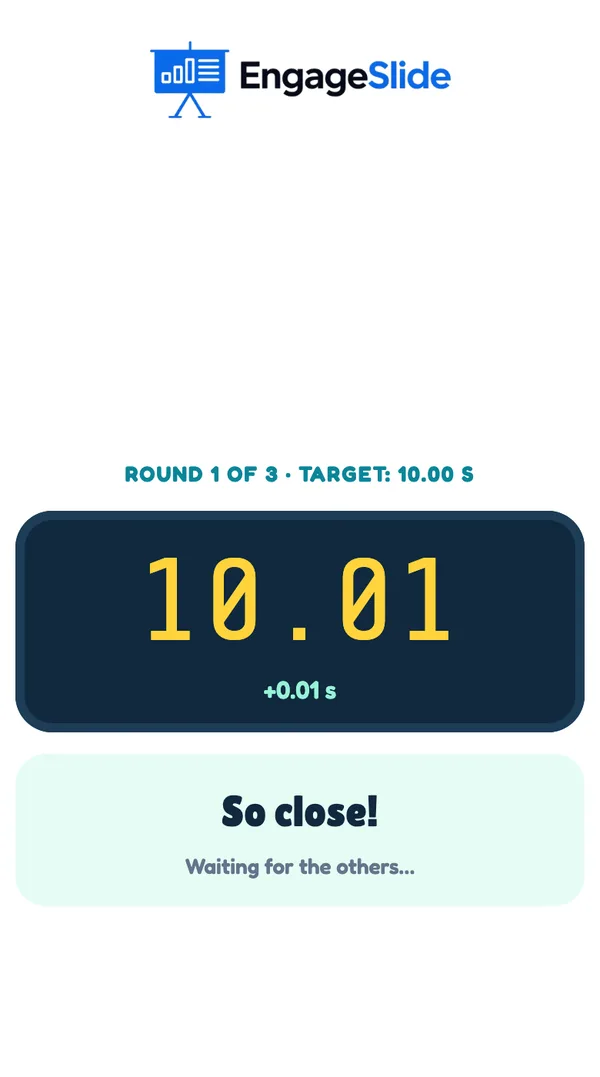
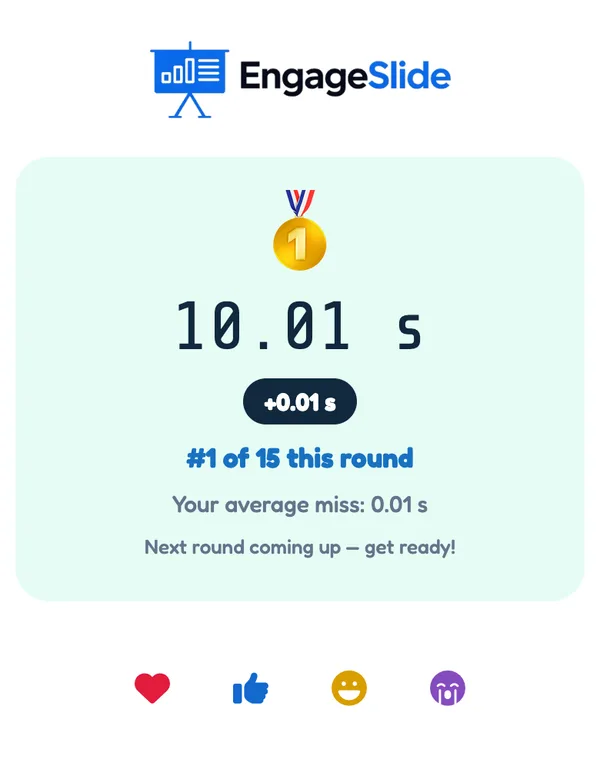
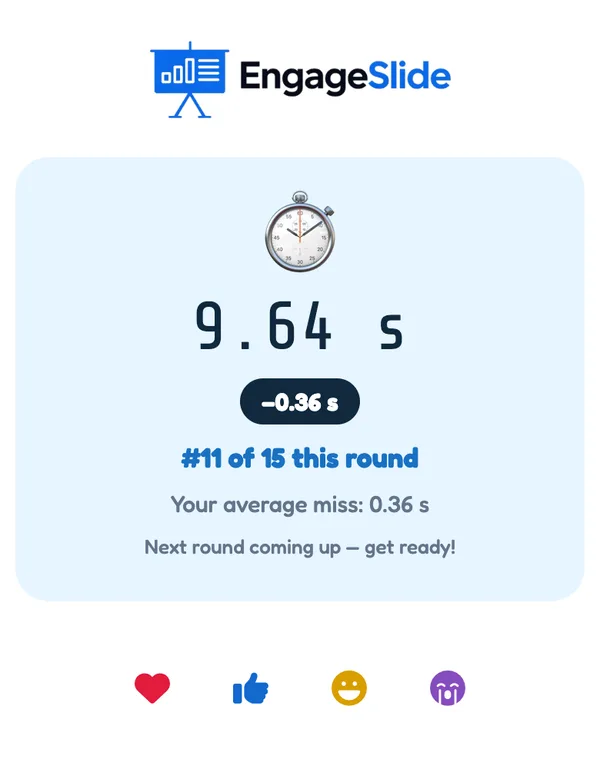
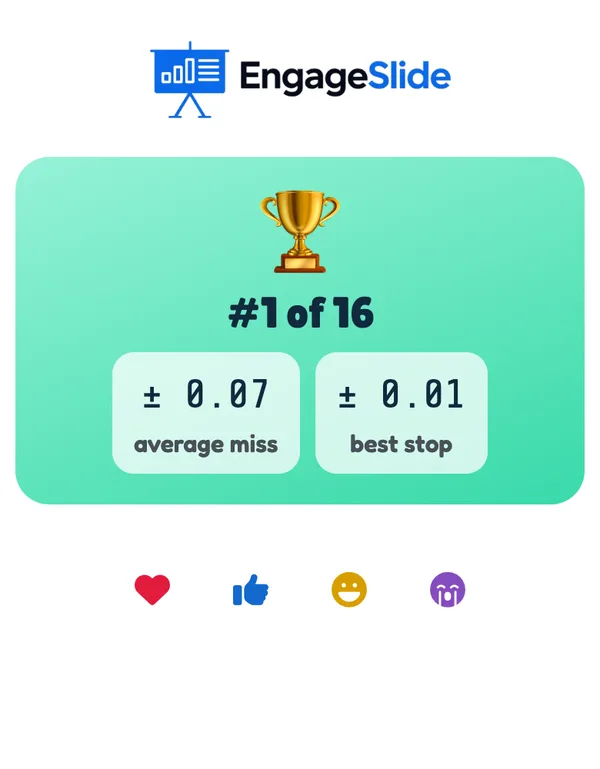
Players join with your code; the phone says You’re in! and shows the target (10.00 s) and when the clock will disappear. When a round starts, the phone shows a digital clock with a big red STOP button. The clock counts down 3, 2, 1 (the button is greyed out), then starts running. After the hide time it shows ??.?? and Keep counting…. Tapping STOP freezes the player’s time on screen — for example 10.01 with +0.01 s and So close! — while the others are still counting. A player who doesn’t stop within 5 seconds of the target sees ⏰ Time’s up!. After the reveal the phone shows the time, the miss (or PERFECT!), the place in the round (#1 of 15 this round) and the average miss so far. At the end it shows the final place, the average miss, the best stop and any perfect stops.
View results
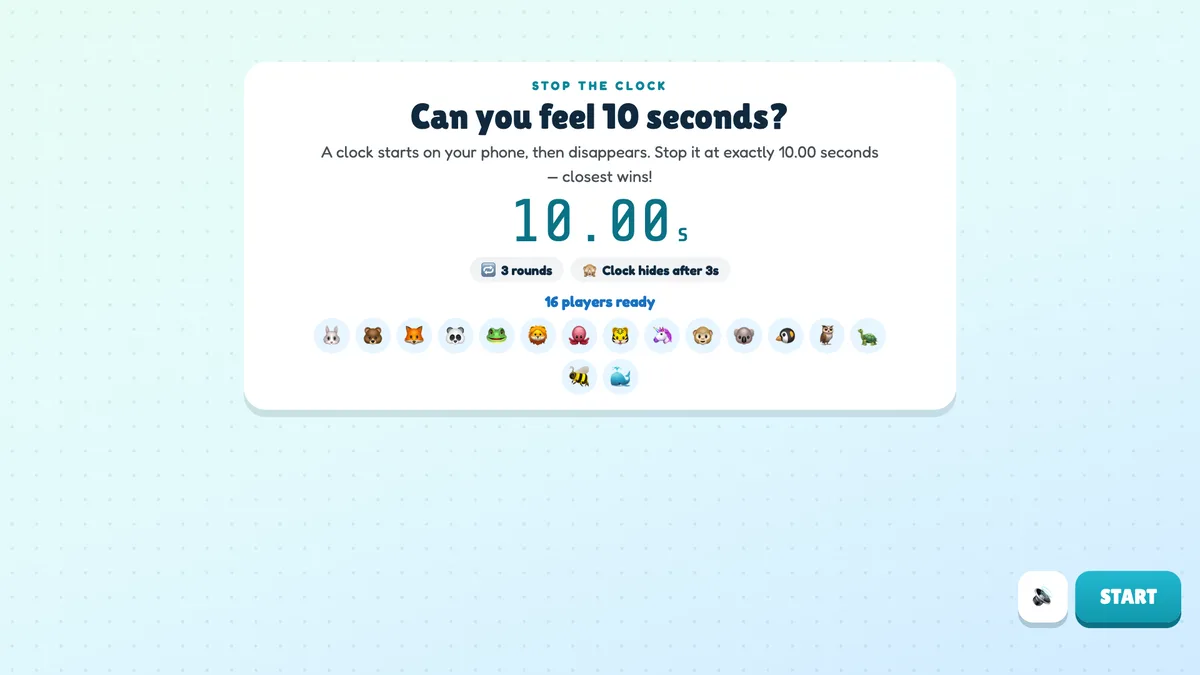
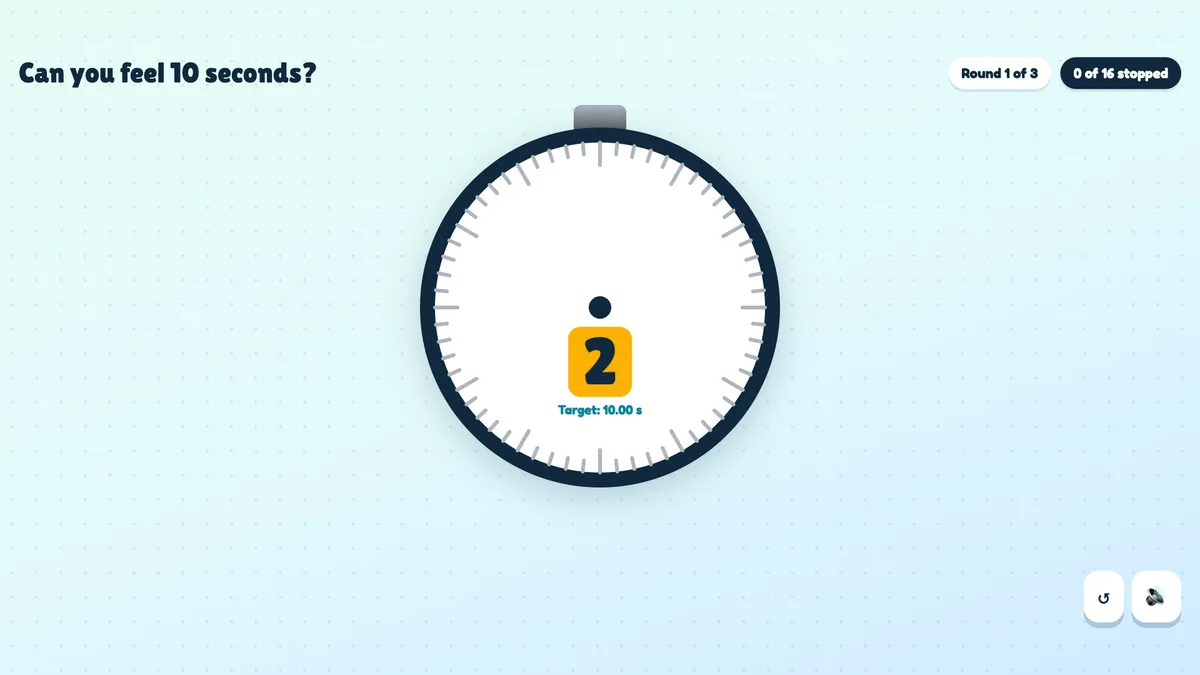
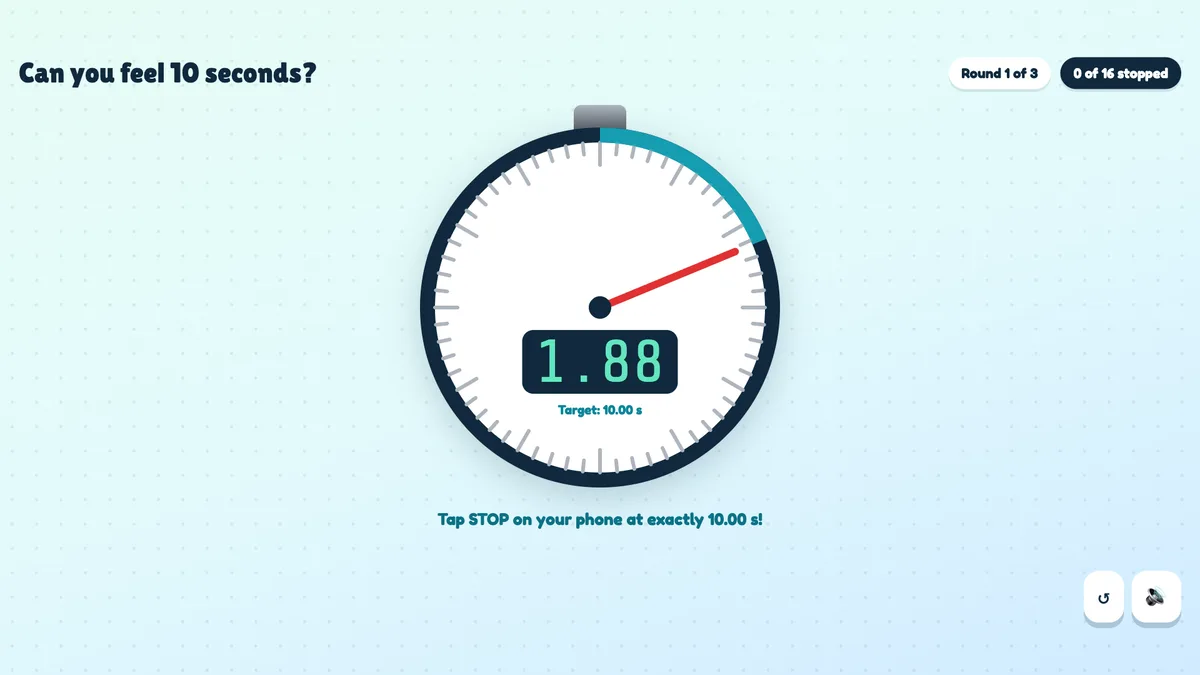
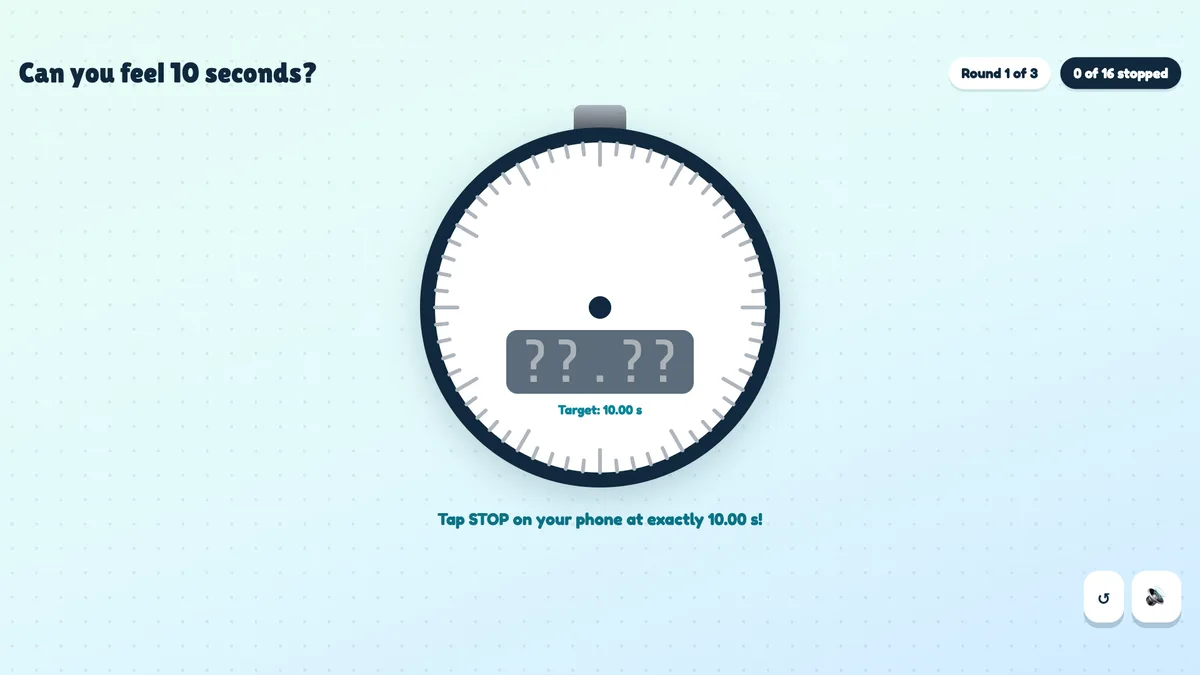
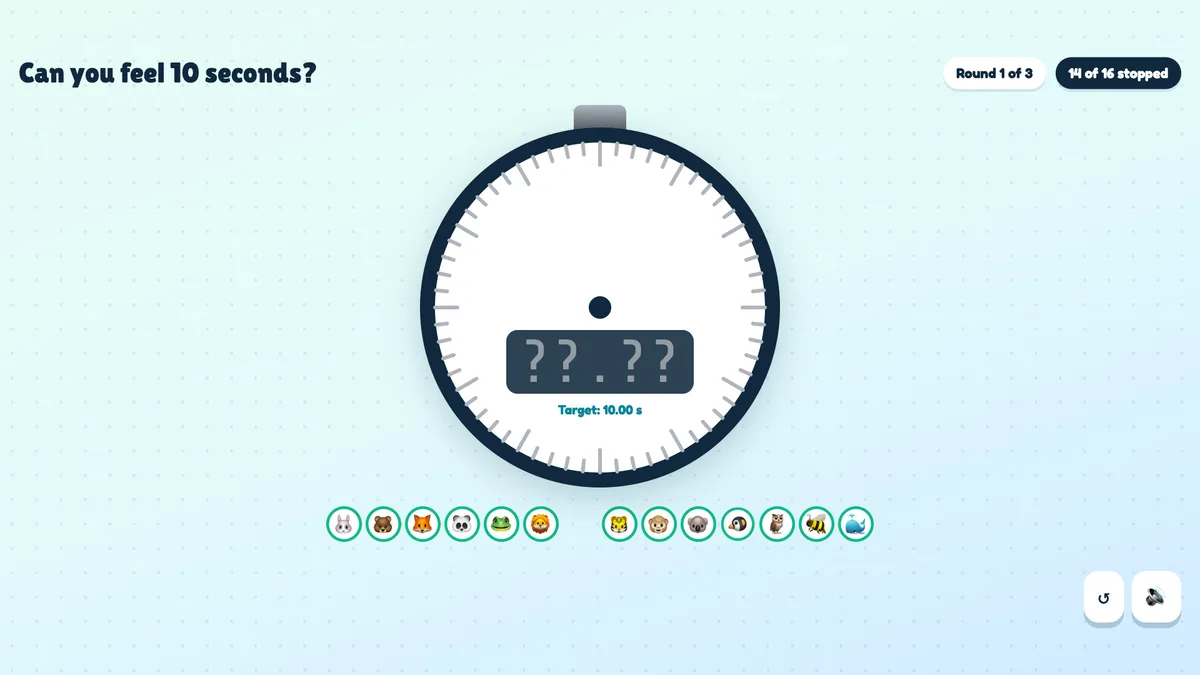
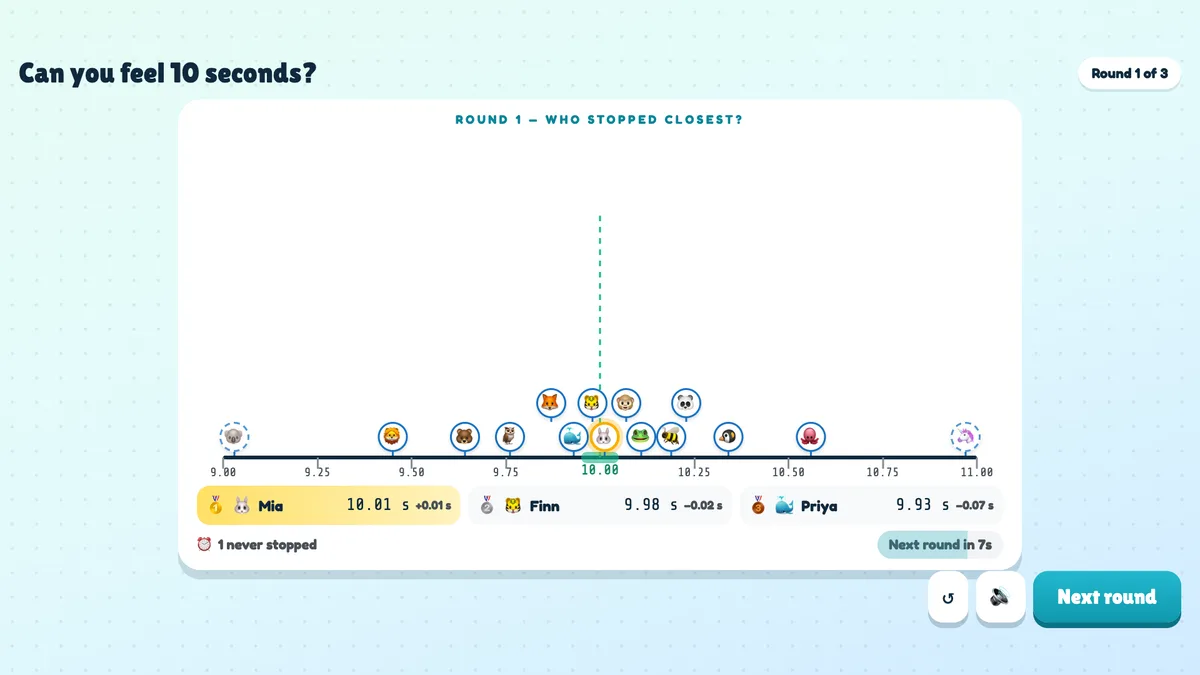
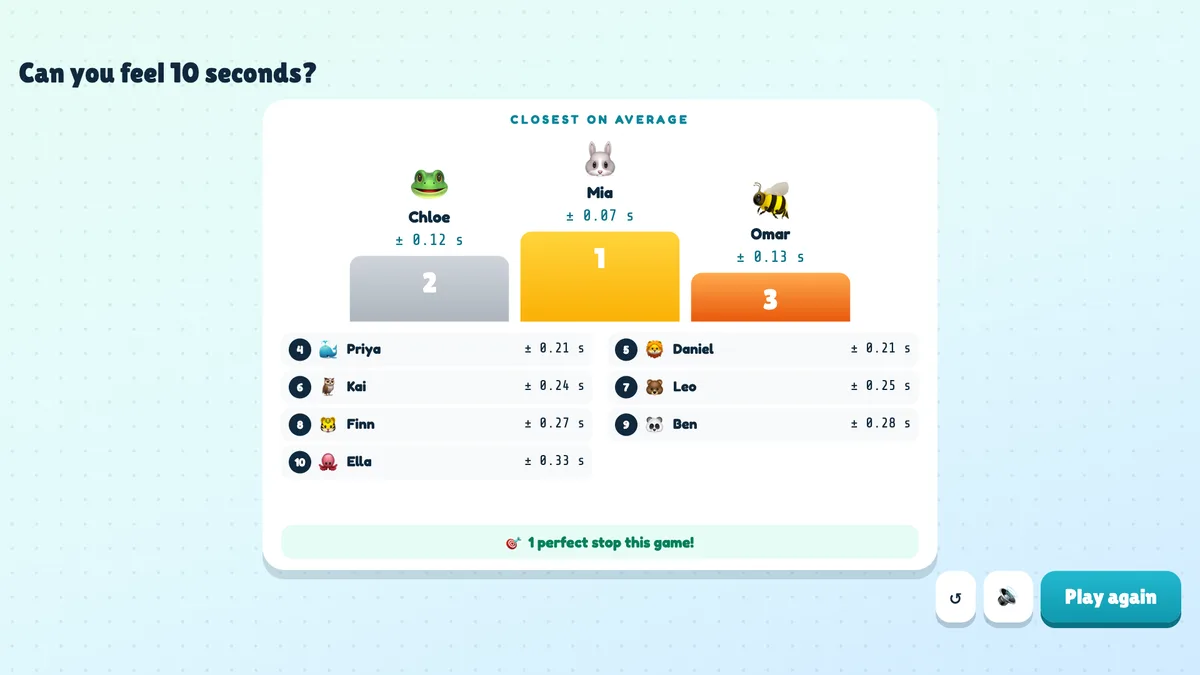
Before the first round the big screen shows the title, the rules, the target in big digits, the number of rounds, whether the clock hides and the avatars of everyone who joined. Press START: a big stopwatch counts down 3, 2, 1 and then runs in step with the phones — the hand sweeps and the blue ring fills towards the target — until it hides and shows ??.??. As players stop, their avatars pop up under the stopwatch (without their times) and a chip counts 14 of 16 stopped. The round closes as soon as everyone has stopped, or 5 seconds after the target. The reveal is a number line around the target: each player’s avatar drops onto the time they stopped at, the closest gets a gold ring and perfect stops a green one. Below it, the three closest stops with their times and misses, and how many never stopped. The next round starts by itself after 9 seconds, or press Next round. After the last round press See results for a podium of the smallest average misses, places 4 to 10 and the number of perfect stops. ↺ goes back to the start screen.
real screenshots
real screenshots
real screenshots
Ways to use Stop the Clock
- Energizer and icebreaker: one button, no knowledge needed, and everyone wants another round.
- Team building: play with a 20-second target and talk about how different people count time.
- Classroom: use it in a lesson about time, estimation or the brain — or just as a reward.
- Events: a quick game while people find their seats, with a prize for the perfect stop.
Frequently asked
Is it fair if some phones are on a slower connection?
Yes. Each phone starts its own clock when the round reaches it and measures the stop on the phone itself, so the time shown is exactly how long that player waited.
What is a perfect stop?
Stopping within 0.01 seconds of the target. It is shown as PERFECT! on the phone and in green on the number line.
What if a player never taps STOP?
They can stop until 5 seconds after the target. After that the phone shows Time’s up! and the round counts as a 5-second miss.
Can players stop twice?
No. The first tap on STOP counts for the round.
How is the winner decided?
By the smallest average miss (early or late) over the rounds each player played. If two players are equal, the better single stop wins.
What if I close or refresh the presenting window?
Everyone who joined shows up again straight away. If the slide is still open in another window, the game carries on: a reveal or the podium stays as it was, and a round that was still running starts again with a fresh 3-2-1. If it was the only window, the game goes back to the start screen.
Does it add points to the leaderboard slide?
No. Stop the Clock has its own results and does not change quiz scores.