🎮Quiz & Game Slides 5 min read
Type Answer
Players type a short answer instead of picking one — it is matched against your accepted answers and scored automatically.
What is Type Answer?
A Type Answer slide is a quiz question with no options to choose from: players type the answer themselves. That makes it a real test of recall — nobody can guess from a list. You enter the correct answer plus any other answers you will accept (spellings, short forms, synonyms), and each typed answer is checked automatically. Correct answers earn points, faster ones more. After the countdown the big screen shows a chart of the answers people typed, and you can mark any extra answer as correct on the spot. It works well for vocabulary, capital cities, definitions, formulas and names.

Presenter creates the slide Click Present Share code / QR Audience enters code Respond & submit Real-time results
Create a Type Answer slide
- 1On Home, click + Create new presentation (or add a slide to an existing one).
- 2In Choose Slide Type, pick Type Answer. You can also type it into Search slide types….
- 3The slide is created and the right panel opens on the Content tab.
Set up the content
- 1Type your question in Enter your question or title, for example What is the capital of Australia?. Optionally click Add description and Add Question Image (with an Image reveal if you like).
- 2Under Correct answers, type the main answer in Enter correct answer, for example Canberra. This is the answer shown on the big screen at the reveal.
- 3Click + Add more answer to add other answers you will accept, one per field — for example a common misspelling like canbera. Press Enter in the last field to add another; click × to remove one.
- 4Under Settings, set Seconds to answer and the points. Typing takes longer than tapping, so give players a little more time than for a multiple-choice question.
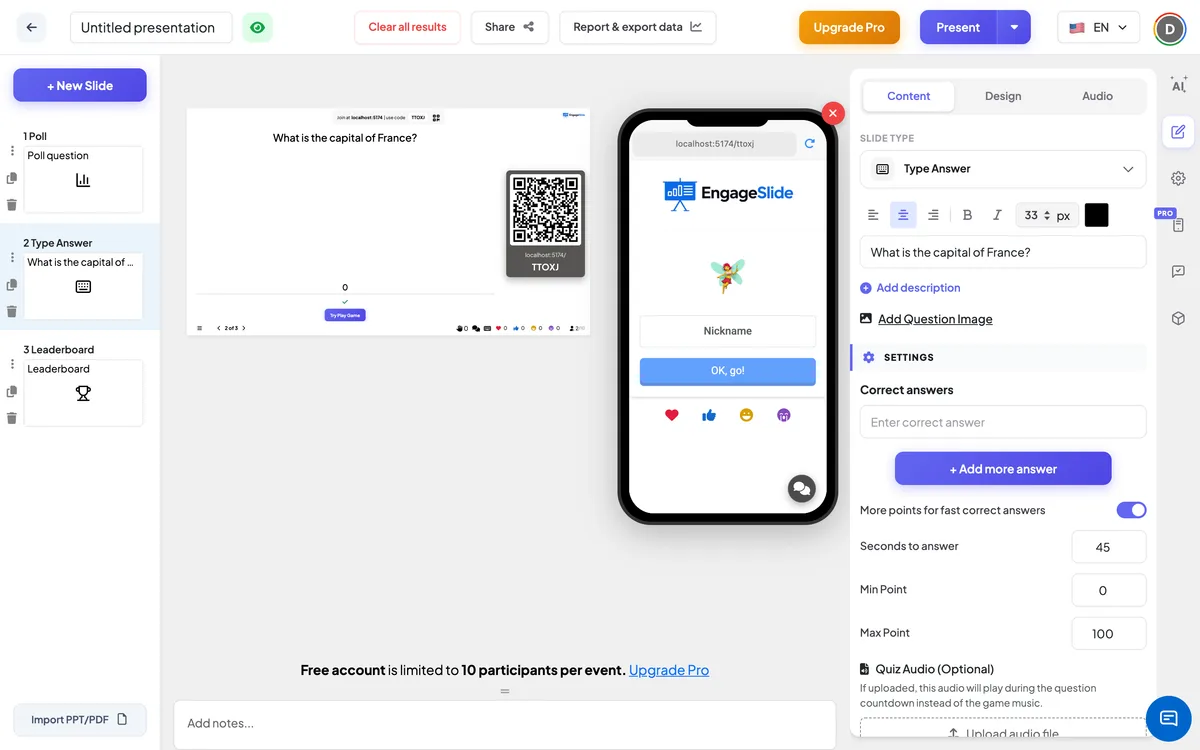
Type Answer settings
Correct answers
The main answer plus any number of extra accepted answers. A typed answer is correct when it matches one of them; capital letters in the main answer do not matter.
More points for fast correct answers
On by default. Faster correct answers score closer to Max Point; the slowest still get Min Point. Off: every correct answer gets the same points.
Seconds to answer
How long players have to type and submit (45 seconds on a new slide).
Min Point / Max Point
The points range for a correct answer — 0 and 100 on a new slide. With the speed bonus off there is a single Point field.
Quiz Audio (Optional)
Upload an audio file to play during the countdown instead of the game music.
Clear result this slide
Under Actions: deletes the answers to this question so you can play it again.
Present & share the join code
- 1Click Present in the top bar to put the slide on the big screen.
- 2A join code and a QR code appear (e.g.
36Y56). - 3Participants open the Audience app at join.engageslide.com, type the code and press Enter — or simply scan the QR.
- 4When everyone has joined, the responses start flowing in live.
How the audience responds
Players join with your code, pick an emoji and a Nickname, and wait in the lobby. When the question starts, the phone shows Question X of Y with the question for a 5-second countdown. Then a text box (Your answer…, up to 100 characters) and a Submit button appear under the question and the countdown. After submitting, the button reads Submitted and the phone says You have answered, please wait for the result. At the reveal players see a ✓ and the points they earned, or Oh sorry, you answered incorrectly. If you later accept their answer as correct, the result on their phone updates; they can also tap Refresh Result.
View results
Press Start Game in the lobby. After the 5-second intro, the big screen shows the question, the countdown and a ✋ counter of how many have answered — the answers themselves stay hidden while players type. End Quiz stops the countdown early. When time is up, a bar chart shows what people typed: the first bar adds up every correct answer under your main answer with a ✓, and each wrong answer gets its own bar with a ✗. With many different answers, the chart keeps the first six bars and groups the rest into Other answers. Click a bar to switch between counts and percentages. Click Accept More Answer to open Review Submitted Answers: every unique answer with how many people typed it and who they were. Switch on the toggle next to an answer to accept it — the points of everyone who typed it are recalculated and the answer is added to your accepted answers. Back to Chart returns to the chart.
Ideas for Type Answer questions
- Languages: Translate “thank you” into Spanish. — accept gracias.
- Geography: capital cities, rivers and countries from a flag image.
- Maths: What is 12 × 12? — players must work it out instead of picking from options.
- Training: What is the name of our ticketing tool? or Which team handles refunds?
Frequently asked
Does capitalisation matter?
No. Canberra, canberra and CANBERRA all count, for the main answer and for every extra accepted answer. Spaces at the start or end are ignored too.
What about spelling mistakes and extra spaces?
Apart from capital letters, the typed answer has to match one of your accepted answers exactly. Add the misspellings you expect as extra answers, or accept them afterwards with Accept More Answer.
Can I mark an answer correct after the question has ended?
Yes. Click Accept More Answer on the results and switch on the answer. The points of everyone who typed it are recalculated, and their phones update.
How are points calculated?
Like other quiz questions: a correct answer scores between Max Point (instant) and Min Point (last second) with the speed bonus on, or Max Point with it off. Wrong answers score 0.
Can players see each other’s answers?
Not while they type. The chart only appears on the big screen after the countdown ends.