🎮Quiz & Game Slides 6 min read
Vote · Discuss · Revote
Peer Instruction as a quiz: everyone votes alone, talks it over with a neighbour, then votes again for points — and you see how the room changed its mind.
What is Vote · Discuss · Revote?
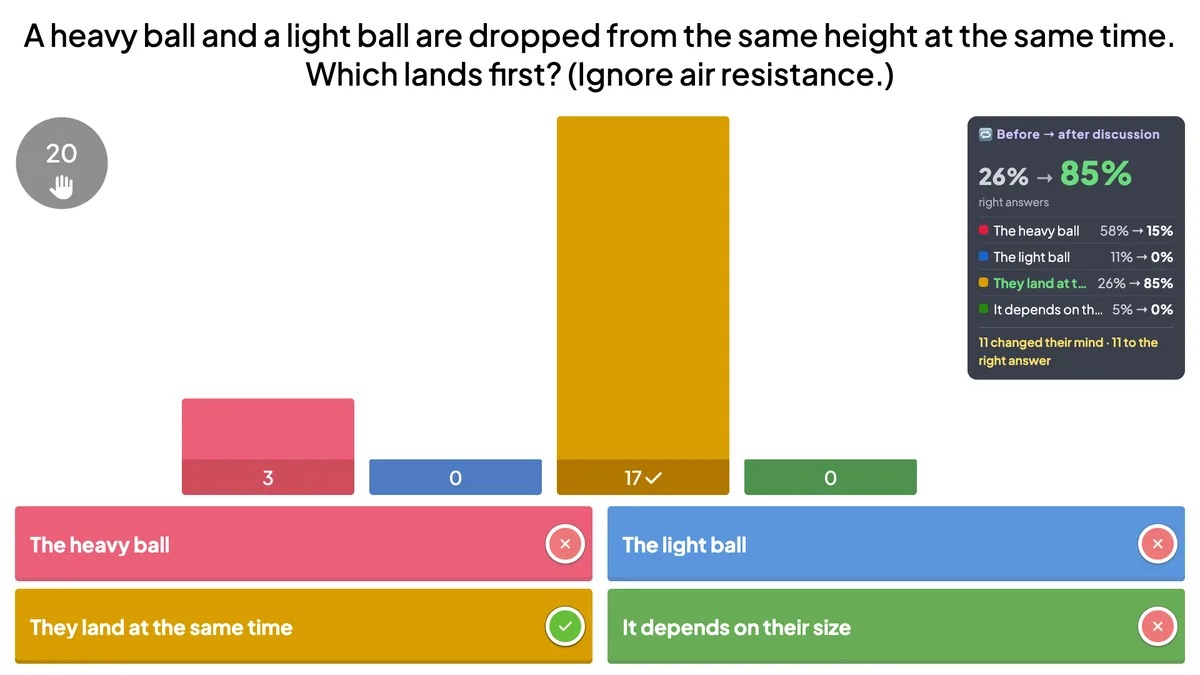
A Vote · Discuss · Revote slide turns one good multiple-choice question into a short lesson, based on Eric Mazur’s Peer Instruction. First everyone answers alone on their phone — no points, and nobody sees the results yet. Then you start a discussion: the screen tells the room to find someone who answered differently and convince them, optionally showing how the first vote split (without the right answer). Finally everyone votes again: this second vote is a normal quiz question that scores points by speed and adds them to the Leaderboard. The reveal shows the right answer and how the room moved, for example 26% right before the discussion → 85% after, and how many people changed their mind. It works best with conceptual questions that have a tempting wrong answer — a common misconception.

Presenter creates the slide Click Present Share code / QR Audience enters code Respond & submit Real-time results
Create a Vote · Discuss · Revote slide
- 1On Home, click + Create new presentation (or add a slide to an existing one).
- 2In Choose Slide Type, pick Vote · Discuss · Revote. You can also type it into Search slide types….
- 3The slide is created and the right panel opens on the Content tab.
Set up the content
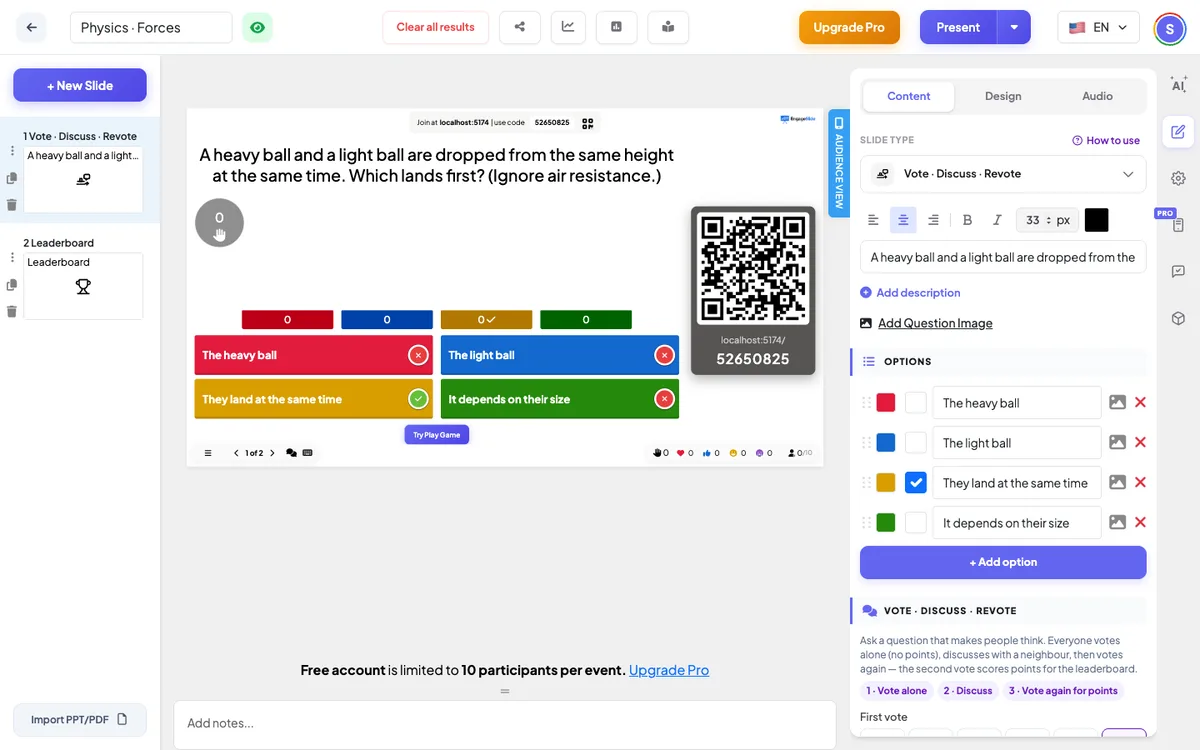
- 1A new slide starts with a classic example: A heavy ball and a light ball are dropped from the same height at the same time. Which lands first? with four answers and They land at the same time marked as right.
- 2Write your own question in the title field and edit the options like any quiz question: 2 to 6 answers, and tick the right one. Good questions test understanding, and their wrong answers are the mistakes people really make.
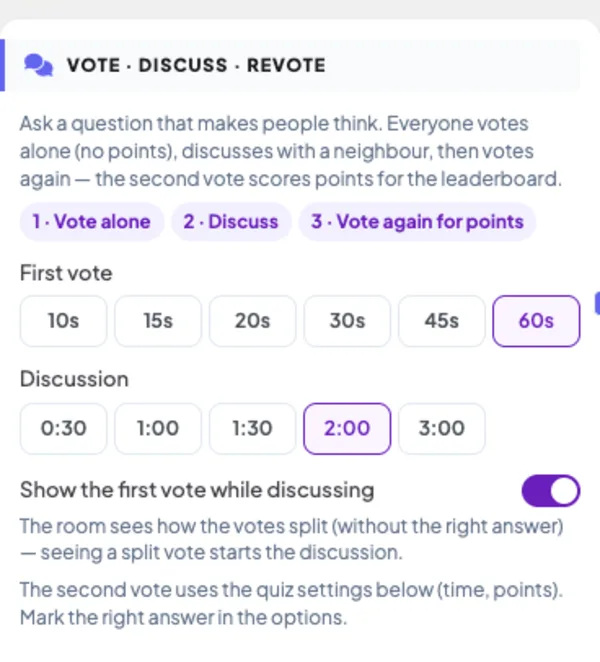
- 3In the Vote · Discuss · Revote block, choose how long the First vote lasts (10–60 seconds) and how long the Discussion lasts (30 seconds to 3 minutes).
- 4Choose whether to Show the first vote while discussing. On (default): the room sees how the votes split, without the right answer — a split vote is what starts a good discussion. Off: the split stays hidden until the end, so nobody just follows the majority.
- 5Under Settings, set the time and points for the second vote — it uses the normal quiz settings (Seconds to answer, Min / Max Point, More points for fast correct answers).
Vote · Discuss · Revote settings
First vote
10, 15, 20 (default), 30, 45 or 60 seconds. Players can change their answer until the vote closes. No points.
Discussion
30 seconds, 1, 1½ (default), 2 or 3 minutes. You can start the second vote earlier with Vote again.
Show the first vote while discussing
On (default): bars show the split of the first vote, without the right answer. Off: the split stays hidden.
Second vote
A normal quiz question: Seconds to answer, Min Point / Max Point and More points for fast correct answers apply. Its points go to the Leaderboard.
Present & share the join code
- 1Click Present in the top bar to put the slide on the big screen.
- 2A join code and a QR code appear (e.g.
36Y56). - 3Participants open the Audience app at join.engageslide.com, type the code and press Enter — or simply scan the QR.
- 4When everyone has joined, the responses start flowing in live.
How the audience responds
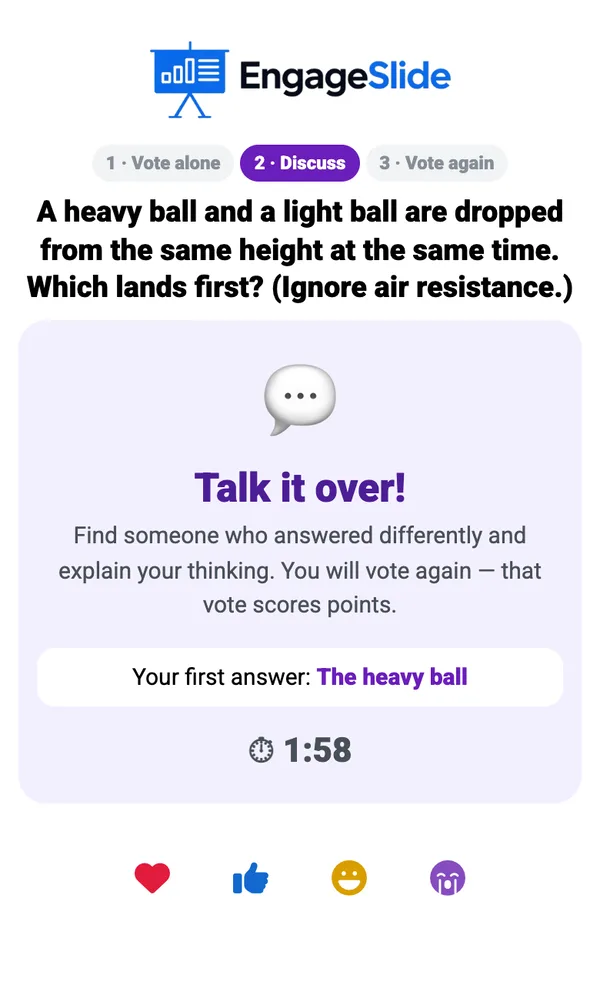
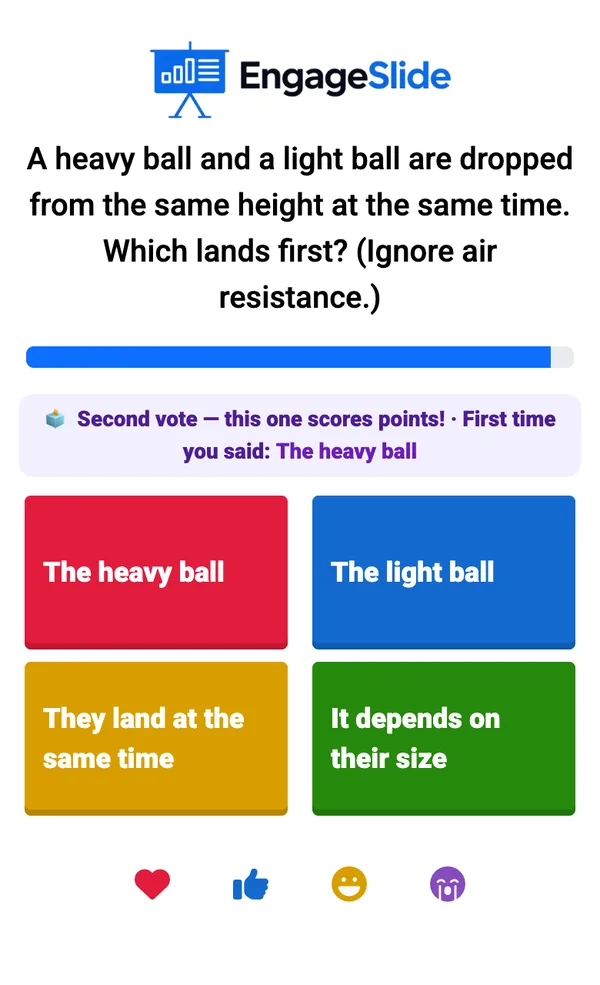
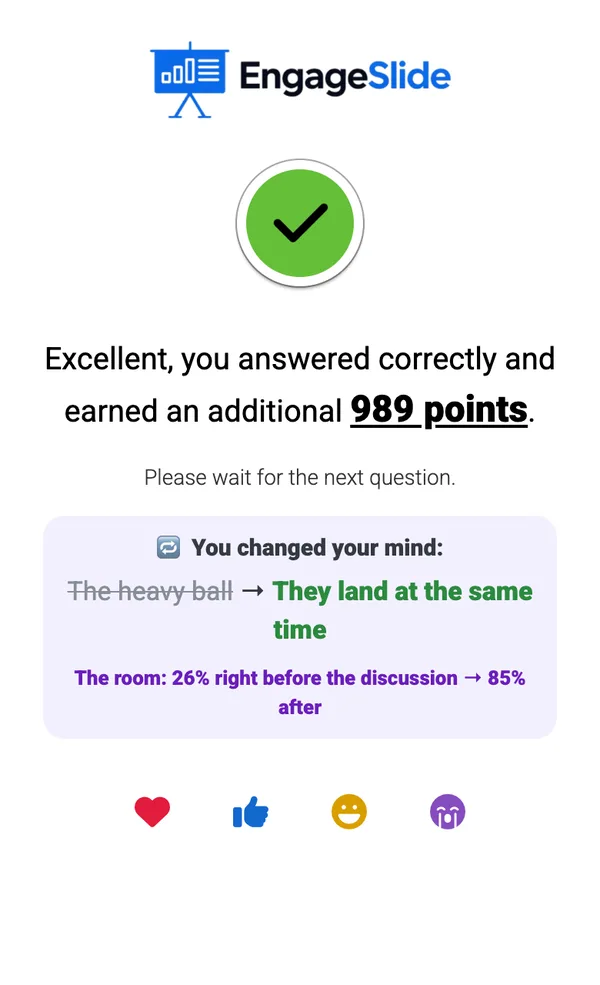
After Start Game, phones show 1 · Vote alone with the question and the answers: What do you think? This first vote gives no points. Players can tap another answer to change their mind until the vote closes. During the discussion the phone says Talk it over! and reminds each player of their first answer. Then the normal question appears with a banner — Second vote — this one scores points! First time you said: … After the reveal, the phone shows the usual result and points, plus You changed your mind: The light ball → They land at the same time (or You kept your first answer) and how the whole room moved.
View results
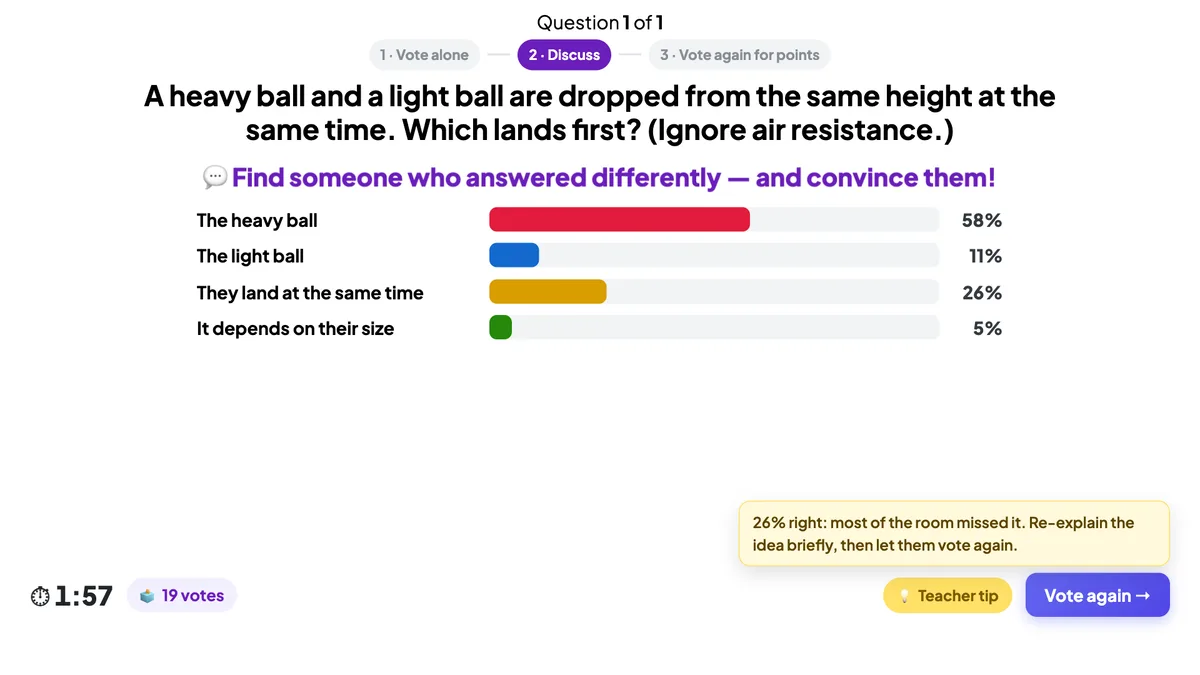
During the first vote the big screen shows the three steps, the question and the answers — with no counts and no right answer — plus a countdown and how many people have voted. Press Close vote & discuss (or wait for the timer) to start the discussion: Find someone who answered differently — and convince them!, the split bars if they are on, and a countdown. 💡 Teacher tip (only when you tap it) gives Mazur’s rule of thumb from the first vote: under 35% right — re-explain briefly; 35–80% — the best moment for discussion; over 80% — explain quickly and move on. Vote again starts the scored question, which works like Select Answer. At the end the chart shows the second vote with the right answer, and a Before → after discussion panel shows the share of right answers before and after, each answer’s change and how many players changed their mind — and to the right answer. The points appear on the next Leaderboard.
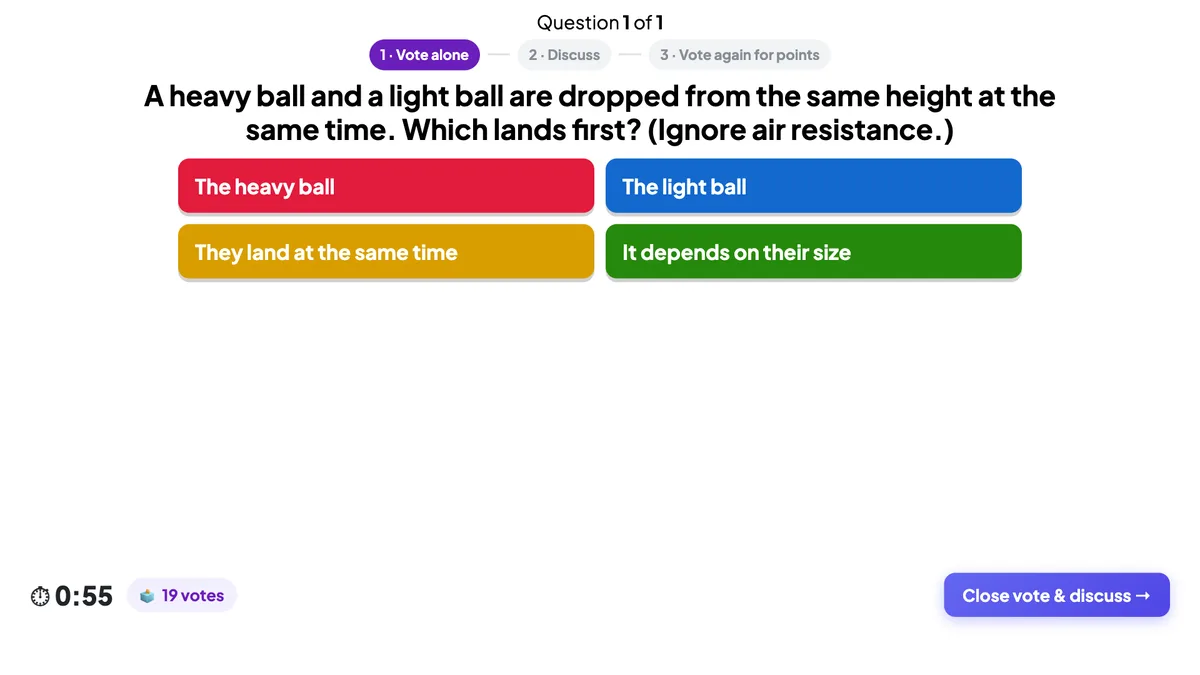
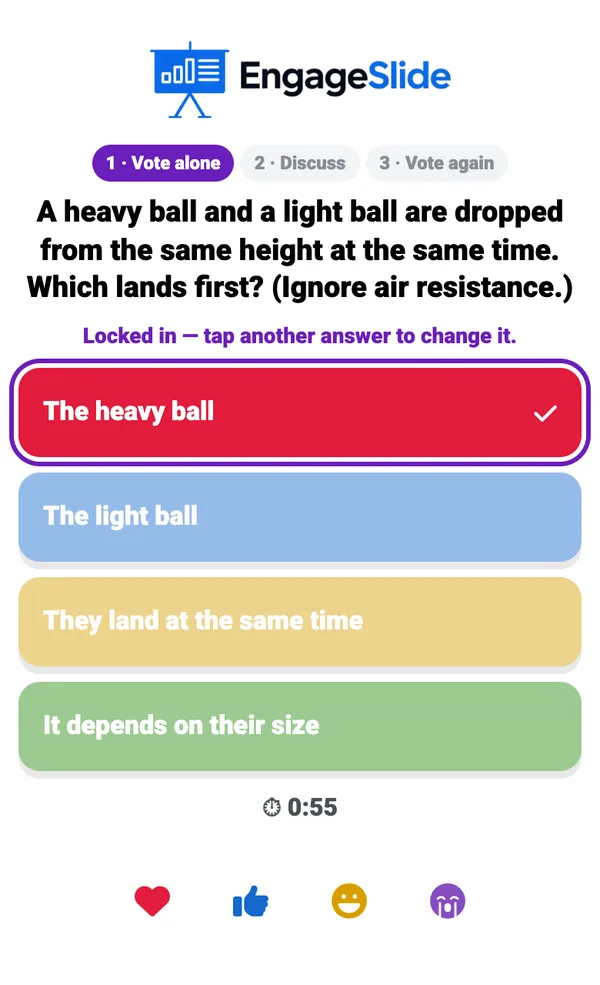
real screenshots
Question ideas
- Physics: Which falls faster? · Where is the force on a ball at the top of its flight?
- Maths: Is 0.999… equal to 1? · Which is bigger: 0.25 or 0.205?
- Biology: Where does most of a tree’s mass come from? (the air)
- Training: Which of these emails is phishing? · Which step comes first in our process?
Frequently asked
Does the first vote give points?
No. Only the second vote scores points and counts on the Leaderboard. The first vote is just thinking — that’s why people answer honestly.
Can players change their first answer?
Yes, until the first vote closes. During the discussion the vote is closed.
What if someone didn’t vote the first time?
Their phone asks them to listen in during the discussion, and they can still answer the second vote for points.
Should I show the split before the discussion?
Usually yes — seeing that the room disagrees is what makes people talk. Turn it off if one strong majority might just be copied.
Does it work in self-paced mode?
Self-paced players have no shared discussion moment, so in self-paced mode the question plays like a normal Select Answer question.
Where does the idea come from?
From Peer Instruction, developed by Eric Mazur at Harvard: a conceptual question, a vote, discussion between students, and a second vote — one of the best-studied active-learning methods.