🎛️Slide Settings 5 min read
Response settings: time limit, hide result, stop submission and more
Control how and when people answer polls, word clouds, open-ended questions and other interactive slides.

What they do
Interactive slides share a set of switches in the Settings block of the Content tab: give people a time limit, keep results hidden until you are ready, close the slide for new answers, allow several answers per person, or ask for a name with each answer. Which switches you see depends on the slide type (see Every setting below); options that only one slide type has are explained in that slide type’s article.
Step by step
- 1Select an interactive slide (for example a Poll) and stay on the Content tab.
- 2Scroll to Settings and turn on the switches you need. Changes save immediately — also while you are presenting.
- 3Present the slide. The big screen and the phones follow the settings live.
Every setting
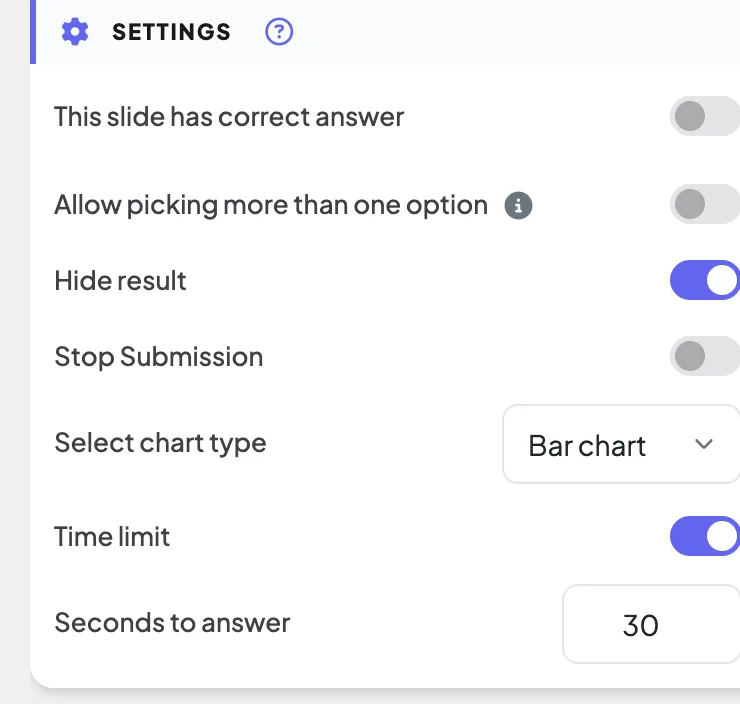
Time limit · Seconds to answer
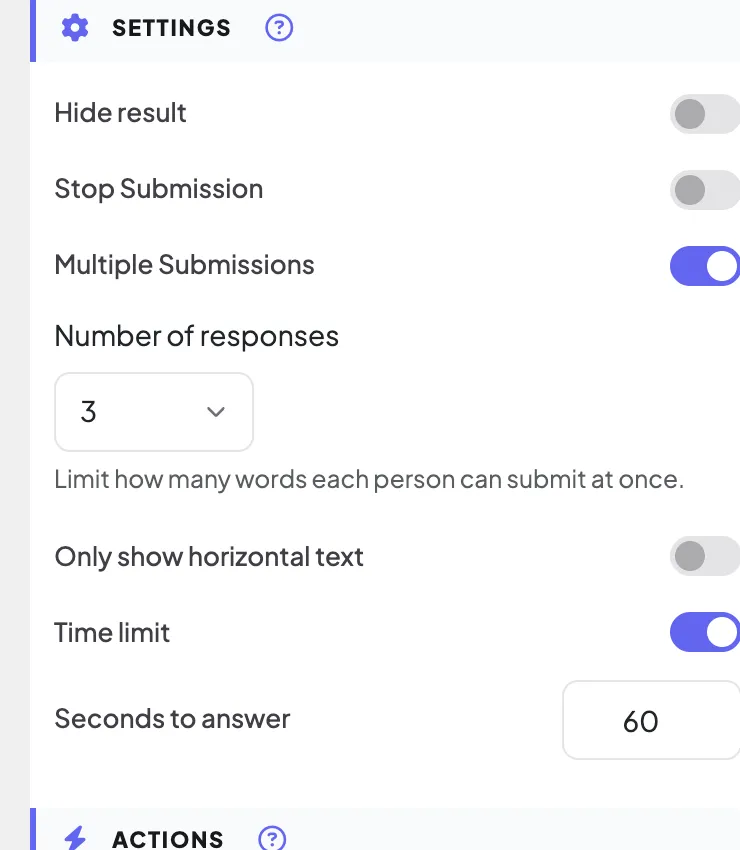
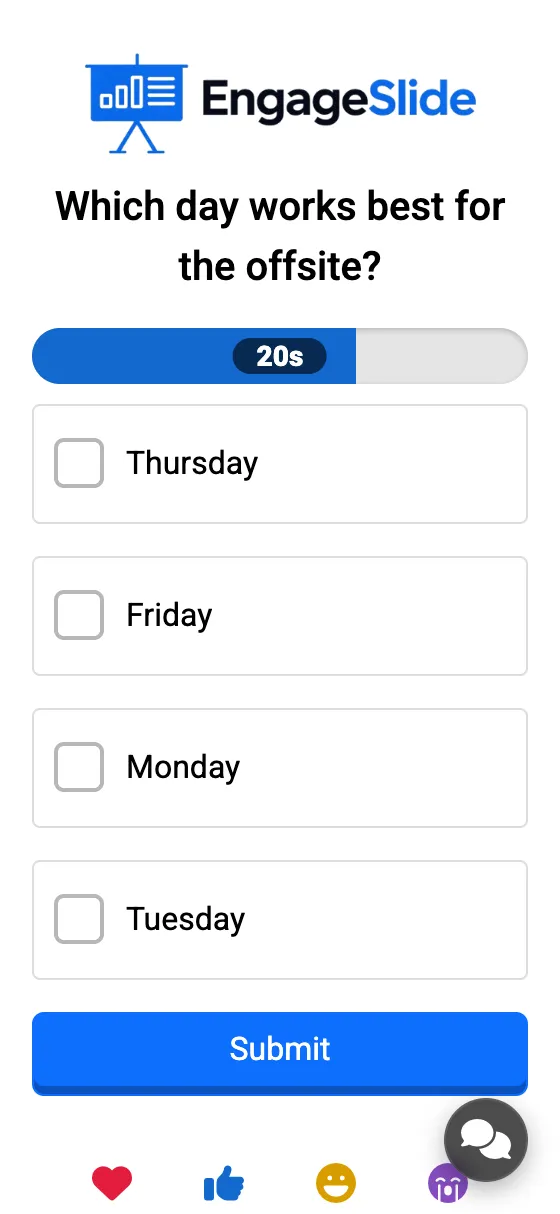
A countdown starts when you show the slide while presenting. Phones show a shrinking bar, the last 3 seconds count down big on screen, and at zero submissions stop automatically. Poll, Word Cloud, Open Ended, Pin on Image, Scale, Ranking, Whiteboard, Draw.
Hide result
Responses are collected but not shown on the big screen. Press Show result under the slide to reveal them. Phones are not affected. Poll, Word Cloud, Open Ended, Pin on Image, Scale, Ranking, 2×2 Grid, 100 Points.
Stop Submission
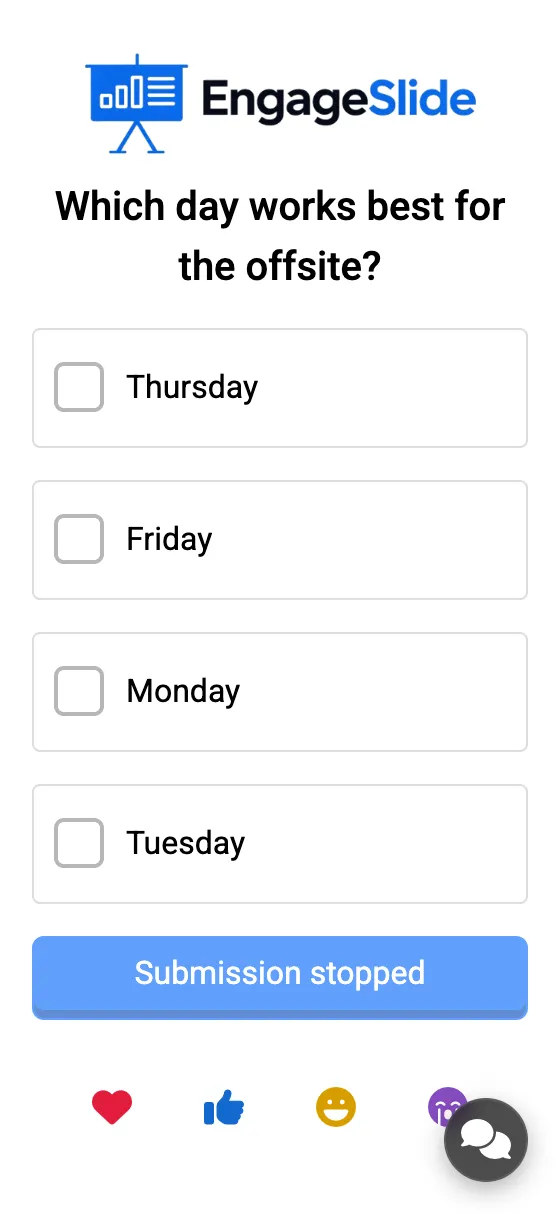
Closes the slide: phones show a disabled Submission stopped button. Press Enable Submission under the slide (or turn the switch off) to open it again. The slides above plus Whiteboard and Draw.
Multiple Submissions
On (the default): people can send more answers. Off: one submission per person — the button then says Submitted. Word Cloud, Open Ended.
Number of responses
How many words each person can type in one go (1–7 boxes on the phone). Word Cloud.
This slide has correct answer
Marks the correct options with ✓ and the others with ✗ on the results. Allow picking more than one option lets people tick several. Poll.
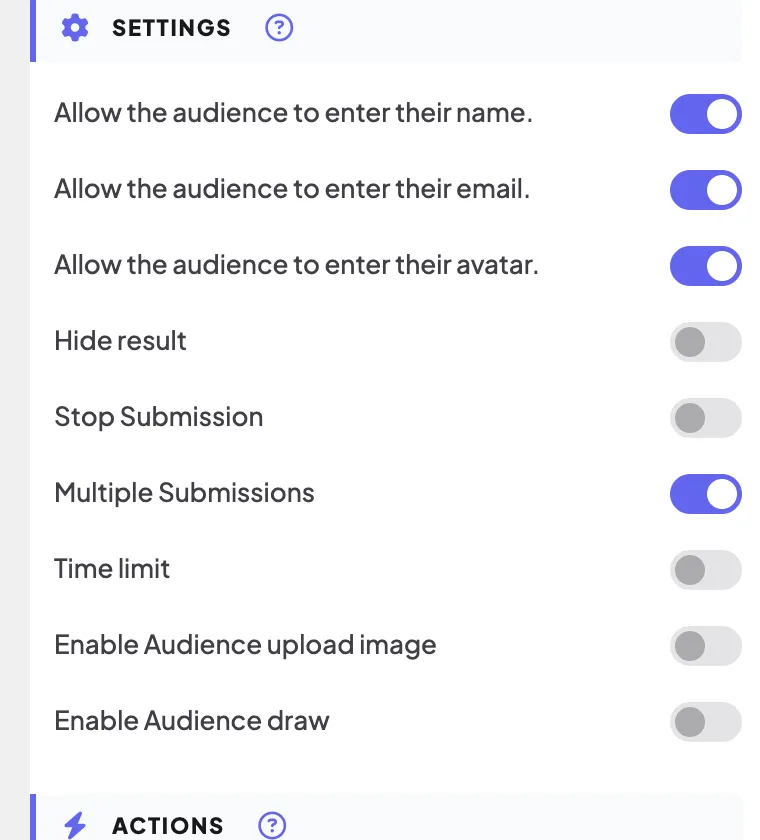
Allow the audience to enter their name / email / avatar
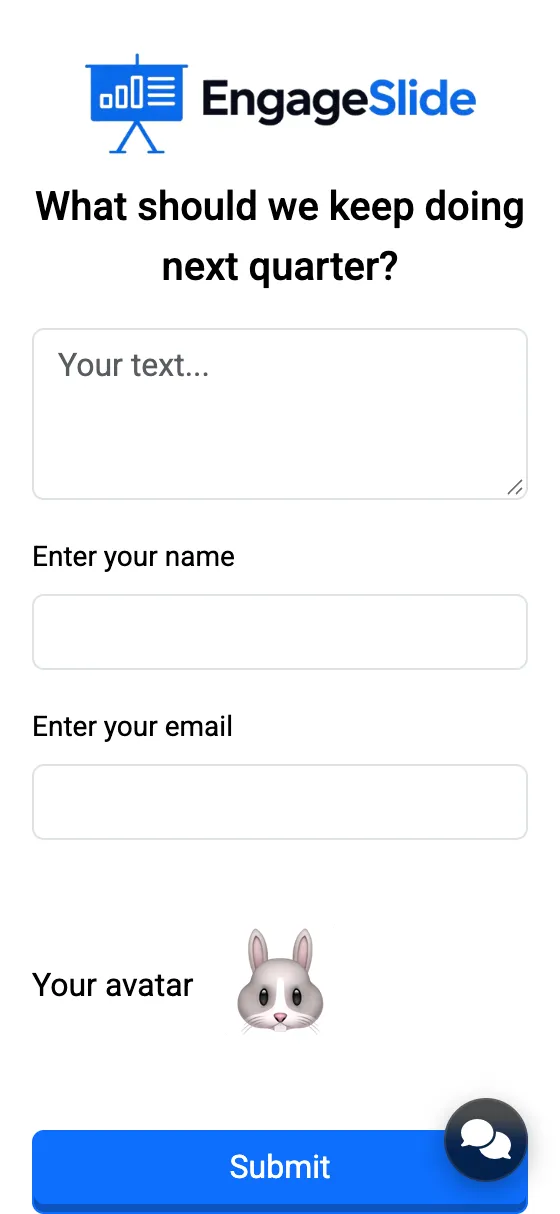
Adds optional Enter your name, Enter your email and Your avatar (emoji) fields under the answer box, so responses are not anonymous. Open Ended, 2×2 Grid, Whiteboard, Draw.
Time limit while presenting
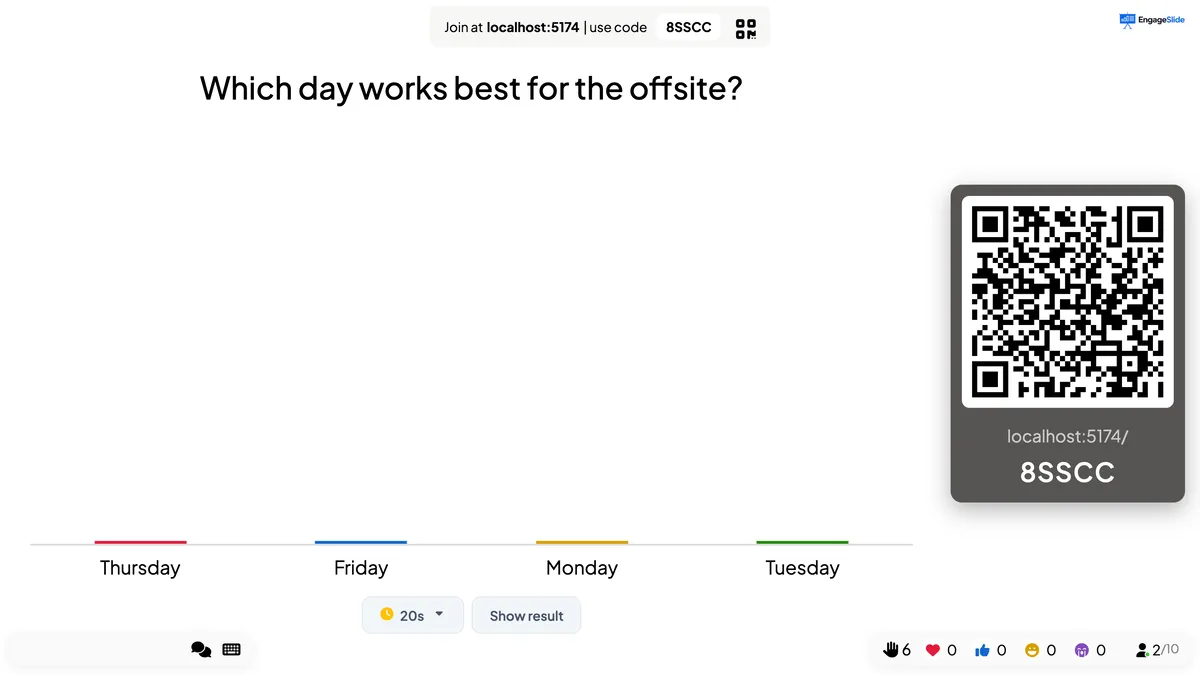
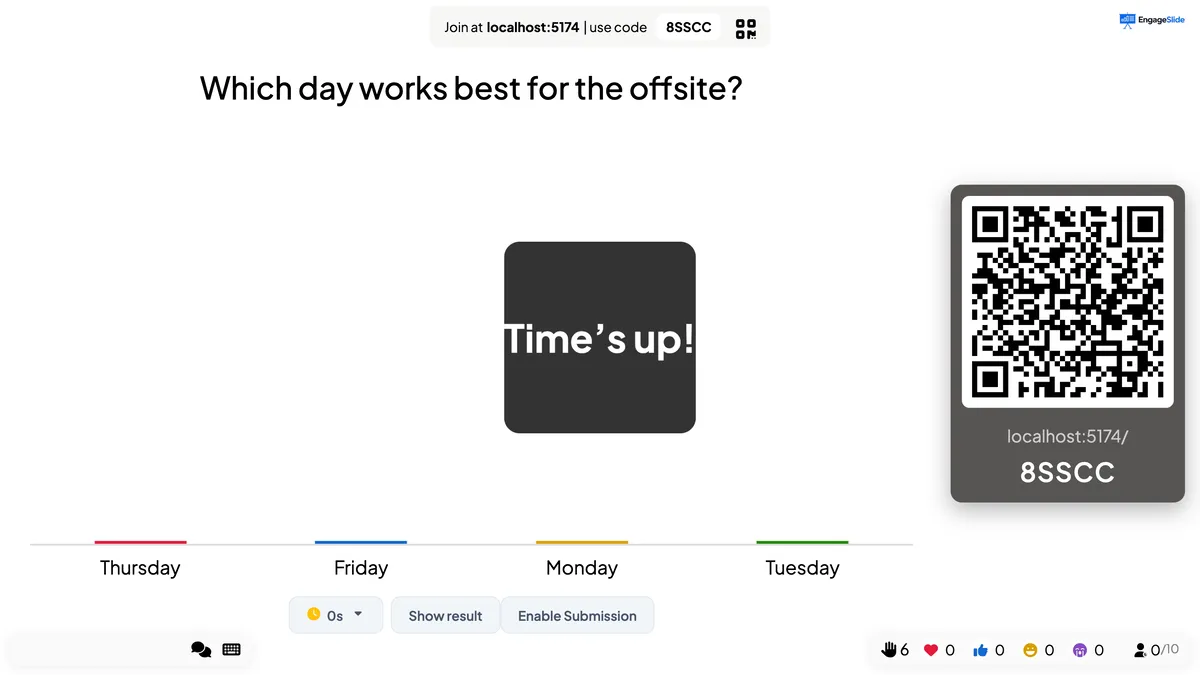
The timer starts — and the slide opens for answers — every time the slide comes on screen. A small timer under the slide shows the seconds left; click it to switch to 30s, 60s, 1′30, 2′, 3′, 4′ or 5′ on the spot. When it reaches zero you see Time’s up!, a sound plays and no more answers are accepted. Press Enable Submission to let late answers in.
real screenshots
Ask for a name with each answer
Open Ended, 2×2 Grid, Whiteboard and Draw are anonymous by default. Turn on the name, email and avatar switches and the phone shows those fields below the answer. They are optional for the participant; what they enter is shown with their response (for example the name and emoji on an Open Ended card). To make details required for the whole presentation, use Collect Audience Information instead.
real screenshots
Clear the results of one slide
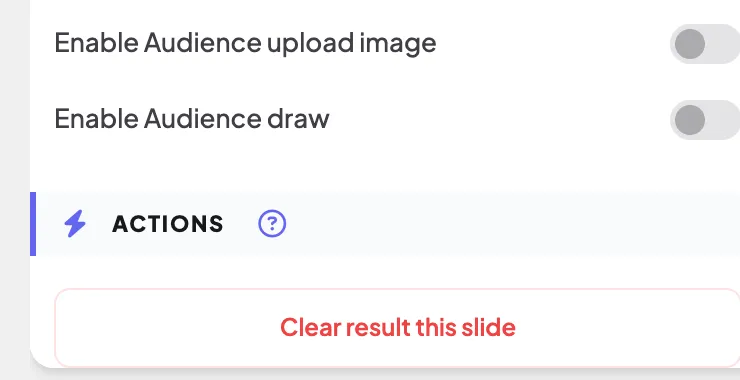
Under Actions, Clear result this slide deletes every response to the selected slide right away (there is no confirmation), so you can run it again with a new group. A quiz goes back to its lobby. While presenting, the same action is Reset slide result in the ☰ menu. To clear the whole presentation, use Clear all results in the top bar. The button is on every slide that collects answers, except the live game slides (such as Tug of War, Bingo or Hot Potato), which start a fresh round each time.
Frequently asked
Why don’t I see Time limit on my slide?
Only the slide types listed above have it. Quiz slides have their own Seconds to answer, and the 2×2 Grid and 100 Points slides have no timer.
Do hidden results still count?
Yes. Everything is saved; Hide result only changes what the big screen shows. Your report has all responses.
Does the timer restart if I go back to the slide?
Yes. Each time the slide comes on screen while presenting, the countdown starts again and the slide opens for answers.