🎛️Slide Settings 4 min read
Slide audio: background music and quiz music
Play music on one slide, pick the lobby and question music of a quiz, or upload your own track.
What it does
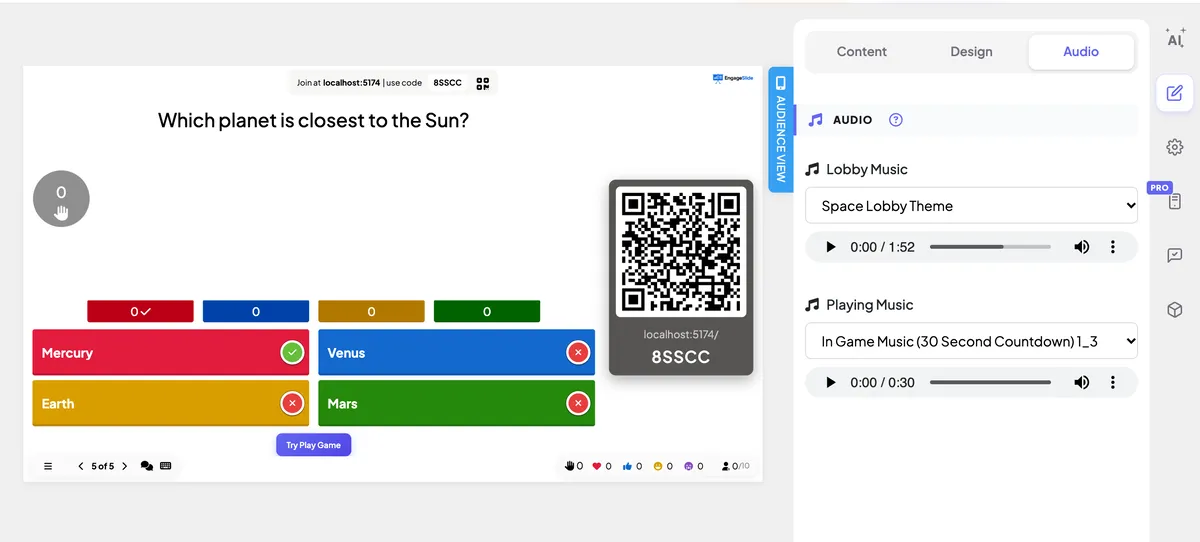
The Audio tab in the right column adds sound to the selected slide. What you see depends on the slide: most slides get Background music, while quiz slides get their own Lobby Music and Playing Music. For one track across the whole presentation, use the presentation background music instead.
Add music to a slide
- 1Select the slide and open the Audio tab in the right column.
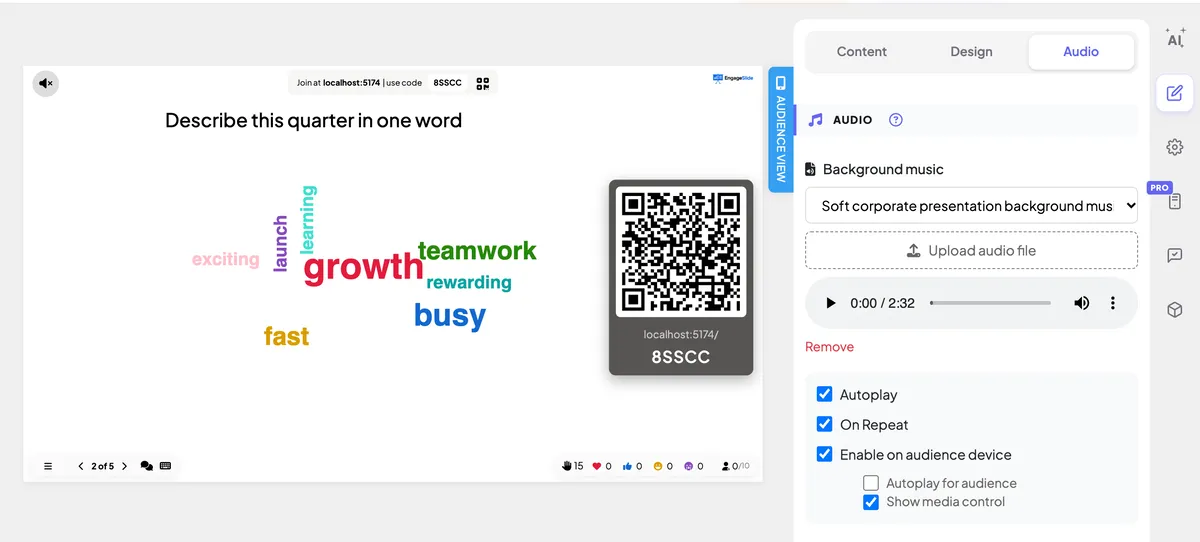
- 2Pick a track from Select audio, or press Upload audio file to use your own. Listen to it in the player; Remove takes it away.
- 3Tick Autoplay to start the music when the slide appears while presenting, and On Repeat to loop it.
- 4Tick Enable on audience device to play it on phones too.
Background music options
Select audio
Six ready-made tracks, from calm presentation music to quiz loops. An uploaded file appears in the list under its own name.
Upload audio file
Use your own audio file for this slide.
Autoplay
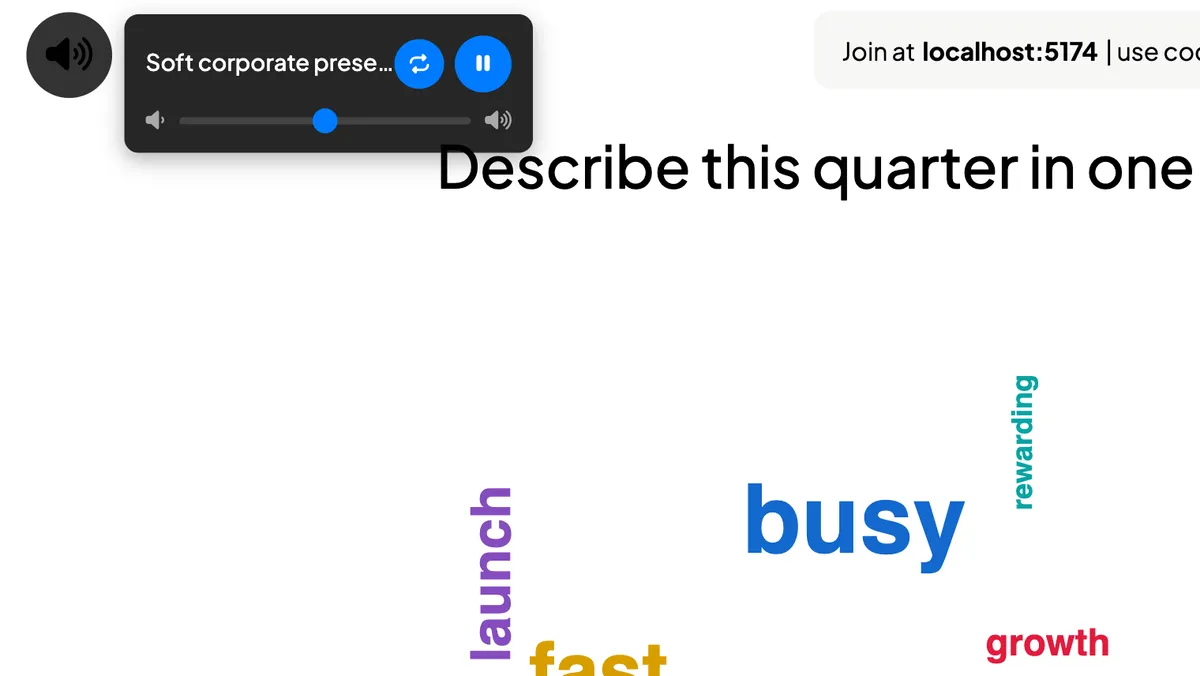
Starts the music as soon as the slide is shown while presenting. Off: start it yourself with the speaker icon.
On Repeat
Loops the track until you leave the slide.
Enable on audience device
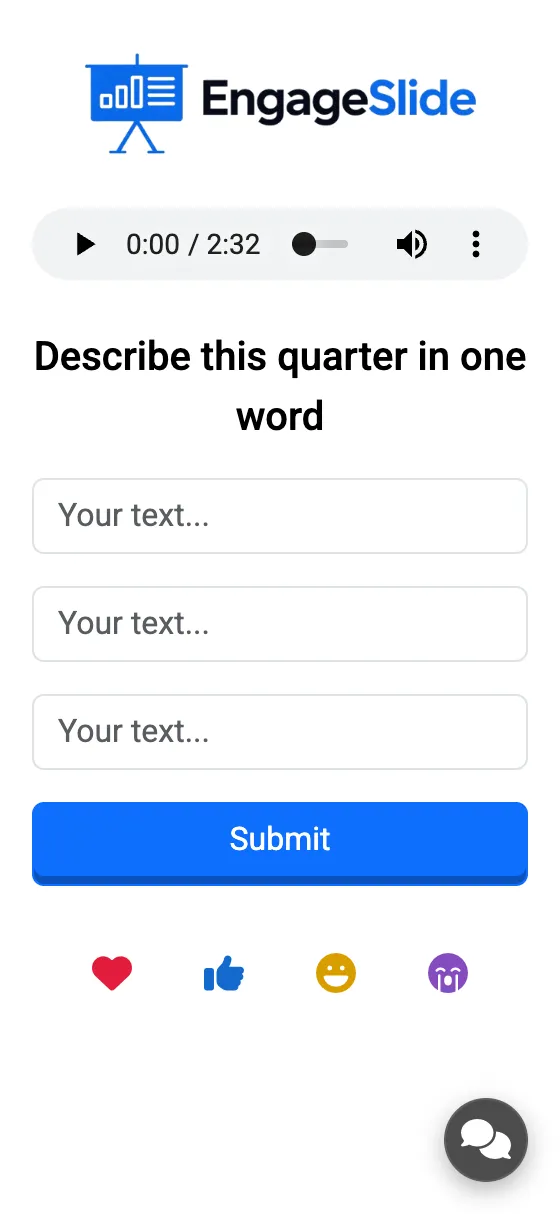
Also plays the track on participants’ phones, with two extra options: Autoplay for audience (start it on the phones automatically) and Show media control (show a player so people can pause it or change the volume).
real screenshots
Music for quiz slides
- 1Select a quiz slide and open Audio.
- 2Lobby Music — the track while players join and wait for the question. Choose from 21 themes (space, jungle, 80s, Halloween, Christmas…); the default is One Love.
- 3Playing Music — the track during the question countdown. Pick None for a silent countdown.
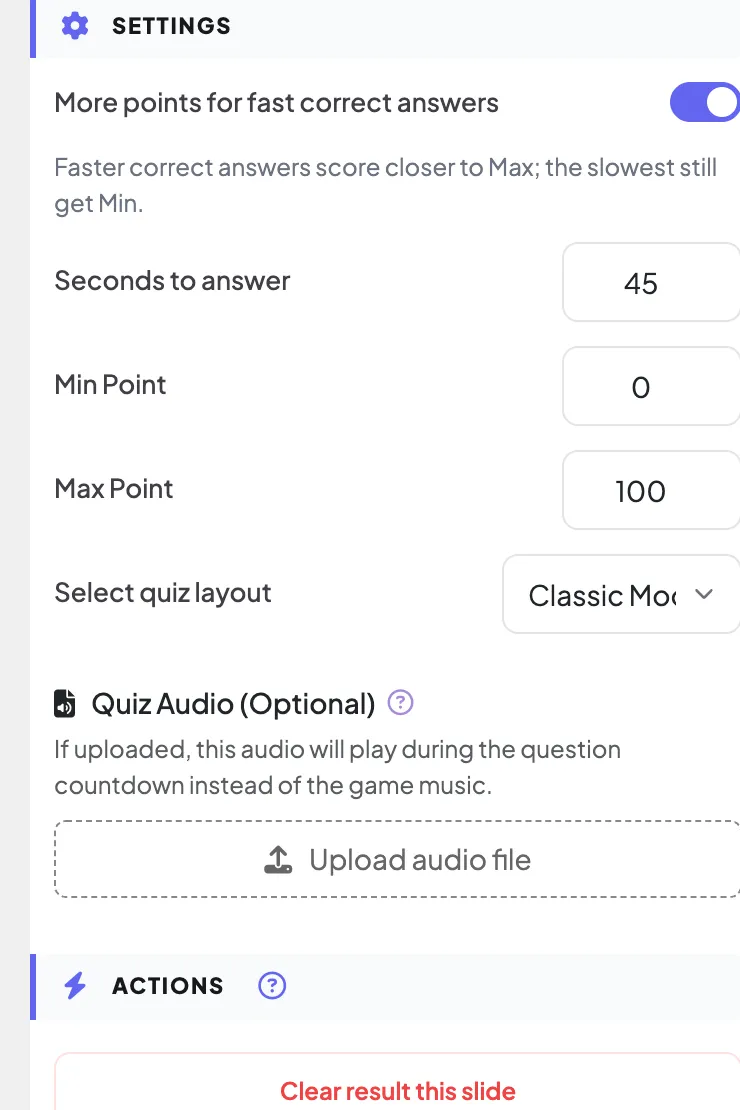
- 4Want your own countdown track? On the Content tab, under Settings, use Quiz Audio (Optional) → Upload audio file. It plays during the countdown instead of the Playing Music.
Good to know
- Presentation music comes first. If the presentation has background music in Presentation settings, it plays on every slide that is not a quiz, and the slide’s own music is not used. Remove the presentation music to give slides their own tracks.
- Quiz slides use only their lobby, playing and quiz audio — no background music plays on them.
- Mute the built-in sounds (lobby, countdown, podium and game sounds) with Enable audio effects in Presentation settings. Your own background music is not affected.
- Volume set with the speaker control is remembered for the presentation.
Frequently asked
Why doesn’t the music start on some phones?
Many phone browsers block sound until the person taps the page. When that happens the phone shows the player with a note so people can press play themselves.
Does the music play in the editor?
Autoplay only starts while presenting. In the editor, use the preview player in the Audio tab.
Does it play on the Remote Control?
No. Music plays on the presenting screen (and on phones if enabled), not on your remote.