🎛️Slide Settings 3 min read
Slide design: colours, font and background
Give any slide its own text colour, font, background colour or background image.

What it does
Every slide has a Design tab in the right column of the editor. Use it to change how that one slide looks — the text colour, the font, a background colour and a background image. The design shows on the big screen and on every phone, so the audience sees the same look. It works the same for every slide type.
Step by step
- 1Select the slide in the slide list and open the Design tab at the top of the right column.
- 2Pick a Text color and a Background color with the colour pickers.
- 3Click Change Font Slide to choose a font for this slide.
- 4Click Add background slide image to upload a picture, then drag Background visibility until the text is easy to read.
- 5Happy with it? Press Apply background and color to all slides to give every slide the same look.

Every option
Text color
The colour of the slide’s text. Pick one of the 16 swatches, drag the colour and opacity sliders, or type a HEX or RGBA value.
Change Font Slide
Search 1,000+ Google Fonts and click one. Default goes back to the presentation font. A slide font always wins over the presentation font.
Background color
The colour behind the slide (white by default). With a background image, this colour is laid over the image.
Add background slide image
Upload a picture to fill the slide. Remove takes it away again.
Background visibility
Only shown when the slide has a background image. 100% shows the image as it is; lower values cover it more with the background colour, which keeps light text readable on a busy photo.
Apply background and color to all slides
Copies this slide’s background image, background colour, visibility and text colour to every slide in the presentation. The font is not copied.
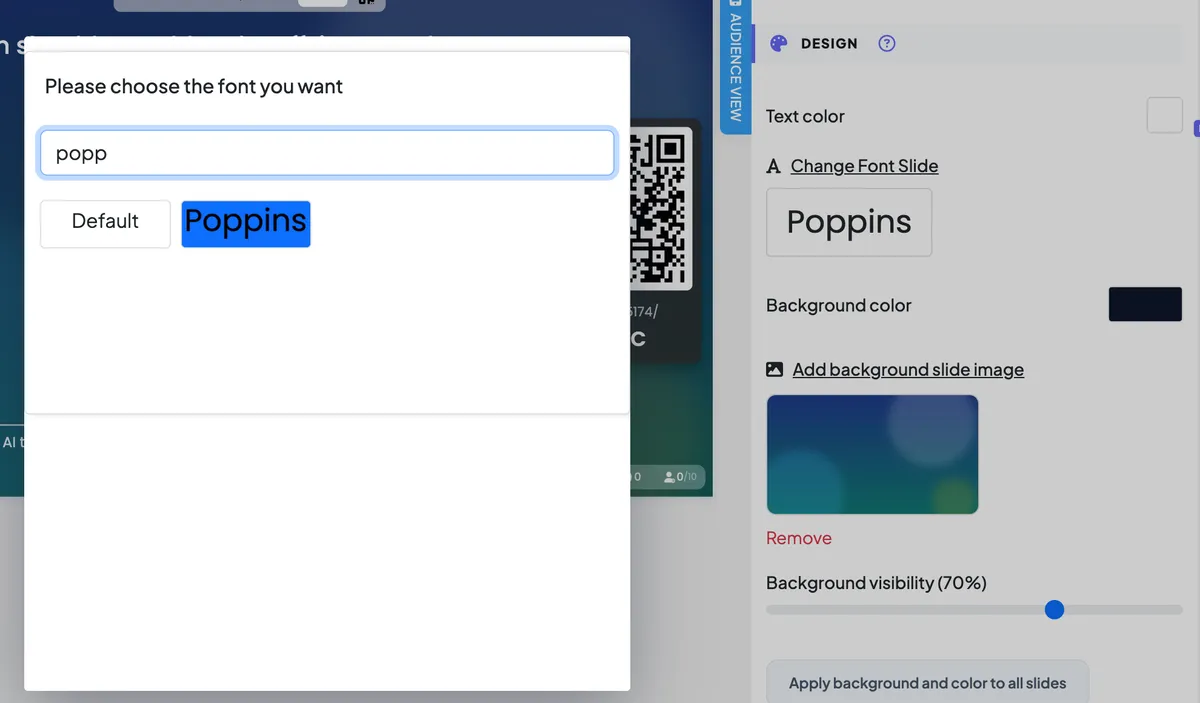

real screenshots

Tips
- Contrast first. Light text needs a dark background (and the other way round) — people at the back of the room must be able to read it.
- Busy photo? Lower Background visibility and use a dark background colour: the photo stays visible but calmer.
- Same look everywhere. Design one slide, then press Apply background and color to all slides. New slides you add later start with the default design, so press it again at the end.
- One font for the whole deck? Set it once in Presentation settings → Fonts and leave the slide font on Default.
Frequently asked
Does Apply to all slides ask before overwriting?
No. It replaces the background and text colour of every slide straight away, so design the slide you want to copy first.
Can I change the colour of answer bars or options?
Option colours are set per option on the slide’s Content tab, not on the Design tab.