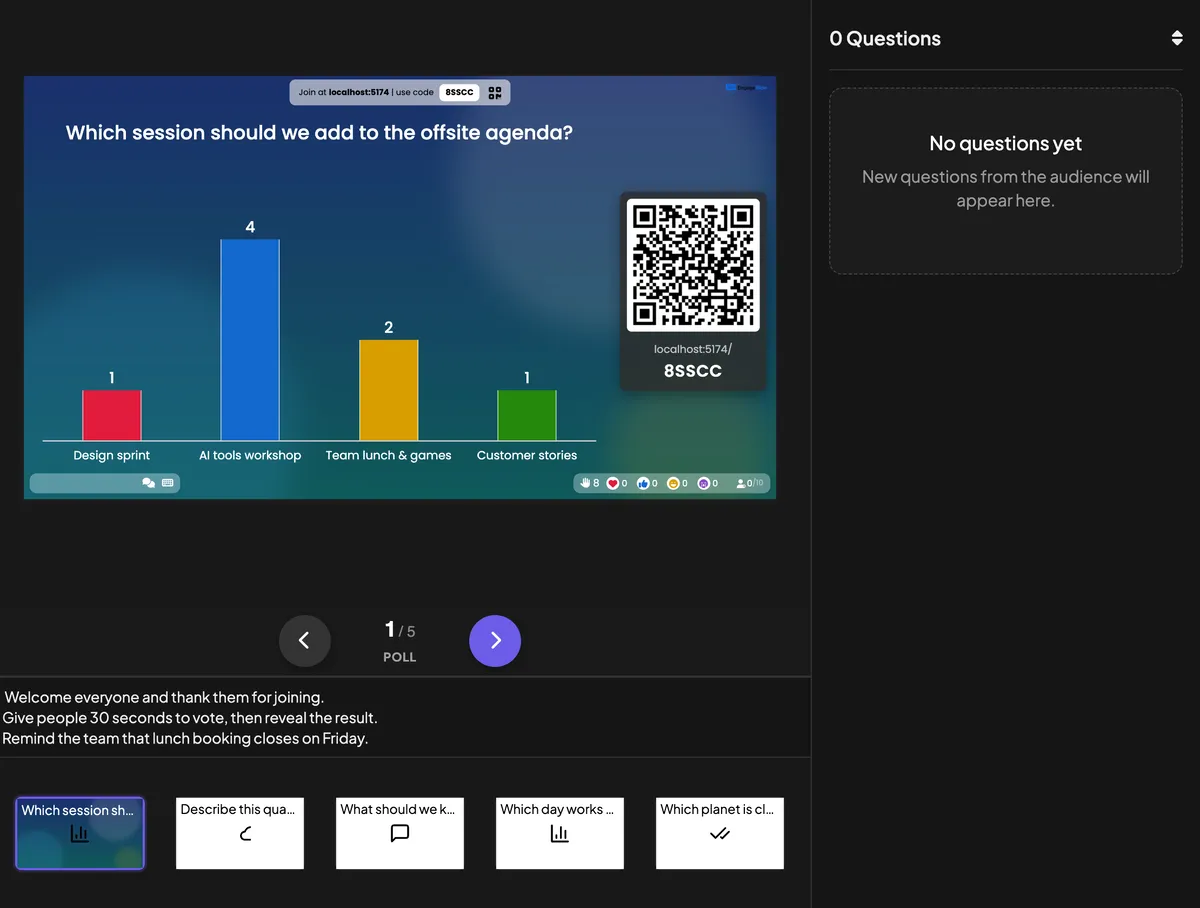
Every slide has a notes box under the slide in the editor. Write your talking points, a reminder or the answer to a tricky question there. Notes are private: they never appear on the big screen or on participants’ phones — you read them on the Remote Control.
Step by step
1
Select a slide and click the Add notes… box under the slide.
2
Type your notes. They save automatically.
3
Need more room? Drag the ≡ handle at the top of the box upwards — each slide remembers its own size.
4
Present with the Remote Control: the notes of the current slide are shown under the slide on your remote.
Notes under the slide in the editor — only you can see them.real screenshotThe Remote Control shows the notes of the slide you are on, under the slide controls.real screenshot
On a phone, the notes sit under the next/previous buttons
real screenshots
Tips
Keep them short. A few bullet-style lines are easier to glance at than a full script.
Plan the reveal. Note when to press Show result or stop submissions on each slide.
No notes yet? The remote shows No notes on this slide.